Folasaga
This user manual provides comprehensive instructions for the setup, operation, maintenance, and troubleshooting of your Alienware M15 Gaming Laptop. Please read this manual thoroughly to ensure optimal performance and longevity of your device. For additional support, refer to the official Alienware support resources.
Ua Umaview
Vaega Autu
- 8th Generation Intel Core i7-8750H (6-Core, 9MB Cache, up to 4.1GHz w/ Turbo Boost)
- 15.6" FHD (1920 x 1080) 60Hz Anti-glare IPS, 300-nits 72% Color gamut, narrow-border Display
- 16GB, 2x8GB, DDR4, 2666MHz RAM
- 128GB PCIe M.2 SSD + 1TB (+8GB SSHD) Hybrid Drive
- Nvidia GeForce GTX 1060 with 6GB GDDR5 Graphics Card
- Pupuni 10 Faiga Fa'atonu Fale
Vaega Fa'aletino

Ata 1: Luma view of the Alienware M15 laptop, showcasing the display with the Alienware logo.

Ata 2: I luga-lalo view of the open Alienware M15 laptop, highlighting the keyboard layout and touchpad.

Ata 3: Itu agavale view of the Alienware M15 laptop, showing various ports such as USB 3.0.
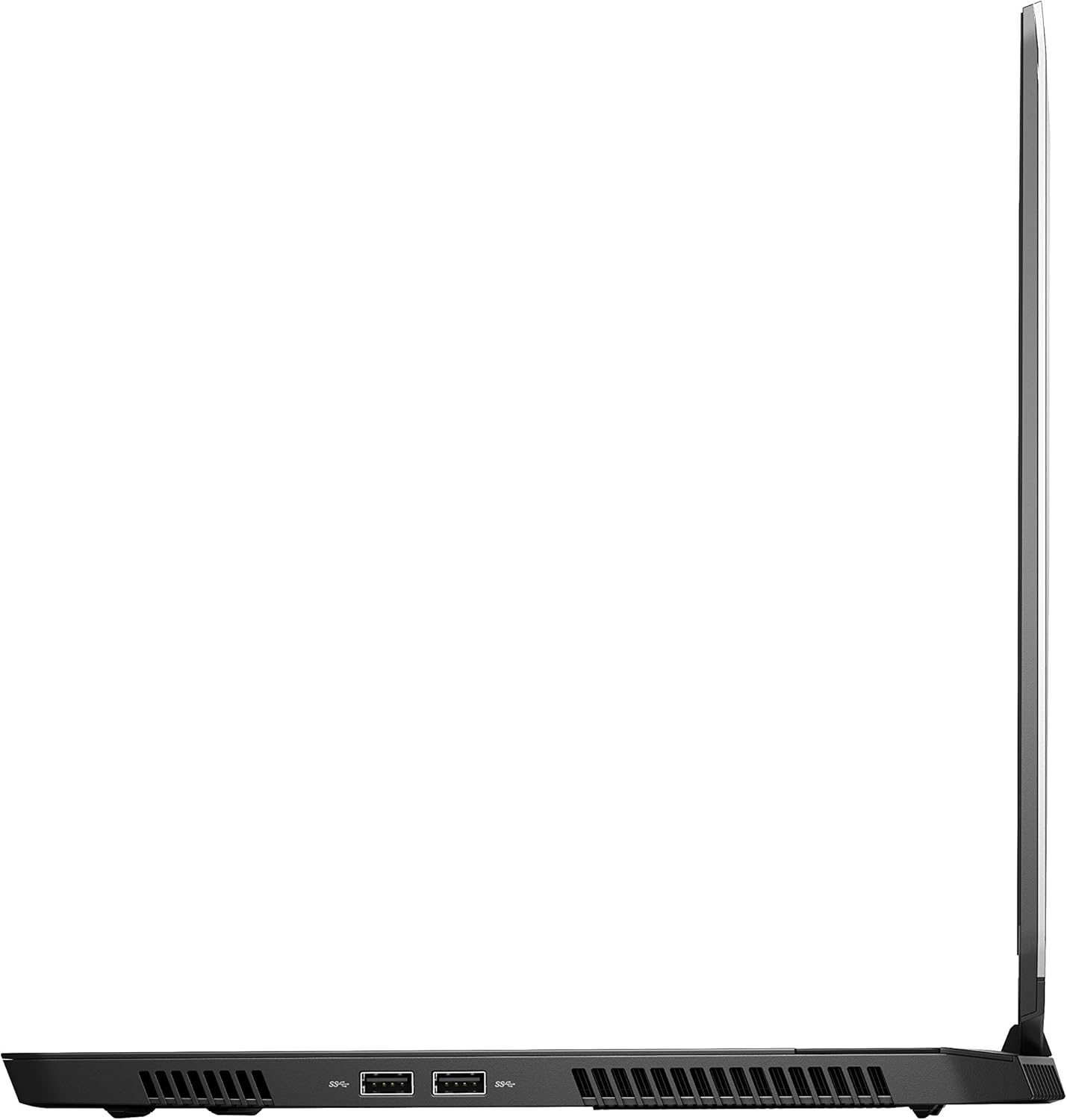
Ata 4: Itu taumatau view of the Alienware M15 laptop, displaying additional ports and ventilation.

Ata 5: Pa view illustrating the internal cooling system of the Alienware M15 laptop, including fans and heat sinks.
Seti
Tatalaina
Aveese ma le faaeteete vaega uma mai le afifiina. Ia mautinoa o loʻo iai mea nei:
- Alienware M15 Gaming Laptop
- Uaea Malosi
- 180W Mana Fetaui
Malosiaga Muamua
- Fa'afeso'ota'i le feso'ota'iga eletise i le fa'aoga eletise o le komepiuta feavea'i.
- Fa'afeso'ota'i le uaea eletise i se pa puipui.
- Open the laptop lid and press the power button, typically located on the top right of the keyboard deck or a dedicated button on the chassis.
- Mulimuli i faʻatonuga o loʻo i luga o le lau e faʻamaeʻa ai le faʻagasologa o le setiina o le Windows 10 Home, e aofia ai le filifilia o le gagana, fesoʻotaʻiga i le initaneti, ma le faia o se teugatupe a le tagata faʻaoga.
Fa'atonuga o Galuega
Galuega Fa'avae
Your Alienware M15 laptop runs on Windows 10 Home. Familiarize yourself with the operating system's interface. The keyboard features customizable backlighting via Alienware's software. The touchpad supports multi-touch gestures for navigation.
Taaloga Taaloga
The Alienware M15 is designed for high-performance gaming. For optimal gaming experience, ensure the laptop is connected to the power adapter. This allows the system to utilize its full power capabilities for the CPU and GPU. While gaming, the laptop may generate significant heat; this is normal for high-performance hardware. Consider using a cooling pad for extended gaming sessions to enhance thermal management.
Tausiga
Fa'amamaina
- Mata: Fa'aaoga teisi se ie vaivai e leai se liu oampfa'atumu ile vai po'o se fa'amama lau. Aloese mai vailaau malolosi.
- Keyboard ma Chassis: Use a soft brush or compressed air to remove dust from keys and vents. Wipe surfaces with a microfiber cloth.
- Taulaga: Use compressed air to clear dust from USB, HDMI, and other ports.
Fa'afouga polokalame
Regularly update your Windows operating system, graphics drivers (NVIDIA GeForce), and Alienware software. Updates often include performance improvements, security patches, and bug fixes. Access Windows updates through Settings > Update & Security. Graphics drivers can be updated via the NVIDIA GeForce Experience application.
Tausiga maa
To maximize battery lifespan, avoid consistently discharging the battery completely. For prolonged use while plugged in, consider using battery management features (if available in Alienware Command Center) to limit charging to 80-90% capacity.
Fa'afitauli
This section addresses common issues you might encounter with your Alienware M15 laptop.
| Fa'afitauli | Mafua'aga Mafai / Fofo |
|---|---|
| Laptop gets excessively hot during use. | High-performance components generate heat. Ensure ventilation vents are clear. Use a cooling pad. Update graphics drivers. |
| "No media present" error or SSD/HDD not detected. | This can sometimes be a temporary software glitch. Try restarting the laptop. If persistent, ensure the power cable is securely connected and try a hard reboot (unplug power, hold power button for 15 seconds, then reconnect and power on). If the issue persists, contact support. |
| Wi-Fi connection drops frequently. | Ensure Wi-Fi drivers are up to date. Check for interference from other devices. Restart your router and the laptop. If the issue persists, consider reinstalling Wi-Fi drivers or contacting support. |
| System performance is slow or lagging. | Ensure the laptop is plugged into power for full performance. Close unnecessary background applications. Check for malware. Ensure sufficient free space on the SSD/HDD. |
Fa'amatalaga
Detailed technical specifications for the Alienware M15 Gaming Laptop (Model: AWM15-7830SLV-PUS).
| Fa'aaliga | Fa'amatalaga |
|---|---|
| Tele fa'aali lau tutu | 15.6 Inisi |
| I'uga mata | 1920 x 1080 pika |
| Max I'uga Mata | 1920x1080 Pixels |
| Processor | 4.1 GHz core_i7_8750h |
| RAM | 16 GB DDR4 |
| Saosaoa o le Mafaufau | 2666 MHz |
| Malosi'a | 1000 GB 128GB PCIe M.2 SSD + 1TB (+8GB SSHD) Hybrid Drive |
| Ata fa'akomepiuta | NVIDIA GeForce GTX 1060 |
| Faailoga Chipset | NVIDIA |
| Fa'amatalaga Kata | Fa'apa'ia |
| Ata Fa'ata'ita'i Laoa Lamo | 6 GB |
| Ituaiga uaealesi | 802.11a/b/g/n |
| Numera o USB 3.0 Ports | 3 |
| Fa'ailoga | Alienware |
| Fa'asologa | AWm15-7830SLV-PUS |
| Numera fa'atusa mea | AWM15-7830SLV-PUS |
| Faiga Fa'atonu | Windows 10 Fale |
| Mea mamafa | 4.8 pauna |
| Fua o Mea | 10.8 x 14.3 x 0.8 inisi |
| Lanu | Lanu uliuli |
| Fa'ailoga Fa'atonu | Intel |
| Numera o Processors | 6 |
| Ituaiga Manatu komepiuta | DDR4 SDRAM |
| Tele o le Faamanatuga Flash | 16 |
| Fefa'ataua'iga ta'avale malo | Malo mautu |
| Saosaoa Taamilomilo Hard Drive | 5400 RPM |
| Ituaiga ta'avale mata | No Optical Drive |
| Voltage | 240 Volts |
| Ma'a | 1 Lithium Metal maa manaʻomia. (aofia ai) |
| Aso Muamua Maua | Ianuari 5, 2019 |
| Igoa Fa'ata'ita'iga | AWm15-7830SLV-PUS |
| Tele lau | 15.6 Inisi |
| Tele Tisiki Malosi | 1000 GB |
| Fa'ata'ita'iga PPU | Core i7 8750H |
| Ram Memory Fa'apipi'i Tele | 16 GB |
| Fa'apitoa Fa'apitoa | Ufiufi Anti Sila |
Fa'amaonia ma Lagolago
For detailed warranty information, please refer to the documentation included with your purchase or visit the official Alienware support website. For technical assistance, driver downloads, and further resources, please visit the Alienware support portal.
O lo'o avanoa fo'i se Tusita'iala mo Tagata Fa'aaoga (PDF) mo le la'uina mai: Download User Manual PDF


