1. Folasaga
This manual provides essential information for the safe and efficient operation of your Panasonic TH-55PX735DX 55-inch 4K Ultra HD Smart LED TV. Please read these instructions thoroughly before using the television and retain them for future reference.
The Panasonic TH-55PX735DX is a 55-inch 4K Ultra HD Smart LED TV designed to enhance your home entertainment experience. It features a bezel-less display and a High Bright Panel, delivering vibrant colors, deep contrast, and sharp detail. The television supports HDR10+ and Dolby Vision for optimized visuals and Dolby Atmos for immersive audio. It integrates smart TV functionalities with Google TV, offering access to various streaming applications and connectivity options including Bluetooth and Dual-Band WiFi.
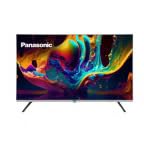
Ata 1.1: Luma view of the Panasonic TH-55PX735DX Smart LED TV. This image displays the television's bezel-less design and its screen displaying vibrant colors.
2. Fa'amatalaga Taua mo le Saogalemu
Ia usita'i i puipuiga saogalemu nei e puipuia ai le fa'aleagaina ma ia mautinoa le saogalemu o le fa'agaioiga:
- Punavai Malosi: Connect the TV only to an AC 230V, 50/60Hz power supply.
- Savili: Ia mautinoa ia lava le ea savili faataamilo i le TV. Aua le poloka avanoa e savili ai.
- Suavai ma Susū: Aua le tu'u le TV ile timu po'o le susu. Aua le tu'u mea e tumu i vai i luga o le TV.
- Fa'amamaina: Unplug the TV before cleaning. Use a soft, dry cloth. Avoid liquid cleaners.
- Tu'uga: Place the TV on a stable, level surface or mount it securely to a wall according to instructions.
- Au'aunaga: Aua le taumafai e fa'aleleia oe lava le TV. Fa'asino uma auaunaga i tagata tomai fa'apitoa.
3. O a mea oi totonu o le Pusa
Fa'amautinoa o lo'o aofia uma vaega nei i lau afifi:
- 1 LED TV (Panasonic TH-55PX735DX)
- 1 Table Top Stand
- 1 User Manual (le pepa lenei)
- 1 Pepa Fa'amaonia
- 1 Pulea Mamao
- 2 Ma'a AAA (mo le fa'atonu mamao)
4. Seti Taiala
4.1 Attaching the Table Top Stand
- Tuu ma le faaeteete le lau TV-i lalo i luga o se mea malu, mafolafola e puipuia ai le faaleagaina.
- Fa'atulaga le tulaga pito i luga o le laulau ma pu e fa'apipi'i ai i le pito i lalo o le TV.
- Fa'amautu le tulaga e fa'aaoga ai sikulima ua saunia. Ia mautinoa ua pipii mau le tulaga.
Alternatively, for wall mounting, consult a professional installer and refer to the wall mount kit's instructions.
4.2 Feso'ota'i Meafaigaluega i fafo
Your TV offers various connectivity options. Refer to the back panel for port locations.
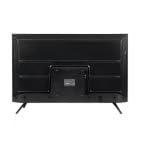
Ata 4.1: Tua view of the Panasonic TH-55PX735DX Smart LED TV, illustrating the location of various input and output ports.
- HDMI: Connect Blu-ray players, gaming consoles, or set-top boxes using HDMI cables. The TV supports multiple HDMI inputs.
- USB: Fa'afeso'ota'i masini e teu ai USB mo le toe fa'afo'i fa'asalalauga.
- Antenna/Uaea: Fa'afeso'ota'i lau antenna po'o le fafaga TV uaea.
- Malosiaga: Fa'afeso'ota'i le uaea eletise i le TV ona soso'o ai lea i se pa puipui.
4.3 Uluai Malosiaga ma Seti Fesootaiga
- Fa'afeso'ota'i le TV ile so'o eletise.
- Oomi le ki o le mana i luga o le masini mamao po o le TV.
- Follow the on-screen instructions to select your language, country, and perform initial channel scanning.
- Connect to your Wi-Fi network by selecting your network name and entering the password. The TV supports Dual-Band WiFi.
- Log in with your Google account to access Google TV features and apps.
5. Fa'agaoioi lau TV
5.1 Galuega Pulea Mamao
The included remote control provides intuitive navigation. Insert the two AAA batteries into the remote control, observing polarity.
- Ki Malosi: Ki pe tape le TV.
- Pad faatautaiga: Use the arrow keys to navigate menus and the OK button to confirm selections.
- Volume +/-: Fa'atonu le maualuga o le leo.
- Ala +/-: Suia ala TV.
- Ki Fale: Avanoa i le Google TV mata o le fale.
- Fa'amau fa'aofi: Selects input sources (HDMI, USB, etc.).
- App Buttons: Dedicated buttons for popular streaming services like Netflix, Prime Video, YouTube, and JioCinema.
5.2 Vaega o le TV Atamai (Google TV)
Your Panasonic TH-55PX735DX runs on Google TV, providing a personalized entertainment experience.
- Avanoa App: Download and stream content from a wide range of applications available on the Google Play Store.
- Pulea leo: Use the built-in Google Assistant (via remote control microphone) to search for content, control smart home devices, and get information.
- Fautuaga i totonu: Google TV learns your preferences and suggests movies, shows, and live TV from your subscriptions.
5.3 Fa'atulagaina o Ata ma leo
Fa'alelei lau viewle poto masani ile fa'alogo ile lisi o fa'atulagaga ole TV.
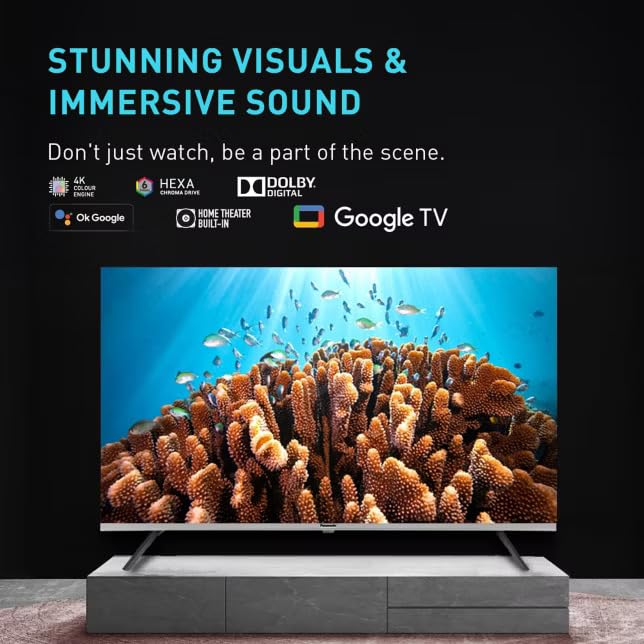
Image 5.1: The TV screen showcasing its capability for stunning visuals and immersive sound, highlighting features like 4K Hexa Chroma Drive, Dolby Digital, and Google TV integration.
- Faiga Ata: Select from various preset picture modes (e.g., Standard, Vivid, Cinema, Game) or customize settings like brightness, contrast, color, and sharpness. The TV features a High Bright Panel and supports HDR10+ and Dolby Vision for enhanced picture quality.
- Faiga leo: Choose sound modes (e.g., Standard, Music, Movie, Speech) or adjust equalizer settings. Experience immersive audio with Dolby Atmos support.
- Faiga ta'aloga: Activate Game Mode for reduced input lag, ideal for gaming.
5.4 Feso'ota'iga Bluetooth
Connect Bluetooth-enabled devices such as headphones or soundbars wirelessly to your TV.
- Go to the TV's settings menu.
- Navigate to 'Remotes & Accessories' or 'Bluetooth Settings'.
- Enable Bluetooth and put your device in pairing mode.
- Select your device from the list on the TV screen to pair.
6. Tausia ma Tausiga
- Fa'amama lau: Solo lemu le lau i se ie vaivai e leai se liu. Mo fa'ailoga ma'a'a, fai sina oampi totonu o le ie i le vai po'o se fa'amama fa'apitoa fa'amama (aua ne'i fa'asa sa'o i luga o le lau).
- Fa'amamaina o le Kapeneta: Solo le kapoti TV i se ie vaivai ma mago.
- Pefu: Ia pefu i taimi uma avanoa o le ea e puipuia ai le soona vevela.
- Uaea Malosi: Siaki fa'avaitaimi le uaea eletise mo so'o se fa'aletonu.
7. Faʻafitauli
Afai e te feagai ma faʻafitauli i lau TV, vaʻai i fofo masani nei:
| Fa'afitauli | Fofo e ono mafai |
|---|---|
| Leai se mana | Ensure the power cord is securely plugged into both the TV and the wall outlet. Check if the power outlet is working. |
| Leai se ata, ae o lo'o iai le leo | Siaki le puna o lo'o i totonu. Ia mautinoa o lo'o ola ma feso'ota'i lelei masini i fafo. |
| Leai se leo, ae o loʻo iai le ata | Check the volume level. Ensure mute is not activated. Verify audio cables for external devices. |
| E le o galue le pule mamao | Replace the AAA batteries. Ensure there are no obstructions between the remote and the TV. |
| Le mafai ona feso'ota'i ile Wi-Fi | Ensure your router is on and within range. Re-enter the Wi-Fi password. Restart the TV and router. |
| E le o utaina polokalama Smart TV | Check your internet connection. Clear the app's cache or reinstall the app. Update the TV's software. |
8. Fa'amatalaga Fa'apitoa
| Fa'aaliga | Fa'amatalaga |
|---|---|
| Fa'ailoga | Panasonic |
| Fa'ata'ita'iga | TH-55PX735DX |
| Tele lau | 55 Inisi (139 Sinimita) |
| Fa'aaliga Tekonolosi | LED, IPS Panel |
| I'ugafono | 4K Ultra HD (3840 x 2160 Pika) |
| Fua Fa'afouina | 60 Hz |
| HDR Lagolago | Dolby Vision, HDR10+ |
| Tekinolosi leo | Dolby Atmos, Built-In Speaker |
| Faiga Fa'atonu | Google TV |
| Mafai e teu ai le manatua | 16 GB |
| Feso'ota'i | Bluetooth, HDMI, USB, Wi-Fi (Dual-Band) |
| Fa'apitoa Fa'apitoa | Bezel-Less Design, High Bright Panel, Game Mode, Micro Dimming, ALLM |
| Fua o Mea (LxWxH) | 123.6 x 6.8 x 71.8 cm |
| Mea mamafa | 20 kilokalama |
| Voltage | 230 Volts |
| Uatage | 150 Watts |
| Tausaga Fa'ata'ita'i | 2025 |
9. Fa'amaonia ma Lagolago
9.1 Fa'amatalaga Fa'amaonia
Your Panasonic TH-55PX735DX Smart LED TV comes with a 1 Year Warranty Care from the date of purchase. Please refer to the included Warranty Card for detailed terms and conditions, including coverage and exclusions.
9.2 Fesoasoani mo Tagata Fa'atau
For technical assistance, service requests, or warranty claims, please contact Panasonic customer support. Contact details can be found on the Panasonic official webnofoaga po'o lau pepa fa'amaonia.
Tufuga: Panasonic Life Solutions Initia Private Limited


