Folasaga
This manual provides comprehensive instructions for the installation, operation, and maintenance of your REOLINK Argus Series B430-B Battery-WiFi Camera. Please read this manual carefully before using the product to ensure proper functionality and safety.
O a mea i totonu o le Pusa
- REOLINK Argus Series B430-B Camera
- Mounting Kit (screws, wall anchors)
- USB Totogi Uaea
- Taiala vave amata
Ua Umaview
Familiarize yourself with the camera's components and design.
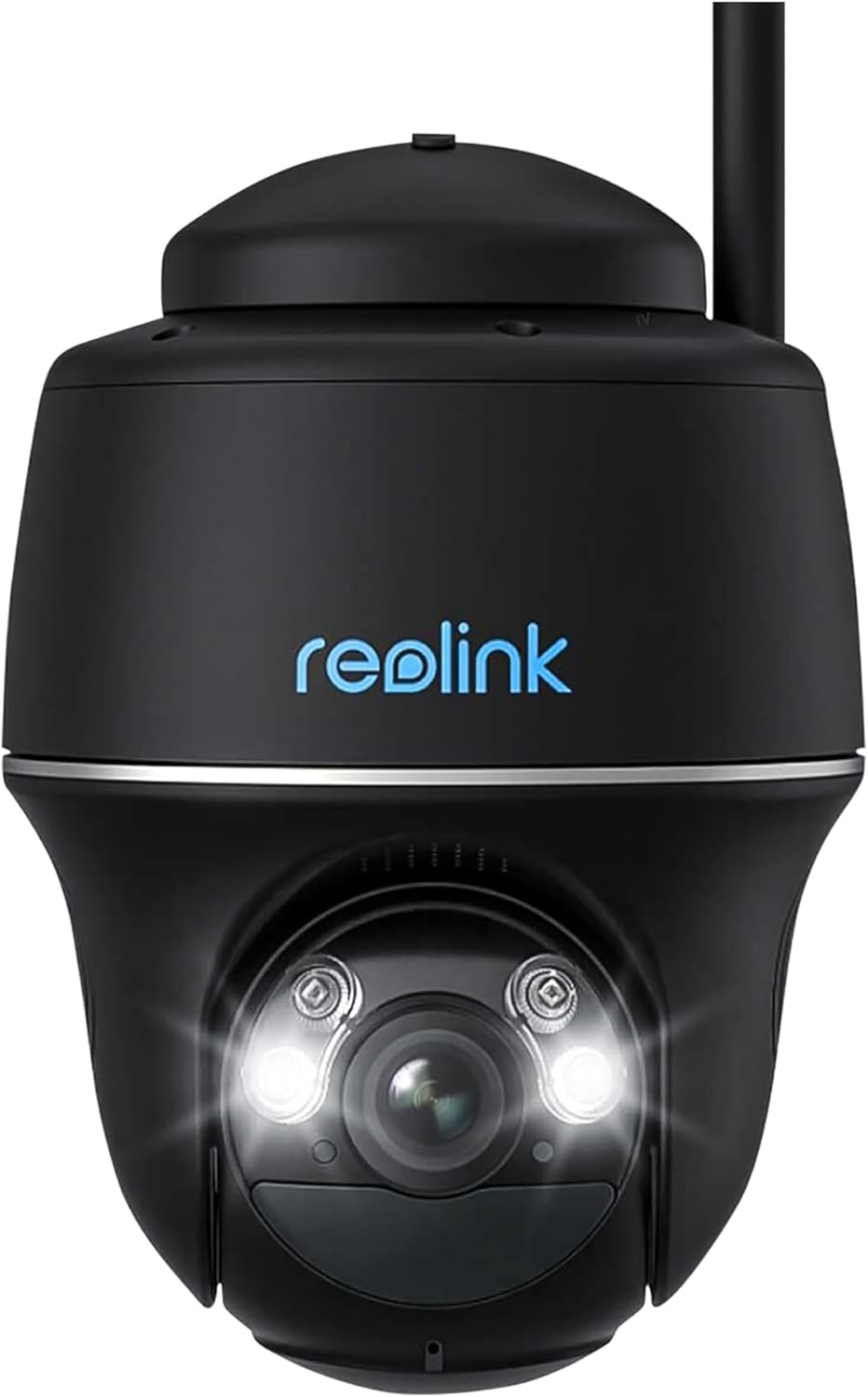
Ata 1: Luma view of the REOLINK Argus Series B430-B Battery-WiFi Camera, showing the lens, LED lights, and Reolink logo. This camera features a dome form factor and is designed for versatile placement.
The REOLINK Argus Series B430-B is a battery-powered Wi-Fi security camera designed for both indoor and outdoor use. It features a dome form factor, 1440p video resolution, and supports voice control via Amazon Alexa and Google Assistant.
Seti
1. Totogiina le Maa
Before initial use, fully charge the camera battery using the provided USB cable and a 5V/2A power adapter (not included). The charging indicator light will turn solid blue when fully charged.
2. Downloading the Reolink App
Download and install the Reolink App from the App Store (iOS) or Google Play (Android). The app is essential for camera setup and operation.
3. Initial Camera Setup
- Open the Reolink App and tap the "+" icon to add a new device.
- Scan the QR code on the camera body.
- Follow the on-screen instructions to connect the camera to your 2.4GHz Wi-Fi network.
- Create a device password and name for your camera.
4. Fa'amauina le Meapueata
The camera can be mounted indoors or outdoors, including ceiling installation. Ensure the mounting location has good Wi-Fi signal strength.

Ata 2: The REOLINK Argus Series B430-B camera mounted on an exterior wall, demonstrating a typical installation scenario for outdoor surveillance.
Fa'amauina o le puipui:
- vili pu e tusa ai ma le mamanu fa'apipi'i.
- Insert wall anchors if mounting on masonry or concrete.
- Fa'amau le fa'amau fa'apipi'i i fa'ailoga.
- Attach the camera to the bracket and adjust the angle.
Optional Solar Panel Installation: For continuous power, consider connecting a compatible REOLINK solar panel. Ensure the solar panel is positioned to receive maximum sunlight.
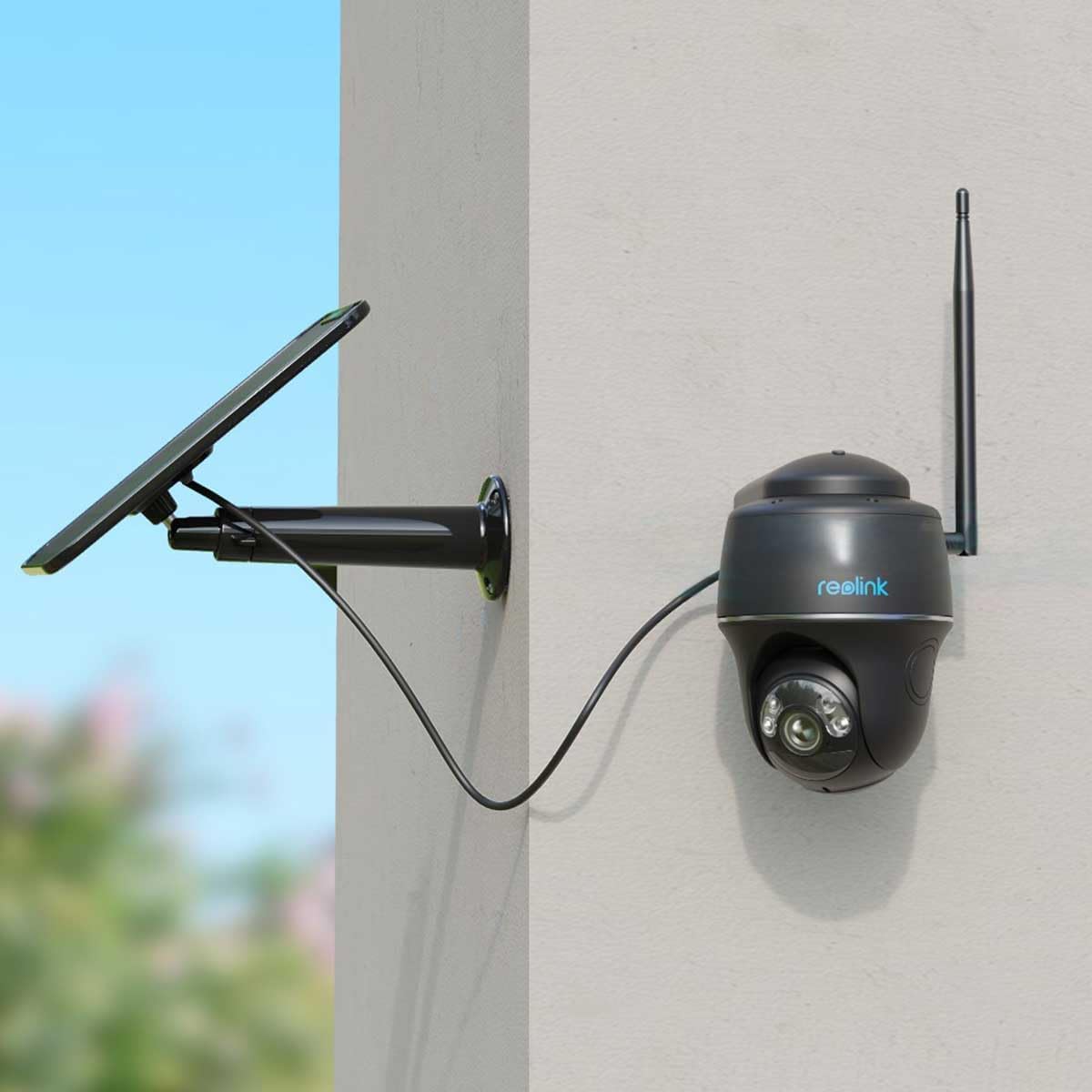
Ata 3: The REOLINK Argus Series B430-B camera connected to an external solar panel for continuous charging, mounted on a wall. This setup provides extended battery life.

Ata 4: The REOLINK Argus Series B430-B camera and its solar panel installed outdoors, demonstrating its waterproof design and resilience in rainy conditions.
Fa'agaoioi le Meapueata
1. Ola View
Open the Reolink App and tap on your camera to access the live view. You can pan, tilt, and zoom digitally, as well as use two-way audio to communicate through the camera.
2. Pueina ma Toe Ta'alo
The camera records motion-triggered events. Access recorded footage via the "Playback" section in the Reolink App. You can filter by date and event type to quickly find specific recordings.
3. Motion Detection Settings
Customize motion detection sensitivity, detection zones, and notification preferences in the camera settings within the app. This helps reduce false alarms and ensures you receive relevant alerts.
4. Feso'ota'iga o le Fale Atamai
The REOLINK Argus Series B430-B supports Amazon Alexa and Google Assistant. Follow the instructions in the Reolink App or your smart home device app to link your camera for voice control and live view on compatible smart displays.
Tausiga
1. Tausiga maa
- Avoid exposing the camera to extreme temperatures, which can affect battery life.
- Recharge the battery promptly when the low battery notification appears.
- If using a solar panel, ensure it is clean and receives adequate sunlight for optimal charging.
2. Fa'amamaina
Wipe the camera lens and body with a soft, damp cloth. Do not use harsh chemicals or abrasive cleaners, as these can damage the camera's surfaces or lens coating.
3. Fa'afouga Firmware
Regularly check for and install firmware updates via the Reolink App to ensure optimal performance, security, and access to new features.
Fa'afitauli
Camera Not Connecting to Wi-Fi
- Ensure your Wi-Fi network is 2.4GHz, as the camera does not support 5GHz networks.
- Check Wi-Fi signal strength at the camera's location. Move the camera closer to the router if the signal is weak.
- Restart your router and the camera to refresh network connections.
- Verify the Wi-Fi password entered during setup is correct.
Leaga le Tulaga Vitio
- Check your internet upload speed; a stable connection is crucial for clear video.
- Ia mautinoa o tioata o le meapueata e mama ma sa'oloto mai le efuefu po'o ni ila.
- Adjust video quality settings in the Reolink App to a lower resolution if bandwidth is limited.
Vave vave le ma'a
- Reduce motion detection sensitivity or detection zones to minimize unnecessary recordings.
- Ensure the camera is not in an area with constant motion, which triggers frequent recordings.
- Consider connecting a REOLINK solar panel for continuous charging and extended battery life.
Fa'amatalaga
| Fa'aaliga | Fa'amatalaga |
|---|---|
| Fa'ata'ita'iga | B430-B |
| I'uga Vitio | 1440p (2560x1440) |
| Fua Fa'atatau | 15 faavaa i le sekone |
| Feso'ota'i | 2.4GHz Wi-Fi (IEEE 802.11b/g/n) |
| Punavai Malosi | Rechargeable Battery (compatible with Reolink Solar Panel) |
| Suavai Tetee | Suavai |
| Fa'ailoga Fa'ailoga | Dome |
| Smart Home Fegalegaleaiga | Amazon Alexa, Google Fesoasoani |
| Ituaiga Fa'amau | Fa'alo, Pa |
| Siosiomaga fa'agaioiga | I totonu ma fafo |
| Lanu | Lanu uliuli |
Fa'amaonia ma Lagolago
For warranty information and technical support, please visit the official REOLINK website or contact their customer service. You can also find more resources on the REOLINK Brand Store.


