1. Folasaga
This manual provides essential instructions for the proper setup, operation, and maintenance of your KYOCERA DuraXV Extreme+ E4811 ultra-rugged flip phone. Designed for durability, this device features IP68 dust and waterproof rating, MIL-STD-810G protection, 4G LTE connectivity, and a 5MP camera. Please read this manual thoroughly before using your device to ensure optimal performance and longevity.
2. Mea i totonu o le afifi
Fa'amaonia o lau afifi o lo'o i ai mea nei:
- KYOCERA DuraXV Extreme+ E4811 Handset
- Fetuunaiga Malosi
- Uaea USB
- Ma'a (mua'i fa'apipi'i pe tu'ueseese)
3. Fa'atulagaina o masini
Familiarize yourself with the physical components of your DuraXV Extreme+ E4811.
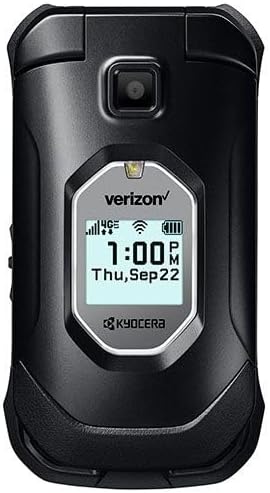
Ata 3.1: Luma view of the KYOCERA DuraXV Extreme+ E4811 in its closed position, displaying the external screen with time and network status.
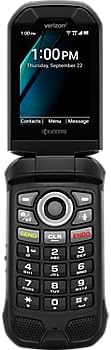
Ata 3.2: Luma view of the KYOCERA DuraXV Extreme+ E4811 in its open position, revealing the main display and the physical keypad with navigation buttons.

Ata 3.3: Tua view of the KYOCERA DuraXV Extreme+ E4811 in its open position, showing the rear casing and charging contacts.
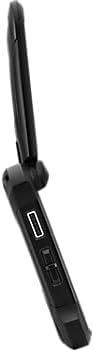
Ata 3.4: Itu view of the KYOCERA DuraXV Extreme+ E4811, highlighting the USB charging port and other side buttons.
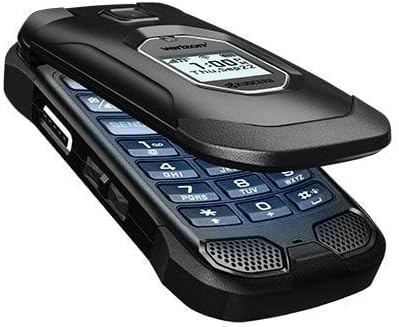
Ata 3.5: Fa'afagoto view of the KYOCERA DuraXV Extreme+ E4811 in its open state, providing a perspective of both the display and keypad.
4. Seti
4.1. Fa'apipi'i ma le Totogiina o ma'a
- If the battery is not pre-installed, remove the back cover of the phone.
- Align the battery (1770 mAh) contacts with the phone's terminals and gently press it into place.
- Replace the back cover, ensuring it is securely latched to maintain water and dust resistance.
- Connect the USB cable to the phone's charging port and the power adapter. Plug the adapter into a wall outlet.
- Allow the phone to charge fully before initial use. The charging indicator will show progress.
4.2. Fa'apipi'i SIM Card
Your DuraXV Extreme+ E4811 requires a Nano-SIM card for cellular service.
- Pepe le telefoni ma aveese le faavaa pito i tua.
- Su'e le avanoa pepa SIM.
- Insert the Nano-SIM card with the gold contacts facing down and the notched corner aligned with the slot. Push until it clicks into place.
- Sui le pito i tua.
4.3. Malosi i luga/Pepe
- I le Malosiaga: Oomi ma uu le faamau Malosi/Fa'ai'u Valaau se'ia fa'amalamalamaina le lau.
- Tape le Malosi: Press and hold the Power/End Call button, then select 'Power off' from the options on the screen.
5. Fa'atonuga o Galuega
5.1. Fa'asagaga Autu
Use the directional pad and center select button to navigate menus and select options. The 'Send' button initiates calls, and the 'End' button terminates calls or returns to the home screen.
5.2. Faia ma Mauaina Valaau
- Fai se Valaau: Enter the phone number using the keypad and press the 'Send' button.
- Talia se Valaau: When the phone rings, press the 'Send' button.
- Fa'ai'u se Valaau: Oomi le 'End' button.
5.3. Auina atu ma Mauaina o Feau
- Su'e i le 'Savali' talosaga mai le lisi autu.
- Select 'New Message' to compose a text message. Enter the recipient's number and your message.
- Press the 'Send' option to transmit the message.
- Received messages will appear as notifications on the screen and can be accessed through the 'Messages' application.
5.4. Fa'aaogaina o le Meapueata
Your phone is equipped with a 5MP camera.
- Open the 'Camera' application from the main menu.
- Frame your subject using the display.
- Press the center select button or a dedicated camera button (if available) to capture a photo.
5.5. Connectivity (Bluetooth, Wi-Fi, 4G LTE)
- Bluetooth: Access Bluetooth settings from the main menu to pair with compatible devices like headsets or car kits.
- Wi-Fi: Connect to available Wi-Fi networks via the settings menu to access the internet without using cellular data.
- 4G LTE: The phone automatically connects to the 4G LTE network for high-speed data and calls, provided a valid SIM card and service plan are active.
6. Tausiga
- Fa'amamaina: Fa'aaogā se mea vaivai, oamp ie e fa'amama ai fafo o le telefoni. Aloese mai vaila'au malolosi po'o mea fa'a'a'asa.
- Suavai ma le Pefu Tetee: The phone is IP68 rated. Ensure all port covers are securely closed to maintain water and dust resistance. Do not expose the phone to saltwater or other liquids. If exposed to water, rinse with fresh water and dry thoroughly.
- Tausiga maa: Avoid extreme temperatures. Do not puncture or disassemble the battery. Use only approved chargers.
- Puipuiga o le Siosiomaga: The phone is MIL-STD-810G compliant, offering protection against drops, shock, vibration, and extreme weather conditions. However, avoid unnecessary harsh treatment.
7. Faʻafitauli
If you encounter issues with your phone, refer to the following common solutions:
- Phone Does Not Power On: Ensure the battery is charged. Connect the phone to the charger and attempt to power on after a few minutes.
- Leai se fa'ailoga feso'ota'iga: Check that the SIM card is correctly inserted. Move to an area with better network coverage. Contact your service provider if the issue persists.
- Le mafai ona fai/Talia Valaau: Verify that you have active cellular service. Check call barring settings. Ensure the phone is not in Airplane Mode.
- E le tali mai le lau: If the screen is frozen, try performing a soft reset by removing and reinserting the battery (if accessible) or holding the Power button for an extended period.
- Le lelei le leo: Siaki le fa'atulagaga o le leo. Ia mautinoa e le o poloka le sipika po'o le taliga.
8. Fa'amatalaga
| Fa'aaliga | Fa'amatalaga |
|---|---|
| Numera Fa'ata'ita'i | E4811 |
| Faiga Fa'atonu | Android 11.0 |
| Fa'ata'ita'iga PPU | MediaTek Helio |
| Saosaoa PPU | 2 GHz |
| RAM | 2 GB |
| Teuina i totonu | 16 GB |
| Fa'aaliga I'uga | 480 x 800 |
| Meapueata Tua | 5 MP |
| Malosiaga ma'a | 1770mAh |
| Feso'ota'i | 4G LTE, Wi-Fi, Bluetooth |
| Fuainumera o le Tumau | IP68 Dust & Waterproof, MIL-STD-810G |
| Fa'ailoga Fa'ailoga | Su'e |
| Siaki leo | 3.5 mm |
| Mea mamafa | 8 aunese |
9. Fa'amaonia ma Lagolago
Your KYOCERA DuraXV Extreme+ E4811 is covered by a manufacturer's warranty. For specific warranty terms and conditions, please refer to the warranty card included with your product or visit the official KYOCERA website. For technical support, product registration, or further assistance, please visit the KYOCERA support page or contact their customer service directly.
Lagolago i luga ole laiga: www.kyoceramobile.com/support/


