1. Folasaga
Thank you for choosing the Nelko PM220 Bluetooth Thermal Label Printer. This portable device is designed for efficient label printing without the need for ink cartridges, making it ideal for small businesses, address labeling, logo printing, and various organizational tasks. This manual provides detailed instructions for setup, operation, maintenance, and troubleshooting to ensure optimal performance.
2. Oloa Ua Ovaview
The Nelko PM220 is a compact thermal label printer that connects wirelessly via Bluetooth to your smartphone or PC. It supports various label sizes and offers clear, high-resolution printing for text, barcodes, and QR codes.
2.1 Fa'amaumauga o Mea
- Nelko PM220 Label Printer
- Label Paper Roll (starter roll)
- USB Totogi Uaea
- Tusi Taiala

Ata 1: The Nelko PM220 Bluetooth Thermal Label Printer shown with a roll of blank labels. The printer features a sleek navy blue design with a power button and a paper feed button on the front panel.
3. Seti Taiala
3.1 Loading Label Tape
- Open the printer cover by gently pushing the release button or lifting the designated area.
- Insert the label roll into the paper bin, ensuring the labels face upwards and the leading edge extends slightly out of the printer slot.
- Adjust the paper slot guide to the right to ensure the label paper is tightly attached to the far right side of the paper bin, preventing misalignment during printing.
- Tapuni lelei le ufiufi lomitusi.

Ata 2: A label roll being correctly inserted into the paper compartment of the Nelko PM220 printer. The roll is placed with the labels facing upwards.
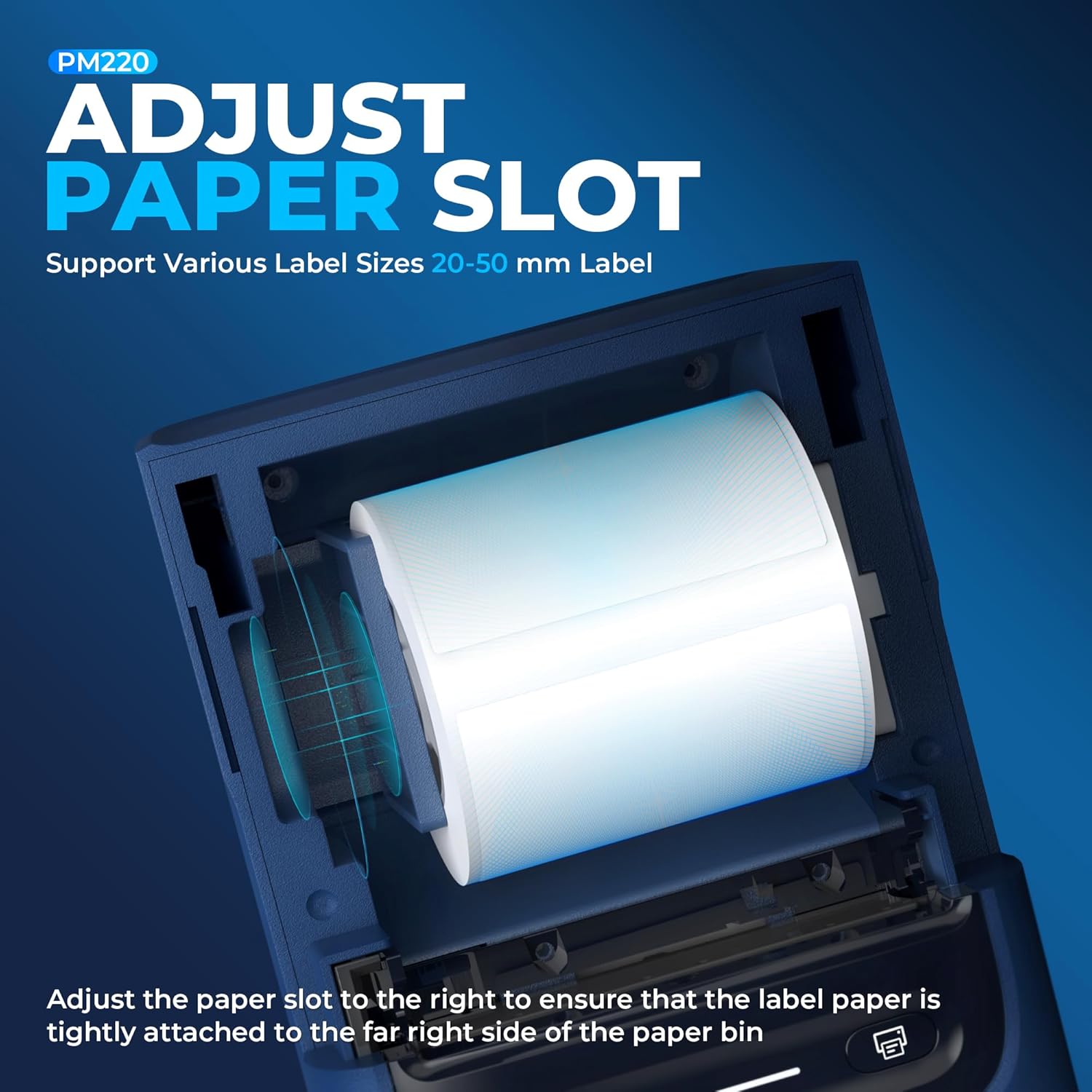
Ata 3: O se vaaiga vavalalata view demonstrating how to adjust the paper slot guide within the Nelko PM220 printer. The guide is moved to the right to secure the label roll.
3.2 Feso'ota'i ile Malosi
- Connect the provided USB charging cable to the printer's charging port.
- Fa'apipi'i le isi pito o le uaea USB i totonu o se mea fa'apipi'i eletise USB e fetaui ma le masini (e le o aofia ai) po'o se uafu USB a le komepiuta.
- Allow the printer to charge fully before first use. The indicator light will typically change color to indicate a full charge.
3.3 Fa'apipi'iina o Polokalama ma le Fa'apipi'iina o le Bluetooth
- Download the official Nelko label printing application from your device's app store (e.g., Apple App Store for iOS, Google Play Store for Android). For PC connectivity, download the appropriate driver and software from the official Nelko webnofoaga.
- Ensure Bluetooth is enabled on your smartphone or PC.
- Power on the Nelko PM220 printer by pressing and holding the power button until the indicator light illuminates.
- Open the Nelko app (or PC software) and navigate to the device connection section.
- Saili mo available Bluetooth devices and select 'Nelko PM220' from the list.
- Follow any on-screen prompts to complete the pairing process. A successful connection will be indicated by a change in the printer's indicator light or a message within the app.
4. Fa'atonuga o Galuega
4.1 Malosi / Malosi
- I le Malosiaga: Press and hold the power button for approximately 2-3 seconds until the indicator light turns on.
- Tape le Malosi: Press and hold the power button for approximately 2-3 seconds until the indicator light turns off.
4.2 Printing a Label
- Ensure the printer is powered on and successfully connected to your device via Bluetooth.
- Open the Nelko app or PC software.
- Select your desired label template or create a new label design.
- Enter the text, add images, barcodes, or QR codes as needed.
- Adjust label size and print settings within the app to match the loaded label tape.
- Preview the label to ensure accuracy.
- Tap the 'Print' button in the app. The printer will feed and print the label.
- Carefully tear off the printed label along the serrated edge.

Ata 4: The Nelko PM220 printer actively printing various labels, including shipping labels, product labels, and decorative stickers, demonstrating its versatility.
5. Tausiga
5.1 Fa'amamaina o le Ulu Lomitusi
Regular cleaning of the print head ensures optimal print quality and extends the life of your printer. Use a soft, lint-free cloth lightly dampfa'atasi ma le isopropyl alcohol.
- Ensure the printer is powered off and disconnected from power.
- Tatala le ufiufi lomitusi.
- Solo mālie le pito i luga o le ulu lolomi i le dampie ua fa'ama'a'aina. 'Alo'ese mai le pa'i atu i le ulu lomitusi i lima e aunoa ma se mea.
- Tu'u le ulu lomitusi se'ia mago atoa a'o le'i tapuni le ufi ma fa'aola le masini lomitusi.
5.2 Teuina
Store the printer in a cool, dry place away from direct sunlight and extreme temperatures. Remove any label rolls if storing for an extended period.
6. Faʻafitauli
If you encounter issues with your Nelko PM220 printer, refer to the table below for common problems and solutions.
| Fa'afitauli | Mafuaaga e ono tupu | Fofo |
|---|---|---|
| E le ola le lomitusi | Low battery or no power connection | Charge the printer using the provided USB cable. Ensure the power adapter is working. |
| Le mafai ona feso'ota'i ile Bluetooth | Bluetooth is off, printer is not in pairing mode, or incorrect device selected | Ensure Bluetooth is enabled on your device. Restart the printer and try pairing again. Verify you are selecting 'Nelko PM220'. |
| Poor print quality (faint, blurry) | Dirty print head, incorrect label type, or low battery | Clean the print head as described in Section 5.1. Ensure you are using thermal labels. Charge the printer. |
| Labels are not feeding correctly | Label roll improperly loaded or paper slot not adjusted | Re-load the label roll, ensuring it is seated correctly and the paper slot guide is adjusted tightly against the roll (refer to Section 3.1). |
| Printer stops printing mid-label | Out of labels or low battery | Replace the label roll. Charge the printer. |
7. Fa'amatalaga Fa'apitoa
| Fa'aaliga | Fa'amatalaga |
|---|---|
| Fa'ailoga | Nelko |
| Igoa Fa'ata'ita'iga | PM220 |
| Lomitusi Tekonolosi | Mafanafana |
| Tekinolosi Feso'ota'i | Bluetooth |
| Fa'asologa o Lomitusi | Monochrome |
| Maualuluga Lolomi Fa'auliuli ma Pa'epa'e | 203 dpi |
| Max Printspeed Monochrome | 45 mm/s |
| Lagolagoina Media Tele | 23-54mm (width) |
| Fua o Mea | 13.3 x 8 x 10.2 inisi |
| Mea mamafa | 13.4 aunese |
| Ituaiga o le Vaitusi Lomitusi | No Ink (Thermal) |
| Fa'aaofia Vaega | Printer, Paper |
8. Fa'amaonia ma Lagolago
Nelko products are designed for reliability and performance. For specific warranty information, please refer to the warranty card included with your purchase or visit the official Nelko website. If you require technical assistance or have questions not covered in this manual, please contact Nelko customer support through their official channels.
Lagolago i luga ole laiga: Visit the official Nelko website for FAQs, drivers, and software downloads.
Fesoasoani ile imeli: Va'ai i lau afifi oloa po'o le ofisa aloaia webnofoaga mo tuatusi imeli auaunaga a tagata faatau.


