1. Folasaga
This manual provides essential information for the proper setup, operation, and maintenance of your ZEISS DTI 6/20 Thermal Imaging Camera. Please read these instructions carefully before using the device to ensure optimal performance and longevity.
2. O a mea oi totonu o le Pusa
Fa'amautinoa o lo'o aofia uma vaega nei i lau afifi:
- Pueata ata vevela
- Lens (20 mm)
- maea neoprene
- Carrying case including shoulder strap
- uaea USB
- Ie fa'amamaina o mata
- Lithium-ion ma'a
- Faʻavave Taiala
- Fa'amatalaga saogalemu
- Kata fa'amaonia
- EULA pepa
3. Oloa Ua Ovaview
The ZEISS DTI 6/20 is a high-resolution thermal imaging monocular designed for detailed observation in low-light conditions. It features advanced image processing and ergonomic design for ease of use.

Ata 1: Fa'afagoto view of the ZEISS DTI 6/20 Thermal Imaging Camera. This image displays the overall design, including the objective lens, eyepiece, and the ZEISS branding on the side.
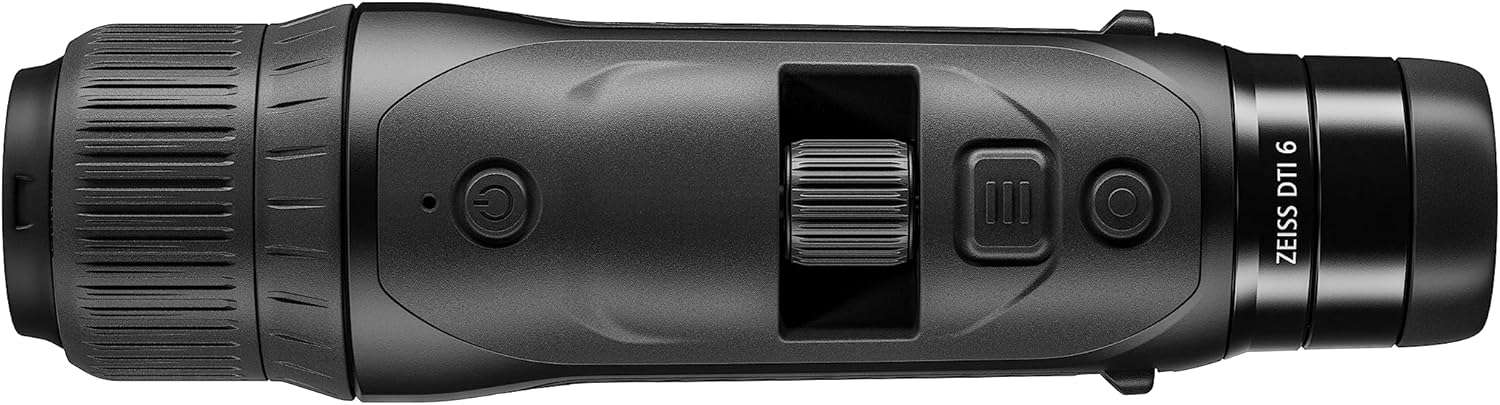
Ata 2: Luga view of the ZEISS DTI 6/20, highlighting the power button, scroll wheel for magnification control, and other operational buttons. The ergonomic placement of controls is visible.
Vaega Autu:
- ZSIP Pro Image Technology: Delivers sharp, high-contrast thermal images.
- Fa'aaliga maualuga: AMOLED display with 1024x768 resolution, paired with a 640x480 sensor and 12µm pixel pitch.
- Fa'atele: 1.5x optical magnification with up to 10x digital zoom, controlled by a scroll wheel.
- Fa'asinomaga: 4 preset scene modes and up to 5 user-created layouts. Adjustable zoom settings, display brightness, and color palettes.
- Teuina i totonu: 16GB for capturing images and videos.
- Ola ma'a: Up to 6.5 hours of continuous operation with a removable lithium-ion battery.
- Fuafuaga Ergonomic: Suitable for both left and right-handed users, with controls positioned for natural access even with gloves.
- Feso'ota'iga App: Seamless data transfer and live streaming to smartphones via the ZEISS Hunting App using Bluetooth, USB, or WLAN.
4. Seti
4.1 Fa'apipi'i ma'a
- Su'e le vaega o le maa i luga o le masini.
- Tatala le ufiufi o vaega.
- Insert the provided lithium-ion battery, ensuring correct polarity.
- Tapuni lelei le ufiufi o le vaega o maa.
4.2 Malosiaga Muamua i luga
- Press and hold the power button (refer to Figure 2) until the ZEISS logo appears on the display.
- Allow the device to initialize. This may take a few seconds.
- Adjust the diopter on the eyepiece for clear focus according to your vision.
5. Fa'atonuga o Galuega
5.1 Malosi / Malosi
- I le Malosiaga: Oomi ma uu le faamau mana.
- Tape le Malosi: Press and hold the power button until the shutdown sequence initiates.
5.2 Magnification Control
Use the scroll wheel located on the top of the device (refer to Figure 2) to adjust the digital zoom level. Rotate the wheel forward to increase magnification and backward to decrease it.
5.3 Faiga Fa'aaliga
The DTI 6/20 offers 4 preset scene modes optimized for different observation conditions. Access these modes through the device's menu to enhance image clarity based on your environment.
5.4 Fa'asinomaga
The device allows for extensive personalization:
- User Layouts: Create and save up to 5 custom display layouts.
- Fa'aaliga Fa'aaliga: Adjust display brightness to suit ambient light conditions.
- Palette lanu: Select from various color palettes to optimize thermal contrast and target identification.
5.5 App Connectivity (ZEISS Hunting App)
Enhance your experience by connecting the DTI 6/20 to the ZEISS Hunting App on your smartphone.

Ata 3: A user operating the ZEISS DTI 6/20 thermal imaging camera in an outdoor environment, demonstrating its ergonomic handling and practical application.
- Fa'aliliuga Fa'amatalaga: Transfer images and videos from the device's 16GB internal storage to your smartphone via Bluetooth, USB, or WLAN.
- Live Streaming: Stream live thermal footage directly to your smartphone for shared viewfa'amauina po'o le pu'eina.
- Further Customization: The app provides additional options for device settings and management.
6. Tausiga
6.1 Fa'amamāina
- Use the provided optics cleaning cloth to gently wipe the lenses. Avoid abrasive materials.
- Mo le tino o le masini, fa'aaoga se mea vaivai, lamolemoleamp ie. Aua le fa'aaogaina vaila'au malolosi po'o so'o.
- Ia mautinoa ua tape le eletise o le masini a'o le'i fa'amamāina.
6.2 Tausiga maa
- Totogi atoa le maʻa aʻo leʻi muamua faʻaaogaina.
- Store the device and battery in a cool, dry place when not in use for extended periods.
- Aloese mai le tu'uina atu o le maa i le vevela tele.
7. Faʻafitauli
7.1 Ua le ola le masini
- Ia mautinoa o loʻo faʻapipiʻi saʻo le maa ma faʻatumu atoa.
- Try charging the battery for at least 30 minutes before attempting to power on again.
7.2 Image Appears Blurry
- Adjust the diopter on the eyepiece for your vision.
- Ensure the objective lens is clean and free from smudges or debris.
- Check the focus of the thermal image using the manual focus ring if available.
7.3 Connectivity Issues with ZEISS Hunting App
- Ensure Bluetooth or WLAN is enabled on both the device and your smartphone.
- Verify that the ZEISS Hunting App is updated to the latest version.
- Restart both the thermal camera and your smartphone.
8. Fa'amatalaga
| Fa'aaliga | Fa'amatalaga |
|---|---|
| Fua o Mea | 9.06 x 2.44 x 2.68 inisi |
| Mea mamafa | 1.52 pauna (24.33 Aunese) |
| Numera Fa'ata'ita'i Mea | 527020-9911-000 |
| Fa'ailoga | ZEISS |
| Igoa Fa'ata'ita'iga | DTI 6/20 |
| Fa'amatalaga Mata Mata | Plössl |
| Ituaiga Taulai | Taulai Tusia |
| Punavai Malosi | Malosi le ma'a (Lithium-ion) |
| Masini Fegalegaleai | Telefonitelefoni |
| Fa'amatalaga umi | 300mm |
| Fanua O View | 10 Tikeri |
| Fua Faʻatatau | 3x Optical, up to 10x Digital |
| Iugafono Sensor | 640 x 480 with 12 micron pixel pitch |
| Fa'aaliga I'uga | 1024 x 768 HD AMOLED |
| Teuina i totonu | 16GB |
| Taimi e tamo'e ai ma'a | 6.5 itula (fa'aauau) |
9. Fa'amaonia ma Lagolago
The ZEISS DTI 6/20 Thermal Imaging Camera is manufactured by ZEISS. For detailed warranty information, please refer to the included warranty card or visit the official ZEISS website. For technical support, service, or inquiries, please contact ZEISS customer service through their official channels.
Tufuga: ZEISS


