Folasaga
The EazeID M950 is an advanced, portable label maker designed for efficiency and ease of use in various environments, including home, office, and school. This device offers dual printing capabilities: direct input via its integrated QWERTY keyboard and wireless printing through Bluetooth connectivity with the "Print Master" mobile application. It features thermal printing technology, which means no ink cartridges are required, and is powered by a long-lasting rechargeable lithium battery. The backlit LCD screen ensures clear visibility of text and settings in any lighting condition, making label creation straightforward and convenient.

Image: The EazeID M950 Label Maker, showcasing its compact design, QWERTY keyboard, backlit screen, and a sample of printed labels. A smartphone screen in the background illustrates the companion mobile application.
O mea o lo'o i totonu
Fa'amolemole fa'amaonia o mea uma o lo'o lisi atu i lalo o lo'o aofia i lau afifi:
- 1 x EazeID M950 Label Maker
- 1 x Tape Cassette (12mm x 4M, Black on White)
- 1 x Uaea Fa'amaumauga Ituaiga-C
- 1 x Tusi Fa'aoga
- 1 x Pusa afifi

Image: A visual representation of the package contents, including the EazeID M950 label maker, a tape cassette, a Type-C charging cable, and the user manual.
Oloa Fa'ailoga
The EazeID M950 Label Maker is equipped with several features designed to enhance your labeling experience:
Faiga Lomitusi Lua
The M950 supports both direct printing via its integrated QWERTY keyboard and wireless printing through Bluetooth connectivity with the "Print Master" app. This flexibility allows users to choose their preferred method for creating labels.

Image: This graphic demonstrates the two primary ways to operate the M950: connecting via Bluetooth to a mobile device for app-based design, or directly typing on the integrated QWERTY keyboard.
Ma'a Lithium toe fa'aaogaina
Equipped with a built-in 1200mAh rechargeable lithium battery, the M950 eliminates the need for disposable batteries, offering convenience and cost savings. It charges via a USB-C cable.

Image: A visual representation of the M950 label maker connected to a USB-C charging cable, highlighting its rechargeable battery feature.
Fa'amalama mata LCD
The integrated backlit LCD screen provides excellent visibility of text and settings, even in low-light conditions, ensuring accurate label creation.
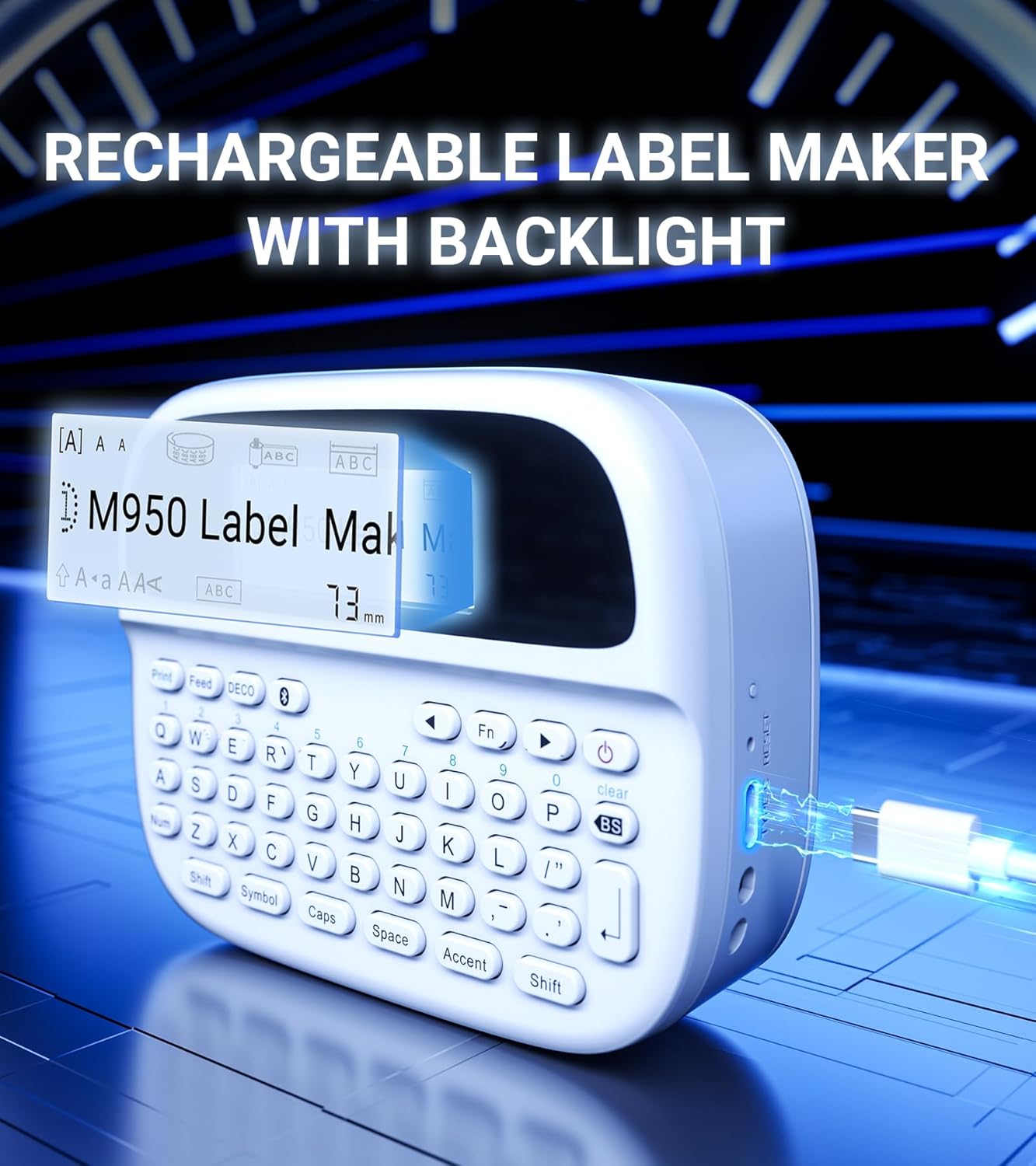
Ata: O se auiliiliga view of the EazeID M950's backlit LCD screen, clearly showing the displayed text and settings, emphasizing its readability.
Ergonomic QWERTY Keyboard
The wider keyboard design ensures comfortable and easy typing, allowing users to reach all keys effortlessly for a smooth printing experience.

Image: A user's hands are shown interacting with the QWERTY keyboard of the EazeID M950, highlighting the ergonomic design and ease of use for typing.
Tekinolosi Lomitusi vevela
The M950 uses thermal printing, eliminating the need for ink or toner, which reduces operational costs and simplifies maintenance.
Built-in Cutter
A safety label cutter is integrated into the device, allowing for precise and clean cuts of printed labels.
Talosaga Lautele
The M950 is suitable for a variety of labeling needs, including organizing storage containers, personal care items, price tags, office documents, school supplies, and more.

Ata: O se ata tu'ufa'atasia fa'aaliacasing the diverse applications of the EazeID M950 label maker across different settings such as kitchens, offices, schools, and gardens.
Fa'ailoga Malosi
Labels printed with the M950 are designed to be waterproof, washable, fade-resistant, and can withstand both high and low temperatures, ensuring longevity and reliability.

Image: An infographic detailing the robust properties of the labels, including resistance to high and low temperatures, water, and fading, along with washability.
Seti
1. Totogiina le Masini
Before first use, ensure the label maker is fully charged. Connect the provided Type-C data cable to the charging port on the device and plug the other end into a 5V-2A charging adapter (not included). The charging indicator light will show the charging status. A full charge typically takes 1-2 hours and provides approximately 5 hours of working time.
2. Loading Label Tape
The EazeID M950 uses specific label tape cassettes. To load a new tape:
- Open the tape compartment cover on the back of the label maker.
- Insert the label tape cassette into the compartment, ensuring it clicks into place. The tape should feed smoothly through the output slot.
- Tapuni mau le ufi o le vaega o le teipi.

Image: A diagram illustrating the internal components of the M950, specifically showing the rechargeable battery compartment and the correct way to insert the label tape cassette.
Fa'atonuga o Galuega
1. Keyboard Printing
To print directly using the QWERTY keyboard:
- Malosiaga: Press and hold the power button until the device turns on and the LCD screen illuminates.
- Tusitusiga e Ulufale Mai: Use the QWERTY keyboard to type your desired text. The text will appear on the backlit LCD screen.
- Fetuuna'i Fa'atonu: Use the function keys (Fn) and other dedicated buttons to adjust font size, style, add symbols, frames, or accented characters. The device supports over 1000 symbols, 100+ frames, and 23 languages.
- Lolomi: Press the "Print" button to print your label.
- 'Oti: Use the built-in cutter by pressing the cut button to cleanly separate the label.

Image: A step-by-step guide demonstrating the process of creating and printing labels using the M950's integrated QWERTY keyboard, from powering on to cutting the label.
2. Bluetooth App Printing (Print Master)
For more advanced label design and customization, connect the M950 to your smartphone via Bluetooth using the "Print Master" app:
- Malosiaga: Turn on the EazeID M950 label maker.
- Fa'aagalue le Bluetooth: Ia mautinoa ua mafai le Bluetooth i lau telefoni.
- Download Polokalama Komepiuta: Download the "Print Master" app from your device's app store (available on iOS and Android).
- Feso'ota'i: Open the "Print Master" app and follow the on-screen instructions to connect to your M950 label maker via Bluetooth.
- Fa'ailoga o le Fuafuaga: Within the app, you can access a vast library of customizable label templates, over 1500 icons, 270+ borders, and 110+ text styles. You can also create barcodes and QR codes.
- Lolomi: Once your design is complete, send the print job from the app to the label maker.

Image: A visual guide demonstrating how to connect the M950 to the "Print Master" app via Bluetooth, highlighting the app's features like icons, borders, and text options for label design.
Tausiga
To ensure the longevity and optimal performance of your EazeID M950 Label Maker, follow these maintenance guidelines:
- Fa'amamaina: Regularly wipe the exterior of the device with a soft, dry cloth. For the print head, use a cotton swab lightly dampened with isopropyl alcohol to gently clean any residue. Ensure the device is powered off before cleaning.
- Teuina: Store the label maker in a cool, dry place away from direct sunlight and extreme temperatures.
- Tausiga maa: To maintain battery health, avoid fully discharging the battery frequently. If storing for an extended period, charge the device to about 50% capacity.
- Taulimaina o lipine: Always use genuine EazeID label tapes for best results. Avoid touching the print surface of the tape before printing.
Fa'afitauli
If you encounter issues with your EazeID M950 Label Maker, please refer to the following common problems and solutions:
| Fa'afitauli | Mafuaaga e ono tupu | Fofo |
|---|---|---|
| E le ola le masini | Ma'a maualalo; Ua le oomi sa'o le ki o le Malosi | Charge the device fully. Press and hold the power button for a few seconds. |
| Poor print quality / Faint print | Print head dirty; Incorrect tape loaded; Low battery | Clean the print head. Ensure the tape is correctly installed. Charge the device. |
| Label tape not feeding | Tape jammed; Tape not installed correctly; Empty tape cassette | Open compartment and check for jams. Reinstall tape cassette. Replace with a new tape cassette. |
| Fa'afitauli feso'ota'iga Bluetooth | Bluetooth not enabled; App not updated; Device too far | Ensure Bluetooth is on. Update "Print Master" app. Keep device within Bluetooth range. Restart both devices. |
| Labels not cutting properly | Cutter blade dirty or worn; Incorrect cutting technique | Clean the cutter area. Ensure you press the cut button firmly and completely. |
If the problem persists after attempting these solutions, please contact EazeID customer support for further assistance.
Fa'amatalaga
Detailed technical specifications for the EazeID M950 Label Maker:
| Fa'aaliga | Fa'amatalaga |
|---|---|
| Fa'ata'ita'iga | M950 |
| Lomitusi Tekonolosi | Mafanafana |
| Feso'ota'i | Bluetooth, USB Ituaiga C |
| Masini Fegalegaleai | iOS, Android |
| Maualuluga Lolomi Iugafono | 203 DPI |
| Fa'aaliga Ituaiga | Fa'amalama mata LCD |
| Ma'a | 1200mAh Rechargeable Lithium Ion (included) |
| Tele Avanoa Tele | 0.5 inisi (12mm) |
| Fua o Mea | 5.08 x 5.08 x 5.08 cm; 480 g (approx.) |
| Fa'aaofia Vaega | Label maker, 12mm*4M Black on White Label tape, Type-C Data Cable, User Manual |

Image: A comparative diagram illustrating the compact dimensions of the EazeID M950 label maker (159mm x 112mm) and its lightweight nature (489g) relative to a tablet, emphasizing its portability.
Fa'amaonia ma Lagolago
Faiga Fa'afo'i: This product is eligible for a return or replacement within 30 days of receipt, in accordance with standard return policies.
Faumea Lagolago: For technical assistance, troubleshooting beyond this manual, or warranty inquiries, please contact EazeID customer support. Refer to the contact information provided on the product packaging or the official EazeID webnofoaga mo fa'amatalaga lagolago aupito lata mai.


