1. Folasaga
This manual provides essential information for the safe and efficient use of your Epson EW-456A Colorio A4 Inkjet Multifunction Printer. Please read this manual thoroughly before using the product and keep it for future reference.

Ata 1: Luma view of the Epson EW-456A printer with paper loaded in the output tray.
Ua Umaview
The Epson EW-456A is a compact A4 inkjet multifunction device offering print, copy, and scan functionalities. It features Wi-Fi connectivity, automatic duplex printing, and uses four independent ink cartridges for economical operation. This model is designed for ease of use in home or small office environments.
2. Seti
2.1 Ta'ese'esega ma le Tulaga Muamua
Carefully remove the printer from its packaging. Ensure all protective tapes and packing materials are removed from the exterior and interior of the printer. Place the printer on a stable, flat surface with adequate space around it for ventilation and operation.
2.2 Feso'ota'i le Malosi
- Connect the power cord to the power input port on the rear of the printer.
- Fa'afeso'ota'i le isi pito o le uaea eletise i se pa puipui.
- Oomi le faamau malosi e ki ai le lomitusi.

Ata 2: Tua view of the printer, indicating power and USB connection points.
2.3 Fa'apipi'iina o Katu vaitusi
The Epson EW-456A uses four independent ink cartridges (Black, Yellow, Magenta, Cyan). Follow the on-screen instructions on the printer's LCD panel to install the cartridges. Ensure each cartridge clicks into place securely.

Figure 3: Independent ink cartridges for the EW-456A, showing individual replacement capability.
2.4 Tu'uina o Pepa
Open the paper support and load paper into the rear paper feeder. Adjust the paper guides to fit the width of the paper. The printer supports various paper types and sizes, including A4 plain paper, glossy photo paper, and envelopes.
2.5 Fa'apipi'iina ma Feso'ota'iga o Polokalama Faakomepiuta
Install the printer software from the included software disc or download the latest drivers from the official Epson website. For wireless connectivity, follow the instructions on the printer's 1.44-inch color LCD panel to connect to your Wi-Fi network. You can also connect via USB or use the Epson Smart Panel app for smartphone setup and operation.

Figure 4: Smartphone integration with the Epson Smart Panel app for easy printing.
3. Fa'atonuga o Galuega
3.1 Lomitusi Fa'avae
To print from a computer, select the Epson EW-456A as your printer in your application's print dialog. Adjust settings such as paper size, print quality, and duplex printing as needed. For smartphone printing, use the Epson Smart Panel app.
3.2 Kopiina o Pepa
Place the document face-down on the scanner glass. Use the printer's control panel and the 1.44-inch color LCD to select the copy function. Adjust settings like number of copies, paper size, and color/monochrome, then press the Start button.
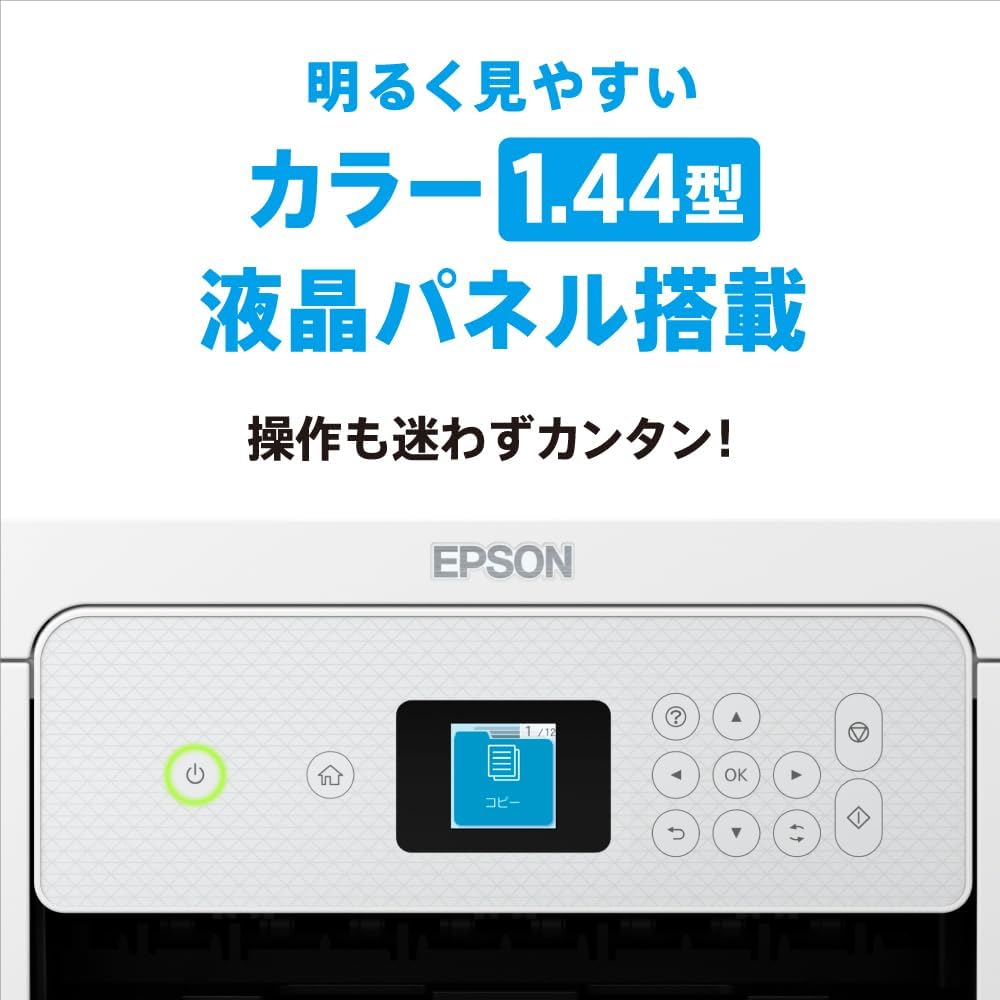
Figure 5: The 1.44-inch color LCD panel for intuitive printer operation.
3.3 Siakiina o Pepa
Place the document face-down on the scanner glass. From your computer, open the Epson Scan software or use the Epson Smart Panel app on your smartphone. Select scan settings (e.g., resolution, destination) and initiate the scan.
3.4 Automatic Duplex Printing
The EW-456A supports automatic two-sided printing. When printing from your computer or smartphone, select the duplex printing option in the print settings. This feature helps save paper.

Figure 6: The compact design of the EW-456A, featuring automatic double-sided printing.
3.5 Galuega Fa'atino e Pulea ai le Leo
The printer supports voice control through compatible smart speakers. Refer to the Epson website or the smart speaker's manual for specific commands and setup instructions to print using voice commands.
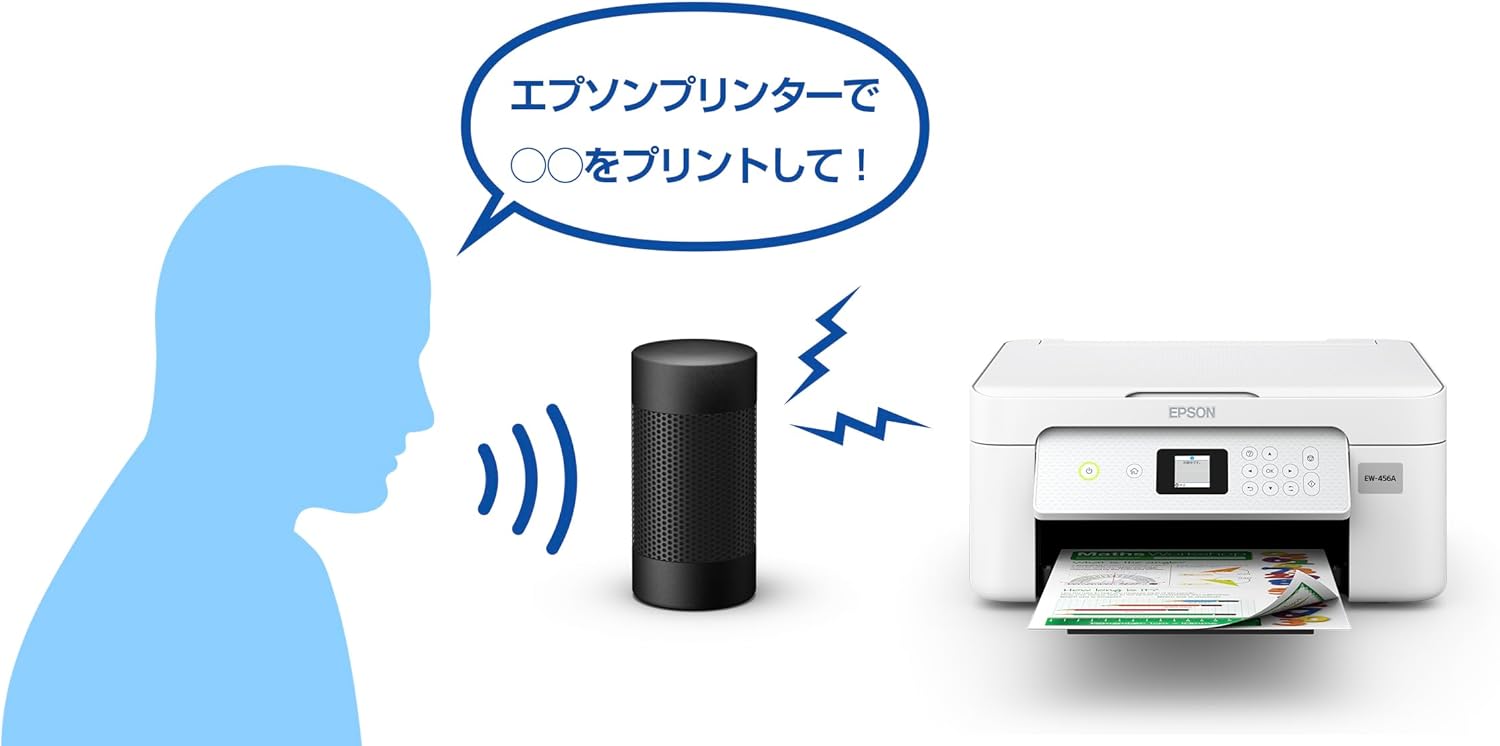
Ata 7: Esoample of using voice commands with a smart speaker to operate the Epson printer.
4. Tausiga
4.1 Suia o Katulima Vaitusi
When an ink cartridge is low or empty, a message will appear on the LCD screen. Open the printer cover and replace only the empty cartridge with a new genuine Epson cartridge. Refer to the on-screen instructions for the replacement process.

Figure 8: Epson genuine ink cartridges (MED-4CL) recommended for the EW-456A.
4.2 Fa'amamaina o le Ulu Lomitusi
If print quality declines (e.g., missing lines, streaking), perform a print head cleaning. This can be initiated from the printer's control panel or through the printer software on your computer. Follow the prompts to complete the cleaning cycle.
4.3 Waste Ink Pad
The printer contains a waste ink absorption pad that collects excess ink during operations like print head cleaning and borderless printing. When the waste ink pad approaches its capacity limit, a warning message will appear. If this occurs during borderless printing, an error may be displayed. For borderless printing, the printer absorbs discarded ink. If you are printing with borders, you may be able to continue using the printer. However, it is recommended to contact Epson support for service when this warning appears to prevent potential ink overflow.
5. Faʻafitauli
5.1 Mataupu masani ma Fofo
- Le Lomitusi Le Tali:
Check power connections, USB cable (if used), and Wi-Fi connection. Ensure the printer is turned on and not in an error state. Restart both the printer and your computer/smartphone. - Le lelei Lomiga:
Perform a print head cleaning and nozzle check. Ensure genuine Epson ink cartridges are used and not expired. Check paper type settings match the loaded paper. - Pepa Jas:
Carefully remove any jammed paper from the paper feeder, output tray, or internal areas as indicated by the printer's display. Avoid tearing the paper. - Fa'afitauli Feso'ota'iga Wi-Fi:
Verify your Wi-Fi network name (SSID) and password. Ensure the printer is within range of your wireless router. Restart your router and printer.
6. Fa'amatalaga
| Fa'aaliga | Fa'amatalaga |
|---|---|
| Igoa Fa'ata'ita'iga | EW-456A |
| Galuega | Lolomi, Kopi, Va'ai |
| Tekinolosi lolomi | Inkjet |
| Maximum Print Resolution (Color/Mono) | 4800 x 1200 dpi |
| Lomitusi Fa'alua | Otometi |
| Feso'ota'i | USB, Wi-Fi |
| Tele Pepa | A4 |
| Avanoa Pepa maualuga | 150 pepa |
| Ituaiga Scanner | Ata |
| Fa'aaliga | LCD Lanu 1.44-inisi |
| Vaaiga Fua (W x D x H) | 37.5 x 30 x 17 cm |
| Oloa mamafa | 4.3 kilokalama |
| Fa'aaofia Vaega | Ink cartridges (setup), Start Guide, Software Disc, Warranty Card, Power Cord |
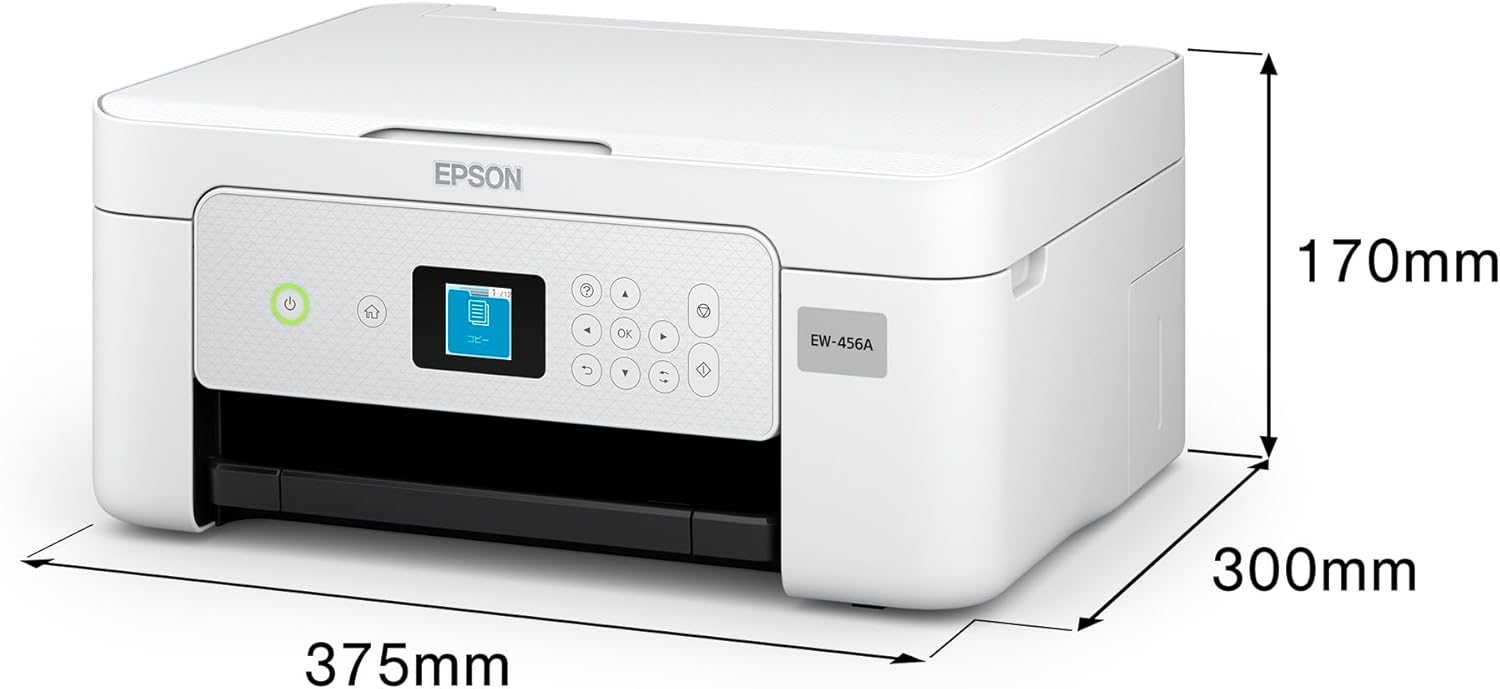
Figure 9: Physical dimensions of the Epson EW-456A printer.
7. Fa'amaonia ma Lagolago
7.1 Fa'amaonia Tapulaa
Your Epson EW-456A printer comes with a limited warranty. Please refer to the warranty card included with your product for specific terms, conditions, and duration of coverage. Keep your proof of purchase for warranty claims.
7.2 Extended Service Support
Epson offers an extended service support program called "Colorio Smile Plus" for enhanced peace of mind. This 5-year service support can be purchased within the product's initial warranty period. For details on coverage and how to purchase, please visit the official Epson webupega tafaʻilagi pe faʻafesoʻotaʻi le auaunaga a tagata faʻatau a Epson.
7.3 Fesoasoani mo Tagata Fa'atau
Mo nisi fesoasoani, lagolago fa'apitoa, pe mo le la'uina mai o aveta'avale ma polokalama fou, fa'amolemole asiasi i le lagolago aloaia a Epson. website. You can also find contact information for customer service in your region on the webnofoaga.


