1. Fa'amatalaga Taua mo le Saogalemu
Please read these safety instructions carefully before operating your TV and retain them for future reference. This manual provides important information regarding the safe installation, use, and maintenance of your Sharp 40FH2EA television.
- Punavai Malosi: Connect the TV only to an AC 220-240V, 50Hz power supply.
- Savili: Ia mautinoa ia lava le ea savili faataamilo i le TV. Aua le poloka avanoa e savili ai.
- Suavai ma Susū: Aua le tu'u le TV ile timu po'o le susu. Aua ne'i tuu mea e tumu i vai, e pei o fagu, i luga o le TV.
- Punavai vevela: Keep the TV away from heat sources like radiators, heat registers, stoves, or other apparatus that produce heat.
- Fa'amamaina: Aveese le TV mai le pa puipui a'o le'i faamamaina. Fa'aaogā se ie mālū ma mago. Aua ne'i fa'aogaina ni vai fa'amama po'o ni mea e fa'amama aerosol.
- Fa'amauina: When wall-mounting, ensure the wall mount is suitable for the TV's weight and installed by qualified personnel.
- Tamaiti: Vaavaai tamaiti ina ia mautinoa latou te le taaalo i le TV.
2. Mea i totonu o le afifi
Fa'amautinoa o lo'o iai mea uma i totonu o le afifiina:
- Sharp 40FH2EA 40-inch Full HD LED Android TV
- Pulea Mamao
- TV Stands (2x)
- Siu mo Tulaga TV
- Uaea Malosi
- Taiala vave amata
- Safety Information Leaflet

Ata: Luma view of the Sharp 40FH2EA television, showcasing lona mamanu fa'ama'i.
3. Seti
3.1 Fa'apipi'i Tulaga TV
- Tu'u ma le faaeteete le TV e fa'asaga i lalo i luga o se mea malu ma mama e puipuia ai le faaleagaina o lau.
- Fa'asa'o tulaga ta'itasi ma avanoa tutusa i le pito i lalo ole TV.
- Fa'amautu tulaga e fa'aaoga ai sikulima ua saunia. Ia mautinoa ua mau lelei.

Image: The Sharp 40FH2EA television viewed from an angle, showing the two attached stand feet supporting the unit.
3.2 Feso'ota'i Meafaigaluega i fafo
The Sharp 40FH2EA offers various connection options for your external devices.
- HDMI: Connect Blu-ray players, game consoles, or set-top boxes to the HDMI ports. This model features 3 HDMI inputs.
- USB: Insert USB drives for media playback or software updates into the 2 USB ports.
- Antenna/Uaea: Fa'afeso'ota'i lau fa'ailo antenna po'o le uaea TV i le RF input.
- Ethernet (LAN): For a stable internet connection, connect an Ethernet cable to the LAN port.
- Leo i fafo: Use the optical digital audio output for connecting to a soundbar or home theater system.

Ata: Itu profile of the Sharp 40FH2EA TV, highlighting the accessible USB and HDMI ports on the left side.
Ata: Tua view of the Sharp 40FH2EA TV, displaying the various input and output ports including HDMI, USB, and antenna connections.
3.3 Uluai Malosiaga ma Fa'atonu Taimi Muamua
- Fa'afeso'ota'i le uaea eletise i le TV ona soso'o ai lea i se pa puipui.
- Oomi le ki o le mana i luga o le pule mamao po o luga o le TV.
- Follow the on-screen instructions to select your language, country, and network settings (Wi-Fi or Ethernet).
- Perform a channel scan for DVB-T/T2/C/S/S2 signals to find available TV channels.
- Log in with your Google account to access Android TV features and download apps.
4. Fa'agaoioia le TV
4.1 Galuega Pulea Mamao
O le fa'atonu mamao e mafai ai ona e fa'atautaia foliga o le TV. Fa'amasani oe i fa'amau autu:
- Malosi (Fa'amau mumu): Ki pe tape le TV.
- Punavai: Filifili puna'oa fa'aoga (HDMI 1, HDMI 2, TV, ma isi).
- Numera faamau (0-9): Filifiliga alavai tuusao.
- Volume (+/-): Fa'atonu le maualuga o le leo.
- Auala (CH +/-): Suia ala TV.
- Fa'atautaiga Papa (Lulu/Ilalo/Agavale/Taumatau/Ua lelei): Su'e menus ma fa'amaonia filifiliga.
- Tua: Toe fo'i i le lau muamua po'o le lisi.
- Aiga: Avanoa i le Android TV lau fale.
- Netflix, Prime Video, YouTube, Google Play: Fa'amautu fa'amau mo le vave maua o auaunaga fa'asalalau.

Image: The remote control for the Sharp 40FH2EA TV, showing its layout with navigation buttons and dedicated streaming service buttons.
4.2 Ata Tele TV (TV Android)
Your Sharp 40FH2EA TV runs on Android TV, providing access to a wide range of apps and services.
- Mata o le Fale: The central hub for your apps, recommended content, and settings.
- Google Play Faleoloa: Download additional apps, games, and content.
- Pulea leo: Use the built-in Google Assistant (if available on your remote) to search for content, control smart home devices, and more.
- Chromecast ua fausia i totonu: Cast content from your smartphone or tablet directly to the TV.
- Au'aunaga Fa'asalalau: Access popular services like Netflix, YouTube, Amazon Prime Video, Hulu, Disney+, and more.

Image: The Android TV home screen displayed on the Sharp 40FH2EA, featuring various streaming app icons and content recommendations.
5. Tausiga
5.1 Fa'amama le TV
- Aveese i taimi uma le TV a'o le'i fufulu.
- Fa'aaogā se ie mālū, mago, leai se lint e solo ai le lau ma le kapeneta.
- Mo fa'ailoga ma'a'a i luga o le lau, fa'amama le oampen the cloth with water or a specialized screen cleaner (ensure it's safe for LED screens) and wipe gently.
- Never spray cleaners directly onto the screen or cabinet.
5.2 Fa'afouga polokalame
Your Android TV may receive software updates periodically. It is recommended to keep your TV's software updated for optimal performance and security. Updates can usually be found in the TV's settings menu under 'About' or 'System Update'.
6. Faʻafitauli
Afai e te feagai ma faʻafitauli i lau TV, vaʻai i faʻafitauli masani nei ma fofo:
| Fa'afitauli | Mafua'aga Mafai / Fofo |
|---|---|
| Leai se mana | Ensure the power cable is securely connected to the TV and the wall outlet. Check if the outlet is working. Try a different outlet. |
| Leai se ata, ae o lo'o iai le leo | Check the input source. Ensure external devices are powered on and connected correctly. Try a different HDMI cable. |
| Leai se leo, ae o loʻo iai le ata | Check the volume level. Ensure the TV is not muted. Check audio settings and external audio device connections. |
| E le o galue le pule mamao | Sui maa. Ia mautinoa e leai ni fa'alavelave i le va o le mamao ma le IR sensor a le TV. |
| Le mafai ona feso'ota'i ile Wi-Fi | Ensure your Wi-Fi router is on and working. Re-enter the Wi-Fi password. Try restarting the TV and router. |
| E gesegese pe faaletonu polokalama | Close unused apps. Clear app cache (in TV settings). Restart the TV. Ensure sufficient internet speed. |
If the problem persists, consult the full user manual available on the Sharp support webnofoaga po'o fa'afeso'ota'i le lagolago a tagata fa'atau.
7. Fa'amatalaga
Detailed technical specifications for the Sharp 40FH2EA 40-inch Full HD LED Android TV:
| Fa'aaliga | Fa'amatalaga |
|---|---|
| Igoa Fa'ata'ita'iga | 40FH2EA |
| Numera Fa'ata'ita'i i Totonu | 2T-C40FHx |
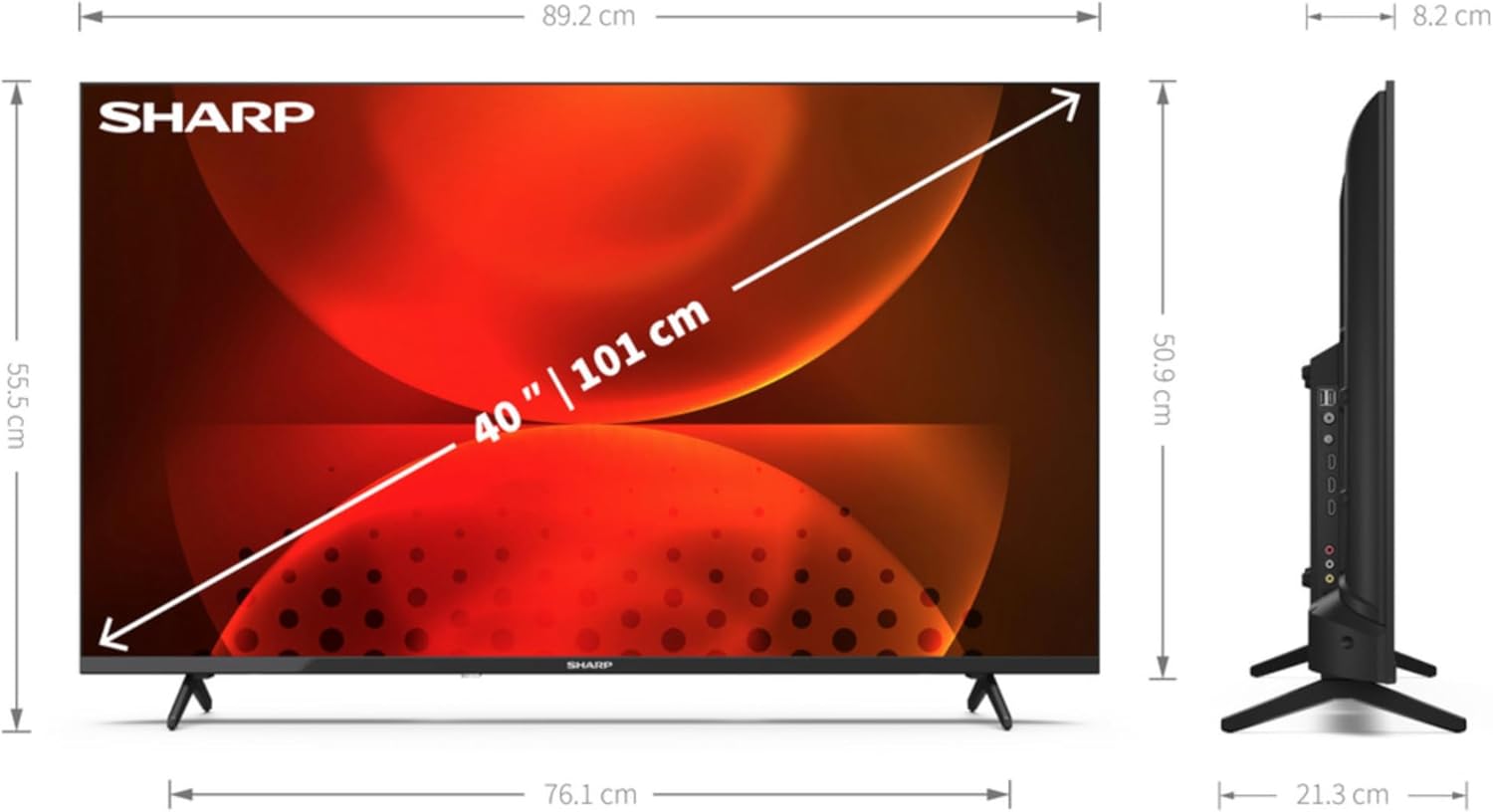
| Tele lau | 40 inisi (101.6 cm) |
| Fa'aaliga I'uga | 1920 x 1080 pika (Full HD) |
| Fa'aaliga Tekonolosi | LED |
| Fa'ailoga Mata | Mafolafola |
| Smart TV Platform | TV Android |
| Motion Interpolation Technology | AMR (Active Motion Rate) 400 |
| Fa'atatau Fa'aletagata | 16:9 |
| Fa'afuainumera Fa'ailoga Fa'ailoga | DVB, DVB-C, DVB-S, DVB-S2, DVB-T, DVB-T2 |
| Feso'ota'iga uaealesi | Wi-Fi, Bluetooth |
| Feso'ota'iga uaea | Ethernet LAN |
| HDMI Taulaga | 3 |
| Taulaga USB | 2 |
| Lanu | Lanu uliuli |
| Au'aunaga Initaneti Lagolago | Netflix, YouTube, Amazon Prime Video, Hulu, Disney+, etc. |
8. Fa'amaonia ma Lagolago
For warranty information, please refer to the warranty card included with your product or visit the official Sharp website for your region. For technical support, product registration, or to download the full user manual, please visit the Sharp support portal or contact their customer service department.
Lagolago i luga ole laiga: www.sharpconsumer.com


