1. Folasaga
Fa'afetai mo le fa'atauasing the TCL 40L5AG 40-inch Google TV Smart Television. This television combines a Full HD display with advanced image processing, smart features powered by Google TV, and immersive audio to provide a comprehensive entertainment experience. Please read this manual thoroughly before using the product to ensure proper operation and to maximize your viewi le fiafia.
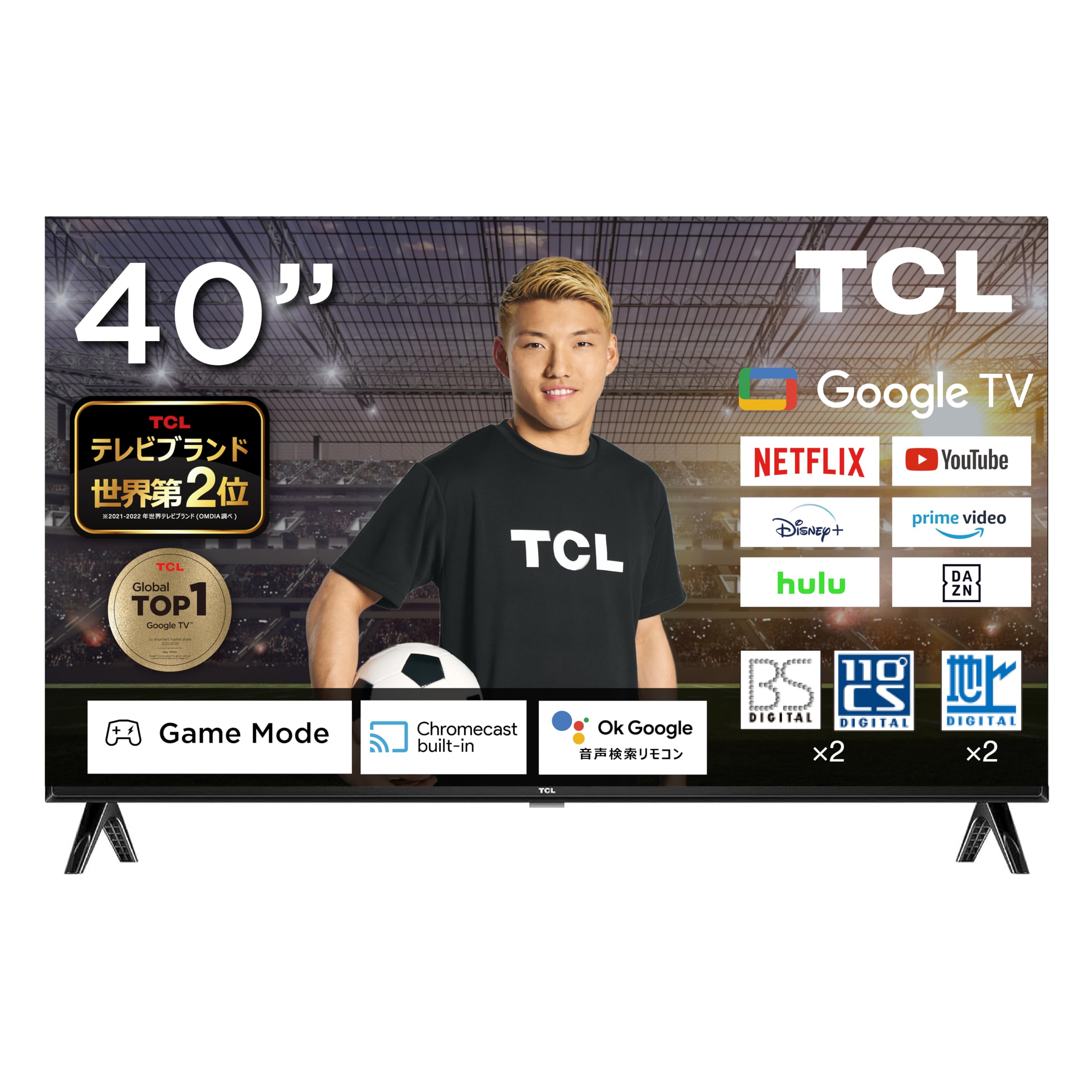
Figure 1: TCL 40L5AG 40-inch Google TV Smart Television. This image shows the front view of the television with its slim bezels and stand.
2. Seti
2.1 Tatalaina ma Fonotaga
Aveese ma le fa'aeteete le televise mai lona afifiina. Ia mautinoa o lo'o i ai vaega uma:
- TCL 40L5AG Television
- Pulea Mamao
- Maa mo Pulea Mamao
- TV Stand (if applicable)
- Uaea Malosi
- Tusi Lesona a le Tagata (lenei pepa)
If using the TV stand, attach it securely according to the instructions provided in the quick start guide. For wall mounting, refer to a compatible VESA wall mount kit (sold separately) and follow its installation instructions.
2.2 Feso'ota'i Uaea
Connect the necessary cables to the appropriate ports on the rear of the television.

Ata 2: Tua view of the TCL 40L5AG showing various connection terminals. This diagram illustrates the locations of the Optical Digital Audio Output, LAN, Headphone Output, Video Input, Antenna Input, HDMI Inputs (1-2), miniB-CAS Card Slot, and USB Terminal.
- Malosiaga: Fa'afeso'ota'i le uaea eletise i le TV ona soso'o ai lea i le so'o eletise.
- Antenna: Connect your terrestrial, BS, or 110-degree CS digital antenna cable to the Antenna Input terminal.
- HDMI: For external devices like Blu-ray players or gaming consoles, connect HDMI cables to HDMI Input 1 or 2.
- LAN: For a wired internet connection, connect an Ethernet cable to the LAN terminal.
- USB: For connecting USB storage devices (e.g., for HDD recording), use the USB terminal.
- miniB-CAS Card: Insert the miniB-CAS card into the designated slot for digital broadcast reception.
- Optical Digital Audio Output: Mo le fa'afeso'ota'i i faiga fa'alogo fafo.
- Fa'auluuluga Fa'aulu: Mo le fa'afeso'ota'i taliga.
- Faʻafiafiaga Vitio: For connecting older video devices.
2.3 Uluai Malosiaga ma Seti Wizard
After connecting all cables, plug in the power cord. The TV will power on and guide you through the initial setup process, which includes:
- Filifiliga gagana
- Feso'ota'iga (Wi-Fi po'o uaea)
- Google account login (recommended for full Google TV features)
- Channel scanning for terrestrial, BS, and 110-degree CS digital broadcasts
- Sone taimi ma isi tulaga fa'avae
3. Fa'agaioia le Televise
3.1 Galuega Fa'avae TV
Use the remote control to navigate the television. Key functions include:
- Ki Malosi: Ki pe tape le TV.
- Volume i luga/lalo: Fetuuna'i le leo leo.
- Ala i luga/I lalo: Suia ala TV.
- Ulufale/Puaga: Selects the input source (HDMI, AV, TV).
- Ki Fale: Avanoa i le Google TV mata o le fale.
- Navigation Buttons (I luga/I lalo/Agavale/Taumatau) ma le OK: Mo le fa'atonuga o le lisi ma le filifiliga.
3.2 Google TV Interface
The Google TV interface organizes your content from various streaming services and apps into a personalized home screen. Google AI recommends content based on your viewing history and preferences.

Figure 3: The Google TV home screen displaying recommended content and various streaming applications.
You can add favorite content to a "Watchlist" which will be saved across your Google account and accessible from other devices.
3.3 Google Assistant (Voice Search)
The TCL 40L5AG supports Google Voice Search and Google Assistant. Press the dedicated Google Assistant button on your remote control and speak into the microphone to search for content, get information, or control smart home devices.

Figure 4: A user interacting with the Google Assistant feature on the TCL TV, demonstrating voice command functionality.
3.4 Chromecast Fausia i totonu
With Chromecast built-in, you can cast videos, photos, music, and other content from your smartphone, tablet, or computer directly to your TV screen. Ensure your device and TV are connected to the same Wi-Fi network.

Figure 5: An illustration of Chromecast in action, showing a smartphone screen mirroring content to the TCL television.
3.5 Avanoa i Auaunaga Fa'asalalau
The TV comes with popular streaming services like Netflix and YouTube pre-installed. You can also download other apps from the Google Play Store. Supported services include YouTube, Amazon Prime Video, Netflix, Hulu, Disney+, Apple TV+, U-NEXT, and more.

Figure 6: A family enjoying various streaming services and content on the TCL television.
4. Vaega Autu
4.1 Algo Engine Lite
The Algo Engine Lite utilizes an advanced image analysis algorithm to process TV broadcasts and online video content, delivering high-quality visual beauty with enhanced texture and clarity.

Figure 7: A visual representation of the Algo Engine Lite processor, highlighting its role in image analysis.
4.2 Algo Engine - Detail Restoration
This feature minimizes noise, including wave-like patterns in flat image areas, beyond just text and edge noise. It also skillfully upscales HD and 2K content to 4K resolution, reproducing highly detailed images.

Figure 8: Comparison of an image before and after Algo Engine's detail restoration, showing enhanced clarity in a canal scene.
4.3 Algo Engine - Superior Contrast (Micro Dimming)
Equipped with "Micro Dimming," the Algo Engine analyzes image information in detail for each zone. This allows for clear separation of light and dark areas, even in subtle details, creating a more realistic sense of depth in landscapes.

Figure 9: A city night scene demonstrating the improved contrast and depth with Algo Engine's Micro Dimming feature.
4.4 Algo Engine - Precise Color Management
Through 3D color management, the Algo Engine minimizes color gamut loss during color transitions. It accurately reproduces gradations and colors from the darkest to the brightest areas of an image.

Figure 10: A visual comparison of fruit bowls, illustrating the enhanced color accuracy and vibrancy achieved with Algo Engine's precise color management.
4.5 Algo Engine - Evolved HDR Expression
The Algo Engine thoroughly analyzes High Dynamic Range (HDR) images and flexibly adapts to a wide range of brightness levels. This ensures faithful depiction of both bright and dark areas, supporting HDR10/HLG formats (1080p only).

Figure 11: A sunset scene demonstrating the enhanced dynamic range and detail in bright and dark areas with Algo Engine's HDR expression.
4.6 Full HD LCD Panel
The television features a Full HD LCD panel with direct-lit LED backlighting, providing bright and high-quality images across the entire screen. The panel resolution is twice that of standard High Vision, allowing for rich expression of diverse content with high-precision visuals.

Figure 12: A comparison showing the difference between HD and Full HD display quality, highlighting the clarity of the Full HD LCD panel.
4.7 Dolby Audio
Experience clear and powerful sound with Dolby Audio support, enhancing your overall entertainment experience.

Figure 13: A waterfall scene illustrating the immersive sound experience provided by Dolby Audio.
4.8 Bezel-less Design
The television features an ultra-thin metal frame, enhancing immersion and contributing to a sleek aesthetic in your living space.

Ata 14: Fa'alatalata views of the TCL television's ultra-thin bezel, showcasing its modern, immersive design.
5. Tausiga
5.1 Cleaning the Screen and Exterior
- Aveese i taimi uma le TV a'o le'i fufulu.
- Fa'aaogā se ie mālūlū e leai se liu e solo lemu le lau. Mo fa'ailoga ma'a'a, fai sina oampen le ie i le vai po'o se vaifofo fa'amama lau fa'apitoa mo mea fa'aeletonika. Aua le sasaa sa'o le vai ile lau.
- Solo le pito i fafo iasing fa'atasi ai ma se ie vaivai ma mago. Aloese mai le fa'aogaina o mea e fa'amama ai, solo, po'o so'omea ona e mafai ona fa'aleagaina ai le fa'auma.
5.2 Fa'afouga polokalame
Your TCL Google TV may receive automatic software updates to improve performance and add new features. Ensure your TV is connected to the internet for these updates. You can also manually check for updates in the TV's settings menu.
6. Faʻafitauli
Afai e te feagai ma faʻafitauli i lau televise, vaʻai i fofo masani nei:
| Fa'afitauli | Fofo |
|---|---|
| Leai se mana | Ia mautinoa o lo'o fa'amau lelei le uaea eletise i le TV ma le pa puipui. Siaki pe o galue le pusa e ala i le faʻapipiʻiina o se isi masini. |
| Leai se ata, ae o lo'o iai le leo | Check the input source. Press the "Input" button on the remote to cycle through sources. Ensure external devices are powered on and connected correctly. |
| Leai se leo, ae o loʻo iai le ata | Check the volume level and ensure the TV is not muted. If using external audio, check its connections and settings. |
| Le mafai ona feso'ota'i ile Wi-Fi | Ia mautinoa o loʻo ola lau router Wi-Fi ma o loʻo galue. Toe tu'u i totonu le upu fa'apolokalame Wi-Fi. Taumafai e toe amata uma le TV ma le router. |
| E le o galue le pule mamao | Check and replace the batteries. Ensure there are no obstructions between the remote and the TV's IR sensor. |
| Fa'afitauli lelei o ata (fa'ata'ita'iga, faanenefu, fa'asese) | Check the cable connections. Adjust picture settings in the TV menu. For broadcast issues, check antenna connection. |
| Smart features (Google TV, apps) not responding | Ensure a stable internet connection. Try restarting the TV by unplugging it for a few minutes and plugging it back in. If issues persist, consider a factory reset (see below). |
6.1 Toe Seti Falegaosimea
If troubleshooting steps do not resolve the issue, a factory reset may be necessary. This will erase all personal settings and installed apps, returning the TV to its original factory state. Refer to the TV's settings menu for the exact steps to perform a factory reset.
7. Fa'amatalaga
The following table outlines the key technical specifications for the TCL 40L5AG television:
| Fa'aaliga | Fa'amatalaga |
|---|---|
| Fa'ailoga | TCL |
| Numera Fa'ata'ita'i | 40L5AG |
| Fa'aaliga Ituaiga | LCD |
| Tele lau | 40 inisi |
| I'ugafono | Full HD (1920 x 1080) |
| Ituaiga Fa'atatau | 1.77:1 |
| Fa'atusatusaga Fa'atusatusa | 5000:1 |
| Tekinolosi Feso'ota'i | Bluetooth, WiFi |
| HDMI Taulaga | 2 |
| Auala o Galuega | USB, Digital Audio Output |
| Auaunaga Initaneti e Lagolagoina | YouTube, Netflix |
| Vaega o le Fofoga Fetalai | 16W 2ch |
| Fua o Mea (D x W x H) | 18 x 71.6 x 46.8 cm |
| Oloa mamafa | 8 kilokalama |
| Fa'aaogaina Malosiaga Faaletausaga | 76 kWh/tausaga |
| Fa'amauga Fa'atasi | Ioe |
| Tausaga Fa'amalolo | 2020 |

Figure 15: Diagram showing the dimensions of the TCL 40L5AG television, including width, height, and depth, along with recommended room size and optimal viewi le mamao.
8. Fa'amaonia ma Lagolago
For warranty information and customer support, please refer to the warranty card included with your product or visit the official TCL website for your region. You may also contact TCL customer service for assistance with product registration, technical support, or service inquiries.
Lagolago i luga ole laiga: www.tcl.com


