1. Oloa Ua Ovaview
The Vorago BSP-500-V2 is a portable Bluetooth speaker designed for robust performance and durability. It features IPX5 water resistance, making it suitable for various environments, including outdoor adventures and parties. This manual provides detailed instructions for setting up, operating, and maintaining your speaker.
Vaega Autu:
- True Wireless Stereo (TWS) Connectivity: Connect two BSP-500-V2 speakers for an immersive stereo sound experience.
- Fa'ateleina le ola o le ma'a: Enjoy up to 7 hours of music playback at 70% volume, thanks to its 2000 mAh battery.
- USB Type-C Totogi: Convenient and modern USB-C port for charging.
- Feso'ota'iga tele: Supports Bluetooth for wireless streaming and a 3.5mm auxiliary input for wired connections.
- IPX5 Vai Tetee: Puipuia mai pa'u vai maualalo mai so'o se itu.
I totonu o le afifi:
- Vorago BSP-500-V2 Bluetooth Speaker
- USB Cable Totogi-C
- 3.5mm uaea leo
- Tusi Lesona a le Tagata (lenei pepa)
Ata o oloa:

Ata 1.1: Luma view of the Vorago BSP-500-V2 Bluetooth speaker, showcasing its mesh grille and central Vorago logo.

Ata 1.2: Fa'afagota view of the speaker, highlighting its robust, rectangular design and integrated carrying strap.

Ata 1.3: Luga view showing the control panel with power, volume down, play/pause, and volume up buttons.
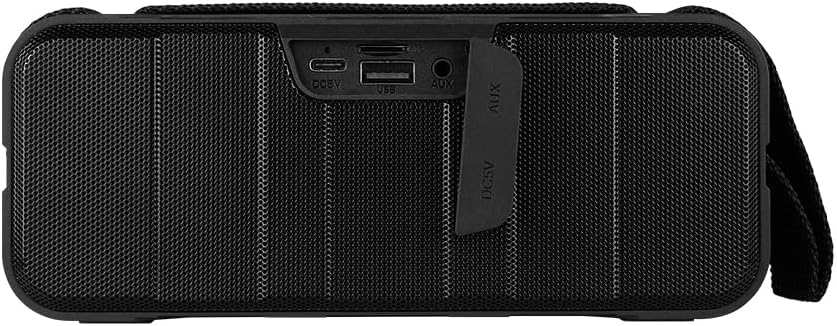
Ata 1.4: Tua view of the speaker, showing the protective flap covering the input ports.

Figure 1.5: Close-up of the input ports, including DC 5V (USB-C), USB-A, and AUX (3.5mm) inputs, protected by a rubber cover.
2. Fa'amatalaga Saogalemu
- Aua le fa'aalia le failauga i le vevela tele (vevela pe malulu).
- Aloese mai le pa'u pe tu'u le failauga i ni aafiaga malolosi.
- Keep the speaker away from direct sunlight and heat sources.
- Do not disassemble, repair, or modify the speaker yourself. This will void the warranty.
- Ensure the port cover is securely closed when using the speaker near water to maintain IPX5 water resistance.
- Do not immerse the speaker in water. IPX5 rating protects against splashes and light rain, not submersion.
- Use only the provided charging cable or a certified USB Type-C cable for charging.
- Fa'amama le sipika i se ie vaivai ma mago. Aua ne'i fa'aogaina ni mea e fa'amama fa'amama po'o ni so'o.
3. Seti
3.1 Tuuina atu o le Fofoga Fetalai
- Open the protective rubber cover on the rear of the speaker to access the charging port.
- Connect the USB Type-C end of the charging cable to the speaker's DC 5V port.
- Fa'afeso'ota'i le isi pito o le uaea USB i se feso'ota'iga eletise USB (e le'o aofia ai) po'o le uafu USB a le komepiuta.
- O le moli faʻailoga o loʻo faʻapipiʻiina o le a faʻamalamalamaina i le taimi o le molia ma tape pe a uma ona faʻatumu.
- Once charging is complete, securely close the protective rubber cover to maintain water resistance.
3.2 Fa'aola i luga/Pepe
- I le Malosiaga: Oomi ma uu le Fa'amau mana on the top panel for approximately 3 seconds until you hear an audible prompt.
- Tape le Malosi: Oomi ma uu le Fa'amau mana for approximately 3 seconds until you hear an audible prompt.
3.3 Fa'atasiga Bluetooth
- Ia mautinoa ua ola le sipika. O le a otometi lava ona ulufale i le Bluetooth pairing mode, faʻaalia i se moli moli moli.
- I luga o lau masini (smartphone, tablet, laptop), fa'agaoioi le Bluetooth ma saili mo masini avanoa.
- Select "BSP-500-V2" from the list of found devices.
- Once successfully paired, the speaker will emit an audible confirmation, and the LED light will stop flashing and remain solid.
- O le a otometi lava ona toe fa'afeso'ota'i le sipika i le masini mulimuli na fa'apipi'iina pe a fa'agaoioia, pe afai o lo'o i totonu o le vaega e mafai ona fa'aogaina ai le masini ma ua fa'agaoioia le Bluetooth.
3.4 Fa'apipi'iina o le True Wireless Stereo (TWS)
TWS allows you to connect two BSP-500-V2 speakers together for a true stereo sound experience.
- Ensure both BSP-500-V2 speakers are powered on and not connected to any other Bluetooth device.
- On one of the speakers (this will be the primary speaker), double-press the Ta'alo/Taofi faamau. O le a ulufale le sipika i le faiga pairing TWS.
- The two speakers will automatically search for and connect to each other. You will hear an audible confirmation once they are successfully paired.
- Once TWS is established, connect your device to the primary speaker via Bluetooth as described in Section 3.3.
- To disconnect TWS, double-press the Ta'alo/Taofi faamau i soʻo se failauga.
3.5 Auxiliary (AUX) Connection
For devices without Bluetooth, you can use the 3.5mm audio cable.
- Open the protective rubber cover on the rear of the speaker.
- Connect one end of the 3.5mm audio cable to the speaker's AUX port.
- Fa'afeso'ota'i le isi pito o le uaea i le so'o fa'alogo o lau masini.
- E otometi lava ona sui le failauga ile AUX mode.
- Once disconnected, securely close the protective rubber cover.
4. Fa'atonuga o Galuega
4.1 Button Functions:
| faamau | Galuega (Lomi Puupuu) | Galuega (Lomitusi Umi) |
|---|---|---|
| Fa'amau mana | N/A | Malosi / Pepe |
| Volume Down faamau | Fa'aitiitia le Volosa | Ala muamua |
| Ta'alo/Taofi faamau | Ta'alo/Taofi Musika, Tali/Fa'ai'u le Valaau | Reject Call, Double-press for TWS Pairing |
| Volume i luga faamau | Fa'ateleina le Volume | Su'ega Sosoo |
5. Tausiga
- Fa'amamaina: Use a soft, dry, lint-free cloth to clean the speaker's surface. For stubborn dirt, slightly dampfufulu le ie i le vai. Aua le fa'aaogaina ni vaila'au malolosi, vaila'au fa'amamā, po'o ni vaila'au fasimoli malolosi.
- Tausiga o le Suavai: Always ensure the rubber port cover on the back of the speaker is fully and securely sealed when using the speaker outdoors or near water. This maintains its IPX5 water resistance. After exposure to water, wipe the speaker dry before opening the port cover for charging or auxiliary connections.
- Teuina: When not in use for extended periods, store the speaker in a cool, dry place, away from direct sunlight and extreme temperatures. It is recommended to charge the speaker fully before storing and to recharge it every few months to maintain battery health.
- Tausiga maa: To prolong battery life, avoid fully discharging the battery frequently. Charge the speaker when the low battery indicator is active.
6. Faʻafitauli
| Fa'afitauli | Mafuaaga e ono tupu | Fofo |
|---|---|---|
| E le ola le Fofoga Fetalai. | Ma'a maualalo. | Charge the speaker fully using the provided USB Type-C cable. |
| E le mafai ona fa'afeso'ota'i e ala ile Bluetooth. | Speaker is not in pairing mode; Device's Bluetooth is off; Speaker is already connected to another device; Device is too far from speaker. | Ensure speaker is powered on and flashing (pairing mode). Turn on Bluetooth on your device. Disconnect from other devices. Move device closer to speaker (within 10 meters). |
| Leai se leo pe maualalo le leo. | Volume too low on speaker or device; Incorrect input mode; Speaker not connected. | Increase volume on both speaker and connected device. Ensure correct mode (Bluetooth or AUX) is active. Verify successful Bluetooth pairing or AUX cable connection. |
| Leo faʻaletonu | Volume too high; Device too far from speaker; Interference. | Reduce volume on speaker and/or device. Move device closer to speaker. Avoid obstacles between speaker and device. |
| Ua le manuia le fa'atasiga TWS. | Speakers are already paired to a device; Speakers are too far apart. | Ensure both speakers are disconnected from any Bluetooth devices. Place speakers close to each other during TWS pairing. |
7. Fa'amatalaga
| Fa'aaliga | Fa'amatalaga |
|---|---|
| Igoa Fa'ata'ita'iga | BSP-500-V2 |
| Ituaiga Fofoga Fetalai | Telemedia |
| Fa'apitoa Fa'apitoa | Bluetooth |
| Fautuaina Fa'aoga | For music players |
| Masini Fegalegaleai | Laptop, MP3 Player, Telefonipoto, Tablet |
| Ituaiga Pule | faamau |
| Fa'atonuga alavai leo si'o | 5.0 |
| Ola ma'a | 7 Itula |
| Vaega e aofia ai | Fofoga Fetalai |
| Fua o Mea | 5D x 15W x 18H senitimita |
| Oloa mamafa | 1 kilokalama |
| Suavai | Ioe (IPX5) |
| Malosiaga ma'a | 2000mAh |
| AmpItuaiga lifier | Malosi |
| Punavai Malosi | Ma'a |
| Tali Faatele | 180 Hz |
| Tekinolosi Feso'ota'i | Bluetooth |
| Leo Faʻalauiloa Galuega | Stereo |
| Ituaiga Fa'amau | Mauga Laupapa |
8. Fa'amaonia ma Lagolago
The Vorago BSP-500-V2 Bluetooth Speaker comes with a limited warranty. Please refer to the warranty card included with your product for specific terms and conditions, or visit the official Vorago webnofoaga mo nisi fa'amatalaga.
For technical support, troubleshooting assistance, or warranty claims, please contact Vorago customer service through their official channels. You can find more information and contact details on the Vorago Brand Store on Amazon po o latou ofisa webnofoaga.
Fa'amolemole taofi lau fa'amaoniga o le fa'atau mo fa'amoemoega fa'amaonia.


