1. Folasaga
This manual provides essential information for the proper setup, operation, and maintenance of your Sharp 32FG6EA 32-inch HD Android TV. The Sharp 32FG6EA offers a wide range of connection options and features the Android TV operating system, providing a modern and intuitive television experience. It functions as an all-in-one entertainment hub, integrating Google Assistant for a smarter viewing experience. Users can quickly access entertainment, control smart devices, and obtain on-screen information using voice commands.
2. Fa'amatalaga Saogalemu
Please read all safety instructions carefully before using the television. Keep this manual for future reference.
- Paoa sapalai: Ensure the TV is connected to a power source with the correct voltagu. Aua ne'i ova le uta eletise.
- Savili: Aua le poloka avanoa e savili ai. Fa'ataga ia lava se avanoa fa'ata'amilo i le TV mo le sa'o o le ea e puipuia ai le so'ona vevela.
- Suavai ma Susū: Do not expose the TV to rain, moisture, or excessive humidity. Avoid placing objects filled with liquids on or near the TV.
- Fa'amamaina: Unplug the TV before cleaning. Use a soft, dry cloth. Do not use liquid cleaners or aerosol sprays.
- Tu'uga: Place the TV on a stable, level surface. If wall-mounting, ensure the mount is securely installed and can support the TV's weight.
- Au'aunaga: Aua le taumafai e fa'aleleia oe lava le TV. Fa'asino uma auaunaga i tagata tomai fa'apitoa.
3. Mea i totonu o le afifi
Fa'amautinoa o lo'o iai mea uma i totonu o le afifiina:
- Sharp 32FG6EA 32-inch HD Android TV
- Pulea Mamao (fa'atasi ai ma maa AAA e 2)
- Stand Type Base
- Tusi Taiala
- Uaea Malosi
4. Seti
4.1 Tatalaina
Carefully remove the TV and all accessories from the packaging. Retain the packaging materials for future transport or servicing.
4.2 Fa'apipi'i o le Tu
If you are not wall-mounting the TV, attach the included stand base:
- Tuu le lau TV-i lalo i luga o se mea malu, mafolafola e puipuia ai le faaleagaina.
- Fa'asa'o le fa'avae ma pu fa'apipi'i i le pito i lalo ole TV.
- Fa'amautu le tulaga e fa'aaoga ai sikulima ua saunia. Ia mautinoa ua pipii mau le tulaga.
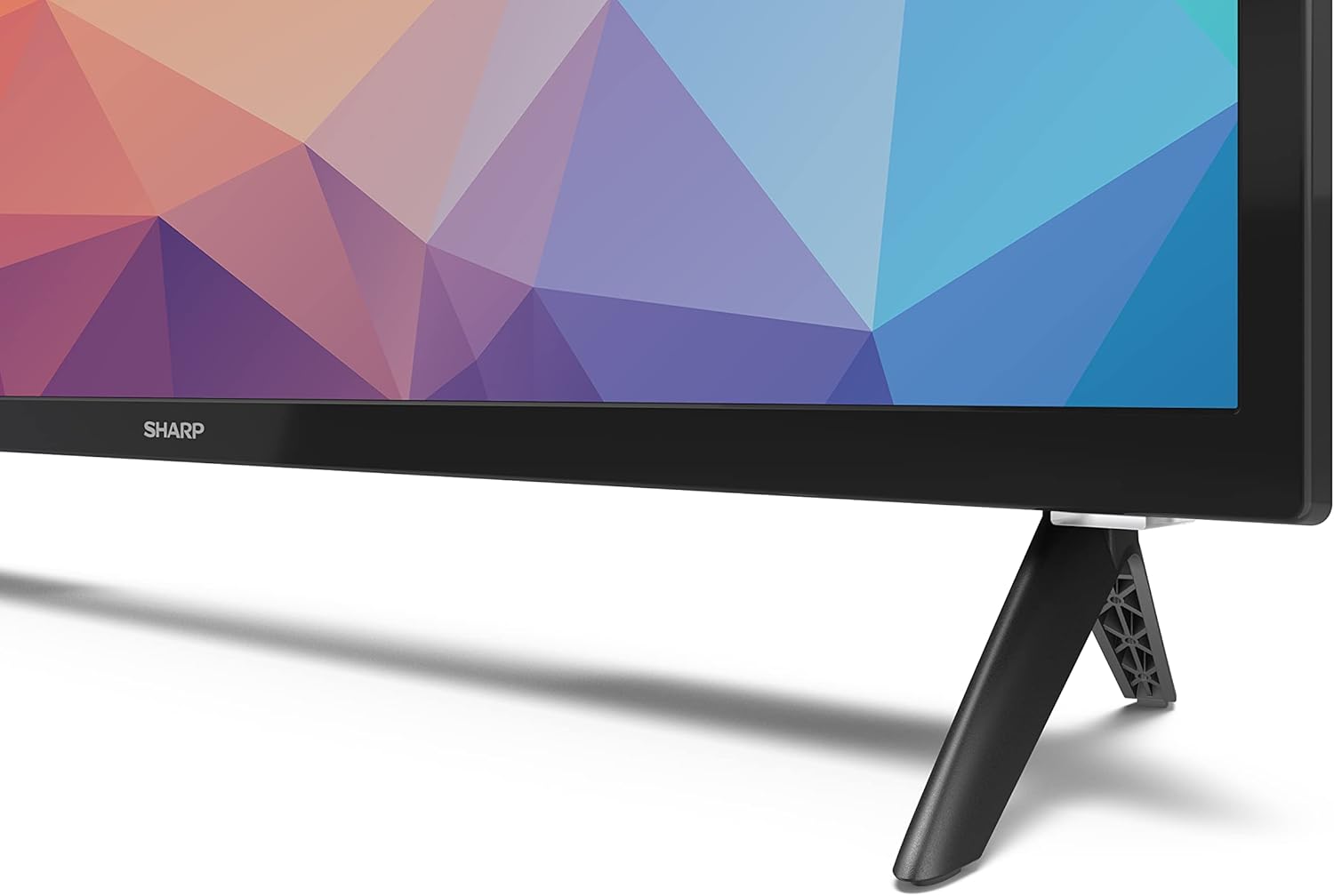
Image: Close-up of the TV stand attachment.
4.3 Fa'amauina o puipui
The Sharp 32FG6EA supports VESA wall mounts with dimensions of 75 x 75 mm. Wall mount hardware is not included. Follow the instructions provided with your wall mount kit.
4.4 Feso'ota'i Meafaigaluega i fafo
Your TV features multiple ports for connecting various devices:
- HDMI: Connect Blu-ray players, game consoles, or set-top boxes to the 2 HDMI ports.
- USB: Connect USB storage devices for media playback to the 2 USB ports.
- Antenna/Uaea: Connect an antenna or cable TV source for broadcast channels.
- Ethernet: Mo se feso'ota'iga initaneti uaea.
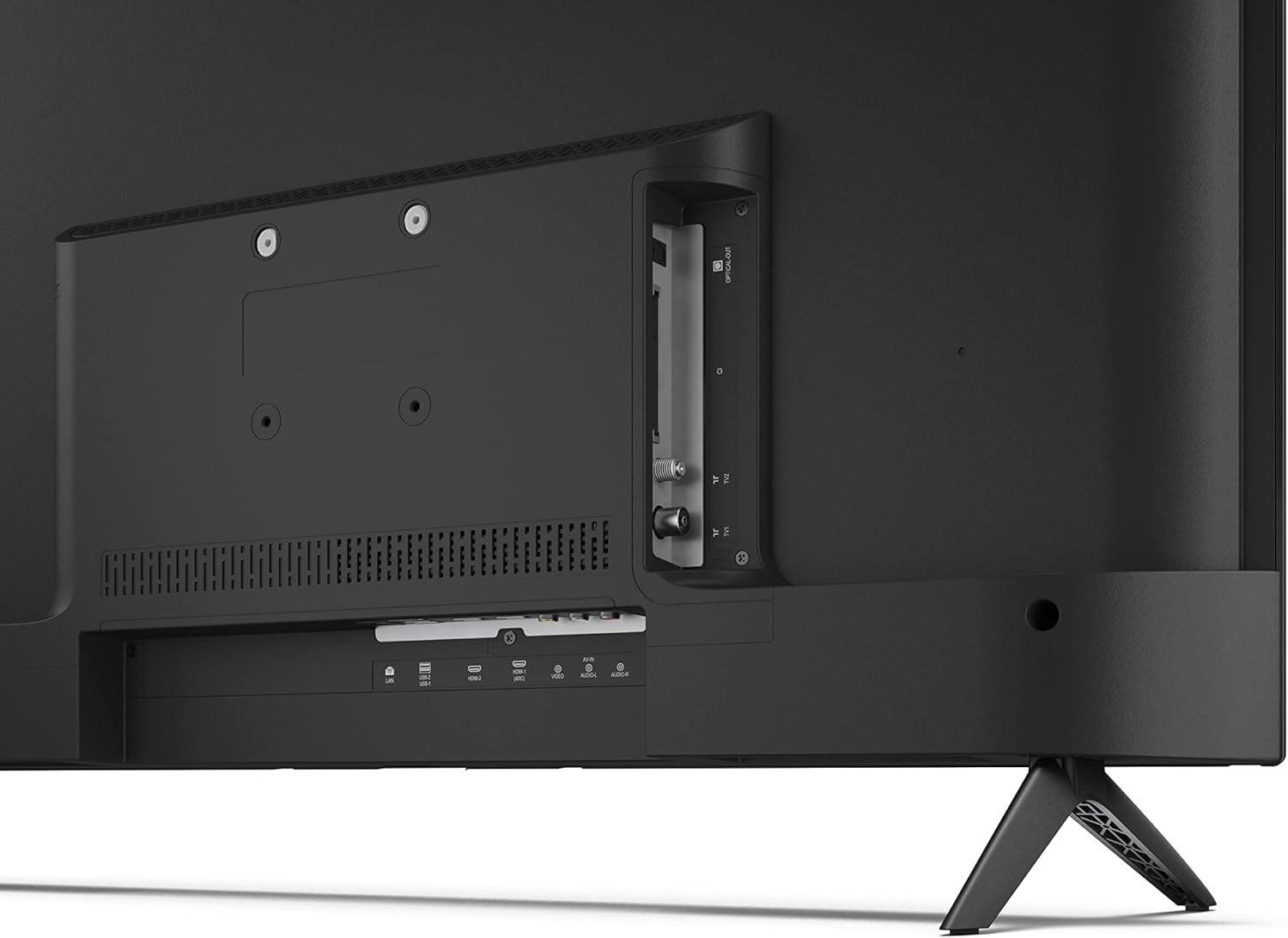
Ata: Tua view of the TV with connection ports.
4.5 So'oga Malosi
After connecting all necessary devices, plug the power cable into the TV and then into a wall outlet.
4.6 Wizard Seti Muamua
I luga o le eletise muamua, o le TV o le a taʻitaʻia oe i se faiga faʻatulagaina muamua. E aofia ai:
- Filifiliga gagana.
- Feso'ota'iga feso'ota'iga (Wi-Fi po'o Ethernet).
- Google account sign-in (required for full Android TV features).
- Su'ega alavai.
5. Faʻagaioiga
5.1 Pulea Mamao I lugaview
The included remote control allows you to navigate the TV's features. Insert the 2 AAA batteries into the remote control before use.
- Ki Malosi: Ki pe tape le TV.
- Directional Pad (D-Pad) & OK Button: Su'e menus ma fa'amaonia filifiliga.
- Ki tua: Toe fo'i i le lau muamua.
- Ki Fale: Avanoa i le Android TV lau fale.
- Volume i luga/lalo: Fetuuna'i le leo leo.
- Ala i luga/I lalo: Suia ala TV.
- Google Fesoasoani ki: Fa'agaoioia le pulea o leo.
- Fa'amau o 'O'oti: Dedicated buttons for popular streaming services like Netflix, Prime Video, and YouTube.
5.2 Android TV Interface Navigation
The Android TV home screen provides access to your installed apps, recommended content, and settings. Use the directional pad on your remote to navigate through the interface.
5.3 Google Fesoasoani
Press the Google Assistant button on your remote and speak into the microphone to:
- Saili mo movies, shows, or information.
- Pulea masini atamai fale.
- Tatala talosaga.
- Fetuuna'i seti TV.
5.4 Chromecast Fausia i totonu
The TV includes Chromecast built-in, allowing you to cast content from compatible apps on your smartphone, tablet, or computer directly to the TV screen.
5.5 Feso'ota'iga Bluetooth
Connect Bluetooth devices such as headphones or speakers to your TV for a personalized audio experience. Navigate to the TV's settings menu to pair new Bluetooth devices.
5.6 Fa'atonu leo
The TV supports Dolby Audio with 2 x 6 W RMS speakers. You can adjust audio settings, including sound modes and equalizer, through the TV's settings menu.
6. Tausiga
6.1 Fa'amama le TV
Mo le fa'amamāina o le lau ma le kapeneta o le TV:
- Aveese le uaea eletise mai le pa puipui.
- Use a soft, lint-free cloth to gently wipe the screen and surfaces.
- Mo fa'ailoga ma'a'a, fai sina oampi le ie i le vai po'o se fa'amama fa'apitoa fa'amama (fa'aoga i le ie, ae le sa'o i le lau).
- Aua ne'i fa'aogaina ni mea e fa'amamā ai, solo, po'o so'o.
6.2 Fa'afouga polokalame
Your Android TV may receive periodic software updates to improve performance and add new features. Ensure your TV is connected to the internet to receive these updates. You can check for updates manually in the TV's settings menu.
7. Faʻafitauli
Afai e te feagai ma faʻafitauli i lau TV, vaʻai i faʻafitauli masani nei ma fofo:
- Leai se Malosi: Ia mautinoa ua fa'apipi'i lelei le uaea eletise i le TV ma le palaka eletise i le puipui. Taumafai i se isi palaka eletise.
- Leai se Ata/Leo: Check that the correct input source is selected. Verify all cables (HDMI, antenna) are properly connected.
- Pulea mamao e le o galue: Check the batteries and ensure they are inserted correctly. Point the remote directly at the TV's IR sensor.
- Le lelei o Ata: Check antenna/cable connections. Adjust picture settings in the TV menu. For streaming content, ensure a stable internet connection.
- Leai se So'oga Initaneti: Verify Wi-Fi password or Ethernet cable connection. Restart your router and the TV.
- Apps Not Working: Ensure the TV's software is up to date. Try clearing the app's cache or reinstalling the app.
If problems persist, consult the Sharp support webnofoaga po'o fa'afeso'ota'i le 'au'aunaga fa'atau.
8. Fa'amatalaga
| Fa'aaliga | Fa'amatalaga |
|---|---|
| Numera Fa'ata'ita'i | 32FG6EA |
| Fa'ailoga | Ma'ai |
| Tele lau | 32 Inisi (81 cm fa'ata'oto) |
| Fa'aaliga Tekonolosi | LED |
| I'ugafono | 720p (1366 x 768 pika) |
| Ituaiga Fa'atatau | 16:9 |
| Fua Fa'afouina | 50 Hz |
| Faiga Fa'atonu | Android TV 11 |
| Fa'apitoa Fa'apitoa | Android TV, Google Assistant, Chromecast built-in |
| Fa'alogo leo | 2 x 6 W RMS, Dolby Audio |
| HDMI Taulaga | 2 |
| Taulaga USB | 2 |
| Feso'ota'i | Wi-Fi, Bluetooth, Ethernet |
| VESA Wall Mount | 75 x 75 mm |
| Fua ma tulaga (W x H x D) | 731 x 486 x 177 mm |
| Fua e aunoa ma se tulaga (W x H x D) | 731 x 433 x 68 mm |
| Fua o Mea (D x W x H) | 16 x 73 x 46.4 cm (approximate, with stand) |
| mamafa | 3.9 kilokalama |
| Vasega Malosiaga | E |

Image: TV dimensions diagram.

Image: Energy Label. For more details, visit EPREL Fa'amaumauga.
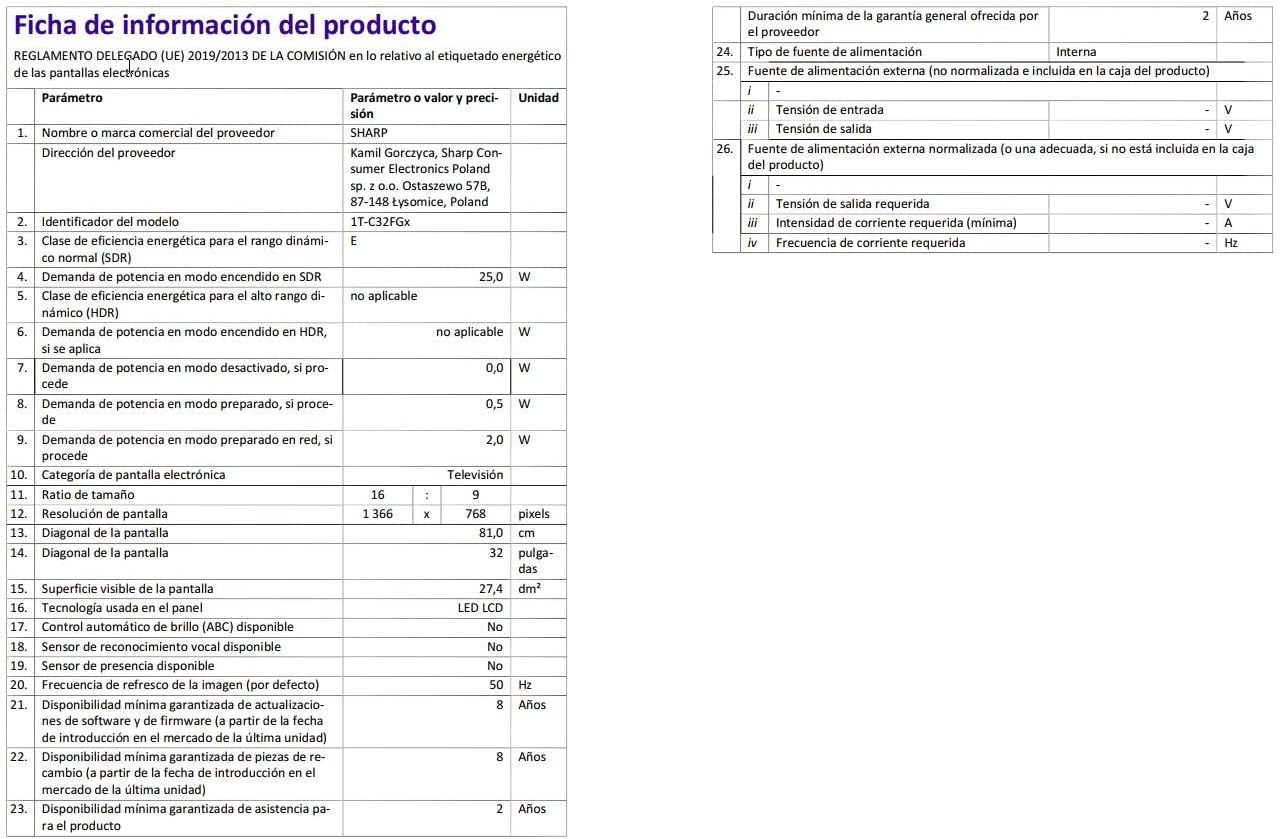
Image: Detailed product information sheet.
9. Fa'amaonia ma Lagolago
The Sharp 32FG6EA television comes with a minimum general warranty duration of 2 years from the provider.
For technical support, warranty claims, or further assistance, please refer to the contact information provided with your purchase documentation or visit the official Sharp support webnofoaga mo lau itulagi.


