1. Folasaga
The Poly Studio R30 is an integrated USB video bar designed for small and huddle rooms, providing a comprehensive solution for video conferencing. It combines a 4K camera, advanced microphones, and a powerful speaker into a single device, ensuring high-quality audio and video experiences. This manual provides essential information for setting up, operating, maintaining, and troubleshooting your Poly Studio R30.

Ata 1: Luma view of the Poly Studio R30 4K Video Conference System.
2. O a mea oi totonu o le Pusa
Fa'amautinoa o lo'o iai mea uma i totonu o le afifi:
- Poly Studio R30 4K Video Conference System
- Fetuunaiga Malosi
- Uaea USB
- Mataitu Clamp (included for flexible mounting options)
3. Oloa Ua Ovaview
The Poly Studio R30 integrates several key components into a sleek bar design:
- 4K meapueata: O lo'o i ai se fanua e 120-tikeri o view and 5x digital zoom for clear video.
- Fa'asologa o masini faaleotele leo: An advanced 3-microphone array designed to capture voices clearly while filtering out background noise.
- Tu'ufa'atasia le Fofoga Fetalai: Provides rich and clear audio output for all participants.
- Filifiliga Fa'amau: Includes an adjustable monitor clamp for easy attachment to displays.

Ata 2: Itu view of the Poly Studio R30, highlighting its compact design.
4. Seti
The Poly Studio R30 is designed for quick and easy plug-and-play setup:
- Fa'amauina: Attach the Poly Studio R30 to your display using the included monitor clamp. Ensure it is securely fastened and positioned to capture the desired area of the room.
- So'oga Malosi: Connect the power adapter to the Poly Studio R30 and plug it into an electrical outlet.
- So'oga USB: Connect the provided USB cable from the Poly Studio R30 to an available USB port on your PC or Mac.
- Iloaina o Polokalama Faakomepiuta: Your computer should automatically recognize the Poly Studio R30 as a camera, microphone, and speaker device. No additional drivers are typically required.

Figure 3: Illustration of the simple plug-and-play setup for the Poly Studio R30.
5. Fa'atonuga o Galuega
Once set up, the Poly Studio R30 integrates seamlessly with popular video conferencing platforms:
- Launch Conferencing Application: Open your preferred video conferencing software (e.g., Zoom, Microsoft Teams, Google Meet).
- Select Devices: In the application's audio and video settings, select "Poly Studio R30" as your camera, microphone, and speaker.
- Amata Fonotaga: Begin your meeting. The Poly Studio R30 will automatically activate its intelligent features.
Vaega Autu ile Fa'agaioiga:
- Poly DirectorAI: This technology provides automatic framing and tracking, ensuring all participants are seen clearly. It can frame groups or track individual speakers.
- NoiseBlockAI: Intelligently blocks distracting background noises, allowing voices to be heard without interruption.
- Acoustic Fence: Creates a virtual sound barrier, focusing the microphone pickup on the area within the fence and eliminating sounds from outside that zone.

Figure 4: The 120-degree field of view ensures everyone is seen in the meeting room.

Figure 5: Dynamic video with DirectorAI close-up feature for clear facial expressions and body language.

Figure 6: Remarkable audio features including NoiseBlockAI and Acoustic Fence technology.
6. Pulega
The Poly Studio R30 can be managed and configured using Poly Lens software:
- Poly Lens Desktop App: Install the Poly Lens Desktop application on your PC or Mac to control device settings, customize camera behaviors, and update firmware.
- Poly Lens Cloud Management: For IT administrators, Poly Lens cloud management software allows for remote management, monitoring, and deployment of devices over Wi-Fi, providing intelligent insights and scalable control.
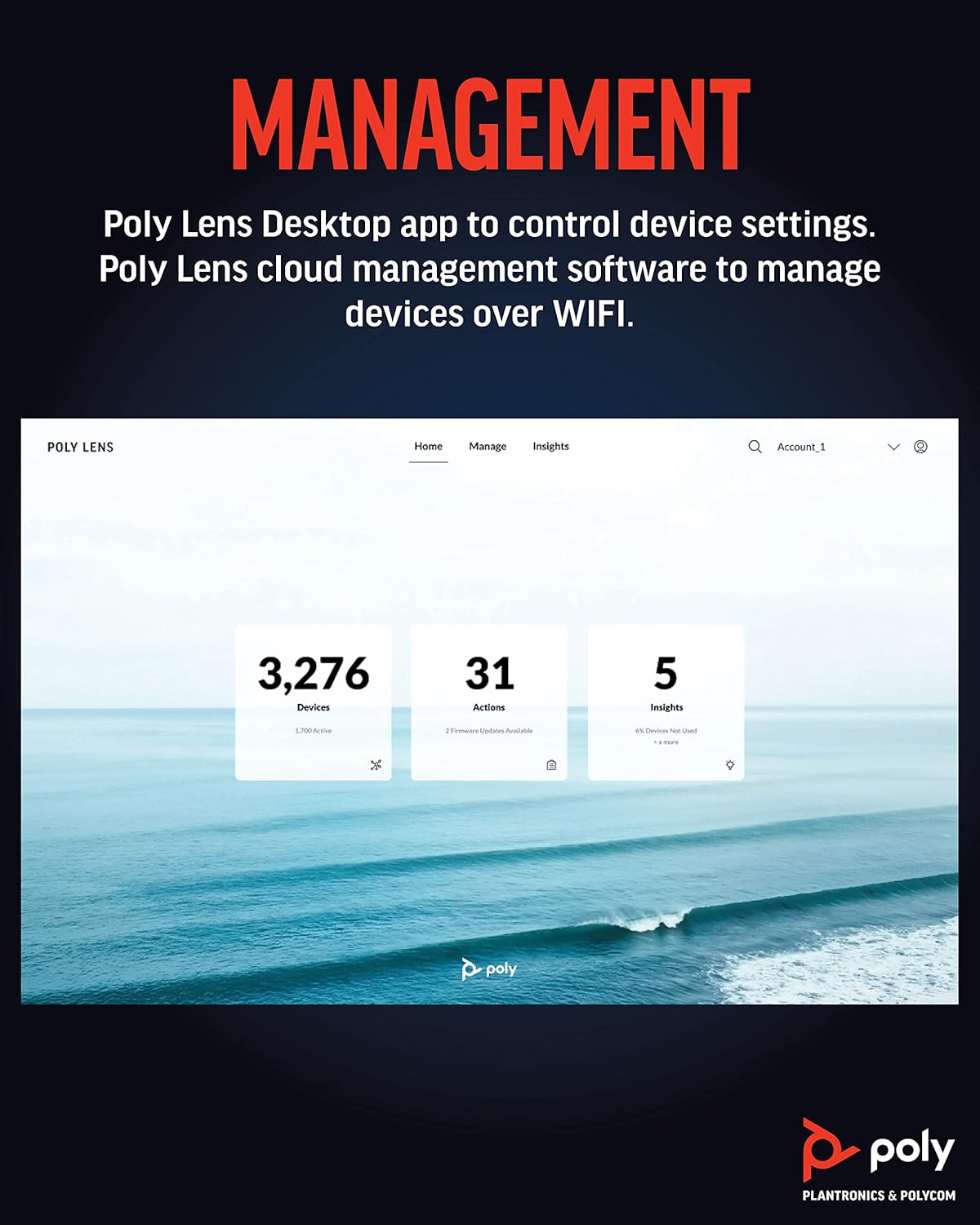
Figure 7: Poly Lens interface for device management and insights.
7. Tausiga
To ensure optimal performance and longevity of your Poly Studio R30, follow these maintenance guidelines:
- Fa'amamaina: Use a soft, dry, lint-free cloth to clean the exterior of the device. Do not use liquid cleaners or aerosol sprays directly on the unit.
- Tausiga tioata: Gently wipe the camera lens with a microfiber cloth specifically designed for optics. Avoid abrasive materials.
- Faʻalauiloa Firmware: Regularly check for and install firmware updates via the Poly Lens Desktop app or cloud management. Updates often include performance improvements and new features.
- Teuina: A le fa'aaogaina mo se taimi umi, teu le masini i se nofoaga malulu ma matutu mamao ese mai le susulu o le la.
8. Faʻafitauli
If you encounter issues with your Poly Studio R30, try the following steps:
| Fa'afitauli | Fofo e ono mafai |
|---|---|
| No video/audio in conferencing app |
|
| Le lelei ata vitio |
|
| Poor audio quality (echo, muffled sound) |
|
| E le iloa e le komepiuta le masini |
|
9. Fa'amatalaga
| Fa'aaliga | Fa'amatalaga |
|---|---|
| Numera Fa'ata'ita'i | 2200-69390-001 |
| Fua o Mea | 20.59 x 8.94 x 3.98 inisi |
| Mea mamafa | 2.87 pauna |
| I'uga o Pu'e Vitio | 4K |
| Field of View | 120 tikeri |
| Faʻamatalaga Faʻamatalaga | 5x |
| Laʻau faʻaata leo puʻeata | 3-microphone array |
| Tekinolosi leo | NoiseBlockAI, Acoustic Fence |
| Video Technologies | Poly DirectorAI (auto-framing, speaker tracking) |
| Tekinolosi Feso'ota'i | USB |
| Lanu | Lanu uliuli |
| Fa'avae Lagolago | Zoom, Microsoft Teams, Google Meet, and other PC/Mac video applications |
10. Fa'amaonia ma Lagolago
For detailed warranty information, please refer to the warranty card included with your product or visit the official Poly website. For technical support, product registration, and additional resources, please visit the Poly support portal or contact their customer service.
You can find more information and support at the official Poly webnofoaga: www.poly.com


