Folasaga
The Microsoft Modern USB-C Headphones are designed to provide high-quality audio for calls, meetings, and general use, particularly optimized for Microsoft Teams. They offer clear sound, a noise-reducing microphone, and intuitive controls for enhanced productivity and communication.
O mea o lo'o i totonu
- Microsoft Modern USB-C Headset
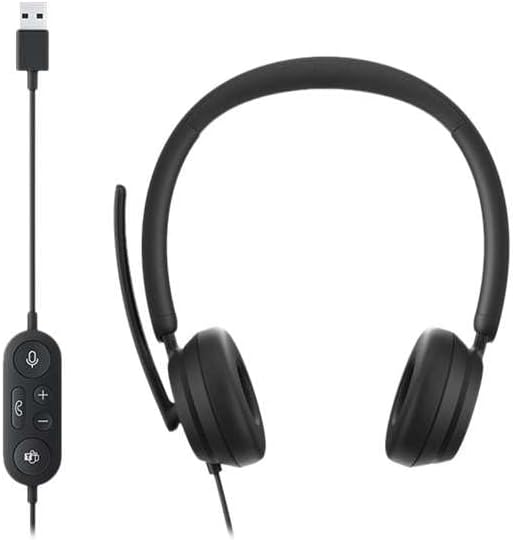
Image: The Microsoft Modern USB-C Headphones, featuring the headset with its attached USB-C cable and inline control unit. The control unit has buttons for mute, volume up/down, call answer/end, and a Microsoft Teams button.
Seti
Fa'afeso'ota'i le Headset
- Locate an available USB-C port on your computer or compatible device.
- Plug the USB-C connector of the headset into the USB-C port.
- Your operating system (Windows 11/10/8.1/8 or Mac OS 11.0/10.15) should automatically detect and install the necessary drivers.
Fetuunaiga Microphone
- The microphone boom is flexible. Position it approximately one inch from your mouth for optimal voice pickup.
- The microphone features noise reduction to minimize background distractions during calls.

Ata: Se va'aiga view of the earcups and the adjustable microphone boom of the Microsoft Modern USB-C Headphones.
Fa'agaoioi le Headset
Pulea i totonu
The inline control unit provides convenient access to essential functions:
- Faʻamau faʻamau: Press to mute or unmute your microphone. An indicator light on the control unit may show mute status.
- Volume i luga/lalo faamau: Fa'atonu le leo fa'alogo.
- Fa'amau Valaau: Fetaomi atu e tali pe faʻamutaina se valaʻau.
- Fa'amau a le Microsoft Teams: Quickly launch or bring Microsoft Teams to the foreground.

Ata: O se auiliiliga view of the inline control unit, showing the microphone mute, volume up/down, call, and Microsoft Teams buttons.
Faamafanafana ma Fuafuaga
The headset features padded and lightweight earcups designed for extended wear, ensuring comfort during long calls or work sessions.

Image: A close-up showing the soft, padded earcup of the Microsoft Modern USB-C Headphones, highlighting its comfortable design.
Tausiga
- Fa'amamaina: Fa'aaogā se ie mālū ma mago e fa'amama ai le ulu. Aloese mai le fa'aaogaina o vaila'au malolosi po'o mea fa'a'a'asa.
- Teuina: Teu le ulu i se nofoaga malulu ma mago pe a le faʻaaogaina. Aloese mai le vevela tele.
- Tausiga uaea: Do not excessively bend or pull the USB-C cable to prevent damage.
Fa'afitauli
| Fa'afitauli | Fofo |
|---|---|
| Leai se leo mai le ulu |
|
| Ua le aoga le masini faaleotele leo |
|
| Headset not recognized by computer |
|
Fa'amatalaga
| Fa'ailoga | Microsoft |
| Igoa Fa'ata'ita'iga | I6N-00009 |
| Numera Fa'ata'ita'i Mea | 2026 |
| Tekinolosi Feso'ota'i | Uaea (USB-C) |
| Tulaga taliga | I luga o le taliga |
| Fa'ailoga Fa'ailoga | I le taliga |
| Mea | Pa'u Faux |
| Ituaiga Pulea | Valaau Pulea |
| Masini Fegalegaleai | USB-C mea fa'aoga talafeagai |
| Faiga Fa'atonu Fa'atasi | Windows 11 / 10 / 8.1 / 8, Mac OS 11.0/10.15 |
| Fua o Mea | 16 x 3.99 x 24.99 cm |
| Mea mamafa | 390 g |
| Suavai Tetee Level | Tetee Vai |
Fa'amaonia ma Lagolago
Mo faʻamatalaga e uiga i le tusi saisai ma le lagolago faʻapitoa, faʻamolemole tagaʻi i le lagolago aloaia a Microsoft website or contact Microsoft customer service. Details regarding specific warranty periods and terms are typically provided with your purchase documentation or available online.
You can find support resources at the official Microsoft support page: lagolago.microsoft.com


