1. Oloa Ua Ovaview
The ZKTeco MB20-VL is an advanced contactless multi-biometric identification terminal designed for efficient and secure access control and time attendance. It incorporates ZKTeco's innovative Visible Light facial recognition technology, allowing for recognition at distances of 30cm to 50cm. This device automatically detects human faces within its detection range, providing enhanced recognition speed and accuracy compared to previous infrared facial recognition systems.
Equipped with a leading 3D neural fingerprint algorithm, the MB20-VL offers multiple verification methods including face, fingerprint, and password, making it suitable for diverse work environments and customer needs. It supports TCP/IP network communication and USB connectivity for data transfer and management.

Ata 1.1: Luma view of the ZKTeco MB20-VL Multi-Biometric Terminal, showing the display, keypad, and fingerprint sensor.
Vaega Autu:
- Visible Light Facial Recognition: Contactless and fast recognition.
- Anti-Spoofing Algorithm: Protection against print attacks (laser, color, B/N photos), video attacks, and 3D mask attacks.
- Multiple Verification Methods: Supports Face, Fingerprint, and Password.
- Communication: TCP/IP network and USB port for data management.
- Integrated SSR Excel Software: Standard inclusion for simplified reporting.
- Basic Access Control Functions: Manages entry and exit.
- Storage Capacity: Up to 500 fingerprints, 100 faces, and 50,000 events.
2. Seti ma Fa'apipi'i
Proper installation is crucial for the optimal performance of your MB20-VL terminal. Ensure the device is mounted securely and connected correctly.
2.1 Tatalaina ma Asiasiga
- Carefully remove the device and all accessories from the packaging.
- Verify that all components are present and undamaged. Contact your supplier immediately if any items are missing or damaged.
2.2 Fa'apipi'i le Masini
Filifili se nofoaga talafeagai mo le fa'apipi'iina, e sili ai i totonu o le fale, 'alo'ese mai le susulu sa'o o le la ma le malosi o le fa'alavelave fa'aeletise. Ia mautinoa o le mea e fa'apipi'i ai e mautu ma e mafai ona lagolagoina le mamafa o le masini.
- Use the provided mounting template (if applicable) to mark the drilling points on the wall.
- Eli pu ma faaofi i ai ni polo puipui.
- Secure the mounting bracket (if separate) to the wall using screws.
- Attach the MB20-VL terminal to the mounting bracket or directly to the wall, ensuring it is firmly in place.
2.3 Feso'ota'i Malosi ma Feso'ota'iga
Refer to the back panel of the device for port identification.
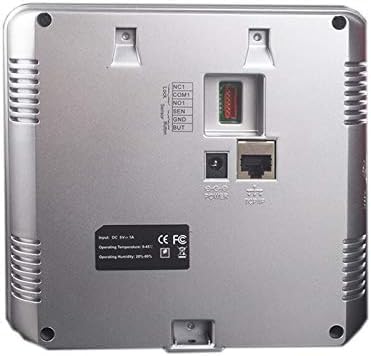
Ata 2.1: Tua view of the ZKTeco MB20-VL, illustrating power input, TCP/IP port, and other connections.
- So'oga Malosi: Connect the DC 9V-1A power adapter to the 'POWER' port on the back of the device. Plug the adapter into a suitable power outlet.
- Network Connection (TCP/IP): Connect an Ethernet cable from your network router or switch to the 'TCP/IP' port on the back of the device. This enables network communication for data synchronization and remote management.
- So'oga USB: A USB port is available for local data transfer, such as exporting attendance records or importing user data. This port is typically located on the side of the device.

Ata 2.2: Itu view of the ZKTeco MB20-VL, highlighting the USB port for data transfer.
3. Fa'atonuga o Galuega
This section outlines the basic operation of the MB20-VL terminal, including user enrollment and verification.
3.1 Initial Setup and Administrator Enrollment
- Upon first power-on, the device will prompt for initial setup.
- It is highly recommended to enroll an administrator (using face, fingerprint, or password) to secure device settings.
- Access the main menu by pressing the 'M/OK' button. If an administrator is set, you will be prompted for verification.
3.2 Resitalaina o Tagata Faʻaoga
To enroll new users:
- From the main menu, navigate to 'User Management' or 'Enroll User'.
- Select 'New User' and enter a User ID.
- Enroll Face: Follow the on-screen prompts to position your face within the recognition area. Ensure good lighting and a clear view o ou fofoga.
- Enroll Fingerprint: Place your finger firmly on the fingerprint sensor. Lift and repeat as prompted (typically 3 times) for accurate registration.
- Enroll Password: Enter a numeric password using the keypad and confirm it.
- Sefe faʻamatalaga a le tagata faʻaoga.
3.3 User Verification
For time attendance or access control:
- Face Verification: Stand within 30-50cm of the device. The device will automatically detect and verify your face.
- Fingerprint Verification: Tuu lou tamatamailima ua uma ona resitala i luga o le masini fa'amau.
- Password Verification: Enter your registered password using the keypad and press 'M/OK'.
Upon successful verification, the device will display a confirmation message (e.g., 'Welcome' or 'Access Granted') and record the event.
3.4 Puleaina o Fa'amaumauga
- Downloading Data: Connect a USB drive to the device's USB port or use the TCP/IP connection with compatible software to download attendance logs and user data.
- SSR Excel Software: Utilize the integrated SSR Excel software for generating attendance reports directly from the device via USB.
4. Tausiga
Regular maintenance ensures the longevity and optimal performance of your MB20-VL terminal.
4.1 Fa'amamāina
- Display and Lens: Fa'aaoga teisi se ie vaivai e leai se liu oampened with a non-abrasive cleaner (e.g., screen cleaner) to gently wipe the display screen and the facial recognition lens. Avoid excessive moisture.
- Sensor tamatamai lima: Use a clean, dry, soft cloth to wipe the fingerprint sensor. Do not use harsh chemicals or abrasive materials, as they can damage the sensor surface.
- Meafaigaluega Casing: Solo le pito i fafo iasing fa'atasi ai ma se ie vaivai ma mago.
4.2 Tulaga Siosiomaga
Ensure the device operates within the specified environmental ranges:
- Tempera galue: 0°C i le 45°C (32°F i le 113°F)
- Susū fa'agaioiga: 20% i le 80% (e le fa'afefe)
Avoid exposing the device to extreme temperatures, direct sunlight, high humidity, or dusty environments.
4.3 Fa'amaumauga Fa'amaumauga
Regularly back up attendance records and user data to prevent data loss. This can be done via USB export or through network software.
5. Faʻafitauli
This section provides solutions to common issues you might encounter with the MB20-VL terminal.
| Fa'afitauli | Mafuaaga e ono tupu | Fofo |
|---|---|---|
| E le ola le masini. | E le'o feso'ota'i pe fa'aletonu; fa'afitauli fa'aletonu. | Check power adapter connection. Ensure power outlet is functional. Try a different outlet. |
| Face recognition failure. | Improper distance/angle; poor lighting; face changes (e.g., new glasses, beard); data corruption. | Ensure you are within 30-50cm. Adjust lighting. Re-enroll face if necessary. |
| Fingerprint recognition failure. | Dirty/damaged sensor; dry/wet fingers; improper finger placement; data corruption. | Clean the sensor. Ensure fingers are clean and dry. Place finger flat and firmly. Re-enroll fingerprint if persistent. |
| Fa'afitauli i feso'ota'iga i le initaneti. | Ethernet cable disconnected/faulty; incorrect IP settings; network router issue. | Check Ethernet cable connection. Verify device IP settings match network configuration. Restart router/switch. |
| Cannot access menu. | No administrator enrolled or administrator password forgotten. | If no admin is set, you should be able to access. If admin is set and forgotten, contact ZKTeco support for reset procedures (may require factory reset). |
If the problem persists after attempting these solutions, please contact your reseller or ZKTeco technical support.
6. Fa'amatalaga
| Tufuga | ZK TECO |
| Fa'ailoga | ZKTeco |
| Numera Fa'ata'ita'i | MB20_01 |
| Lanu | Lanu uliuli |
| Fuafuaga Mea | 33 x 22.8 x 8.4 cm |
| Mea mamafa | 740 g |
| Malosiaga Ulufale | DC 9V-1A |
| Galulue Vevela | 0°C i le 45°C (32°F i le 113°F) |
| Susū fa'agaioiga | 20% i le 80% (e le fa'afefe) |
| Avanoa Tamatamailima | 500 |
| Avanoa Fa'asaga | 100 |
| Event Capacity | 50,000 |
| Fesootaiga | TCP/IP, USB |
| Faiga Fa'amaonia | Face, Fingerprint, Password |
7. Fa'amaonia ma Lagolago
For information regarding the product warranty, please refer to the warranty card included with your purchase or visit the official ZKTeco website. Warranty terms and conditions may vary by region and reseller.
For technical support, product inquiries, or service requests, please contact your authorized ZKTeco reseller or visit the official ZKTeco support portal. Provide your product model number (MB20_01) and a detailed description of your issue for efficient assistance.


