Folasaga
This manual provides comprehensive instructions for the setup, operation, and maintenance of your Plantronics Poly Studio P5 Webcam and Voyager 4220 UC Headset Kit. Please read this manual thoroughly before using the product to ensure optimal performance and longevity.
The kit includes a high-definition webcam designed for professional video conferencing and a stereo Bluetooth wireless headset for clear audio communication.
O mea o lo'o i totonu
- Poly potu P5 Webcam
- Poly Voyager 4220 UC uaeale ulu
- USB-A Adapter (for headset)
- USB Cable (for webcam)
- Taiala vave amata
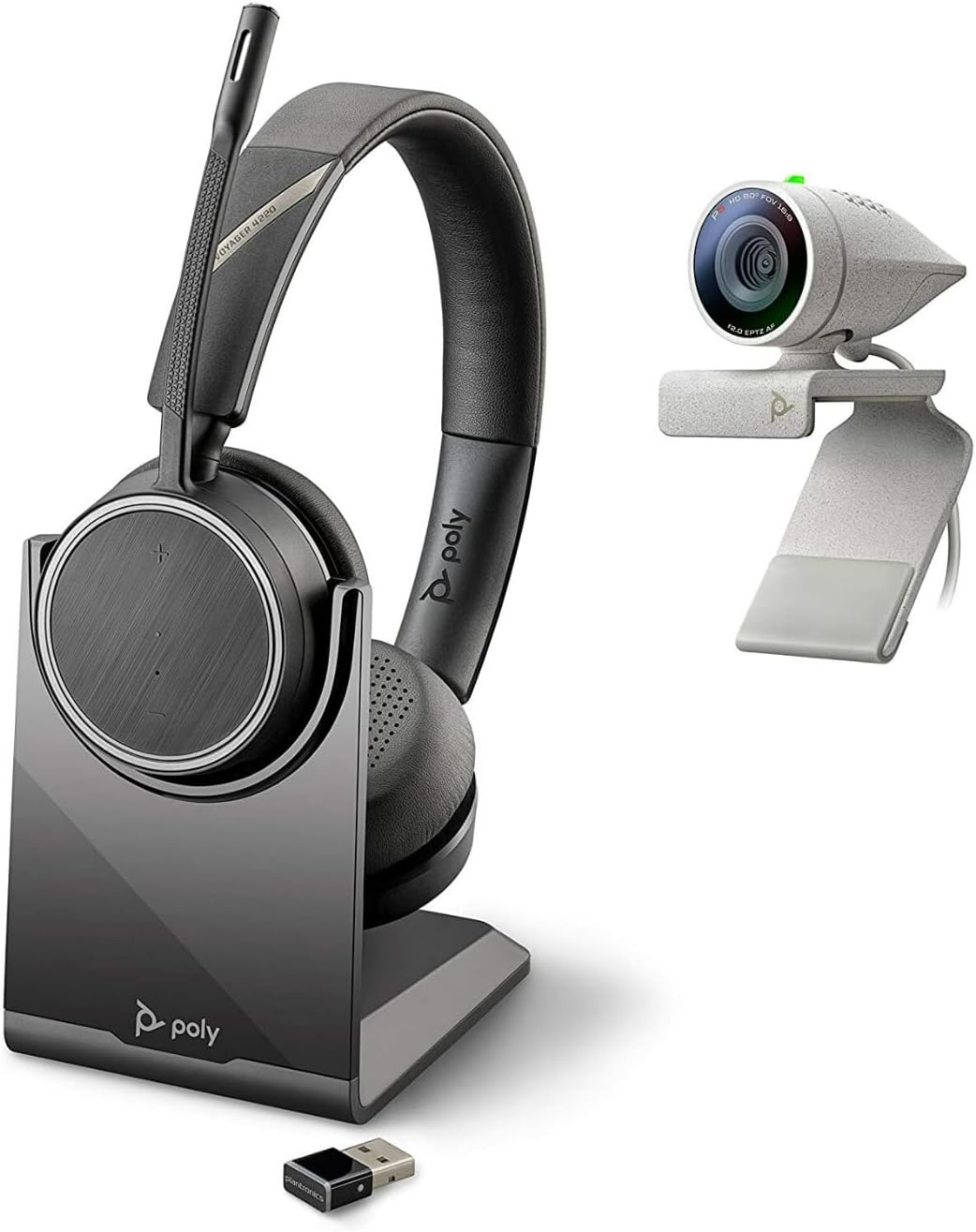
Image: Poly Studio P5 Webcam and Voyager 4220 UC Headset Kit, showing the webcam, headset, charging stand, and USB adapter.
Seti Faatonuga
1. Poly Studio P5 WebSeti kamela
- Fa'amauina o le Webcam:
Tuu le webcam on top of your monitor or laptop screen. Adjust the clip to secure it firmly. The webcam can also be mounted on a tripod using the integrated tripod-ready design.

Image: Poly Studio P5 Webcam positioned on top of a laptop screen, showing its compact design and mounting clip.
- Connecting to your Computer:
Connect the integrated USB cable from the webcam to an available USB port on your PC or Mac. The device is plug-and-play; drivers will install automatically.
- Tapuni Fa'alilolilo:
O le webcam features an integrated privacy shutter. Slide the shutter to cover the lens when not in use to enhance security and privacy.

Ata: Luma view of the Poly Studio P5 Webcam, highlighting the lens and the integrated privacy shutter mechanism.
2. Voyager 4220 UC Headset Setup
- Totogiina le Headset:
Before first use, fully charge the headset. Connect the charging cable to the headset and a USB power source. A full charge provides approximately 12 hours of talk time or 15 hours of listening time.
- Connecting the USB-A Adapter:
Insert the USB-A adapter into an available USB port on your PC or Mac. The adapter will automatically pair with the Voyager 4220 UC headset.
- Uuina o le uluulu:
Adjust the headband for a comfortable fit. Position the microphone boom approximately two finger-widths from the corner of your mouth for optimal voice pickup.
Fa'atonuga o Galuega
1. Using the Poly Studio P5 Webcam
- Vitio Fonotaga: O le webcam is compatible with Zoom, Microsoft Teams, and other video conferencing services. Select "Poly Studio P5" as your camera and microphone input within your chosen application's settings.
- Automatic Low-Light Compensation: O le webcam automatically adjusts to maintain proper light exposure, ensuring clear visibility even in darker environments.
- Fa'ateteleina fa'atepa: The camera supports up to 4x digital zoom. This feature can typically be controlled through your video conferencing software or the Poly Lens Desktop app.

Image: A person wearing the Voyager 4220 UC Headset and using the Poly Studio P5 Webcam with a laptop, demonstrating a typical video conferencing setup.
2. Using the Voyager 4220 UC Headset
- Malosi/Pepe: Slide the power switch to turn the headset on or off.
- Pulea le Volume: Use the volume up (+) and volume down (-) buttons on the earcup to adjust audio levels.
- Gūgū/Tatala: Press the mute button on the microphone boom or earcup to mute or unmute your microphone.
- Pulea Valaau: Press the call button to answer or end calls in supported applications.
- Noise-Cancelling Microphones: The headset features dual noise-cancelling microphones to reduce background noise for clear voice transmission.
3. Poly Lens Desktop App
The Poly Lens Desktop app allows you to customize settings, receive firmware updates, and access practical tips for your devices. Download the app from the official Poly webnofoaga.
- Fetuuna'i webcam settings (e.g., brightness, contrast, zoom).
- Configure headset audio preferences.
- Receive health and wellness reminders.
Tausiga
- Fa'amamaina:
solo le webcam lens and headset surfaces with a soft, dry, lint-free cloth. Do not use liquid cleaners or abrasive materials.
- Teuina:
Store the devices in a cool, dry place away from direct sunlight and extreme temperatures when not in use.
- Faʻalauiloa Firmware:
Regularly check for firmware updates via the Poly Lens Desktop app to ensure optimal performance and access to new features.
Fa'afitauli
| Fa'afitauli | Mafuaaga e ono tupu | Fofo |
|---|---|---|
| Webe le iloa le cam | Loose USB connection, incorrect software settings, driver issue. |
|
| Leai se leo mai le ulu | Headset not powered on, not paired, volume too low, incorrect audio output selected. |
|
| Ua le aoga le masini faaleotele leo | Microphone muted, incorrect audio input selected, boom not positioned correctly. |
|
| Le lelei ata vitio | Low light conditions, dirty lens, internet bandwidth issues. |
|
Fa'amatalaga
Poly potu P5 Webcam
- Avanoa Mata: FHD (1080p)
- I'uga o Pu'e Vitio: 1080p
- Fa'atekonolosi Fa'alogo: CMOS
- Tua Webi'uga o cam: 5 MP
- Maualuluga Fa'atatau Umi: 4
- Faʻasalaga Aupito Maualuga: f/2.0
- Tekinolosi Feso'ota'i: USB
- Faiga Fa'atonu: PC, Mac
- Mea Fa'apitoa: Integrated privacy shutter, automatic low-light compensation, tripod-ready design.
- Fua o Mea: 14.1 x 8.3 x 4.5 inches (Kit dimensions)
- Mea mamafa: 2.09 pounds (Kit weight)
Poly Voyager 4220 UC Headset
- Ituaiga uaealesi: Bluetooth
- Taimi Talanoa: E oʻo atu ile 12 itula
- Taimi Fa'alogo: E oʻo atu ile 15 itula
- Microphones: Dual noise-cancelling
- Feso'ota'i: USB-O se mea faʻaoga
- Fa'alogo leo Lagolago: AAC, MP3
- Ma'a: 1 maa Lithium Polymer (aofia ai)
Fa'amatalaga Fa'amaonia
For detailed warranty information, please refer to the warranty card included with your product or visit the official Poly webnofoaga. O aiaiga masani o le warranty e masani ona aofia ai faaletonu o le gaosiga mo se vaitaimi maoti mai le aso na faatau ai.
Lagolago ma Fa'afeso'ota'i
For technical support, product registration, or to download the latest software and drivers, please visit the official Poly support webnofoaga:
Webnofoaga: www.poly.com/support
You can also find FAQs and community forums on the support page.


