Folasaga
The Fitbit Versa 3 is a health and fitness smartwatch designed to help you track your activities, monitor your health, and stay connected. It features built-in GPS, 24/7 heart rate tracking, Alexa Built-in, and a long battery life.
This manual provides detailed instructions for setting up, operating, maintaining, and troubleshooting your Fitbit Versa 3.
Seti
1. Unboxing ma Uluai Totogi
Upon unboxing your Fitbit Versa 3, ensure all components are present: the smartwatch, charging cable, and small/large bands. Before first use, fully charge the device.

Image: The Fitbit Versa 3 smartwatch in black, showing the display and the black silicone band.
- Fa'afeso'ota'i le uaea fa'apipi'i i se puna eletise USB.
- Align the magnetic charger with the charging contacts on the back of your Versa 3 until it snaps into place.
- A full charge takes approximately 1 hour, providing 6+ days of battery life. A 12-minute fast charge provides 24 hours of battery.
2. Attaching the Bands
The Versa 3 comes with both small and large bands. Choose the size that provides a comfortable, secure fit.
- To attach a band, slide the pin into the notch on the watch's lug.
- Press the lever and slide the other end of the band into place.
- Release the lever and gently pull the band to ensure it's securely attached.
3. Fa'atasi ma Lau Masini
The Fitbit Versa 3 requires the Fitbit app for setup and data synchronization. The app is compatible with iPhone and Android devices.
- Download and install the Fitbit app from your device's app store.
- Open the Fitbit app and log in or create a new account.
- Follow the on-screen instructions in the app to pair your Versa 3. This typically involves enabling Bluetooth on your phone and entering a code displayed on the watch.
- Complete the setup process, including connecting to Wi-Fi and setting up voice assistants if desired.
Operating Your Fitbit Versa 3
Fa'asagaga Autu
- Swipe i lalo: Access quick settings (e.g., Do Not Disturb, Sleep Mode, Screen Wake).
- Swipe luga: View daily stats (e.g., steps, heart rate, Active Zone Minutes).
- Swipe agavale/taumatau: Navigate through apps and widgets.
- Capacitive Button: Press once firmly to return to the home screen. Press twice for shortcut features. Long press to activate your chosen voice assistant (Alexa or Google Assistant).
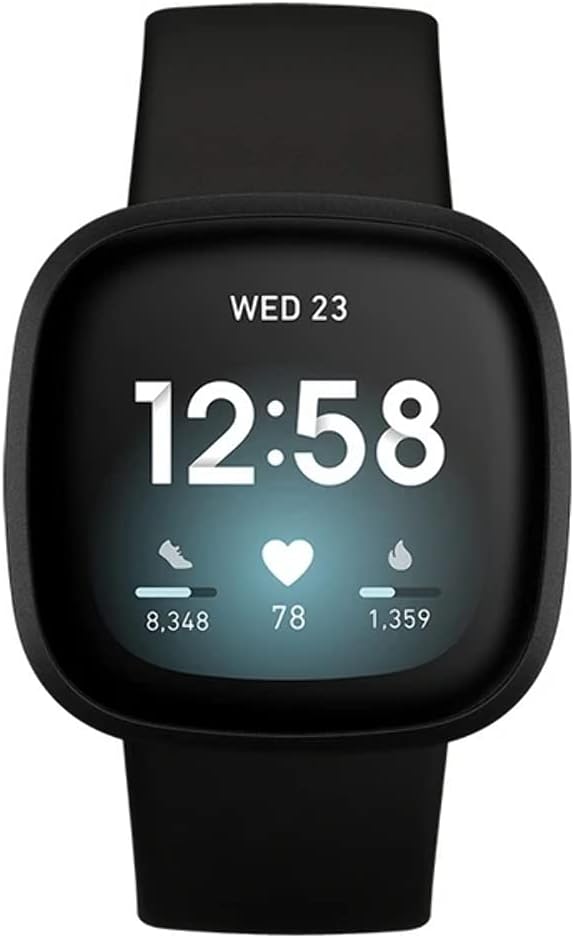
Image: The Fitbit Versa 3 display showing the time, date, steps, heart rate, and calories burned.
Vaega Autu ma Fa'aoga
- Su'e Gaoioiga: The Versa 3 automatically tracks steps, distance, calories burned, and Active Zone Minutes. View detailed stats in the Fitbit app.
- Loto Mataitu le mataituina: Continuous 24/7 heart rate tracking with PurePulse 2.0 technology.
- GPS ua i totonu: Track pace and distance during runs, bike rides, and other outdoor activities without your phone. View workout intensity maps in the Fitbit app.
- Su'ega moe: Monitor your time in light, deep, and REM sleep stages. Receive a Sleep Score in the Fitbit app to understand your sleep quality.
- Fa'aaliga: Maua le telefoni, tusi, ma faʻamatalaga faʻaoga saʻo i lou tapulima.
- Fesoasoani Leo: Use Amazon Alexa Built-in or Google Assistant to get news, set reminders, control smart home devices, and more.
- Pulea Musika: Control music playback from your wrist. Subscriptions may be required for music services like Spotify.
- Fitbit Pay: Make secure payments from your wrist (check Fitbit app for participating banks).
Video: A 23-second overview of the Fitbit Versa 3, showcasing its design and various angles, including the heart rate sensor on the back. This video highlights the physical aspects of the device.
Tausiga
Cleaning Your Versa 3
- Regularly clean your Versa 3 and its band to prevent skin irritation and maintain device functionality.
- Remove the watch from your wrist and wipe the device and band with a soft, lint-free cloth.
- For silicone bands, you can use a mild soap-free cleanser if needed, then rinse thoroughly and dry.
- Ia fa'amautinoa o lo'o mama ma mago feso'ota'iga o lo'o i tua o le uati a'o le'i fa'atumuina.
Suavai Tetee
The Fitbit Versa 3 is water resistant to 50 meters. This means it is safe for showering, swimming, and other shallow water activities. It is not recommended for scuba diving or high-velocity water sports.
- After getting the device wet, dry it thoroughly before wearing or charging.
Fa'afitauli
| Mataupu | Fofo |
|---|---|
| E le o totogi le masini | Ensure the charging cable is securely connected to both the watch and the power source. Clean the charging contacts on the back of the watch. Try a different USB port or power adapter. |
| E le'o fa'atasi le masini | Ensure Bluetooth is enabled on your phone and the Versa 3 is within range. Restart your phone and the Versa 3. Check for app updates. If issues persist, try re-pairing the device. |
| GPS e le o feso'ota'i | Ia mautinoa o loʻo e iai i se nofoaga matala ma se manino view of the sky. Wait a few moments for the GPS to acquire a signal. |
| Fa'aleagaina o le pa'u | Ensure the band is not too tight. Clean the band and your wrist regularly. If irritation persists, consult a dermatologist and consider using a different band material. |
For further assistance, refer to the official Fitbit support webnofoaga po'o fa'afeso'ota'i le 'au'aunaga fa'atau.
Fa'amatalaga
- Fa'ata'ita'iga: FB511BKBK
- Fa'aaliga: 1.58 Inisi AMOLED
- Feso'ota'i: Bluetooth, GPS
- Ola ma'a: 6+ days (up to 12 hours with continuous GPS)
- Suavai Tetee: 50 mita
- Malosiaga e teu ai Mea: 4 GB
- Fa'atonuga: Android (compatible with iOS)
- itu: 1.59 x 1.59 x 0.49 inisi
- mamafa: 0.7 aunese
- Sensors: 24/7 Heart Rate Monitor (PurePulse 2.0), SpO2, Temperature Sensor, Accelerometer, Gyroscope, Altimeter
Fa'amatalaga Fa'amaonia
Fitbit products typically come with a limited warranty. For specific warranty terms and conditions, including duration and coverage, please refer to the warranty card included with your product or visit the official Fitbit support webnofoaga. Taofi lau fa'amaoniga o le fa'atau mo tagi fa'amaonia.
Lagolago
For additional support, FAQs, and community forums, please visit the official Fitbit Help Center:
You can also contact Fitbit Customer Support directly through their website for personalized assistance.


