Folasaga
This manual provides detailed instructions for the setup, operation, and maintenance of your VOYEE Wireless Controller. Designed for compatibility with Microsoft Xbox 360/Slim and PC Windows 11/10/8/7, this controller offers an enhanced gaming experience with responsive controls and ergonomic design.
Oloa Fa'ailoga
- Feso'ota'iga lautele: Seamlessly connects with Microsoft Xbox 360/Slim consoles and PC running Windows 11, 10, 8, or 7. A dedicated wireless receiver is required for connection.
- Enhanced Game Control: Features upgraded left and right triggers, highly sensitive joysticks, and responsive buttons for precise command execution without delay.
- Aafiaga Fa'atosina o Taaloga: Integrated rumble control provides automatic vibration feedback, adapting to in-game events for a more engaging experience.
- Fuafuaga Ergonomic: Contoured grips are shaped to fit comfortably in your hands, reducing fatigue during extended gaming sessions. Enjoy freedom of movement with a wireless control distance of up to 30 feet.

Ata: Luma view of the VOYEE Wireless Controller.

Image: Transparent view of the VOYEE Wireless Controller highlighting the internal rumble motors.

Image: Close-up of the responsive joystick and high-precision D-pad on the VOYEE Wireless Controller.

Image: Close-up of the action buttons (A, B, X, Y) and linear triggers (LT, RT) on the VOYEE Wireless Controller.
O mea o lo'o i totonu
Upon opening your VOYEE Wireless Controller package, you should find the following items:
- 1 x VOYEE Wireless Controller
- 1 x Talia uaealesi
- 1 x User Guide (this manual)
If any items are missing or damaged, please contact VOYEE customer support immediately.
Seti
1. Fa'apipi'i ma'a
The VOYEE Wireless Controller requires two (2) AA batteries for operation. Follow these steps to install them:
- Saili le vaega o le maa i tua o le pule.
- Press the release tab and open the battery cover.
- Fa'aofi ni maa AA se lua, ma ia mautinoa o lo'o ogatasi vaega lelei (+) ma vaega leaga (-) ma fa'ailoga i totonu o le vaega.
- Tapuni le ufiufi o le maa seia oomi lelei i totonu.
- Press the Home button on the controller to confirm power is on.
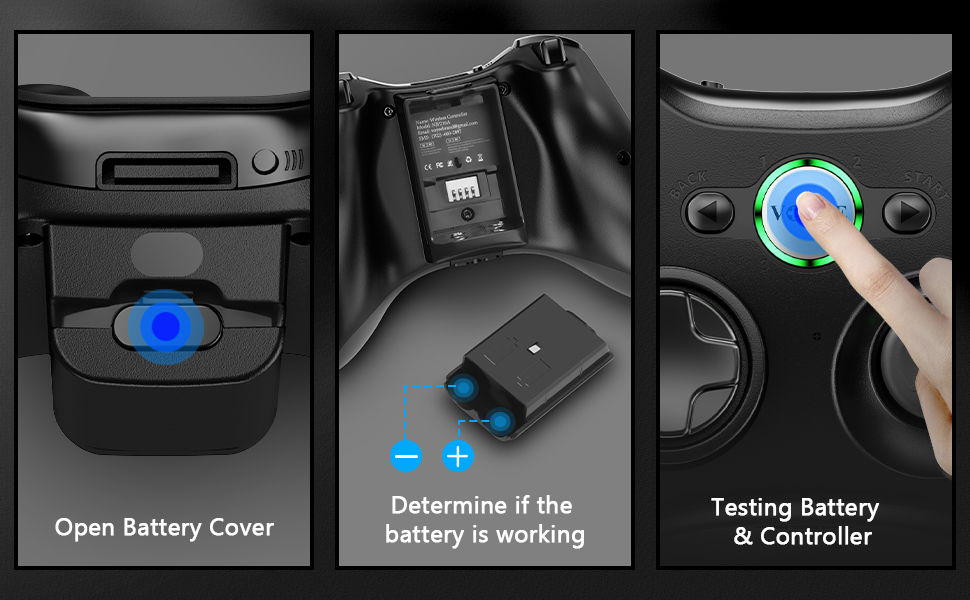
Image: Visual guide for opening the battery cover, inserting AA batteries, and testing the controller's power.
2. Connecting to Xbox 360 Console
To connect your VOYEE Wireless Controller to an Xbox 360 or Xbox 360 Slim console:
- Ensure your Xbox 360 console is powered on.
- Plug the wireless receiver into an available USB port on your Xbox 360 console. The receiver's indicator light will begin to flash.
- Press the Home button on your VOYEE controller. The indicator light on the controller will also begin to flash.
- Press and hold the sync button on the wireless receiver (usually a small button on the side or back of the receiver) until its light flashes rapidly.
- Within 20 seconds, press and hold the sync button on the top of your VOYEE controller until its lights flash rapidly.
- Once paired, the indicator light on the controller (one of the four quadrants around the Xbox button) will remain solid, indicating a successful connection.
Note: Each VOYEE wireless controller requires its own dedicated wireless receiver. If connecting multiple controllers, ensure you have enough USB ports and receivers.
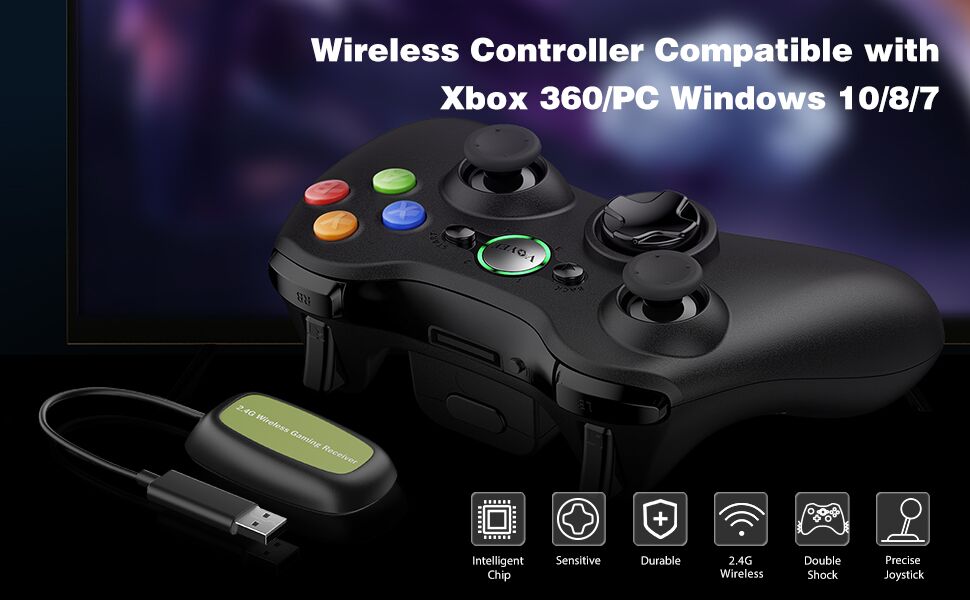
Image: Step-by-step visual instructions for connecting the VOYEE Wireless Controller to an Xbox 360 console.
3. Connecting to PC (Windows 11/10/8/7)
To connect your VOYEE Wireless Controller to a PC:
- Ensure your PC is powered on and the operating system is running.
- Plug the wireless receiver into an available USB port on your PC. The receiver's indicator light will begin to flash.
- The PC should automatically install the necessary drivers for the controller. This may take a few moments.
- Press the Home button on your VOYEE controller. The indicator light on the controller will also begin to flash.
- Press and hold the sync button on the wireless receiver until its light flashes rapidly.
- Within 20 seconds, press and hold the sync button on the top of your VOYEE controller until its lights flash rapidly.
- Once paired, the indicator light on the controller will remain solid. You can verify the connection and test the controller's functionality through your PC's Game Controllers settings (e.g., in Windows, search for "Set up USB game controllers").
Note: For Windows 7, 8, and 10 operating systems, the driver will typically install automatically. If pairing is unsuccessful, ensure your PC's Bluetooth or wireless adapter is enabled and drivers are up to date.
Image: Step-by-step visual instructions for connecting the VOYEE Wireless Controller to a PC.
Fa'atonuga o Galuega
Pulea Autu
The VOYEE Wireless Controller features a standard layout familiar to Xbox 360 users:
- La'au Analog Agavale ma Taumatau: Used for movement and camera control. Press down on the sticks for additional button inputs (L3/R3).
- D-Pad (Pad Fa'asino): Provides precise directional input, often used for menu navigation or specific in-game actions.
- A, B, X, Y Ki: Action buttons, typically color-coded (Green A, Red B, Blue X, Yellow Y) for easy identification.
- Pa'u Tauagavale ma Taumatau (LB, RB): Buttons located on the top front edge of the controller.
- Mea e Fa'aosofia ai le Agavale ma le Taumatau (LT, RT): Analog triggers located below the bumpers, offering pressure-sensitive input for actions like acceleration or firing.
- Ki Amata: E masani ona fa'aoga e taofi ta'aloga po'o tatala i totonu o ta'aloga menus.
- Ki tua: Often used to access secondary menus or return to previous screens.
- Home Button (VOYEE Logo): Powers the controller on/off, accesses the Xbox Guide menu on Xbox 360, or opens the Game Bar/similar features on PC.

Image: The VOYEE Wireless Controller shown alongside various game screenshots, illustrating its use in different gaming scenarios.
Fa'amatalaga Vibration
The VOYEE Wireless Controller features dual vibration motors that provide tactile feedback during gameplay. This feedback is automatically triggered by in-game events such as explosions, collisions, or specific actions, enhancing immersion.

Ata: Auiliili view of the internal vibration motor within the controller.
Vitio Oloa Aloaia
Video: An official product video from VOYEE showcasing the upgraded wireless controller for Xbox 360, highlighting its features and design.
Tausiga
Proper care and maintenance will extend the life of your VOYEE Wireless Controller:
- Fa'amamaina: Use a soft, dry cloth to wipe down the controller regularly. For stubborn dirt, slightly dampFa'amamā le ie i le vai po'o se vaila'au fa'amamā vaivai. Alo'ese mai vaila'au malolosi po'o mea fa'a'ole'ole.
- Teuina: Store the controller in a cool, dry place away from direct sunlight, extreme temperatures, and excessive moisture.
- Tausiga maa: Remove batteries from the controller if it will not be used for an extended period to prevent battery leakage and potential damage.
- Aloese mai Mata'u: Protect the controller from drops and impacts, which can damage internal components or external casing.
Fa'afitauli
| Fa'afitauli | Mafuaaga e ono tupu | Fofo |
|---|---|---|
| E le ola le pule. | Ma'a maualalo pe mate; sese le faaofiina o maa. | Replace with fresh AA batteries. Ensure batteries are inserted with correct polarity (+/-). |
| Controller does not connect/pair. | Receiver not properly plugged in; sync process failed; interference. | Ensure wireless receiver is securely plugged into a USB port. Repeat the pairing process (see Setup section). Move closer to the console/PC. Avoid other 2.4GHz devices if possible. |
| Input lag or unresponsive buttons/joysticks. | Low battery; wireless interference; distance from receiver. | Replace batteries. Reduce distance between controller and receiver. Ensure no large metal objects are blocking the signal. |
| E le o galue le vibration. | Game does not support vibration; vibration feature disabled in game/system settings. | Check game settings and console/PC settings to ensure vibration is enabled. Not all games support vibration feedback. |
If you encounter issues not listed here, please refer to the Warranty and Support section for contact information.
Fa'amatalaga
| Numera Fa'ata'ita'i: | XW-360 |
| Fa'ailoga: | VOYEE |
| Fua (L x W x H): | 6.1 x 4.33 x 2.17 inisi |
| Mea mamafa: | 8.4 aunese |
| Punavai Malosi: | 2 x AA maa (e le o aofia ai) |
| Feso'ota'i: | 2.4GHz Wireless (via included receiver) |
| Va'aiga uaealesi: | E oo atu i le 30 futu (pe tusa ma le 9 mita) |
| Meafaigaluega talafeagai: | Xbox 360, Xbox 360 Slim, PC (Windows 11/10/8/7) |

Image: The VOYEE Wireless Controller with its approximate dimensions indicated.
Fa'amaonia ma Lagolago
VOYEE products are manufactured to high quality standards. For warranty information, technical support, or any inquiries regarding your VOYEE Wireless Controller, please contact our customer service team.
Fa'amatalaga Fa'afeso'ota'i:
- imeli: Refer to product packaging or the VOYEE official web'upega tafa'ilagi mo le tuatusi imeli aupito lata mai.
- Telefoni: Refer to product packaging or the VOYEE official web'upega tafaʻilagi mo le numera telefoni aupito lata mai.
- Lagolago i luga ole laiga: Visit the VOYEE brand store on Amazon or their official webnofoaga mo FAQs ma punaoa faaopoopo.
Please have your product model number (XW-360) and purchase details ready when contacting support.


