Folasaga
This manual provides detailed instructions for setting up, operating, and maintaining your REOLINK 4K Security Camera System, model RLK16-800B8. This system features 4K Ultra HD (8MP) PoE cameras, offering nearly four times the clarity of 1080p. It includes advanced person and vehicle detection to minimize false alerts, remote access and playback capabilities via the free Reolink app, and a simple plug-and-play PoE setup. The system supports continuous 24/7 recording with a pre-installed 4TB HDD, expandable up to 16TB.
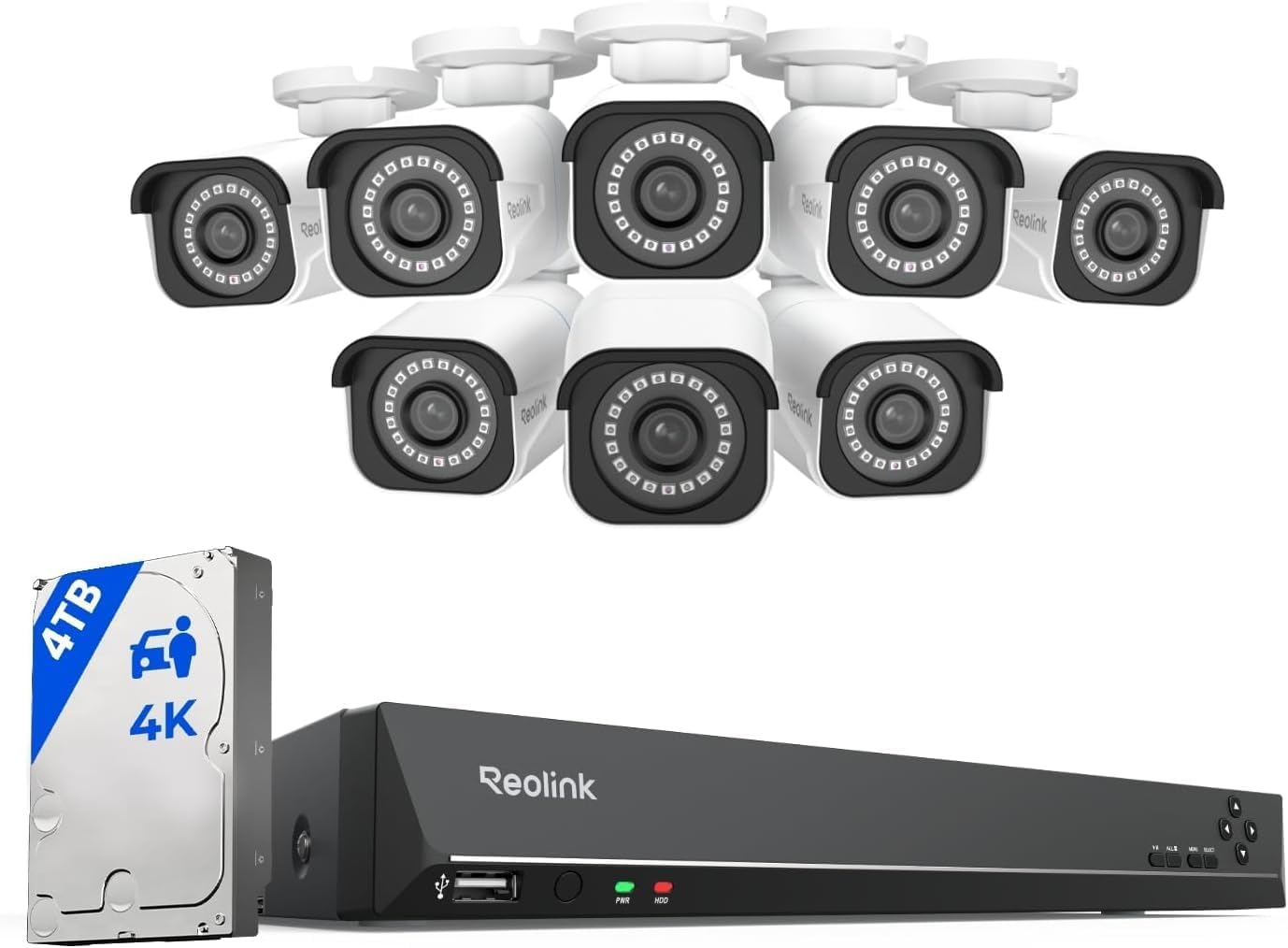
Image: The REOLINK 4K Security Camera System, including the NVR and eight bullet cameras.
O a mea i totonu o le Pusa
Fa'amautinoa o lo'o iai vaega uma i lau afifi:
- RLN16-410 NVR (1 unit)
- B800 4K PoE Cameras (8 units)
- NVR Power Adapter (1 unit)
- HDMI Cable (1 unit)
- USB Mouse (1 unit)
- 1m Network Cable (1 unit)
- 18m Network Cable (8 units)
Seti
Follow these steps to set up your REOLINK 4K Security Camera System.
1. Connect the NVR
- Connect the NVR to a monitor using the provided HDMI or a VGA cable.
- Connect the USB mouse to a USB port on the NVR.
- Connect the NVR to your router using an Ethernet cable for network access.
- Connect the NVR power adapter to the NVR and plug it into a power outlet. Turn on the NVR if it has an on/off switch.

Ata: Tua view of the REOLINK NVR showing HDMI, VGA, USB, LAN, and PoE ports.
2. Connect the Cameras
- Connect each PoE camera to an available PoE port on the NVR using the provided 18m network cables. The cameras will power on automatically.
- Ensure all cameras you wish to add are connected to the same local area network (LAN) as the NVR for automatic detection.
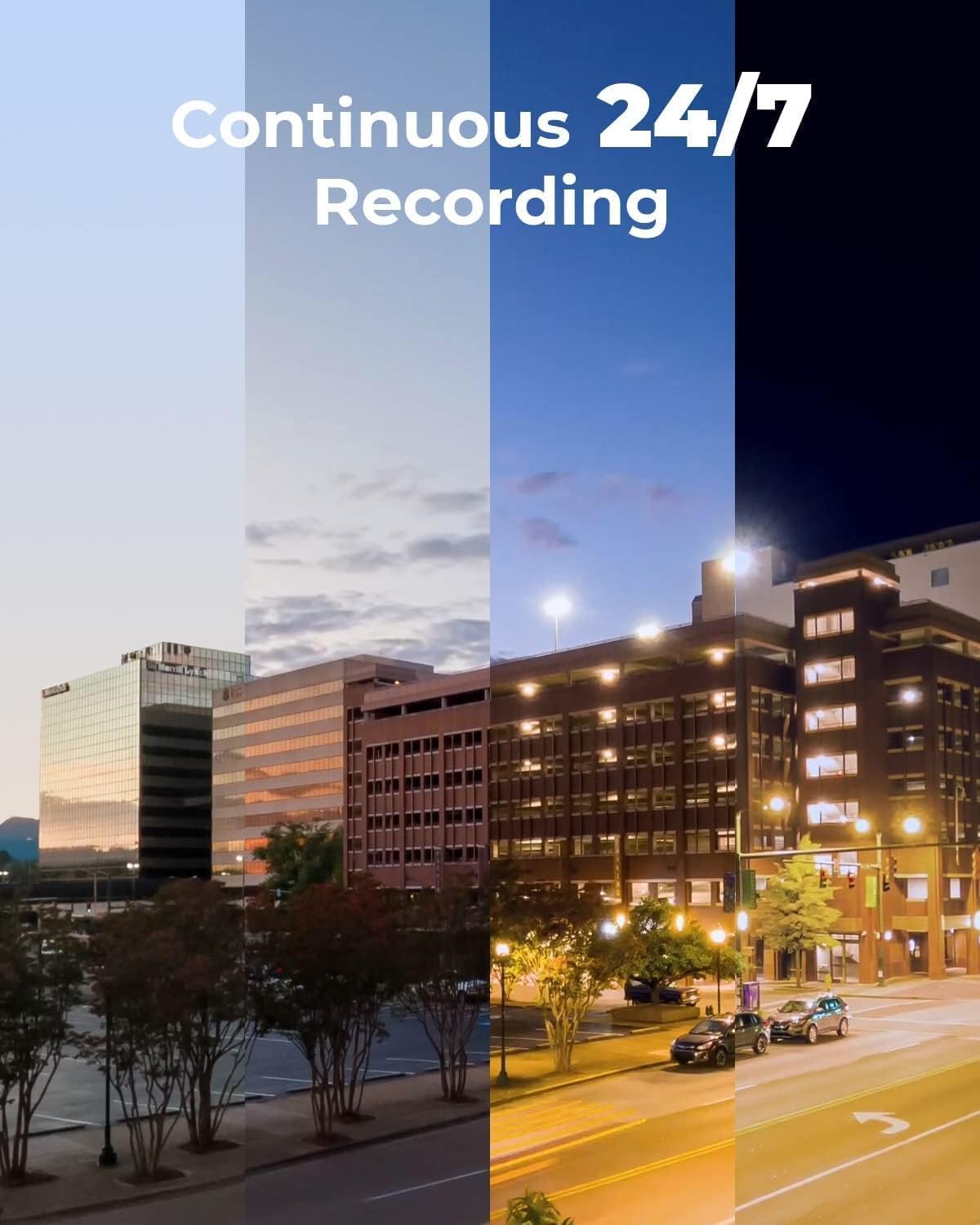
Image: A REOLINK PoE camera connected to the NVR, demonstrating the simple plug-and-play setup.
3. Fa'asologa Muamua
Follow the on-screen prompts on the connected monitor to complete the initial setup, including setting a password for the NVR.
Video: A detailed guide on unboxing and setting up the REOLINK RLK16-800B8 system.
Faagaioiga o le Faiga
Avanoa Mamao ma Toe Ta'alo
Access your cameras remotely from anywhere using the free Reolink app on your smart device (iOS, Android) or client software (Windows, Mac OS). Perform live views and playbacks via WiFi or 3G/4G connection.

Image: The Reolink app displaying live camera feeds on various smart devices.
Su'esu'ega Atamai
The smart PoE IP cameras can identify people and vehicles, minimizing false alerts from animals or shadows. Configure alerts to specify the type of detection when sending notifications to your device.
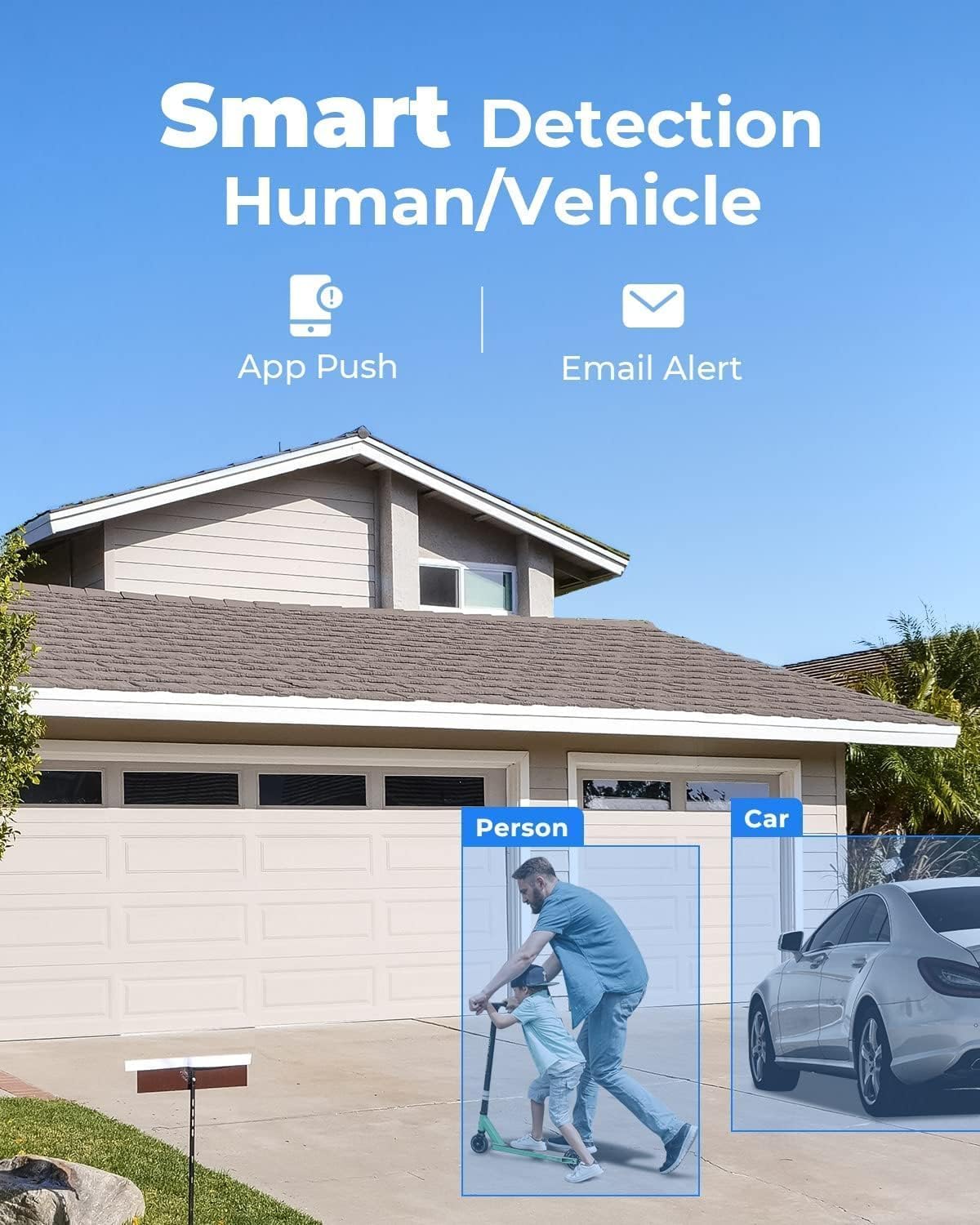
Ata: O se example of the smart detection feature highlighting a person and a car.
4K Ultra HD Video Quality
Experience vivid 4K Ultra HD resolution, providing clear and detailed footage even when digitally zoomed. The cameras offer excellent clarity day and night.
Video: Demonstration of the 4K resolution video quality from a Reolink camera.
Tausiga
To ensure optimal performance and longevity of your security system, consider the following maintenance tips:
- Regularly clean camera lenses with a soft, damp cloth to prevent dust and dirt buildup.
- Ensure all cable connections are secure and protected from environmental elements.
- Check the NVR's ventilation to prevent overheating.
- Toe fa'aletausagaview faamauina footage to ensure the system is functioning as expected.
Fa'afitauli
Mataupu masani ma Fofo
- Q: Does this PoE system work with other camera brands or models?
A: The system is designed to work exclusively with Reolink PoE cameras to ensure full functionality and stable performance. Other brands or non-Reolink models are not supported. - Q: Do I need Internet to use the system?
A: Internet is only needed for remote access. Local recording will work even without Internet. - Q: What should I do if a camera or the NVR is not working properly?
A: Check the cable, switch ports, and confirm power. If the issue remains, contact Reolink Support with your order info for quick troubleshooting or replacement.
Causes of Powering On Issues and Solutions of the PoE Camera
- Cause 1: The PoE module of the camera fails to get power.
Solution: Please use the DC adaptor to power the camera on. - Cause 2: The camera is not properly connected to the NVR.
Solution: Please check the PoE lights of the NVR. If the lights are not on, please plug the camera into other ports that work and use another working Ethernet cable. - Cause 3: Insufficient power supply from PoE NVR.
Solution: Please make sure that the cameras added to the NVR are no more than the specified quantity. Then unplug all other cameras and leave one camera connected to the NVR for a test.
Fa'amatalaga
| Fa'ailoga | REOLINK |
| Numera Fa'ata'ita'i | RLK16-800B8 |
| Tekinolosi Feso'ota'i | Uaea |
| I'uga o Pu'e Vitio | 4K 8MP (2560 × 1920) |
| Fa'apitoa Fa'apitoa | Adjustable, App Control, Easy to install, Human Detection, Weatherproof |
| Numera o Auala | 16 |
| Mafai e teu ai le manatua | 4 TB |
| Lanu | Lanu pa'epa'e |
| Punavai Malosi | DC |
| Faiga Fa'atonu | iOS, Android, Windows, Mac OS |
| Masini Fegalegaleai | Cameras, Laptops, Personal Computers, Smartphones, Tablets |
| Tekinolosi malamalama maualalo | Vaaiga i le Po |
| Po Vaʻai Vaaia | 100 Futu |
| Fua Fa'atatau | Mainstream: 2fps - 20fps, Substream: 4fps - 15fps |
| Faiga pu'eina | Motion Recording; schedule recording; 24/7 recording |
| Aofa'i Taulaga USB | 2 |
| Ofisa o mea faigaluega | Ethernet, HDMI, USB, VGA, eSATA |
| Ituaiga tioata | Fa'amau |
| Ata Vitio | RJ45 |
| Viewi le Angle | 87 Tikeri |
| Tufuga | Reolink Digital |
| UPC | 633696952843 |
| Mea mamafa | 0.01 aunese |
| Aso Muamua Maua | Tesema 9, 2019 |
Fa'amaonia ma Lagolago
All Reolink products are covered by a 2-year warranty. If you encounter any issues, please contact customer support.
- 2-Tausaga Fa'atapula'a Fa'amaonia: E ufiufi ai mea sese i meafaitino ma le faiga o galuega i le fa'aaogaina masani.
- 24/7 Lagolago i luga ole laiga: Dedicated support is available to assist you with any questions or problems.


