Folasaga
The Intel NUC 7 Essential Kit (NUC7PJYH) is a compact computing solution designed for various applications. This manual provides essential information for setting up, operating, and maintaining your device. The NUC7PJYH Kit features a Pentium Silver processor, dual Ultra HD 4K display support via two full-sized HDMI ports, consumer infrared, and a TOSLINK audio jack. It is suitable for media streaming, productivity tasks, and entry-level digital signage. Please note that memory, storage, and operating system are not included and must be acquired separately.
O a mea i totonu o le Pusa
- Intel NUC Unit
- 19V Mana Adaptor
- VESA Mounting Plate
- Tusi Taiala
Ua Umaview
The Intel NUC 7 Essential Kit is a versatile mini PC designed for efficiency and performance. Key features include:
- Intel Pentium Silver J5005 Processor
- Customizable to your needs (Requires Memory, Storage, and Operating System - not included)
- 2.5" 9.5mm SATA3 bay and port with Dual-channel DDR4-2400 SODIMMs support, up to 8GB maximum
- Dual HDMI, 4 x USB, Wi-Fi and LAN connection
- Supports 4K via Intel UHD, 605 graphics
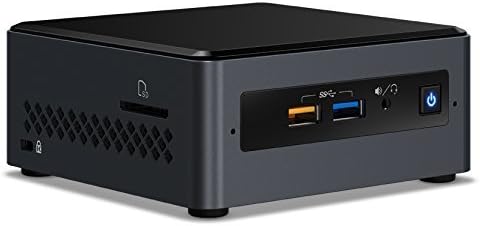
Laupapa luma
Ata: Luma view of the Intel NUC 7 Essential Kit, showing two USB 3.0 ports, a headphone/microphone jack, and the power button.
Laufanua Tua
Ata: Tua view of the Intel NUC 7 Essential Kit, displaying various ports including HDMI, USB, Ethernet, and power input.
Totonu View

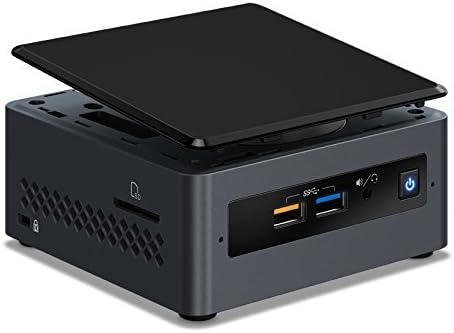
Ata: Totonu view of the Intel NUC 7 Essential Kit, showing the layout for RAM and storage installation.
Seti
- Fa'apipi'i le manatua (RAM): Open the NUC chassis. Locate the SODIMM slots. Gently insert DDR4-2400 SODIMM modules (up to 8GB total) into the slots until they click into place.
- Fa'apipi'i Teuga: For a 2.5" SATA drive, connect the drive to the SATA port and secure it within the designated bay.
- Tapuni le Chassis: Carefully close the NUC chassis, ensuring all cables are properly routed and secured.
- Fesootai Peripherals: Connect your monitor(s) to the HDMI ports. Connect a keyboard and mouse to the USB ports. Plug in the power adapter.
- Install Operating System: Power on the NUC. Follow the on-screen instructions to install your preferred operating system (e.g., Windows, Linux, Chrome OS) from a USB drive or network.
Fa'agaioiga
- Malosi/Pepe: Press the power button on the front panel to turn the NUC on or off.
- Connecting to Display: Use the HDMI ports to connect to up to two 4K displays. Ensure your displays are set to the correct input source.
- Meafaigaluega USB: Connect USB devices such as external storage, printers, or other peripherals to the available USB 3.0 ports.
- Feso'ota'iga feso'ota'iga: Connect an Ethernet cable to the LAN port for a wired network connection, or configure Wi-Fi through your operating system settings.
Tausiga
- Fa'amamaina: Regularly clean the exterior of the NUC with a soft, dry cloth. Ensure ventilation grilles are free from dust to maintain optimal airflow.
- Fa'afouga polokalame: Keep your operating system and drivers updated to ensure optimal performance and security. Check the Intel support website for the latest NUC-specific drivers.
- Fa'afouga o le Firmware/BIOS: Siaki i lea taimi ma lea taimi le lagolago Intel website for BIOS/firmware updates. Follow instructions carefully when performing updates.
Fa'afitauli
- Leai se fa'aaliga: Ensure the monitor is powered on and set to the correct input. Check HDMI cable connections. Try a different HDMI port or cable.
- Mea Fa'aopoopo e le o Iloa: Ensure USB devices are properly connected. Try different USB ports. Update USB drivers in the operating system.
- Fa'agesegese o le Faiga: Check Task Manager (Windows) or system monitor (Linux) for high CPU/RAM usage. Ensure sufficient free storage space. Update drivers and operating system.
- Fa'afitauli Feso'ota'i Feso'otaiga: Verify Ethernet cable connection or Wi-Fi settings. Restart your router/modem. Update network drivers.
- OS Installation Problems: Ensure your installation media is bootable and correctly configured. Check BIOS settings for boot order and compatibility.
Fa'amatalaga
| Fa'aaliga | Fa'amatalaga |
|---|---|
| Processor | Intel Pentium Silver J5005 |
| RAM | Up to 8GB DDR4-2400 SODIMMs (not included) |
| Teuga | 2.5" SATA3 bay (not included) |
| Ata fa'atusa | Intel UHD Graphics 605 (4K support) |
| Ata Vitio | 2 x HDMI |
| Taulaga USB | 4x USB 3.0, 2x USB 2.0 |
| Fesootaiga | Gigabit Ethernet, Wi-Fi (802.11a/b/g/n) |
| Leo | TOSLINK audio jack, 3.5mm headphone/microphone jack |
| Fua | 5.43 x 5.27 x 4.64 inisi |
| mamafa | 2.46 pauna |
Fa'amaonia & Lagolago
For warranty information and technical support, please refer to the documentation included with your Intel NUC Kit or visit the official Intel support website. Online resources often include driver downloads, FAQs, and community forums.


