1. Folasaga
This manual provides detailed instructions for the setup, operation, and maintenance of your Huion Kamvas GT-156HD V2 Drawing Tablet Monitor. Please read this manual thoroughly before using the device to ensure proper functionality and to prevent damage.

Figure 1: Huion Kamvas GT-156HD V2 Drawing Tablet Monitor.
2. Oloa Ua Ovaview
The Huion Kamvas GT-156HD V2 is a 15.6-inch HD IPS pen display designed for digital art and graphic design. It features advanced pen technology and customizable controls to enhance your creative workflow.
2.1 Vaega Autu
- 8192 Levels of Pressure Sensitivity: Experience precise control and accuracy in drawing, painting, and sketching with significantly enhanced pressure detection.
- 14 User-defined Express Keys and 1 Touch Bar: Customize shortcuts for improved work efficiency. The touch bar allows for functions like zooming in/out of images.
- Full HD (1920x1080) Screen with Anti-glare Glass: Enjoy vivid visuals with a 178° wide viewing angle, 262K colors, and 72% NTSC color gamut. The anti-glare glass provides an eye-protective and paper-like drawing surface.
- Fuafuaga feaveai: With a thickness of only 15 mm and a weight of 1.5 kg, the tablet is designed for convenience and portability.
- OS Fesootaiga: Compatible with Windows 7/8/8.1/10 and Mac 10.11 or later versions.
- Two-section Multi-angle Adjustable Stand: Find a comfortable working position with the included adjustable stand.
2.2 Vaega
O le afifi e aofia ai:
- Huion Kamvas GT-156HD V2 Drawing Tablet Monitor
- Peni numera
- 3-in-1 Cable (USB, HDMI, Power)
- Fetuunaiga Malosi
- Pen Holder with Replacement Nibs
- Totini lima tusiata
- Two-section Multi-angle Adjustable Stand
- Taiala vave amata
2.3 Va'aiga Fa'aopoopoview
Observe the following images for a visual guide to the product's features:

Figure 2: Illustration of 8192 levels of pen pressure sensitivity.

Figure 3: Location and function of 14 express keys and the touch bar.

Figure 4: The upgraded 3-in-1 cable for simplified connection.

Figure 5: Displaying 72% NTSC color gamut for natural and vivid colors.

Figure 6: The two-section multi-angle adjustable stand for ergonomic use.
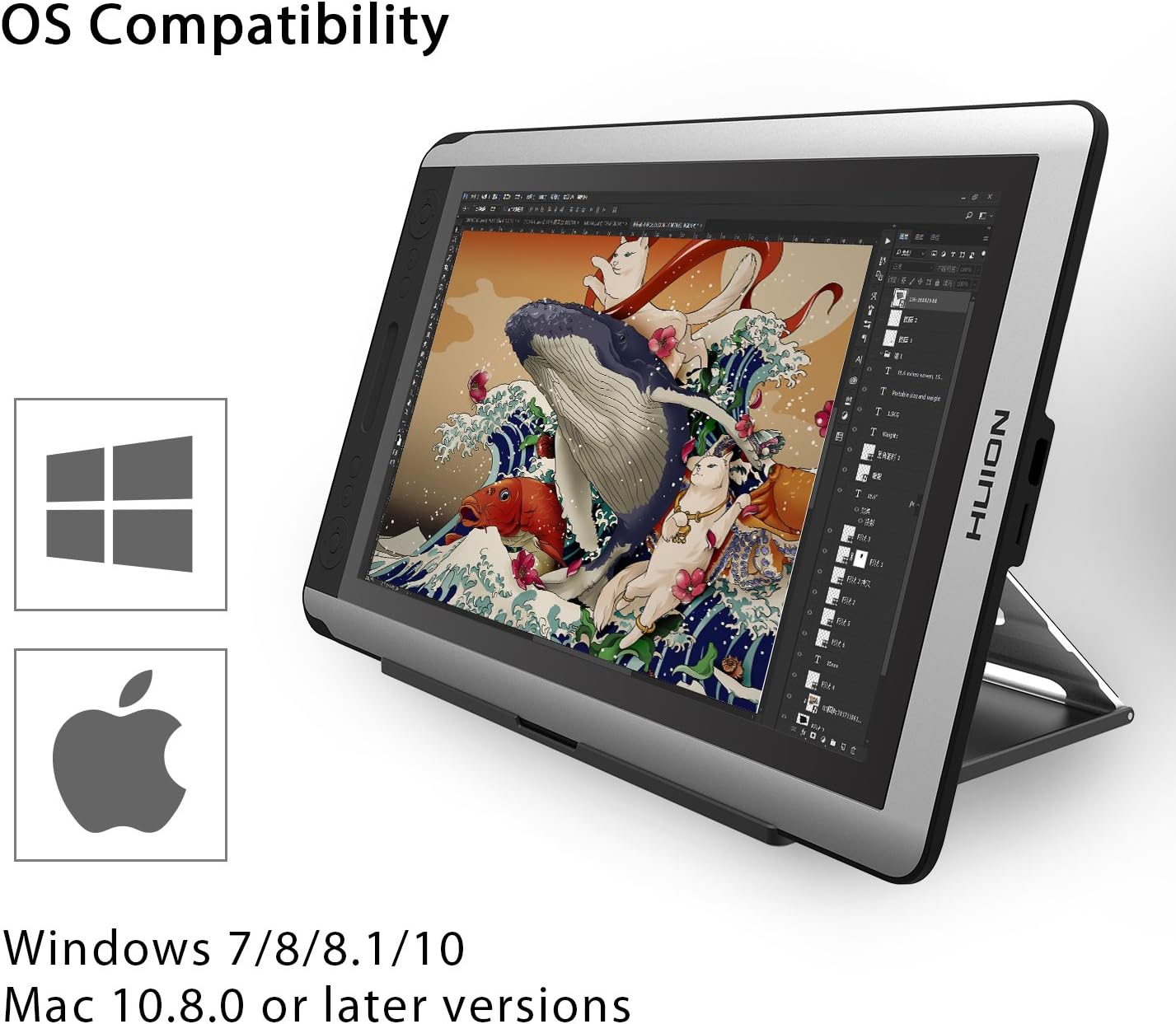
Figure 7: Operating System compatibility with Windows and Mac.

Figure 8: Dimensions and weight highlighting the tablet's portability.
2.4 Oloa Vitio Ovaview
Watch this official product video for a quick overview of the Huion Kamvas GT-156HD V2's features and benefits.
Video 1: Huion Kamvas GT-156HD V2 Product Overview (Muaview). This video demonstrates the tablet's key features, including pen pressure sensitivity, express keys, and connectivity.
3. Seti
Follow these steps to set up your Huion Kamvas GT-156HD V2 Drawing Tablet Monitor:
- Fa'apipi'i Aveta'avale: Before connecting the tablet, download and install the latest drivers from the official Huion webnofoaga (www.huion.com). If you have other tablet drivers installed, uninstall them first to avoid conflicts.
- Connect the 3-in-1 Cable:
- Connect the Mini HDMI end of the 3-in-1 cable to the tablet's Mini HDMI port.
- Connect the HDMI and USB-A ends of the cable to your computer's respective ports.
- Connect the power adapter to the power port on the 3-in-1 cable and then to a power outlet.
- Malosiaga: Press the power button on the tablet to turn it on.
- Fa'atulaga Fa'aaliga Fa'aaliga: Your computer should detect the tablet as an external display. Adjust display settings (resolution, orientation) as needed in your operating system's display settings. The recommended resolution is 1920x1080.
- Calibrate Pen: Open the Huion driver software and perform pen calibration to ensure accurate cursor tracking.
- Charge Pen: Ensure your digital pen is charged before use. Connect it to a USB port using the provided charging cable.
4. Fa'atonuga o Galuega
4.1 Using the Digital Pen
The digital pen functions as your primary input device. It supports 8192 levels of pressure sensitivity, allowing for varied line thickness and opacity based on pressure applied. The pen also features two customizable buttons for quick access to functions like right-click or eraser.
4.2 Customizing Express Keys and Touch Bar
The 14 express keys and the touch bar on the side of the tablet can be customized through the Huion driver software. You can assign various keyboard shortcuts, mouse clicks, or specific functions to these controls to streamline your workflow in different applications.
- Open the Huion driver software.
- Navigate to the "Express Keys" or "Work Area" section.
- Select each key or the touch bar to assign your desired function.
- Apply changes to save your settings.
4.3 Faaaogaina o le Tu e Fetuunai
The two-section multi-angle adjustable stand allows you to position the tablet at various angles for comfortable drawing. Adjust the stand to your preferred ergonomic position to reduce strain during long creative sessions.
5. Tausiga
O le tausiga lelei e mautinoa ai le umi o le ola ma le faʻatinoina lelei o lau laulau:
- Fa'amama le Mata: Faaaoga se ie vaivai e leai ni filo e solo mālie ai le lau. Mo ni ila faigata, olo teisiampi le ie i le vai po'o se fa'amama puipui. Aloese mai vailaau malolosi.
- Pen Nibs: Regularly check the pen nib for wear. Replace it with a new nib from the pen holder when it becomes too short or sharp to prevent scratching the screen.
- Tausiga uaea: Handle the 3-in-1 cable with care. Avoid bending it sharply or placing heavy objects on it to prevent internal damage.
- Teuina: When not in use, store the tablet in a clean, dry place away from direct sunlight and extreme temperatures.
- Pen maa: To prolong the pen's battery life, avoid overcharging. Charge it only when the battery is low.
6. Faʻafitauli
If you encounter issues with your Huion Kamvas GT-156HD V2, refer to the following common problems and solutions:
6.1 Pen Not Responding or Cursor Not Moving
- Siaki le So'oga USB: Ensure the USB cable is securely connected to both the tablet's 3-in-1 cable and your computer. Try a different USB port.
- Tulaga o le Avetaavale: Verify that the Huion driver software is running and recognizes the device. If the driver icon is grayed out or shows "Device disconnected," try reconnecting the USB cable or restarting your computer.
- Pen maa: Ensure the digital pen is charged.
- Driver Reinstallation: If issues persist, uninstall existing drivers, restart your computer, and then reinstall the latest drivers from the Huion webnofoaga.
6.2 Display Issues (No Signal, Flickering)
- Check HDMI Connection: Ensure the HDMI cable is securely connected to both the tablet's 3-in-1 cable and your computer's HDMI port.
- So'oga Malosi: Confirm the power adapter is correctly connected and the tablet is receiving power.
- Fa'aaliga Fa'aaliga: Check your computer's display settings to ensure the tablet is detected and configured as an extended or duplicated display.
- Emoemo: If the screen flickers after prolonged use, ensure adequate ventilation around the tablet to prevent overheating.
6.3 Driver Software Not Recognizing Tablet After Sleep/Restart
Some users have reported that the tablet may not be recognized by the driver software after the computer enters sleep mode or is restarted. To resolve this:
- Before shutting down or putting your computer to sleep, unplug the tablet's USB and power cables.
- After restarting your computer, reconnect the USB and power cables to the tablet.
- Open the Huion driver software to confirm recognition.
For a visual demonstration of a common connection issue and potential solutions, please refer to the video below:
Video 2: Troubleshooting Huion Tablet Connection Issues. This video illustrates a common problem where the tablet driver fails to recognize the device and demonstrates steps to re-establish connection.
7. Fa'amatalaga
| Fa'aaliga | Fa'amatalaga |
|---|---|
| Numera Fa'ata'ita'i | HA-US-GT-156 HD V2 |
| Tele lau | 15.6 inisi |
| I'ugafono | Full HD (1920x1080) |
| Ma'ale'ale ole Omiga | 8192 Tulaga |
| Feso'ota'i | HDMI, USB |
| Faiga Fa'atonu Fa'atasi | Windows 7/8/8.1/10, Mac 10.11 or later |
| Mea mamafa | 3.3 pauna (pe tusa 1.5 kilokalama) |
| Fuafuaga Mea | 20 x 14 x 5 inisi |
| Tufuga | Shenzhen Huion Animation Tekonolosi Co., LTD |
8. Fa'amaonia ma Lagolago
For warranty information, technical support, or service inquiries, please visit the official Huion webnofoaga po'o fa'afeso'ota'i sa'o a latou 'au'aunaga fa'atau. Taofi lau lisiti fa'atau e fai ma fa'amaoniga o le fa'atauga mo tagi fa'amaonia.
Aloaia Webnofoaga: www.huion.com


