1. Folasaga
This manual provides essential information for the setup, operation, and maintenance of your Epson SureColor P400 Wireless Color Photo Printer. Please read this manual thoroughly before using the printer to ensure optimal performance and longevity.
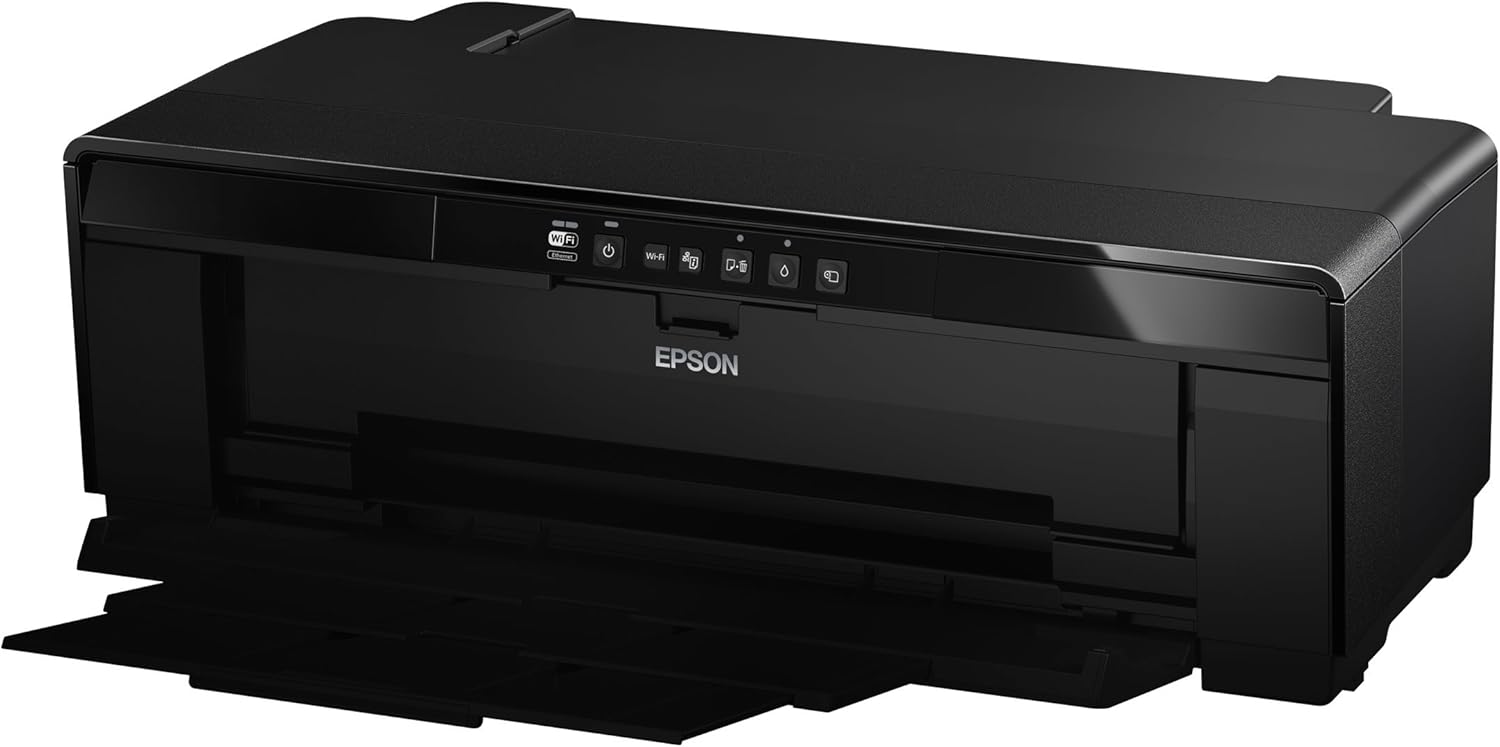
Ata 1: Luma view of the Epson SureColor P400 Wireless Color Photo Printer.
2. Vaega Autu
- UltraChrome HG2 Ink: Utilizes an 8-color pigment ink set, including Red and Orange inks, for vibrant, true-to-life color and deep blacks.
- Gloss Optimizer: Provides a smooth, professional finish to prints.
- Fefa'ataua'iga Fa'asalalau Feso'ota'i: Supports 13-inch wide cut-sheet and roll paper, fine art paper, and art board up to 1.3 mm thick.
- Feso'ota'i: Features Wireless (Wi-Fi), Ethernet, and USB 2.0 for flexible printing options.
- Individual Ink Cartridges: High-capacity 14 mL cartridges allow for replacement of only the color needed.

Ata 2: Ua umaview of the Epson SureColor P400 highlighting advanced paper handling, versatile connectivity, and the MicroPiezo printhead.
3. Seti Taiala
3.1 Ta'ese'ese ma Tu'u
- Aveese ma le faaeteete le lomitusi mai lona afifiina.
- Place the printer on a stable, flat surface with adequate space around it for operation and ventilation.
- Aveese uma lipine puipui ma mea e teu ai mea mai le lomitusi.
3.2 Fa'apipi'iina o Katu vaitusi
- Open the printer cover to access the ink cartridge slots.
- Unpack each 14 mL ink cartridge (Cyan, Gloss Optimizer, Magenta, Matte Black, Orange, Photo Black, Red, Yellow).
- Insert each cartridge into its corresponding color-coded slot until it clicks into place.
- Tapuni le ufiufi lomitusi.
Video 1: Official Epson SureColor P400 overview, demonstrating key features and ink installation. This video provides a visual guide to the printer's capabilities and how to manage ink cartridges.
3.3 So'oga Malosi
- Fa'afeso'ota'i le uaea eletise i le lomitusi ona fa'afeso'ota'i lea o le uaea eletise.
- Oomi le faamau malosi e ki ai le lomitusi.
3.4 Fa'apipi'iina ma Feso'ota'iga o Polokalama Faakomepiuta
- Install the printer software on your computer (PC or Mac) from the provided CD or Epson's official webnofoaga.
- Follow the on-screen instructions to set up your preferred connection method:
- Uaealesi (Wi-Fi): Faʻafesoʻotaʻi le masini lolomi i lau uaealesi.
- Ethernet: Connect an Ethernet cable from the printer to your router or network hub.
- USB 2.0: Connect a USB cable (not included) from the printer to your computer.

Image 3: Illustration of the Epson SureColor P400's compatibility and connectivity features, showing various devices and connection types.
4. Fa'atonuga o Galuega
4.1 Tu'uina o Pepa
The SureColor P400 offers multiple paper loading options:
- Auto Sheet Feeder: For photo, matte, and plain papers. Load paper into the top rear slot.
- Rear Single Sheet Fine Art Paper Path: For heavier fine art papers and specialty media.
- Roll Paper Holder: For 8.3-inch or 13-inch wide roll paper, ideal for panoramas up to 129 inches long.
- Front Straight-Through Path: Handles art board up to 1.3 mm thick.

Image 4: Diagram illustrating the three media feed options available on the Epson SureColor P400, including the top-loading auto-sheet feeder, front fine-art media feed, and roll media feed.

Image 5: The Epson SureColor P400 is capable of printing on a wide range of media, including various types of Epson Legacy Papers, Velvet Fine Art, Premium Photo Paper Luster, and Exhibition Canvas Gloss.
4.2 Lomitusi
- Ia mautinoa ua ki le masini lomitusi ma ua fesoʻotaʻi i lau masini.
- Tatala le pepa poʻo le ata e te manaʻo e lolomi i lau komepiuta.
- Filifili "Lomitusi" mai le lisi o lau talosaga.
- Choose the Epson SureColor P400 as your printer.
- Adjust print settings such as paper type, size, and quality in the printer driver dialog box.
- Click "Print" to begin the printing process.
5. Tausiga
5.1 Suia o Katulima Vaitusi
- When an ink cartridge is low or empty, a notification may appear on your computer or the printer's indicator light will signal.
- Press the ink droplet button on the printer's control panel to move the print head to the replacement position.
- Tatala le ufiufi o le pusa vaitusi.
- Press the tab on the empty cartridge to release it, then pull it straight out.
- Unpack a new genuine Epson ink cartridge and insert it firmly into the correct slot until it clicks.
- Close the ink cartridge cover and press the ink droplet button again to return the print head to its home position.
5.2 Fa'amamaina o le Ulu Lomitusi
If print quality declines or you notice missing lines or incorrect colors, perform a print head cleaning:
- Ulufale i le polokalama faakomepiuta mo le lomitusi i lau komepiuta.
- Select "Head Cleaning" or "Nozzle Check" to initiate the cleaning cycle.
- Follow the on-screen prompts. Repeat if necessary.
5.3 Cleaning the Paper Path
If you experience streaks on your prints, the paper path may need cleaning. Refer to the user guide for detailed instructions on how to clean the internal components, such as the pad that collects excess ink.
6. Faʻafitauli
- Le Lomitusi Le Tali:
- Siaki le feso'ota'iga eletise ma ia mautinoa ua ki le lomitusi.
- Verify network or USB cable connection.
- Toe amata le lomitusi ma lau komepiuta.
- Le Lelei o le Tulaga Lolomi (Fa'ailoga, Fa'a'ele'elea):
- Siaki le maualuga o le vaitusi ma sui so'o se katiri gaogao.
- Perform a print head cleaning and nozzle check.
- Ensure you are using appropriate paper settings for your media type.
- Clean the paper path if streaks persist.
- Pepa Jas:
- Turn off the printer and carefully remove any jammed paper from the input or output trays.
- Refer to the user guide for instructions on clearing internal paper jams.
7. Fa'amatalaga
| Fa'aaliga | Fa'amatalaga |
|---|---|
| Numera Fa'ata'ita'i | C11CE85201 |
| Fua o Mea (D x W x H) | 12.8" x 24.5" x 8.6" |
| Mea mamafa | 27.1 pauna |
| Lomitusi Tekonolosi | Inkjet (Pigment-based ink) |
| Fa'asologa o Lomitusi | Lanu |
| Maualuluga Lolomi Iugafono | 5760 x 1440 dpi |
| Lanu Vaitusi | Cyan, Magenta, Yellow, Photo Black, Matte Black, Red, Orange, Gloss Optimizer |
| Tekinolosi Feso'ota'i | USB 2.0, Wireless (Wi-Fi), Ethernet |
| Lagolagoina Media Tele | Up to 13" x 129" (roll paper), 13" x 19" (sheet) |
| Avanoa Pepa Ulua'i Ulufale | 1 (single sheet feed for specialty media) |
| Dual-sided Printing (Duplex) | Ioe |
| Fa'aaogāga Malosiaga | Printing: Approx. 20 W; Sleep mode: Approx. 1.4 W; Power off: Approx. 0.15 W |
| Masini Fegalegaleai | PC, Mac |

Image 6: Contents of the Epson SureColor P400 box, including the printer, ink cartridges, power cord, and user guide. Note that the USB cable is not included.
8. Fa'amatalaga Fa'amaonia
Specific warranty details for the Epson SureColor P400 are not provided in this manual. Please refer to the warranty card included with your product or visit the official Epson website for the most current and comprehensive warranty information.
9. Lagolago Tagata Fa'atau
For technical assistance, troubleshooting, or further inquiries, please visit the official Epson support website or contact Epson customer service. Support resources often include FAQs, driver downloads, and contact information for live assistance.
E mafai ona e asiasi i le Faleoloa Epson i luga o le Amazon mo fa'amatalaga fa'aopoopo o oloa ma mea fa'aoga.


