1. Folasaga
This manual provides detailed instructions for the installation, operation, and maintenance of your Creative Sound Blaster Live! SB0410 7.1-Channel PCI Sound Card. Please read this manual thoroughly before proceeding with installation to ensure proper setup and optimal performance.
2. Oloa Ua Ovaview
The Creative Sound Blaster Live! SB0410 is a 7.1-channel PCI sound card designed to enhance your PC's audio capabilities. It features the CA0106-DAT audio chipset, delivering high-quality sound for various applications.
2.1 Vaega Autu
- Creative CA0106-DAT chipset for robust audio processing.
- 64 audio channel playback with independent sample totogi.
- 24-bit Analog-to-Digital conversion of analog inputs at 96 kHz sample fua faatatau.
- 24-bit Digital-to-Analog conversion of digital sources at 96 kHz to analog 5.1 speaker output.
- Supports 16-bit and 24-bit recording with sampling rates of 8, 11.025, 16, 22.05, 24, 32, 44.1, 48, and 96 kHz.
2.2 Fa'amatalaga Fa'asinomaga
Familiarize yourself with the components of your sound card:

Ata 1: I luga-lalo view of the Creative Sound Blaster Live! SB0410 PCI Sound Card. This image displays the overall layout of the circuit board, including various chips, capacitors, and the PCI connector at the bottom.

Ata 2: Laupapa pito i tua view of the Creative Sound Blaster Live! SB0410, showing the various audio input and output ports. From left to right, these typically include line-out, line-in, microphone, and other surround sound outputs.
3. Seti ma Fa'apipi'i
Proper installation is crucial for the functionality of your sound card. Follow these steps carefully.
3.1 Laasaga a'o le'i fa'apipi'iina
- Fa'amaumauga faaleoleo: Before making any hardware changes, it is recommended to back up important data on your computer.
- Tapē le eletise: Tape atoa lau komepiuta ma motusia le uaea eletise mai le palaka eletise.
- Tulaga tatala: Open your computer's case to access the motherboard.
- Disable Onboard Audio: If your motherboard has integrated audio, it is highly recommended to disable it. This can typically be done in the computer's BIOS/UEFI settings. Consult your motherboard manual for specific instructions. Failure to do so may result in driver conflicts or system instability.
3.2 Fa'apipi'i Fa'aletino
- Locate PCI Slot: Identify an available PCI expansion slot on your motherboard.
- Aveese le ufiufi o le Slot: Carefully remove the metal slot cover from the back of your computer case corresponding to the chosen PCI slot.
- Insert Sound Card: Align the sound card with the PCI slot and gently but firmly press it down until it is securely seated. Ensure the metal bracket is flush with the back of the case.
- Kata malu: Fasten the sound card's metal bracket to the computer case using a screw.
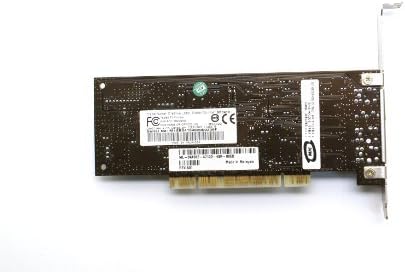
Ata 3: Lalo view of the Creative Sound Blaster Live! SB0410, highlighting the PCI connector pins. This is the part that inserts into the motherboard's PCI slot.
3.3 Fa'apipi'i Aveta'avale
- Toe fa'afeso'ota'i le Malosi: Close your computer case, reconnect the power cable, and power on your computer.
- Operating System Detection: Your operating system may automatically detect the new hardware and attempt to install generic drivers.
- Install Official Drivers: For optimal performance and access to all features, download and install the latest official drivers from the Creative website. Navigate to the support section, search for model SB0410, and download the appropriate drivers for your operating system.
- Toe amata le komepiuta: After driver installation, restart your computer as prompted.
4. Galuega
Once installed, configure your sound card for optimal audio output.
4.1 Connecting Speakers/Headphones
Connect your speakers or headphones to the appropriate audio output jacks on the sound card's rear panel. Refer to Figure 2 for port identification. For 7.1-channel systems, ensure all speaker channels are connected correctly.
4.2 Fa'atonu leo
- Fa'atonuga leo: Access your operating system's sound settings (e.g., Windows Sound Control Panel, macOS Sound Preferences).
- Select Playback Device: Ensure the Creative Sound Blaster Live! SB0410 is selected as the default playback device.
- Configure Speaker Setup: Configure your speaker setup (e.g., Stereo, 5.1 Surround, 7.1 Surround) to match your connected speakers.
- Creative Software: Utilize any included Creative audio control panel software for advanced settings, equalizer adjustments, and special effects.
5. Tausiga
To ensure the longevity and consistent performance of your sound card, consider the following maintenance tips:
- Fa'afouga ta'avale: Periodically check the Creative website for updated drivers. Keeping drivers current can improve compatibility, performance, and resolve potential issues.
- Fa'amamaina Faaletino: If your computer case accumulates dust, carefully clean the sound card and its PCI slot using compressed air. Ensure the computer is powered off and unplugged before cleaning.
- Tulaga Siosiomaga: Operate your computer in a well-ventilated area to prevent overheating, which can affect all internal components, including the sound card.
6. Faʻafitauli
If you encounter issues with your Creative Sound Blaster Live! SB0410, refer to the following common troubleshooting steps:
6.1 Leai se leo e maua mai ai
- Siaki So'oga: Ensure speakers/headphones are securely connected to the correct output jacks.
- Tulaga Volume: Verify that volume levels are not muted or set too low in both your operating system and any Creative audio software.
- Default Playback Device: Confirm that the Sound Blaster SB0410 is selected as the default playback device in your operating system's sound settings.
- Fa'apipi'i Aveta'avale: Reinstall the latest drivers from the Creative website. Corrupted or incorrect drivers are a common cause of no sound.
- Physical Seating: Power off your computer, open the case, and ensure the sound card is firmly seated in its PCI slot.
6.2 Driver Conflicts or Instability
- Disable Onboard Audio: Double-check that your motherboard's onboard audio is disabled in the BIOS/UEFI settings.
- Clean Driver Installation: Uninstall all previous audio drivers (especially onboard audio drivers) before performing a fresh installation of the Creative drivers.
- PCI Slot Compatibility: While rare, some PCI slots or motherboards may have compatibility quirks. If possible, try the card in a different PCI slot.
6.3 Distorted or Poor Quality Sound
- Speaker Quality: Test with different speakers or headphones to rule out issues with the audio output devices.
- Uea lelei: Ensure audio cables are not damaged and are properly shielded.
- Fa'atonuga polokalame: Reset audio settings in the Creative control panel or operating system to default. Disable any special effects or enhancements that might be causing distortion.
7. Fa'amatalaga
The following table outlines the key technical specifications for the Creative Sound Blaster Live! SB0410 PCI Sound Card:
| Fa'aaliga | Fa'amatalaga |
|---|---|
| Fa'ailoga | Foafoaga |
| Numera Fa'ata'ita'i | SB0410 |
| Chipset leo | CA0106-DAT |
| Auala | 7.1 Alavai |
| Fa'afeso'ota'i | PCI |
| Leo Faʻalauiloa Galuega | Si'osi'omia |
| Analog-to-Digital Conversion | 24-bit at 96 kHz |
| Fa'aliliuga Numera-i-Analog | 24-bit at 96 kHz (to analog 5.1 speaker output) |
| Faamauina Sample Tau | 8, 11.025, 16, 22.05, 24, 32, 44.1, 48, 96 kHz |
| Masini Fegalegaleai | Fofoga Fetalai |
| Fua o Mea (LxWxH) | 12 x 10 x 2 inisi |
| Mea mamafa | 0.01 aunese |
8. Fa'amaonia ma Lagolago
Your Creative Sound Blaster Live! SB0410 PCI Sound Card comes with a standard manufacturer warranty. For specific details regarding the warranty period and coverage, please refer to the documentation provided with your purchase or visit the official Creative webnofoaga.
Creative offers technical support for product assistance, including remote installation guidance via internet, phone, or email. For support inquiries, please visit the Creative support portal or contact their customer service.


