1. Folasaga ma le Fa'asoloview
The Avision AV 320D2+ is a high-performance A3 document scanner designed for efficient and reliable document digitization. Featuring a 600 dpi optical resolution and USB connectivity, it is capable of handling a wide range of document sizes up to A3, making it suitable for various professional environments. This manual provides essential information for setting up, operating, maintaining, and troubleshooting your scanner.
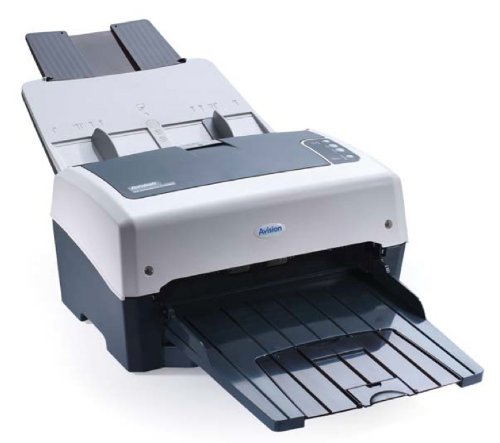
Figure 1: Avision AV 320D2+ A3 Document Scanner. This image displays the Avision AV 320D2+ A3 Document Scanner from a front-right perspective. The scanner is light grey and dark grey, featuring an automatic document feeder (ADF) at the top with paper guides visible, and an extended output tray at the front. The Avision logo is visible on the front panel.
2. Seti
2.1 Tatalaina
- Aveese ma le faaeteete le masini su'e ma mea uma mai le afifiina.
- Fa'amautinoa o lo'o iai vaega uma o lo'o lisiina ile lisi o fa'aputu.
- Remove all protective tapes and packing materials from the scanner, including any inside the document feeder and output tray.
2.2 Fa'afeso'ota'i le Su'e
- Tuu le scanner i luga o se mea mautu ma lamolemole e lata ane i lau komepiuta.
- Connect the power adapter to the scanner's power input and then plug it into an electrical outlet.
- Connect one end of the supplied USB cable to the USB port on the scanner and the other end to an available USB port on your computer.
- Power on the scanner using the power button, typically located on the side or rear panel.
2.3 Fa'apipi'i polokalame
Before using the scanner, you must install the necessary drivers and scanning software. Refer to the included software CD or visit the official Avision website for the latest drivers and utilities.
- Insert the software installation CD into your computer's CD/DVD drive, or download the software package from the Avision support webnofoaga.
- Follow the on-screen instructions to install the scanner drivers and bundled scanning applications. It is recommended to install all provided software for full functionality.
- Toe amata lau komepiuta pe a fai mai ua uma ona fa'apipi'iina.
3. Fa'agaioia le Scanner
3.1 Tu'uina o Pepa
- Fafaga Fa'amaumauga otometi (ADF): Open the ADF input tray. Adjust the paper guides to fit the width of your documents. Place the documents face-down with the top edge first into the ADF. The standard sheet capacity is 50 sheets.
- Ensure documents are free of staples, paper clips, or any foreign objects that could damage the scanner.
- For mixed-size documents, ensure they are aligned properly to prevent skewing.
3.2 Basic Scanning Procedures
- Load your documents into the ADF as described above.
- Open your preferred scanning application (e.g., Avision Button Manager, TWAIN/ISIS compatible software).
- Select the Avision AV 320D2+ as your scanner.
- Choose your desired scanning settings (e.g., color mode, resolution, destination folder).
- Initiate the scan from the software interface. The scanner will automatically feed and scan the documents.
- Review the scanned images and save them to your desired location.
3.3 Va'aiga Fa'atonu
The scanner supports various settings to optimize scan quality and file tele:
- I'uga: Adjustable up to 600 dpi. Higher resolution provides better image quality but results in larger file tetele.
- Faiga Lanu: Options typically include Color, Grayscale, and Black & White (Binary).
- Su'ega fa'alua: The AV 320D2+ supports duplex (two-sided) scanning, allowing you to capture both sides of a document in a single pass.
- Fa'asologa o Galuega: Common output formats include PDF, JPEG, TIFF, and searchable PDF.
4. Tausiga
4.1 Fa'amama le Scanner
O le fa'amama masani e fa'amautinoa ai le fa'atinoina lelei ma fa'alautele le ola o lau su'e.
- fafo: Solo le pito i fafo i se mea vaivai, oamp, ie e leai ni limu. Aua le fa'aogaina ni mea fa'amama po'o ni vaila'au fa'amama.
- Mata tioata: Fa'aaogā se ie mālū oampened with a non-abrasive glass cleaner to clean the scanner's glass surfaces (if applicable).
- Ta'avale: Periodically clean the feed rollers with a lint-free cloth lightly dampfa'atumu i le isopropyl alcohol e aveese ai le pefu pepa ma mea o totoe.
- Pepe i taimi uma ma tatala le masini su'e a'o le'i fufulu.
5. Faʻafitauli
This section addresses common issues you might encounter with your Avision AV 320D2+ scanner.
| Fa'afitauli | Mafuaaga e ono tupu | Fofo |
|---|---|---|
| E le iloa e le komipiuta le scanner | Loose USB cable, power off, driver issue | Siaki le feso'ota'iga USB, fa'amautinoa o lo'o ola le scanner, toe fa'ae'e aveta'avale. |
| Pepa poloka | Misaligned documents, worn rollers, foreign objects | Remove jammed paper carefully, align documents properly, clean rollers. |
| Le lelei le fa'ata'ita'iga (fe'ai, ata faanenefu) | Dirty glass, incorrect settings, worn rollers | Clean scanner glass and rollers, adjust resolution/color settings. |
| Pepa e le fafaga | Incorrectly loaded, worn feed rollers | Ensure documents are loaded correctly, clean or replace feed rollers if worn. |
6. Fa'amatalaga
Key technical specifications for the Avision AV 320D2+ scanner:
- Ituaiga oloa: Su'e Tusi
- Fa'asologa o Pepa: A3
- I'uga: 600 dpi (Optical)
- Feso'ota'i: USB
- Lanu: Uuliuli/Pae'e
- mamafa: E tusa ma le 26.46 pauna (12 kilokalama)
- Fa'aaogāina Malosiaga: 38.4 Watts
- Avanoa Pepa masani (ADF): 50 pepa
- Fa'atekonolosi fa'apitoa: CMOS
- Igoa Fa'ata'ita'i: AV320D2+
- Numera Fa'ata'ita'iga: FT-0807H
7. Fa'amaonia ma Lagolago
7.1 Fa'amaoniaga a le Faumea
The Avision AV 320D2+ scanner typically comes with a 2-tausaga le fa'amaoniaga a le gaosiga. This warranty covers defects in materials and workmanship under normal use. Please retain your proof of purchase for warranty claims. For specific terms and conditions, refer to the warranty card included with your product or visit the official Avision webnofoaga.
7.2 Lagolago Fa'ainisinia
For technical assistance, driver updates, or further troubleshooting not covered in this manual, please contact Avision customer support. Support contact information can usually be found on the Avision official webnofoaga poʻo totonu o faʻamaumauga o loʻo tuʻuina atu ma lau scanner.
Note: Availability of spare parts and software updates may vary. Please check the manufacturer's official channels for the most current information.


