
1. Folasaga
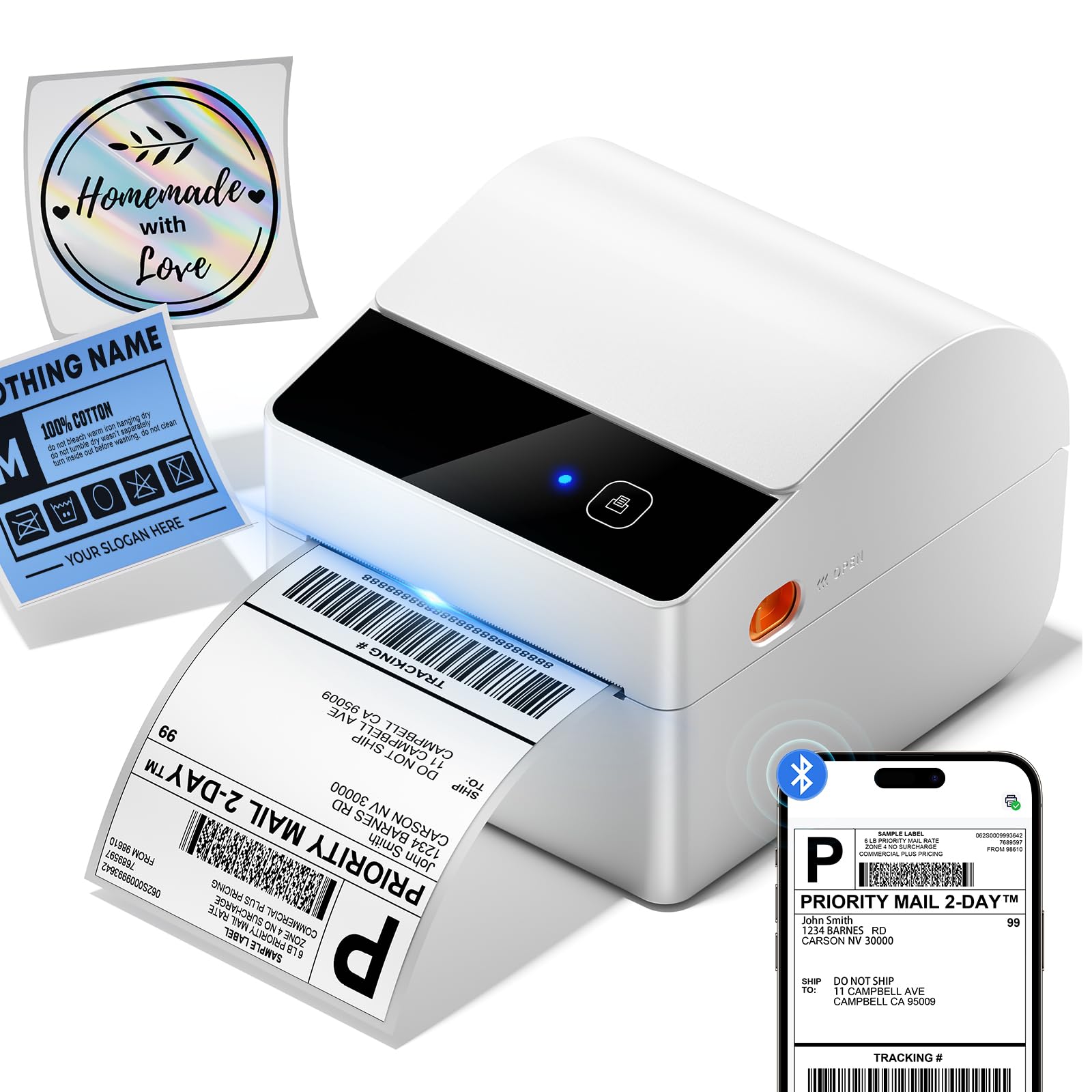
This manual provides comprehensive instructions for the setup, operation, maintenance, and troubleshooting of your ASprink A64M Bluetooth Shipping Label Printer. This compact thermal printer is designed for efficient label printing for various applications, including shipping, address labels, barcodes, and more.
The ASprink A64M features a revolutionary built-in label bin, supporting up to 250 4x6 roll labels, and offers upgraded Bluetooth 5.0 connectivity for wireless printing from computers (Windows/macOS) and mobile devices (iOS/Android), alongside traditional USB connectivity.
2. O a mea oi totonu o le Pusa
Fa'amolemole fa'amautinoa o lo'o iai vaega uma a'o le'i fa'agasolo le seti:
- A64M Shipping Label Printer (1 unit)
- Built-in label holder (1 unit)
- Labels (starter roll)
- Mea Fa'apipi'i Malosiaga (1 iunite)
- USB Cord & Type C Convertor (1 unit)
3. Seti Taiala
3.1 Fa'atonu Fa'aletino
- Fesoʻotaʻi le Mana: Plug the power adapter into the printer's power port and then into a wall outlet. The power indicator light should illuminate.
- Uta Fa'ailoga:
- Open the printer lid.
- Place the roll of thermal labels into the built-in label bin. Ensure the labels feed from the bottom of the roll and the printable side (usually smoother and brighter white) faces upwards.
- Adjust the movable baffle and guide rail to fit the label roll snugly, preventing excessive side-to-side movement.
- Feed the leading edge of the labels through the printer's output slot until it protrudes slightly.
- Close the printer lid. The printer will automatically detect and calibrate the label size.

3.2 Avetaavale ma Polokalama Fa'apipi'i
The ASprink A64M supports both Bluetooth and USB connectivity. For optimal performance, it is recommended to install the appropriate drivers or mobile application.
- For PC (Windows/macOS) via USB: Connect the printer to your computer using the provided USB cable. The operating system may automatically install necessary drivers. If not, please visit the official ASprink support webnofoaga mo ave taavale.
- For PC (Windows/macOS) via Bluetooth: Ensure your computer's Bluetooth is enabled. Follow the pairing instructions in Section 4.1. You may still need to install a specific driver from the ASprink support webnofoaga mo galuega atoatoa.
- For Mobile Devices (iOS/Android) via Bluetooth: Download the official ASprink printing application from your device's app store. A QR code for direct download may be found in the quick start guide included with your printer.

4. Fa'atonuga o Galuega
4.1 Connecting Your Printer
- Bluetooth Pairing:
- Turn on the ASprink A64M printer.
- On your device (computer or mobile), go to Bluetooth settings and ensure Bluetooth is enabled.
- Saili mo available devices. The printer should appear as "ASprink A64M" or similar.
- Filifili le masini lolomi e fa'apipi'i. Afai e talosagaina se PIN, fa'aofi le "0000" po'o le "1234".
- Once paired, the Bluetooth indicator on the printer will show a steady blue light.
- So'oga USB: Simply connect the printer to your computer using the provided USB cable. The printer should be recognized automatically.
4.2 Fa'ailoga Lolomi
- Ensure the printer is powered on and connected (via Bluetooth or USB) to your device.
- Tatala le pepa po'o le igoa file you wish to print (e.g., a shipping label PDF).
- Access the print function in your application (File > Lolomi).
- Select the ASprink A64M printer from the list of available printers.
- Verify print settings such as paper size (e.g., 4x6 inches) and orientation.
- Click "Print". The printer will rapidly produce your labels.
4.3 Tele o Fa'ailoga e Lagolagoina
The ASprink A64M thermal printer handles labels from 1 to 4.6 inches wide, accommodating various label types:
- Shipping Labels (4"x6")
- Mailing Labels (3"x3")
- Address Labels (3"x2")
- Barcode Labels (2.25"x1.25")
- Circle Labels (2"x2")

5. Tausiga
Regular maintenance ensures optimal performance and extends the lifespan of your thermal printer.
5.1 Fa'amamaina o le Ulu Lomitusi
The print head is a critical component and should be cleaned regularly, especially if print quality degrades or after every few rolls of labels.
- Tape le lomitusi ma tatala le uaea eletise.
- Open the printer lid.
- Use an alcohol swab (70% isopropyl alcohol) or a specialized thermal printer cleaning pen to gently wipe the print head surface. Avoid touching the print head with bare hands.
- Allow the print head to dry completely (a few minutes) before closing the lid and powering on the printer.
5.2 Fa'amamaina o le Platen Roller
The platen roller helps feed labels smoothly. Dust or adhesive residue can affect feeding and print quality.
- Tape le lomitusi ma tatala le uaea eletise.
- Open the printer lid.
- Gently wipe the rubber platen roller with an alcohol swab or a lint-free cloth dampfa'atasi ma le isopropyl alcohol.
- Fa'ata'amilo i le lima le lola e fa'amamā ai le fogā'ele'ele atoa.
- Allow the roller to dry completely before closing the lid and powering on the printer.
6. Faʻafitauli
If you encounter issues with your ASprink A64M printer, refer to the common problems and solutions below. For further assistance, please contact ASprink support.
| Fa'afitauli | Mafuaaga e ono tupu | Fofo |
|---|---|---|
| Ua le ola le lomitusi | Power cable not connected; power outlet issue | Ensure power cable is securely connected to printer and a working outlet. Try a different outlet. |
| No labels printing | Labels incorrectly loaded; out of labels; printer not connected | Check label loading direction and ensure enough labels are present. Verify printer connection (USB/Bluetooth). |
| Le lelei o le lolomiina (le manino, manifinifi) | Dirty print head; incorrect label type; low quality label stock | Clean the print head (see Section 5.1). Ensure you are using direct thermal labels. Try a different roll of labels. |
| Fa'afitauli feso'ota'iga Bluetooth | Printer not in pairing mode; device Bluetooth off; interference | Ensure printer is on and Bluetooth indicator is active. Restart printer and device. Re-pair the device. Move closer to the printer. |
| Labels feeding incorrectly or jamming | Labels not aligned; platen roller dirty; label bin too loose/tight | Adjust label guide rails. Clean platen roller (see Section 5.2). Ensure labels are loaded correctly and the bin is adjusted. |
7. Fa'amatalaga
Key technical specifications for the ASprink A64M Bluetooth Shipping Label Printer:
- Igoa Fa'ata'ita'i: A64M
- Fa'ailoga: ASprink
- Tekinolosi lomitusi: Mafanafana
- Tekinolosi Feso'ota'i: Bluetooth, USB
- Tele o Ala o Faasalalauga: 4 x 6 inisi
- Sheet Size (Paper Width): 1"-4.6" (25.4-117mm) Inches
- Fua o Mea: 7.24"D x 6.3"W x 5.3"H (18.4 x 16 x 13.5 cm)
- Mea mamafa: 2.18 pauna (0.99 kilokalama)
- Fa'asologa o mea lomitusi: Monochrome
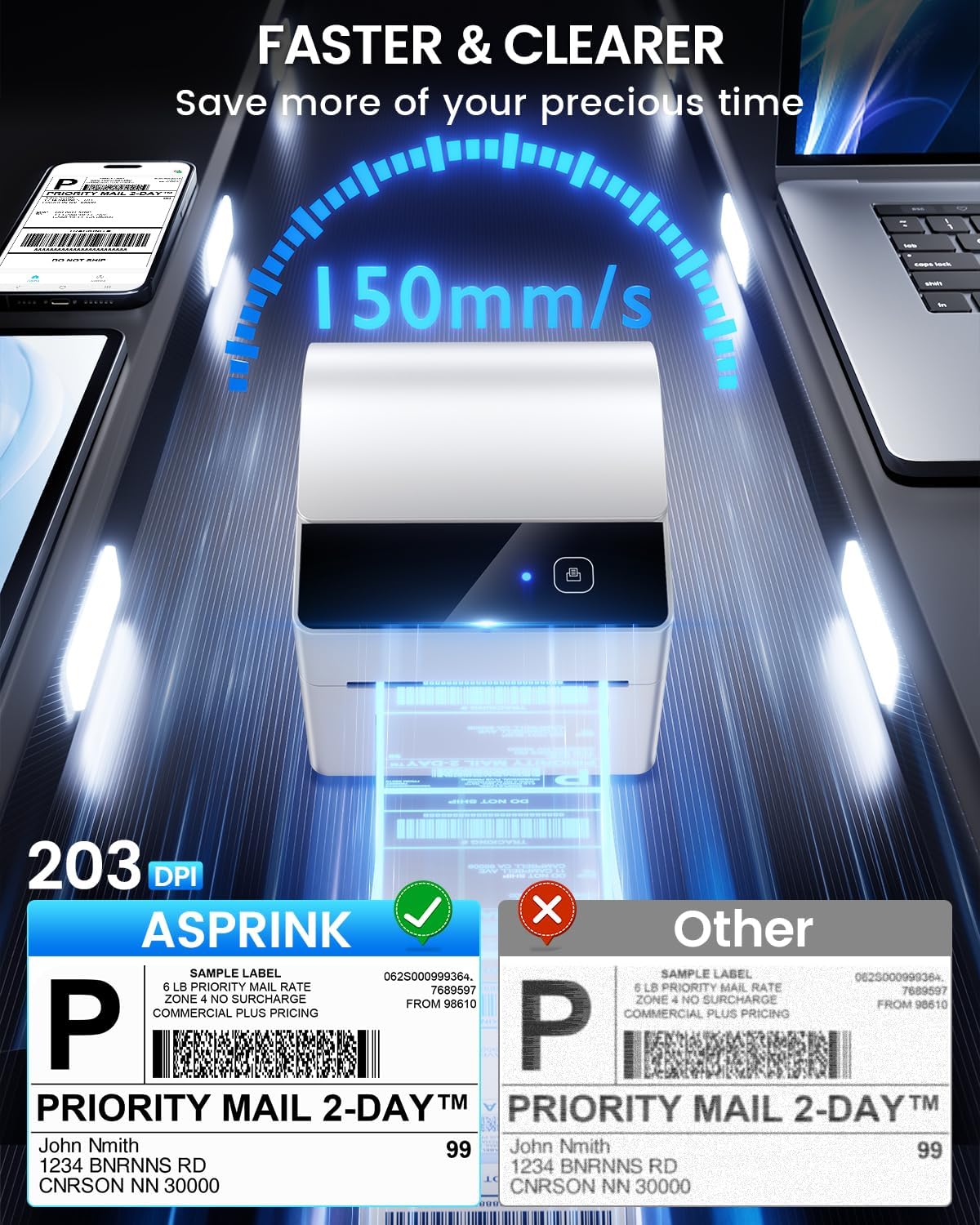
- Max Lolomi Saosaoa Monochrome: 127 mm/s (approximately 72 labels per minute for 4x6)
- I'uga: 203 DPI
- Fa'apitoa Fa'apitoa: Compact design with built-in label bin
- Fa'aoga fa'apitoa: Home, Office, Small Business, Warehouse
8. Fa'amaonia ma Lagolago
ASprink is committed to providing excellent customer service and support for your A64M printer.
8.1 Lagolago i le olaga atoa
Your ASprink A64M printer comes with lifetime support. If you encounter any issues or have questions, please do not hesitate to contact our support team.
8.2 Faʻamatalaga Faʻafesoʻotaʻi
For assistance, please use the following contact methods:
- Lagolago Telefoni: Available Monday-Friday, 9:00 AM - 5:00 PM EST
- Tala'aga Ola: Available Monday-Friday, 7:30 PM - 4:30 AM EST
- Fesoasoani ile imeli: Available 24/7 (response within 24-48 hours)
- Remote Desktop Assistance: Available upon request for complex issues
Please refer to the contact details provided in your product packaging or on the official ASprink web'upega tafaʻilagi mo faʻamatalaga sili ona lata mai.