
1. Folasaga
Thank you for choosing the CINMOORE CM-C2U 3K Indoor Security Camera. This manual provides essential information for setting up, operating, and maintaining your camera to ensure optimal performance and security. This camera is designed for indoor use, offering advanced features such as 3K UHD video, AI-powered detection, pan-tilt-zoom functionality, and dual-band Wi-Fi connectivity.
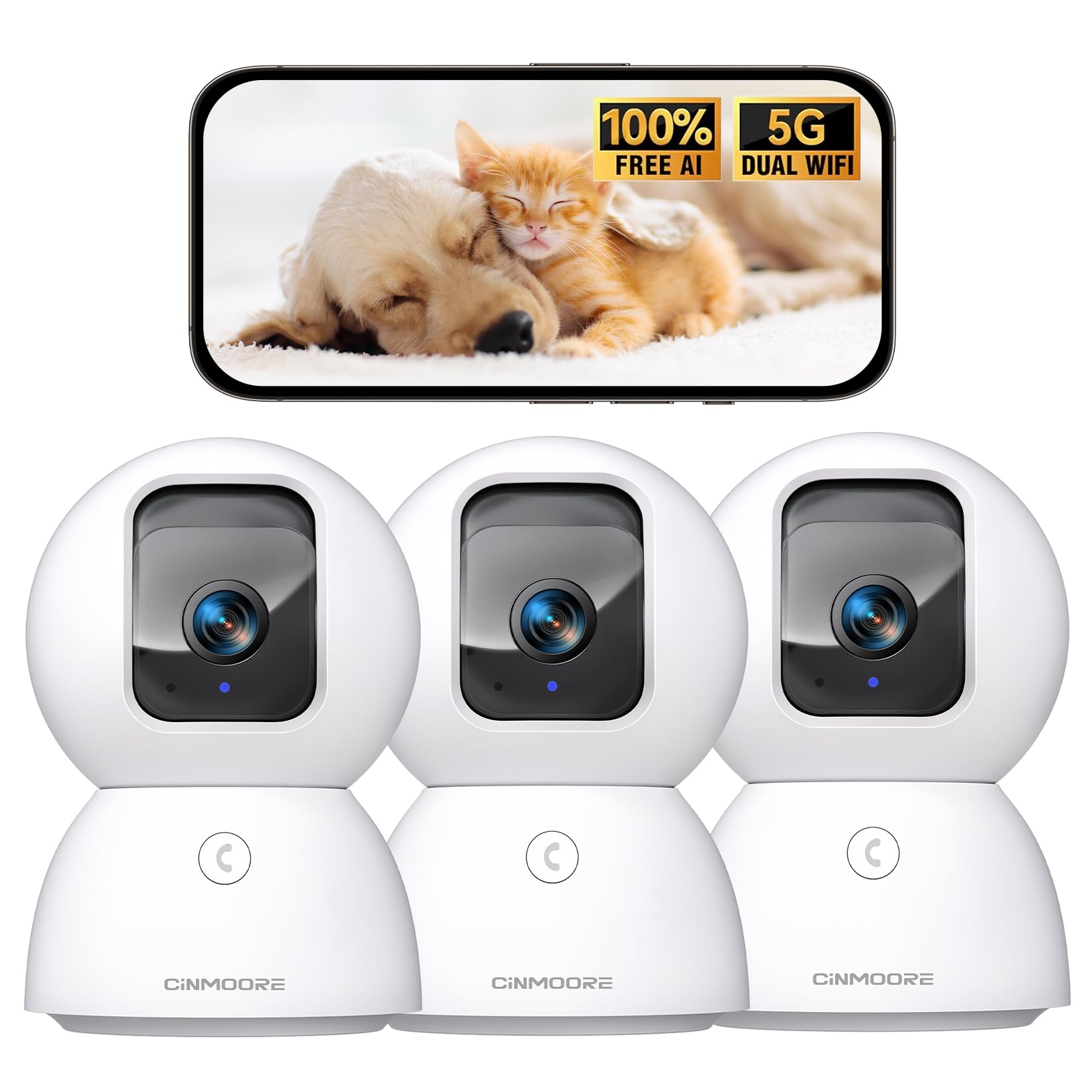
Figure 1: CINMOORE CM-C2U 3K Indoor Security Camera
2. O a mea oi totonu o le Pusa
- CINMOORE Security Camera (x3)
- Mounting Bracket Base (x3)
- Adaptor Mana (x3)
- Data Cable (x3)
- Taula Siu (x3)
- Tusi Taiala (x1)
3. Fa'atonu Fa'atonu
3.1 Uluai Malosiaga
- Connect the data cable to the camera's power port.
- Fa'afeso'ota'i le feso'ota'iga eletise i se so'o eletise masani.
- The camera will power on, and an indicator light will blink, signaling it's ready for setup.
3.2 App Download ma So'oga
- Download the official CINMOORE app from your smartphone's app store (iOS or Android).
- Fausia se tala pe saini i totonu pe afai ua uma ona iai sau tala.
- Follow the in-app instructions to add your new camera. This typically involves scanning a QR code located on the camera's base.
- Connect the camera to your home Wi-Fi network. The camera supports Dual-Band 2.4GHz/5GHz Wi-Fi 6 for a stable connection.
Video: C2U Indoor Camera 1-minute Setup. This video demonstrates the quick and easy setup process for the CINMOORE C2U Indoor Camera, guiding users through connecting the device to the power supply and linking it to the mobile application.
4. Fa'atonuga o Galuega
4.1 Mata'ituina o Vitio Tuusa'o
Access the live feed from your camera anytime, anywhere via the CINMOORE app. The 3K UHD resolution provides clear and detailed visuals.

Figure 2: Demonstrates the superior 3K clarity of the camera's video feed compared to 2K resolution, highlighting vivid detail for monitoring.
4.2 Pan-Tilt-Zoom (PTZ) Control
Use the virtual joystick in the app to remotely control the camera's movement. Enjoy a 360° horizontal pan and a 109° vertical tilt to cover every corner of your room. The camera also features AI auto-tracking to follow detected movement.

Figure 3: Illustrates the camera's comprehensive 360° pan and tilt capabilities, along with other key features like 3K Ultra HD, sound/crying alerts, and local facial recognition.
4.3 Leo e Lua Ala
Engage in real-time conversations using the full-duplex two-way audio feature. Speak through the app and hear responses from the camera's location. A one-click call button can trigger family alerts.
4.4 AI Detection and Tracking
The camera offers free AI detections for facial recognition (stores up to 5 faces locally), person detection, pet detection, baby crying detection, and smoke/gas alarm recognition. Receive instant alerts on your smartphone when activity is detected. Customize detection zones to focus on specific areas.

Figure 4: Highlights the camera's no-subscription local AI detection features, including recognition of up to 5 faces and 6 types of detections (person, pet, motion, noise, loitering, facial) while ensuring 100% privacy.
4.5 Vaaiga i le Po
The 0-Glow Night Vision 2.0 provides clear monitoring in low-light conditions without emitting a visible red glow, ensuring undisturbed sleep for babies and pets. The night vision range is up to 33 feet.

Figure 5: Compares the CINMOORE camera's 0-Glow Night Vision with a traditional camera's red glow, emphasizing safe and undisturbed monitoring for infants and pets.
4.6 Filifiliga Teuina
Choose between local storage via an SD card (up to 512GB, not included) for 24/7 recording, or optional AWS Cloud storage with bank-level security (30-day free trial available). SD card encryption ensures footage is only viewable within the CINMOORE App.

Figure 6: Details the camera's encrypted and secure storage options, including SD card support (up to 512GB, not included) and optional AWS Cloud Storage with a 30-day free trial.
4.7 Faiga Fa'alilolilo
Activate the one-tap privacy mode, which physically covers the camera lens, ensuring your privacy when you are home.
5. Filifiliga Fa'amau
The CINMOORE CM-C2U camera offers flexible mounting options to suit your needs:
- Mauga luga ole laulau: Simply place the camera on any flat surface like a table, shelf, or desk.
- Mauga Mauga: Use the included mounting bracket base and screw anchors to securely attach the camera to a wall.
- Mauga fa'afale: The camera can also be mounted to the ceiling using the provided bracket for an overhead view.
Ensure the camera is positioned to provide the optimal viewing angle for your desired monitoring area.
Video: Setup Guide for IMILAB indoor camera. This video provides a step-by-step guide on how to set up an IMILAB indoor camera, including unboxing, connecting to power, app setup, and mounting options.
6. Fa'amatalaga
| Igoa Fa'ata'ita'iga | CM-C2U |
| Fa'aoga i totonu/I fafo | I totonu |
| I'uga o Pu'e Vitio | 3K/4MP |
| Feso'ota'iga Protocol | Wi-Fi (Dual-Band 2.4GHz/5GHz Wi-Fi 6) |
| Punavai Malosi | Uaea Eletise |
| Ituaiga Pule | Amazon Alexa |
| Ituaiga Fa'amau | Ceiling Mount / Tabletop Mount / Wall Mount |
| Po Vaʻai Vaaia | 33 Feet (0-Glow) |
| Teuga Fa'alotoifale | SD card (up to 512GB, not included) |
| Fua | 3 x 4.5 x 3 inisi |
| Mea mamafa | 2.33 pauna |
7. Tausiga
- Fa'amamaina: Solo lemu le tioata ma le tino i se ie vaivai ma mago. Aloese mai le fa'aaogaina o vaila'au malolosi po'o mea fa'a'a'asa.
- Faʻalauiloa Firmware: Regularly check the CINMOORE app for available firmware updates to ensure your camera has the latest features and security enhancements.
- Ta'amilosaga Malosi: If the camera experiences connectivity issues, try unplugging it from the power source for 10 seconds and then plugging it back in.
- SD Card Pulega: If using an SD card, periodically review ma pulea foo fa'amauinatage taofia ai le tumu o le kata.
8. Faʻafitauli
- Meapue e le o feso'ota'i ile Wi-Fi:
- Ensure your Wi-Fi network is 2.4GHz or 5GHz.
- Siaki ua sa'o le ulufaleina o le upu faataga o le Wi-Fi.
- Fa'alatalata atu le meapueata i lau Wi-Fi router.
- Toe amata lau router ma le meapueata.
- Leaga le Tulaga Vitio:
- Siaki lau saosaoa feso'ota'iga initaneti.
- Ia mautinoa e mama le tioata o le meapueata.
- Adjust video quality settings in the app if available.
- Leai ni Fa'ailoilo e Iloa ai Gaioiga:
- Ia fa'amaonia ua fa'agaoioia le iloa o gaioiga i fa'atulagaga o le polokalama.
- Adjust motion sensitivity levels.
- Siaki faʻatulagaga o faʻasilasilaga a le app i lau telefonipoto.
- Fa'afitauli Fa'alogo e Lua Itu:
- Ensure your phone's microphone is enabled for the app.
- Check the volume settings in the app.
- Minimize background noise for clearer communication.
9. Fa'amaonia ma Lagolago
The CINMOORE CM-C2U camera comes with a 24-month warranty. For any issues or inquiries, please contact CINMOORE customer support. We offer free replacement for eligible issues, extended warranty options, and professional support to ensure your satisfaction.
For further assistance, refer to the help section within the CINMOORE app or visit our official webnofoaga.