
1. Folasaga
Welcome to the AlgoLaser T150 Pro 3W Mini Laser Engraver Machine user manual. This document provides essential information for the safe and effective operation of your new laser engraver. The T150 Pro is a high-precision tool designed for DIY enthusiasts, hobbyists, and small business owners, enabling the creation of personalized gifts, home decor, and custom products. Its compact, tank-inspired design ensures stability and durability, delivering professional engraving results.
This machine is suitable for engraving various materials including wood, acrylic, and leather. It is ideal for personal projects, small business production, and educational settings. Please read this manual thoroughly before operating the device to ensure proper usage and to maximize its potential.

Image 1.1: The AlgoLaser T150 Pro Mini Laser Engraver, highlighting its robust design.
2. Fa'amatalaga Saogalemu
Operating a laser engraver involves inherent risks. Adhere to all safety guidelines to prevent injury and damage to the equipment.
- Puipuia Mata: Always wear the provided laser safety goggles when the machine is operating. Direct exposure to the laser beam can cause severe and permanent eye damage.
- Savili: Operate the engraver in a well-ventilated area or use an appropriate fume extraction system. Engraving certain materials can produce harmful fumes and particles.
- Tulaga Afi: The laser can ignite flammable materials. Never leave the machine unattended during operation. Keep a fire extinguisher nearby.
- Mea Fa'atatauga: Only engrave materials approved for laser processing. Avoid PVC, vinyl, ABS, and other materials that produce toxic or corrosive fumes when laser cut or engraved.
- Tamaiti ma Fagafao: Keep children and pets away from the operating area. This device is not a toy.
- Taofi Faalavelave Faafuasei: Familiarize yourself with the location and function of the emergency stop button.
- Tilt Detection: The T150 Pro features advanced tilt detection technology that automatically turns off the laser if the machine shifts by more than 20 degrees, enhancing safety during operation.
3. Mea i totonu o le afifi
Fa'amautinoa o mea uma o lo'o lisi atu i lalo o lo'o aofia i lau afifi. Afai e iai ni vaega o lo'o misi pe fa'aleagaina, fa'amolemole fa'afeso'ota'i le lagolago a tagata fa'atau.

Image 3.1: Visual representation of the AlgoLaser T150 Pro package contents.
- X-axis Frame
- Laser Engraver/Cutter Unit
- Laser Module (3W)
- Fetuunaiga Malosi
- Mata tioata Saogalemu Laser
- Screwdriver and Wrench Set
- Manua Taulaʻau
- Hexagon Screws M5x30
- 2mm Gauge Block (for focusing)
- Material Kit (sample materials)
- Uaea USB
4. Oloa Ua Ovaview ma Vaega
The AlgoLaser T150 Pro is engineered for precision and ease of use, offering a range of features for both beginners and experienced users.
- Professional-Grade Engraving: Ideal for crafters, small shop owners, and creative entrepreneurs, capable of working with wood, metal, acrylic, leather, and more.
- feavea'i & Faasaoina Avanoa: Compact and lightweight design suitable for desktops in homes, classrooms, and workshops.
- Vaega Galulue Tele: Features a 150 x 150 mm engraving area.
- Saosaoa maualuga: Achieves engraving speeds of up to 8000 mm/min with high precision.
- Fa'aleleia le Fa'atinoga: Equipped with an upgraded chip for advanced image processing, offering 200% more computing power.
- Seti vave: 90% pre-assembled design allows for rapid deployment.
- Built-in Security: Advanced tilt detection automatically shuts off the laser if the machine shifts by 20 degrees.
- Fa'alautele: Compatible with optional rotary rollers for engraving cylindrical objects.

Image 4.1: The T150 Pro seamlessly integrates into a desktop environment.

Image 4.2: Performance enhancement through upgraded chip technology.

Ata 4.3: Esoamples of creative applications with the AlgoLaser T150 Pro.
5. Seti Taiala
The AlgoLaser T150 Pro is designed for quick and easy setup, with most components pre-assembled.
5.1 Fonotaga Muamua
- Carefully unpack all components from the box and verify against the package contents list.
- Place the main frame on a stable, level surface.
- Attach the laser module to the X-axis frame. Ensure it is securely fastened according to the included quick start guide.
- Connect the power adapter and USB cable to the machine and your computer.
5.2 Taulai le Laser
Accurate focusing is crucial for optimal engraving results.
- Place the material to be engraved on the working platform.
- Position the 2mm gauge block on top of the material, directly under the laser module.
- Adjust the height of the laser module until its bottom edge lightly touches the top of the gauge block.
- Remove the gauge block. The laser is now focused for the material.
5.3 Using Clip-On Risers
For engraving thicker materials or when using rotary attachments, clip-on risers can be used to increase the working height.
- Simply clip the risers onto the base of the engraver to elevate the entire unit.
- Ensure all risers are securely attached and the machine remains stable.

Image 5.1: Key setup and feature highlights including assembly, risers, and safety features.
6. Fa'agaioiga Taiala
This section outlines the basic steps for operating your AlgoLaser T150 Pro.
6.1 Software Installation and Connection
- Install the recommended engraving software (e.g., LightBurn, LaserGRBL) on your computer. Refer to the software's documentation for detailed installation instructions.
- Connect the AlgoLaser T150 Pro to your computer via the USB cable.
- Launch the engraving software and ensure the machine is recognized and connected.
6.2 Saunia o Lau Masini
- Import or create your desired design within the engraving software.
- Adjust the design size and position to fit your material and the 150x150mm working area.
- Select appropriate engraving parameters (laser power, speed, passes) based on your material type. Consult material settings guides for recommendations.
6.3 Starting the Engraving Process
- Place your material on the engraving platform and ensure it is stable.
- Perform a frame test (if available in your software) to verify the engraving area and alignment before starting the laser.
- Ensure you are wearing laser safety goggles.
- Initiate the engraving process from the software. Monitor the machine closely during operation.
6.4 Using Optional Accessories
The T150 Pro can be expanded with optional accessories for specialized engraving tasks.
- Rotary Roller (ARR): For engraving cylindrical objects like bottles or tumblers. Follow the accessory's specific instructions for installation and software configuration.
- Rotary Attachment for Spheres/Rings (ARC): For engraving spherical or ring-shaped items. Refer to the accessory manual for setup and usage.
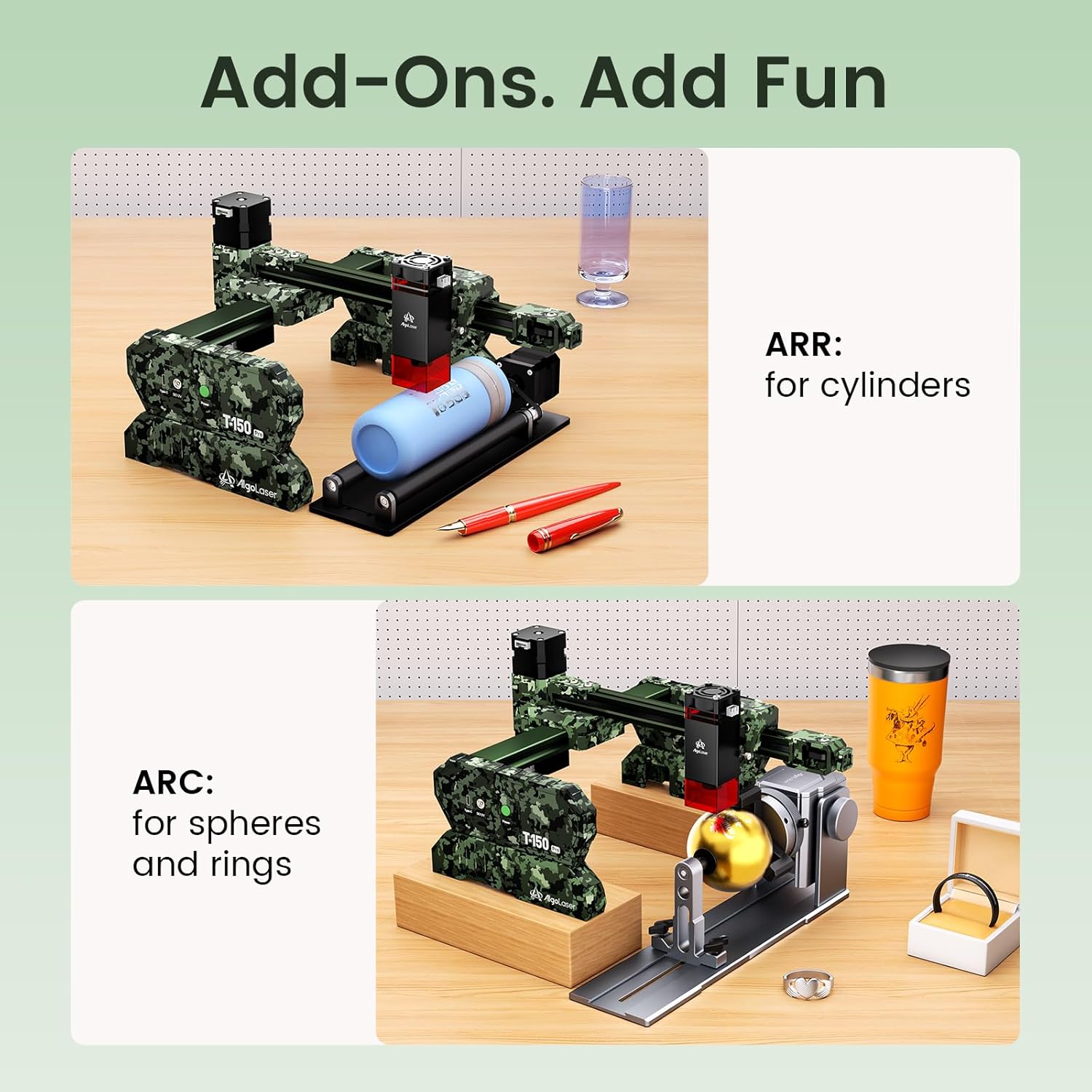
Image 6.1: Optional accessories for specialized engraving tasks.
6.5 Operation Demonstration Video
Video 6.1: A demonstration of the AlgoLaser T150 Pro 3W Laser Engraver Machine in operation, showcasing the engraving process on a material.
7. Tausiga
Regular maintenance ensures the longevity and optimal performance of your AlgoLaser T150 Pro.
- Fa'amama le Lens: Periodically clean the laser lens with a specialized lens cleaning solution and a lint-free cloth. A dirty lens can reduce laser power and engraving quality.
- Fa'amama le Masini: Keep the engraving area and the machine's exterior free from dust, debris, and material residue. Use a soft brush or compressed air.
- Lubrication: Check the guide rails and moving parts for smooth operation. Apply a small amount of appropriate lubricant if necessary, following manufacturer recommendations.
- Faʻalauiloa Firmware: Check the official AlgoLaser website for any available firmware updates to ensure your machine has the latest features and bug fixes.
- Teuina: When not in use, store the engraver in a clean, dry environment, away from direct sunlight and extreme temperatures.
8. Faʻafitauli
This section addresses common issues you might encounter with your AlgoLaser T150 Pro.
- Ua le ola le masini:
- Check if the power adapter is securely connected to both the machine and a working power outlet.
- Ensure the power switch on the machine is in the 'ON' position.
- Laser Not Firing/Weak Output:
- Verify that the laser module is correctly installed and connected.
- Check the laser focus. Recalibrate using the 2mm gauge block.
- Ensure laser power settings in the software are appropriate for the material.
- Clean the laser lens for any obstructions or dirt.
- Engraving Quality is Poor/Inconsistent:
- Re-check laser focus.
- Ensure the material is flat and securely placed on the platform.
- Adjust engraving speed and power settings. Too fast or too slow, or incorrect power, can affect quality.
- Check for any loose belts or mechanical components that might cause vibrations.
- Software Not Connecting to Machine:
- Ensure the USB cable is properly connected to both the machine and the computer.
- Restart both the software and the machine.
- Check device manager (Windows) or system information (macOS) to see if the USB device is recognized. Reinstall USB drivers if necessary.
- Taumafai se isi uafu USB po'o le uaea.
- Machine Stops Mid-Engraving:
- Check for any error messages in the software.
- Ensure the machine is on a stable surface; the tilt detection feature may have activated if the machine was bumped.
- Verify that the USB connection is stable and not interrupted.
Afai e te feagai ma ni faʻafitauli e le o aofia iinei, faʻamolemole tagaʻi i le vaega lagolago mo se fesoasoani.
9. Fa'amatalaga Fa'apitoa
| Fa'aaliga | Fa'amatalaga |
|---|---|
| Numera Fa'ata'ita'i | T150 Pro |
| Leisa Malosi | 3W (3000mW) |
| Vasega Laser | Class 1 (IEC 60825-1 / FDA 21 CFR 1040.10) |
| Nofoaga Tusia | 150mm x 150mm (5.91"L x 5.91"W) |
| Max Engraving Speed | 8000 mm/min |
| Faiga Fa'agaioiga | Otometi |
| Feso'ota'i | USB |
| Fesootaiga Polokalama | LightBurn, LaserGRBL, Mobile Apps |
| Vaega o le Saogalemu | Tilt Detection (20 degrees) |
| Fua o le Oloa (Tusa) | 360mm (14.17 in) L x 305mm (12.01 in) W x 143mm (5.63 in) H |
| UPC | 671891151166 |

Image 9.1: Physical dimensions of the AlgoLaser T150 Pro.
10. Fa'amaonia ma Lagolago
Your AlgoLaser T150 Pro comes with a commitment to quality and customer satisfaction.
10.1 Puipuiga Fa'amaonia
O le oloa e ufiufi e a 1 tausaga fa'amaonia from the date of purchase. This warranty covers manufacturing defects and malfunctions under normal use. It does not cover damage caused by misuse, accidents, unauthorized modifications, or failure to follow the instructions in this manual.
10.2 Fesoasoani mo Tagata Fa'atau
For any questions, technical assistance, or warranty claims, please contact our dedicated customer service team. We offer 24/7 auaunaga fa'atau to provide quick solutions and setup instructions.
- Fa'amatalaga Fa'afeso'ota'i: Please refer to the contact details provided on the product packaging or the official AlgoLaser webnofoaga.
- When contacting support, please have your product model number (T150 Pro) and purchase information ready.