
1. Ovaview
The Element 32-inch 720p HD Xumo Smart TV offers reliable performance and smart functionality in a compact design. Ideal for smaller spaces such as kitchens, dorm rooms, guest rooms, or offices, this television combines a clear HD display with a versatile smart platform and modern connectivity options.
Key features include a 720p resolution display, a 120Hz effective refresh rate for smooth motion, and the integrated Xumo OS for access to numerous streaming applications and free live channels. Connectivity is robust with multiple HDMI ports, USB, LAN, Bluetooth, and Apple AirPlay support. The TV also comes with a voice remote for convenient navigation.
2. O a mea oi totonu o le Pusa
Upon unboxing your Element 32-inch Xumo Smart TV, please ensure all the following components are present:
- 32-inch Element Xumo TV
- Voice Remote + 2 AAA batteries
- TV Stand & Screws
- Taiala vave amata

Image: The contents of the TV box, showing the 32-inch television, its remote control, two stand feet, and a bag of screws for assembly. Dimensions of the TV are also displayed.
3. Seti
3.1 Fa'apipi'i le Tu TV
- Tuu ma le faaeteete le lau o le TV i lalo i luga o se mea malu ma mama e puipuia ai le maosi.
- Align each stand foot with the corresponding screw holes on the bottom of the TV.
- Secure each stand foot using the provided screws. Ensure they are tightened firmly but do not overtighten.
- Si'i ma le faaeteete le TV ma tuu i luga o se fale mautu, mafolafola.
Alternatively, the TV supports VESA mounting for wall installation (wall mount hardware sold separately).
3.2 So'oga Malosi
Connect the power cord to the TV's power input and then plug it into a standard electrical outlet. A pilot light on the TV will indicate that it is receiving power.
3.3 Initial Setup (Xumo OS)
I luga o le faʻaogaina muamua, o le TV o le a taʻitaʻia oe i le faagasologa o le seti muamua. E aofia ai:
- Filifiliga Gagana: Filifili lau gagana e te fiafia iai.
- Feso'ota'iga feso'ota'iga: Connect the TV to your home Wi-Fi network or via an Ethernet cable.
- Xumo OS Account Setup: Follow on-screen prompts to set up or log in to your Xumo OS account. This is necessary to access smart features and apps.
- Su'e Ala: If connecting an antenna, the TV will scan for available channels.

Image: The Element 32-inch Xumo Smart TV is shown on a wooden TV stand, displaying its smart interface with various streaming app icons.
4. So'oga
The Element Xumo Smart TV provides a variety of ports for connecting external devices:
- Taulaga HDMI (3): Connect high-definition devices such as Blu-ray players, gaming consoles, or cable/satellite boxes. One HDMI port supports eARC (enhanced Audio Return Channel) for simplified audio connections to compatible soundbars or AV receivers.
- Taulaga USB (1): Fa'afeso'ota'i masini e teu ai USB i view photos, play music, or watch videos.
- Uafu LAN (Ethernet): Mo se feso'ota'iga initaneti uaea.
- Audio Out (Optical) / Headphone Jack: Mo le fa'afeso'ota'i fa'alogo leo i fafo po'o mea fa'alogo.
- Composite Input / Analog Tuner: For connecting older devices or an antenna.
5. Fa'agaoioi lau TV
5.1 Pulea Mamao
The included voice remote allows for intuitive control of your TV. It features dedicated buttons for popular streaming services and a microphone for voice commands.
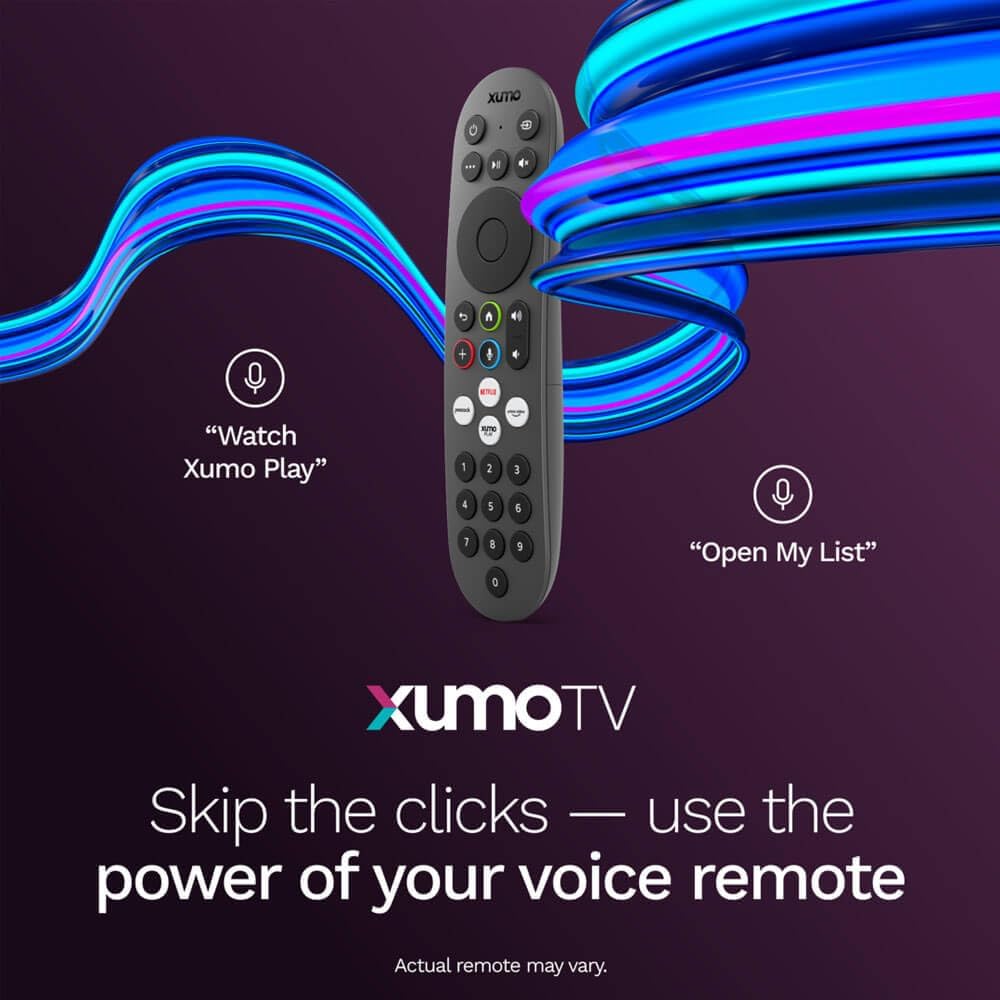
Image: A close-up of the Element Xumo Smart TV voice remote, highlighting its various buttons including a microphone for voice commands and quick access buttons for streaming services.
5.2 Smart Features & Streaming (Xumo OS)
The Xumo OS provides access to over 250 preloaded apps and more than 750 free live channels. You can:
- Search Content: Use the unified search function to find content across all your installed apps.
- My List: Curate your personal watchlist for easy access to your favorite shows and movies.
- Free On-Demand Libraries: Explore a wide selection of free on-demand content.
- Pulea leo: Use the voice remote to navigate, search, and control your TV hands-free.

Image: The Xumo TV interface showing a selection of popular streaming applications and content recommendations.
5.3 Fa'atonu Ata & Leo
Your TV delivers a crisp 720p HD display with a 120Hz effective refresh rate, minimizing motion blur for clear visuals. Dolby Audio processing enhances the sound experience. You can adjust picture and sound settings via the TV's menu to suit your preferences.
- Faiga Ata: Select from various preset picture modes (e.g., Standard, Vivid, Movie, Sports) or customize settings like brightness, contrast, and color.
- Faiga leo: Choose from different sound modes (e.g., Standard, Music, Movie, Speech) or adjust bass and treble levels.
5.4 Apple AirPlay & Home Support
Seamlessly stream content or mirror your screen from your iPhone, iPad, or Mac directly to your Element TV using Apple AirPlay. With Apple Home support, you can integrate your TV into your Apple smart home ecosystem for convenient control.
6. Tausiga
To ensure the longevity and optimal performance of your Element Xumo Smart TV, follow these maintenance guidelines:
- Fa'amama le Mata: Solo lemu le lau i se ie vaivai, mago, leai se lint. Mo fa'ailoga ma'a'a, fa'amama le oampi totonu o le ie vai po'o se vaifofo fa'amama fa'apitoa ('aua ne'i fa'apa sa'o i luga o le lau).
- Fa'amamaina o le Kapeneta: Fa'aaogā se ie mālū ma mago e fa'amama ai le kapoti TV. Aloese mai le fa'aogaina o mea e fa'amama ai le vai po'o so'o.
- Savili: Ia mautinoa e le o poloka avanoa ea ea i tua o le TV e puipuia ai le soona vevela.
- Pepe le Malosi pe a le fa'aaogaina: Tape le TV pe a le o fa'aaogaina e sefe ai le eletise ma fa'aumiumi ai lona umi e aoga ai.
7. Faʻafitauli
If you encounter any issues with your Element Xumo Smart TV, refer to the following common troubleshooting tips:
- Leai se Malosi: Check if the power cord is securely plugged into both the TV and the electrical outlet. Ensure the outlet is functional.
- Leai se Ata/Leo: Verify that the correct input source is selected. Check all cable connections (HDMI, antenna, etc.) for secure fit.
- Mamao le galue: Suia maa AAA i le masini mamao. Ia mautinoa e leai ni fa'alavelave i le va o le mamao ma le IR sensor a le TV.
- Fa'afitauli Feso'ota'iga: Restart your Wi-Fi router. Check the TV's network settings to ensure it's connected to the correct network and the password is entered correctly.
- Smart App Problems: Try restarting the app. If the issue persists, clear the app's cache or reinstall it. Ensure your TV's software is up to date.
For persistent issues, please contact Element customer support.
8. Fa'amatalaga
| Fa'aaliga | Fa'amatalaga |
|---|---|
| Numera Fa'ata'ita'i | E300AE32C |
| Tele lau | 32 Inisi |
| Fa'aaliga I'uga | 720p (1366x768) |
| Fua Fa'afouina | 60 Hz (120Hz Effective) |
| Ituaiga Fa'atatau | 1.78:1 |
| Faiga Fa'atonu | Xumo OS |
| Feso'ota'i | 3x HDMI (1x eARC), 1x USB, LAN (Ethernet), Optical Audio Out, Headphone Jack, Composite Input, Wi-Fi, Bluetooth |
| Fa'apitoa Fa'apitoa | Bezel-Less Design, Built-In Speaker, Voice Remote, Apple AirPlay & Home Support |
| TV with Stand Dimensions (W x H x D) | 28.8" x 19.2" x 7.0" |
| TV without Stand Dimensions (W x H x D) | 28.8" x 17.0" x 2.7" |
| Mea mamafa | 8.8 pauna |
9. Fa'amaonia ma Lagolago
The Element 32-inch 720p HD Xumo Smart TV comes standard with a 2-Tausaga Fa'amaumauga Fa'atonu. O lenei tusi saisai e aofia ai fa'aletonu i meafaitino ma galuega i lalo ole fa'aoga masani. Fa'amolemole taofi lau fa'amaoniga o le fa'atau mo tagi fa'amaonia.
For technical support, warranty inquiries, or further assistance, please refer to the contact information provided in your Quick Start Guide or visit the official Element Electronics webnofoaga.