
Folasaga
Fa'afetai mo le fa'atauasing the Hisense 43A69Q 4K UHD Smart VIDAA TV. This manual provides essential information for setting up, operating, and maintaining your television. Please read it thoroughly before using the product to ensure safe and correct operation. Keep this manual for future reference.
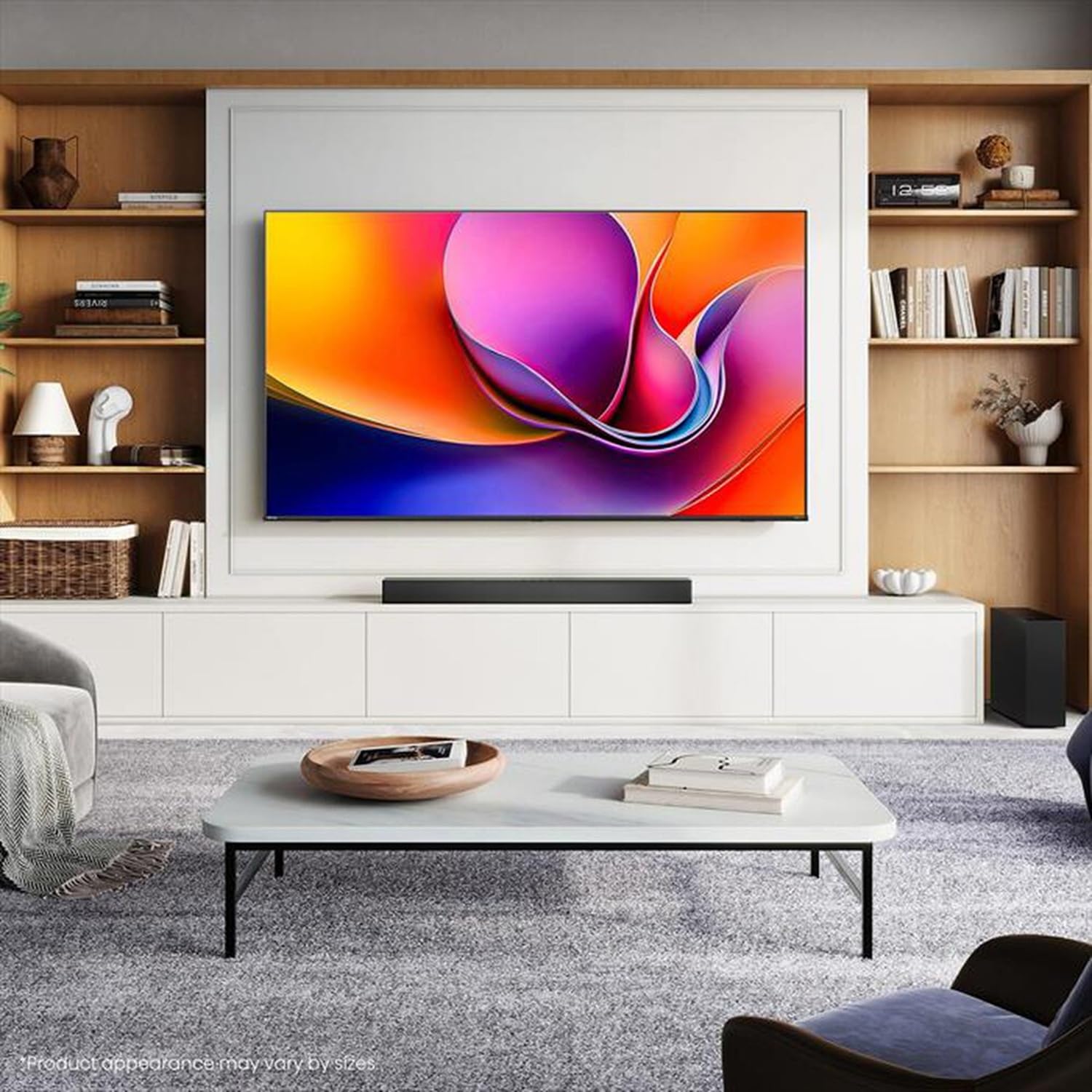
Image: Hisense 43A69Q 4K UHD Smart VIDAA TV. This image shows the television from the front, highlighting its slim bezel design and display.
Fa'amatalaga Saogalemu
Mulimuli i taimi uma nei puipuiga saogalemu pe a faʻaaogaina lau televise:
- Aua le tu'u le TV ile timu po'o le susu.
- Aua le tatalaina le kapeneta o le TV. Ia faasino atu uma auaunaga i tagata agavaa.
- Ia mautinoa lelei le ea savili faataamilo i le TV. Aua le poloka avanoa e savili ai.
- Puipui le uaea eletise mai le savali i luga pe pipii.
- Aveese le TV i taimi o afa uila po'o le le fa'aaogaina mo se taimi umi.
- Keep the TV away from heat sources like radiators, heat registers, stoves, or other heat-producing appliances.
O a mea i totonu o le Pusa
Fa'amautinoa o lo'o iai vaega uma:
- Hisense 43A69Q 4K UHD Smart VIDAA TV
- Pulea Mamao ma maa
- Uaea Malosi
- TV Stand Components (2 legs)
- Siu mo Fa'apipi'i Tu
- Taʻiala Setup Guide
- Tusi Lesona a le Tagata (lenei pepa)
Seti
1. Tatalaina
Carefully remove the TV from its packaging. It is recommended that two people handle the TV to prevent damage or injury. Retain the packaging materials for future transport or servicing.
2. Tu'u Fa'apipi'i
If you are not wall-mounting the TV, attach the stand:
- Place the TV face-down on a soft, clean surface to prevent screen damage.
- Fa'atulaga vae ta'itasi o le tulaga i avanoa talafeagai i le pito i lalo o le TV.
- Fa'amau fa'amau vae ta'itasi i sikuliu ua saunia. Ia mautinoa ua fa'amau lelei.
- Si'i ma le faaeteete le TV i se tulaga sa'o i luga o se fale mautu, laugatasi.
3. Fa'amauina o le puipui (filifiliga)
The Hisense 43A69Q is compatible with VESA standard wall mounts (200x300 mm). Wall mount kits are sold separately. Follow the instructions provided with your wall mount kit and ensure professional installation if you are unsure.
4. Feso'ota'i Meafaigaluega i fafo
Fa'afeso'ota'i au masini i uafu o le TV:
- HDMI: Connect Blu-ray players, game consoles, or set-top boxes to the HDMI ports (HDMI1, HDMI2, HDMI3). This model features HDMI 2.1 with ALLM and VRR (60Hz) support on all ports, and eARC on HDMI3.
- USB: Plug in USB drives for media playback (2 USB 2.0 ports).
- Antenna/Uaea: Connect your antenna or cable TV signal to the RF tuner input.
- Ethernet: For a stable wired internet connection, connect an Ethernet cable to the RJ45 port.
- Leo i fafo: Use the S/PDIF optical output for digital audio to a soundbar or receiver, or the headphone jack for private listening.
5. Power On & First-Time Setup
After connecting all devices:
- Fa'afeso'ota'i le uaea eletise i le TV ona fa'apipi'i lea i totonu o se pa puipui.
- Oomi le ki o le Malosi i luga o le pule mamao po o luga o le TV lava ia.
- Mulimuli i fa'atonuga i luga ole lau mo le seti muamua, e aofia ai le filifilia o le gagana, feso'ota'iga feso'ota'iga (Wi-Fi po'o le Ethernet), ma le su'eina o alalaupapa.
- Log in to your VIDAA account or create a new one to access smart features.
Fa'agaoioia le TV
1. Pulea mamao i lugaview
Familiarize yourself with the remote control buttons for basic functions like power, volume, channel, input selection, and smart app shortcuts.
2. Navigating VIDAA Smart OS
The VIDAA Smart OS provides a user-friendly interface. Use the directional buttons and OK button on your remote to navigate menus, launch applications, and adjust settings.
3. Fa'aaogaina o Fa'amatalaga Atamai
Access pre-installed applications like Netflix, YouTube, and Amazon Prime Video directly from the home screen. Additional apps can be downloaded from the VIDAA App Store.
4. Picture & Sound Settings
Adjust picture modes (Standard, Dynamic, Cinema, Game) and sound modes (Standard, Music, Speech) to optimize your viewing experience. Advanced settings allow fine-tuning of brightness, contrast, color, and audio equalizer.
This TV supports Dolby Vision and HDR10 for enhanced picture quality, and DTS Virtual X for immersive audio.
5. Feso'ota'iga Feso'ota'iga
- Wi-Fi & Bluetooth: Connect wirelessly to your home network and Bluetooth devices like headphones or speakers.
- Fetufa'aiga mata: Use built-in screen sharing features (e.g., AirPlay 2 support) to mirror content from compatible mobile devices.
- Game Mode PLUS: For gaming, enable Game Mode PLUS to reduce input lag (≤ 20 ms) and utilize VRR (Variable Refresh Rate) for smoother gameplay.
Tausiga
1. Fa'amamaina o le TV
Ina ia fa'amama le lau, solo lemu i se ie vaivai e leai se liu. Mo fa'ailoga ma'a'a, fai sina oampen the cloth with water or a specialized screen cleaner. Never spray cleaner directly onto the screen. Clean the TV cabinet with a soft, dry cloth.
2. Fa'afouga polokalame
Your TV may receive software updates to improve performance and add new features. Ensure your TV is connected to the internet. You can usually check for updates in the TV's settings menu under 'System' or 'About TV'.
Fa'afitauli
Afai e te feagai ma faʻafitauli, faʻataʻitaʻi fofo masani nei:
- Leai se Malosi: Siaki pe fa'amau lelei le uaea eletise i le TV ma le pa puipui. Su'e se isi fa'atau.
- Leai se Ata/Leo: Ensure the correct input source is selected. Check all cable connections. Restart connected devices.
- Pulea mamao e le o galue: Sui maa. Ia mautinoa e leai ni fa'alavelave i le va o le mamao ma le IR sensor a le TV.
- Fa'afitauli Feso'ota'iga: Restart your router and modem. Reconnect the TV to your Wi-Fi network or check the Ethernet cable.
- Le lelei o Ata: Siaki feso'ota'iga o le antenna/uaea. Fetu'una'i tulaga o le ata. Ia mautinoa e maualuga le tulaga lelei o le puna o fa'amatalaga.
For persistent problems, consult the Hisense support webnofoaga po'o fa'afeso'ota'i le 'au'aunaga fa'atau.
Fa'amatalaga
| Fa'aaliga | Fa'amatalaga |
|---|---|
| Fa'ailoga | Hisense |
| Igoa Fa'ata'ita'iga | 43A69Q |
| Tele lau | 43 inisi (108 cm) |
| I'ugafono | 4K Ultra HD 3840x2160 |
| Fua Fa'afouina | 60 Hz |
| Faiga Fa'atonu | VIDAA Smart OS |
| HDR Tekinolosi | HDR, HDR10, HDR10+ decoding, Dolby Vision, HLG |
| Tekinolosi leo | DTS Virtual X (2x7W speakers) |
| HDMI Taulaga | 3 (HDMI 2.1 with ALLM, VRR (60Hz); HDMI3 also with eARC) |
| Taulaga USB | 2 (USB 2.0) |
| Feso'ota'i | Wi-Fi (IEEE 802.11 a/b/g/n/ac-2.4G,5G), Bluetooth, Ethernet |
| VESA Fegalegaleaiga | 200x300 mm |
| Energy Efficiency Class (SDR/HDR) | E / G |
| Fua (fa'atasi ai ma tulaga) | 963 mm (W) x 608 mm (H) x 222 mm (D) |
| mamafa mama (faatasi ai ma tulaga) | 6.9 kilokalama |
Fa'amaonia ma Lagolago
Hisense products are covered by a manufacturer's warranty. Please refer to the warranty card included with your product or visit the official Hisense web'upega tafa'ilagi mo fa'amatalaga fa'amaonia tuutuuga ma aiaiga fa'apitoa i lau itulagi.
For technical support, troubleshooting assistance, or service requests, please contact Hisense customer support through their official webnofoaga po'o fa'amatalaga fa'afeso'ota'i o lo'o tu'uina atu i lau fa'amaumauga o oloa.