
ARCCTV P2
ARCCTV 2K Security Camera Outdoor P2 User Manual
Fa'ata'ita'iga: P2
1. Folasaga
This manual provides detailed instructions for the installation, operation, and maintenance of your ARCCTV 2K Security Camera Outdoor P2. Please read this manual thoroughly before using the product to ensure correct usage and optimal performance. Keep this manual for future reference.

Ata 1.1: Luma view of the ARCCTV 2K Security Camera Outdoor P2.
2. O a mea oi totonu o le Pusa
Fa'amautinoa o lo'o iai vaega uma i totonu o le afifi:
- Tino Meapueata
- 5V1A Pule Fetuuna'i
- Mounting Screws (set)
- Screw Positioning Sticker
- Lapataiga Lapataiga
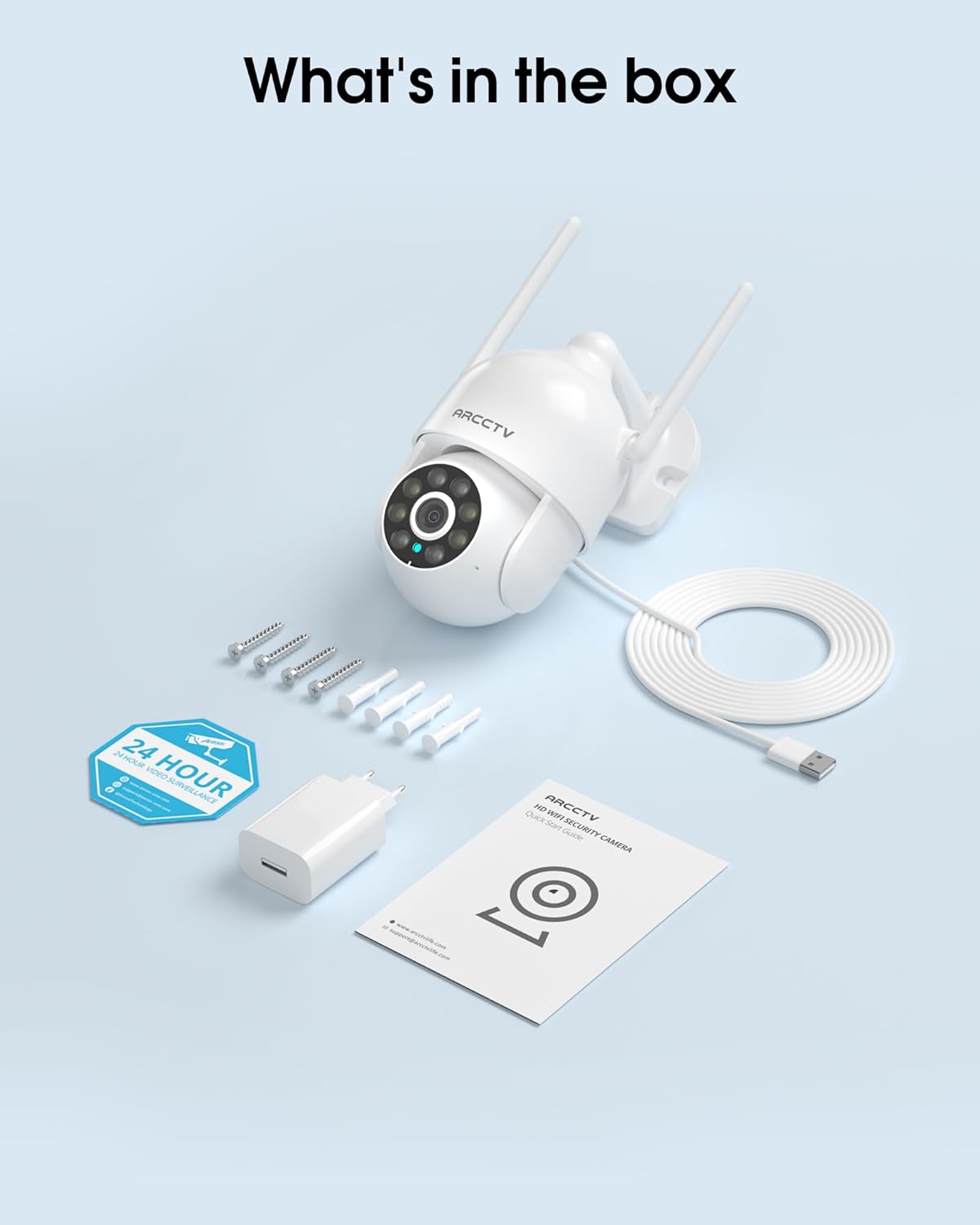
Image 2.1: All items included in the ARCCTV 2K Security Camera package.
3. Vaega o Oloa
- 2K Ultra HD I'ugafono: Provides clear 2304x1296p video.
- Vaaiga Lanu Atoa i le po: Built-in spotlight enables vivid color monitoring in low light.
- 360° Pan-Tilt-Zoom (PTZ): Remotely control 355° horizontal and 90° vertical rotation.
- Auto Motion Tracking: Smart AI automatically follows and records detected movement.
- Wi-Fi fa'atasi-lua: Supports both 2.4G and 5G WiFi for stable connectivity.
- Leo Faʻalua-Ala: O le masini faaleotele leo ma le sipika mo fesootaiga.
- IP66 le tau: Durable design for outdoor use in various weather conditions (-4°F ~ 122°F).
- Fetuuna'i Teuga: Supports local microSD card storage (up to 128GB, not included) and optional cloud storage.
- 24/7 Pu'eina: Continuous recording capability with stable power supply.
4. Seti
4.1 Fa'apipi'i
- Filifili se nofoaga: Filifili se nofoaga i fafo e manino lelei view of the area you wish to monitor. Ensure it is within range of your Wi-Fi network and a power outlet.
- Fa'amau le Meapueata: Use the provided screw positioning sticker to mark drill holes. Drill holes, insert wall anchors, and secure the camera body to the wall using the mounting screws.
- Fesoʻotaʻi le Mana: Plug the 5V1A power adapter into the camera and then into a power outlet. The camera will power on and begin its startup sequence.
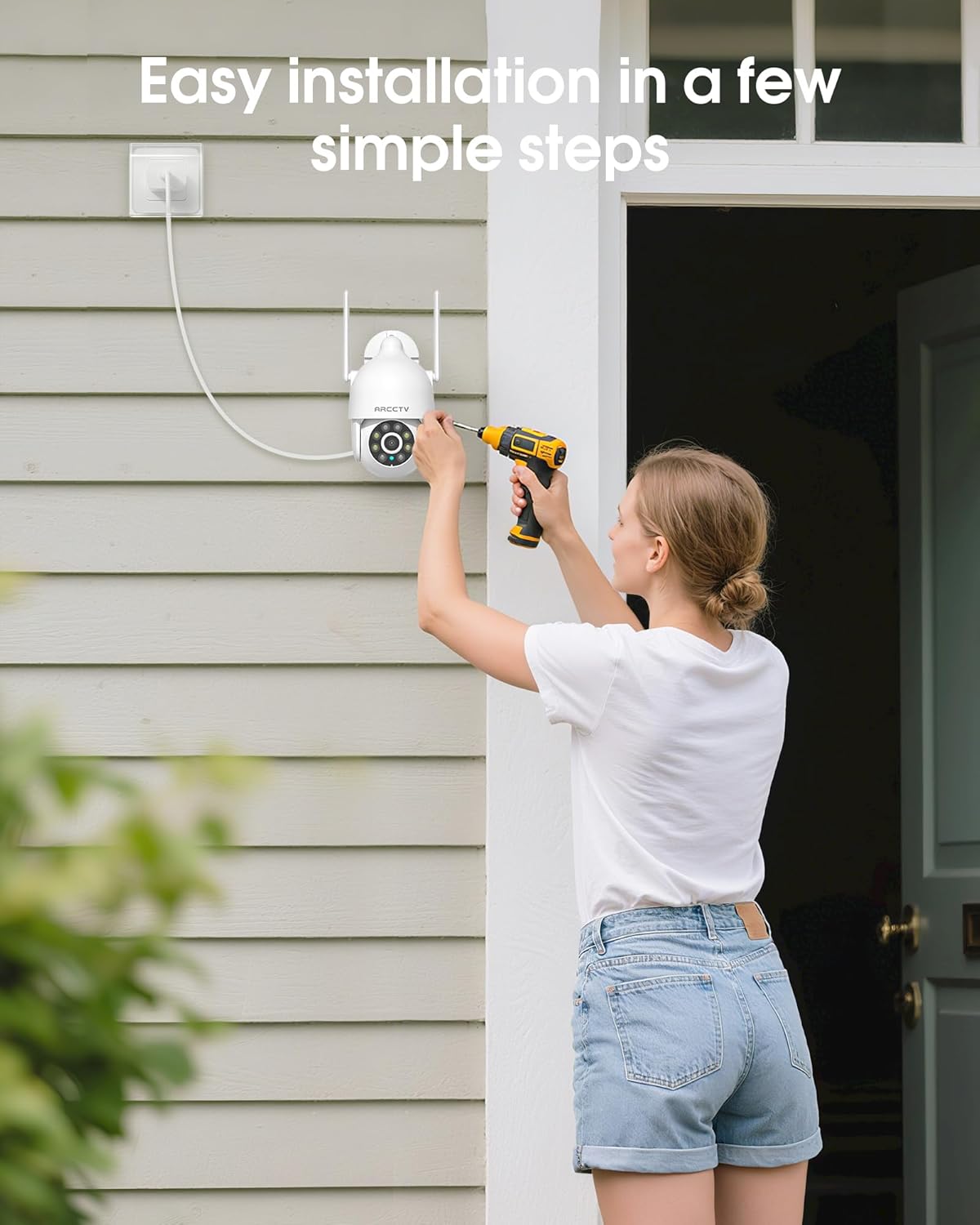
Image 4.1: Illustration of easy camera installation steps.
4.2 App Download ma Fausia Tala
- Download the official ARCCTV app from your smartphone's app store (iOS or Android).
- Tatala le app ma mulimuli i faatonuga i luga o le lau e fai ai se tala fou pe saini i totonu pe afai ua uma ona e maua.
4.3 So'oga Wi-Fi
- In the app, tap the "Add Device" or "+" icon.
- Select your camera model and follow the prompts to connect it to your Wi-Fi network. The camera supports both 2.4GHz and 5GHz bands for stable connectivity.
- Ensure your smartphone is connected to the same Wi-Fi network during the setup process.
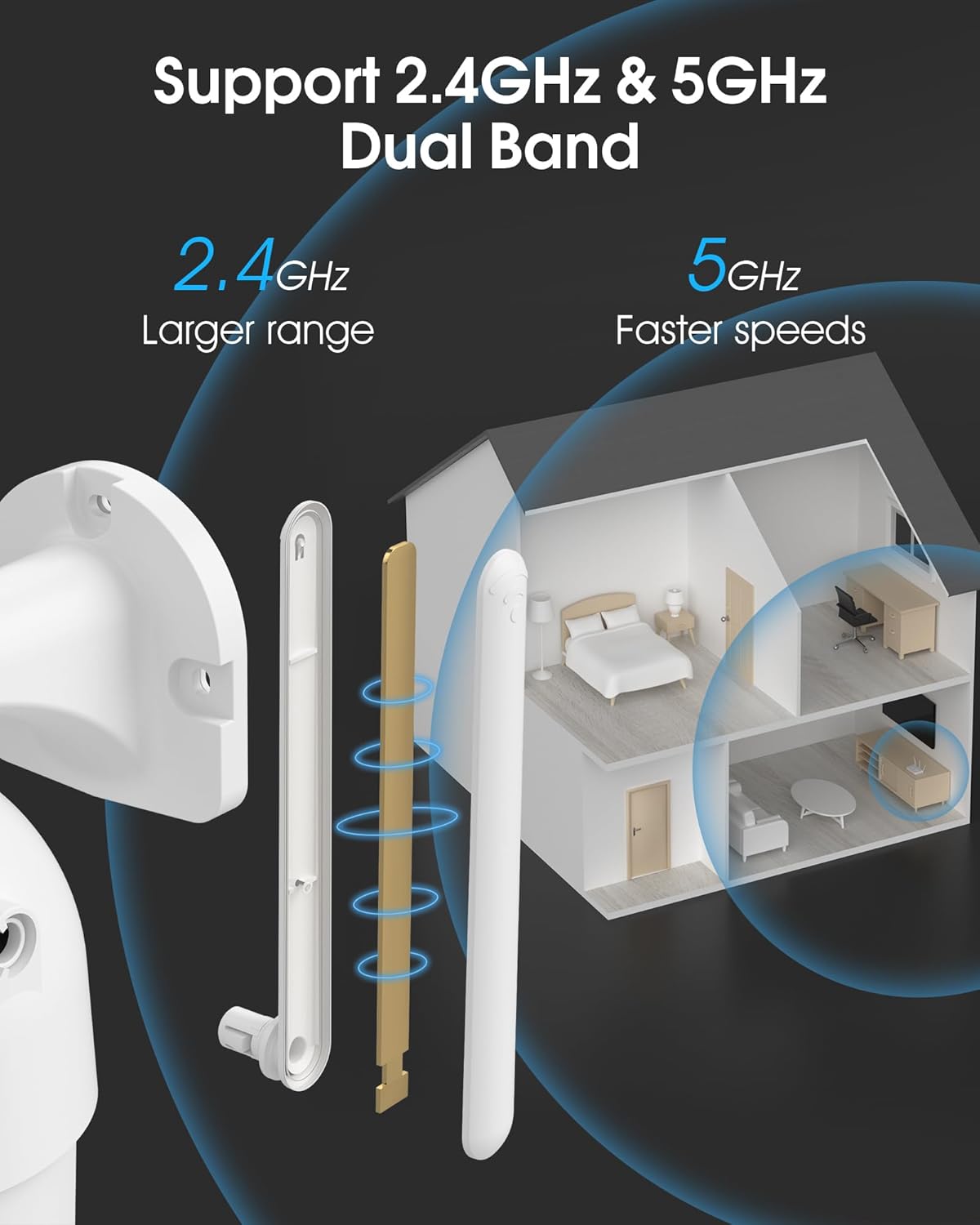
Image 4.2: The camera supports both 2.4GHz (larger range) and 5GHz (faster speeds) Wi-Fi bands.
4.4 Fa'apipi'iina o le Kata MicroSD (Filifiliga)
For local storage, install a microSD card (up to 128GB, not included) into the designated slot on the camera. Ensure the camera is powered off before inserting or removing the card.
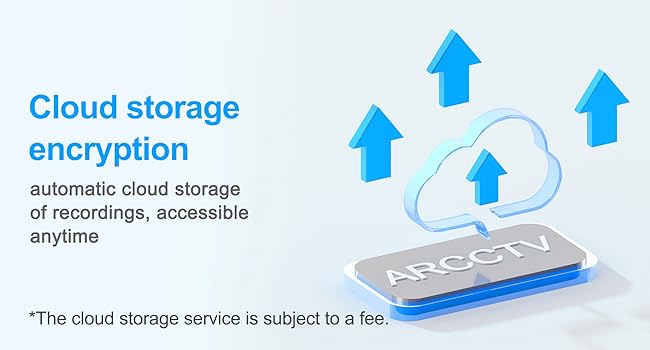
Image 4.3: Location of the microSD card slot on the camera.
5. Fa'agaoioi le Meapueata
5.1 Ola View
Open the ARCCTV app and select your camera to view the live feed. You can monitor your property in real-time.
5.2 Pan-Tilt-Zoom (PTZ) Control
I luga o le ola view screen, use the directional controls to rotate the camera horizontally (Pan: 355°) and vertically (Tilt: 90°) to adjust the viewing angle. You can also set preset points for quick navigation.
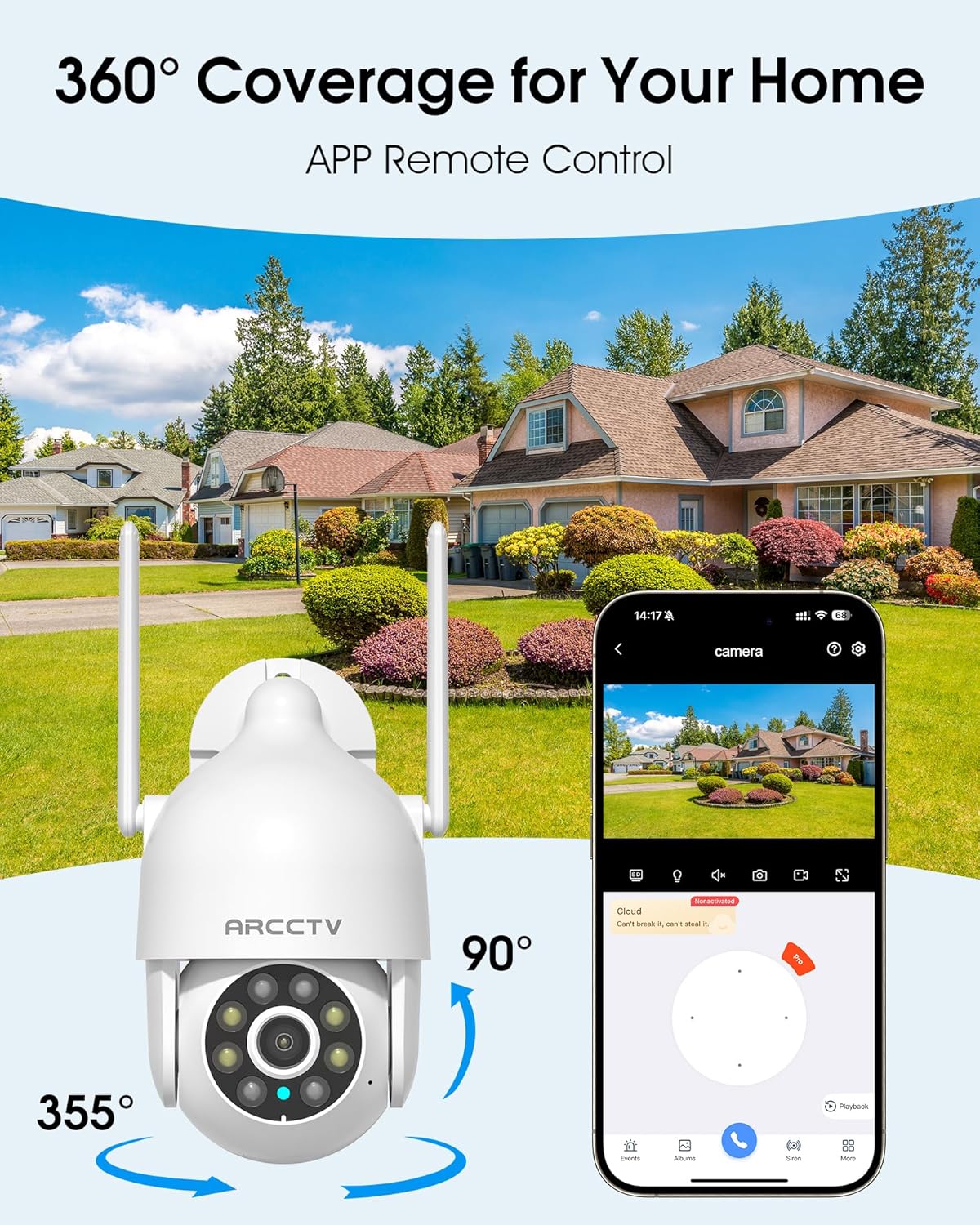
Image 5.1: The camera offers 360° coverage through remote pan and tilt controls.
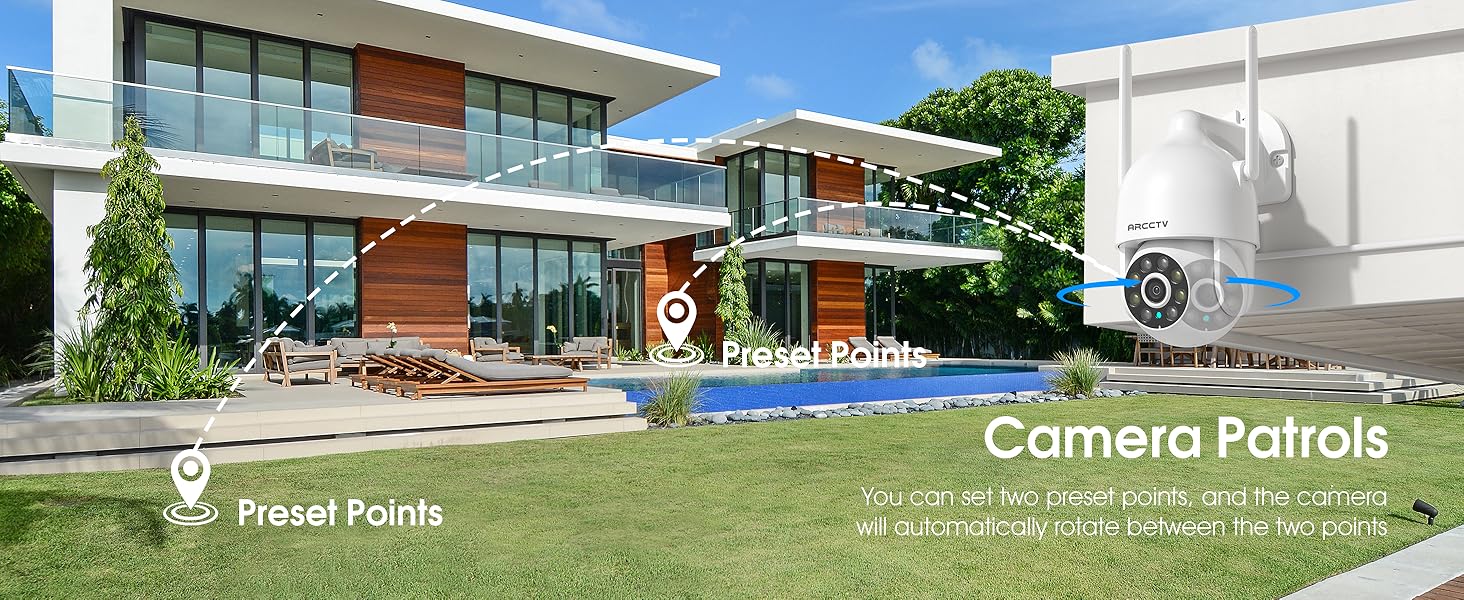
Image 5.2: Setting up camera patrol routes between preset points.
5.3 Motion Tracking and Alerts
The camera features smart AI motion tracking that automatically follows detected movement. You can customize alert zones and receive instant notifications on your smartphone when motion is detected.

Image 5.3: The camera's smart motion tracking feature in action.

Image 5.4: Instant alerts with customizable settings, including spotlight, siren, and two-way audio.
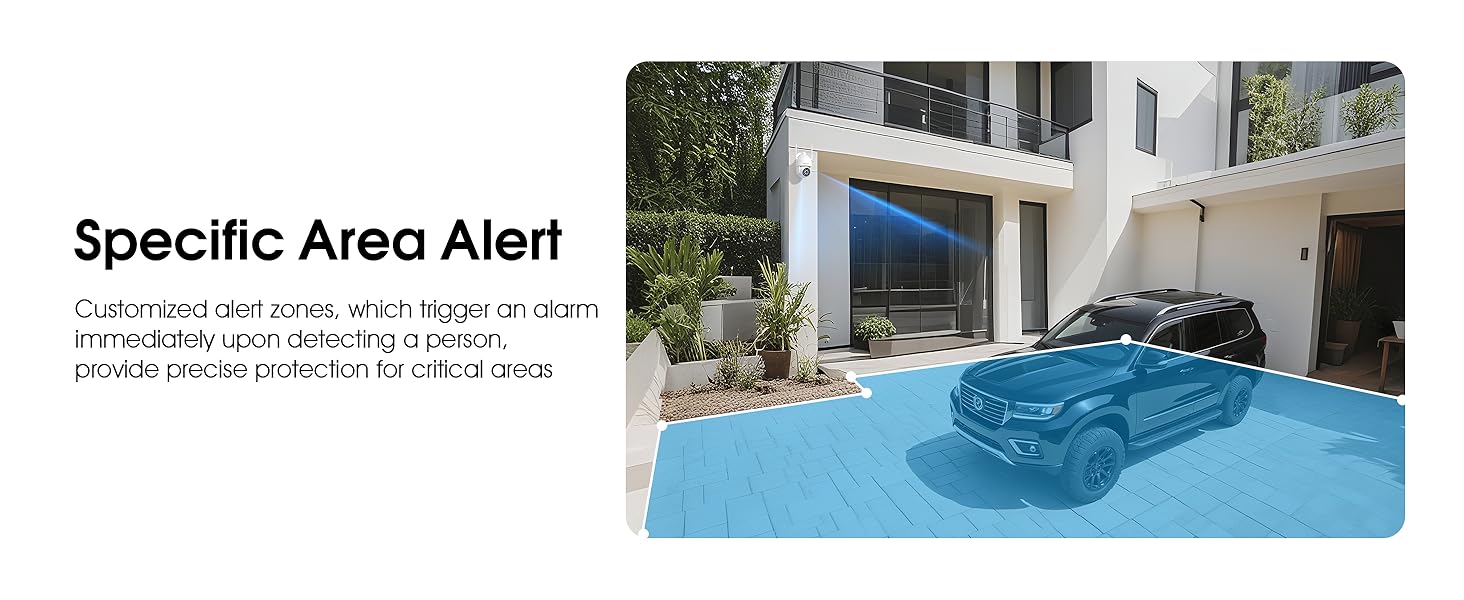
Image 5.5: Setting up specific area alerts for precise protection.
5.4 Faiga Va'aiga i le Po
The camera offers both full-color night vision (activated by the built-in spotlight) and infrared night vision for clear monitoring in various low-light conditions.

Image 5.6: Comparison of Color Night Vision and Infrared Night Vision.
5.5 Leo e Lua Ala
Use the two-way audio feature to communicate with visitors or deter unwanted guests directly through the camera's built-in microphone and speaker.
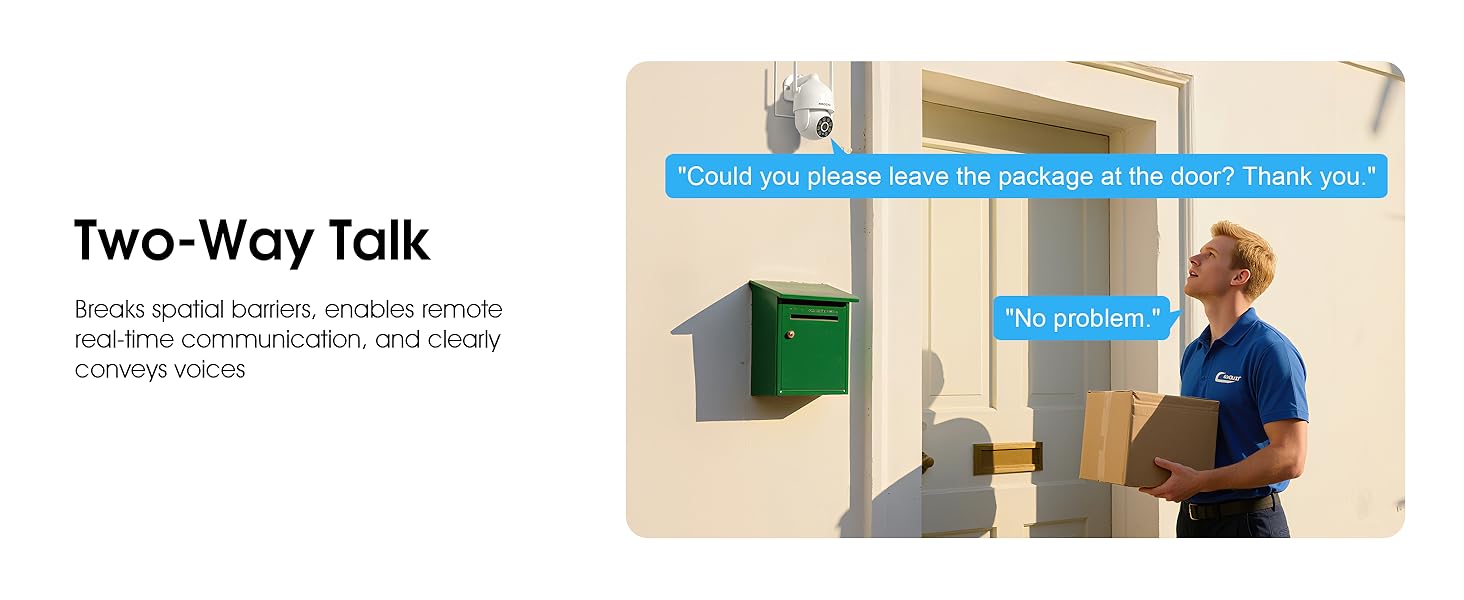
Image 5.7: Utilizing two-way talk for remote communication.
5.6 Pueina ma Toe Ta'alo
The camera supports 24/7 continuous recording. Footage can be saved to a local microSD card (up to 128GB) or to optional cloud storage. Access recorded videos through the app's playback function.

Image 5.8: The camera provides 24/7 recording capabilities.
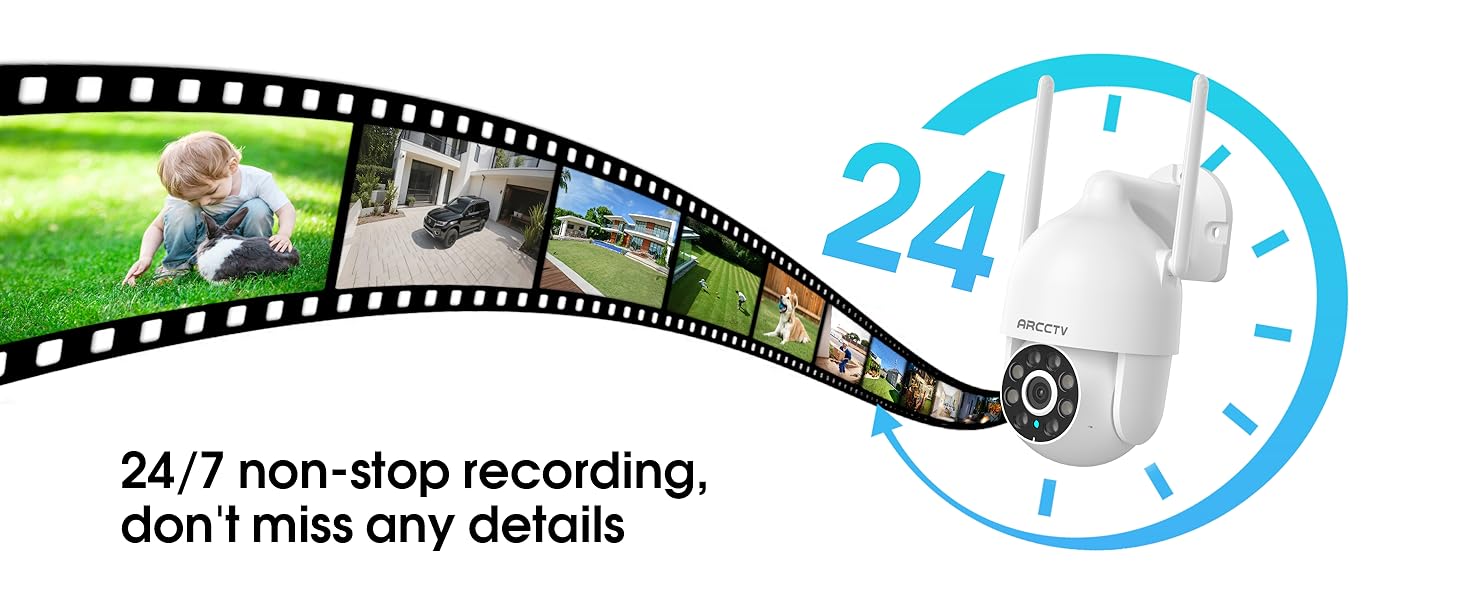
Image 5.9: Continuous 24/7 recording ensures no details are missed.
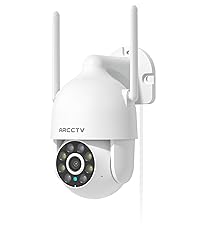
Image 5.10: Cloud storage encryption for secure and accessible recordings (subscription may apply).
5.7 Family Sharing
The app supports multi-member sharing, allowing family members to view the camera feed and collaborate on security monitoring.
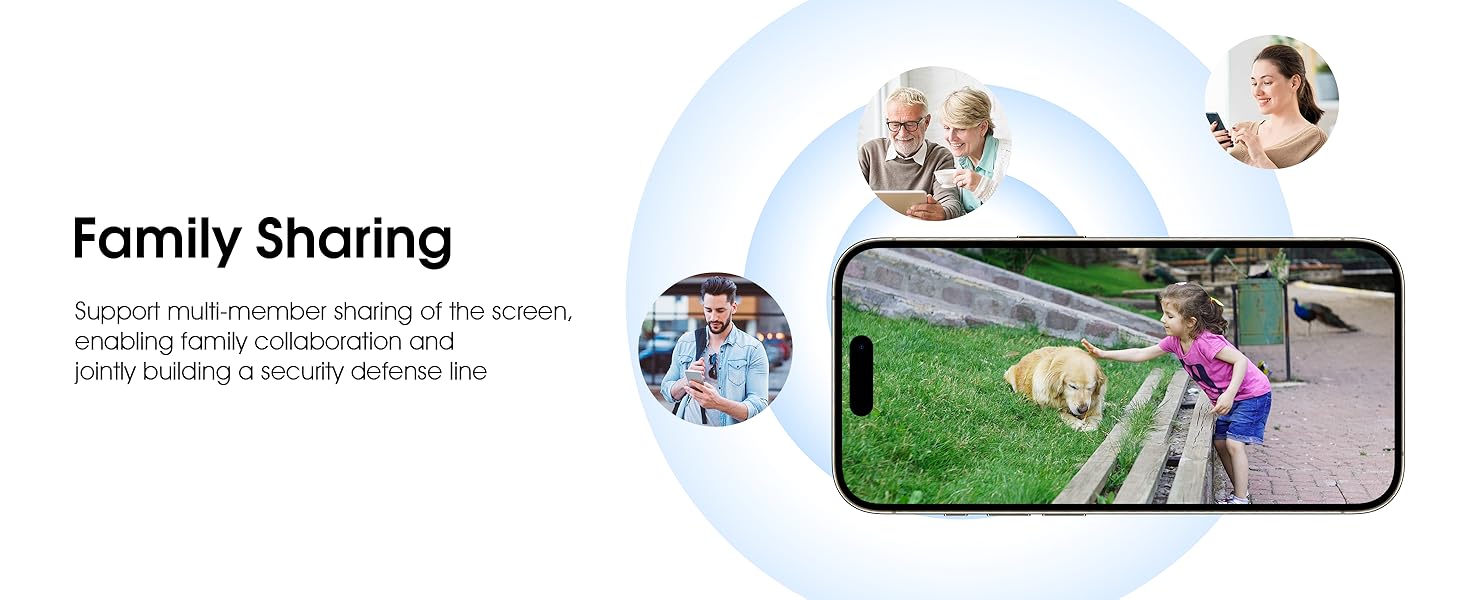
Image 5.11: The family sharing feature allows multiple users to access the camera feed.
5.8 Alexa Fesootaiga
The camera is compatible with Alexa, allowing you to check the monitoring screen using voice commands.
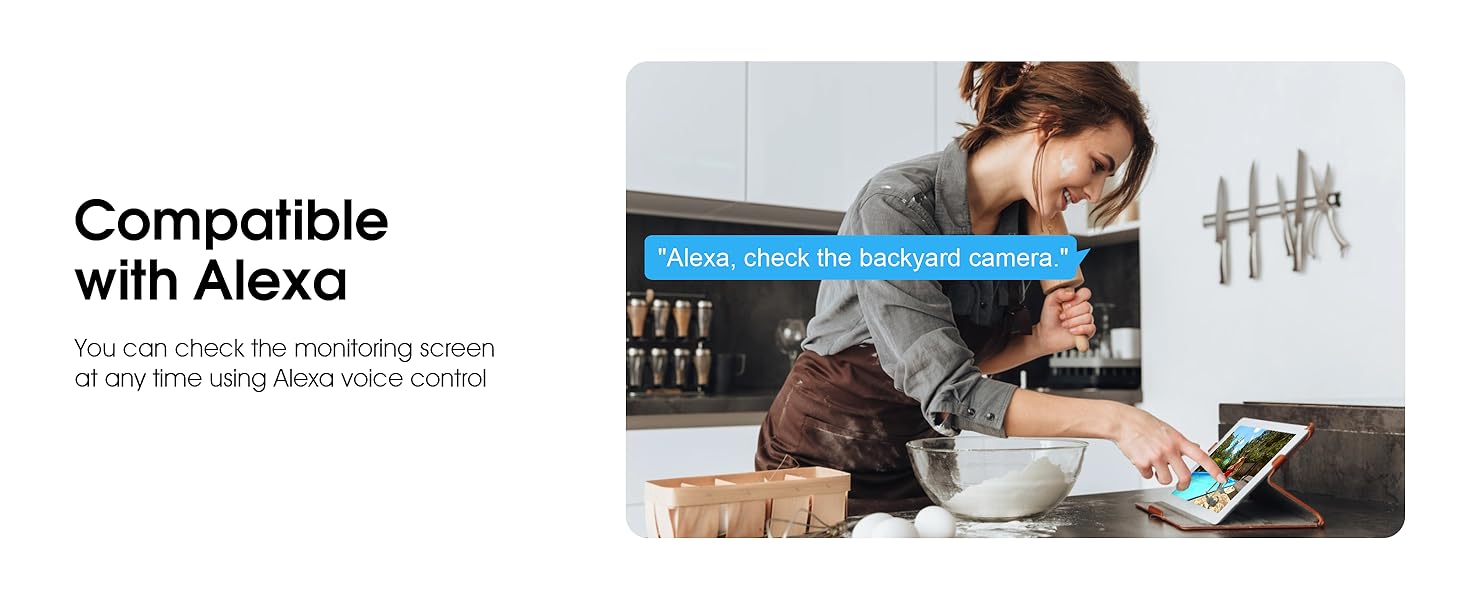
Image 5.12: Voice control via Alexa for convenient monitoring.
6. Tausiga
6.1 Fa'amama le Meapueata
Fa'amamā i lea taimi ma lea taimi le tioata ma le pusa o le meapueata i se vai vaivai.amp cloth to remove dust and debris. Do not use harsh chemicals or abrasive cleaners.
6.2 Fa'afouga Firmware
Ensure your camera's firmware is up to date for optimal performance and security. Check for updates within the ARCCTV app and follow the instructions to install them.
6.3 Pulega o Teuga
If using a microSD card, regularly check its status in the app. Format the card periodically to maintain performance. For cloud storage, manage your subscription and storage space through the app.
7. Faʻafitauli
- Meapue e le o feso'ota'i ile Wi-Fi:
- Ensure your Wi-Fi network is 2.4GHz or 5GHz and has a strong signal at the camera's location.
- Fa'amautinoa ua sa'o sa'o le fa'auluina o le fa'aupuga o le Wi-Fi.
- Toe amata lau router ma le meapueata.
- Le lelei o Ata:
- Fa'amama le meapueata.
- Ensure adequate lighting for optimal night vision performance.
- Siaki lau saosaoa feso'ota'iga initaneti.
- Le su'esu'eina o Gaio'i e le o galue:
- Verify motion detection is enabled in the app settings.
- Fetuuna'i tulaga maaleale.
- Ia mautinoa e leai ni fa'alavelave i le vaega o meapueata o view.
- No Recording to MicroSD Card:
- Ensure a microSD card is properly inserted and formatted in the app.
- Check if the card is full; consider formatting or replacing it.
- Fa'amaonia tulaga pu'eina i le app.
8. Fa'amatalaga
| Fa'aaliga | Fa'amatalaga |
|---|---|
| Igoa Fa'ata'ita'iga | P2 |
| Fa'aoga i totonu/I fafo | I fafo |
| I'uga o Pu'e Vitio | 2K (2304x1296p) |
| Tekinolosi Feso'ota'i | Uaealesi (Wi-Fi) |
| Tekonolosi Feso'ota'iga uaealesi | Wi-Fi (2.4G/5G Dual-Band) |
| Viewi le Angle | 360 Degrees (355° Pan, 90° Tilt) |
| Po Vaʻai Vaaia | 50 Futu |
| Suavai Tetee Level | IP66 Suavai |
| Punavai Malosi | 5V1A fa'aoga eletise |
| Tele Lagolago Flash Memory Tele | 128 GB (MicroSD) |
| Audio Visual Recording Capabilities | Vitio & leo |
| Fa'apitoa Fa'apitoa | 2-Way Audio, Motion Tracking, Full Color Night Vision |
| Ituaiga Mea L x W x H | 7.8 x 6.6 x 5.3 inisi |
| Mea mamafa | 1.39 pauna |
9. Fa'amaonia ma Lagolago
For warranty information and technical support, please refer to the official ARCCTV website or contact their customer service directly. Contact details are typically provided on the product packaging or within the mobile application.
Ask a question about this manual
Ask about setup, troubleshooting, compatibility, parts, safety, or missing instructions. Manuals+ will review the question and use this page’s manual context to help answer it.