
1. Folasaga
This manual provides detailed instructions for the setup, operation, and maintenance of your WAVLINK 13-in-1 USB-C Triple Display Docking Station. Please read this manual thoroughly before using the product to ensure proper functionality and to prevent damage.
2. Oloa Ua Ovaview
The WAVLINK 13-in-1 USB-C Triple Display Docking Station expands your laptop's connectivity, offering multiple ports for displays, peripherals, network, and power delivery. It is designed to enhance productivity by supporting various display configurations.
O mea o lo'o i totonu
- WAVLINK 13-in-1 USB-C Triple Display Docking Station
- USB-C i le C uaea
- 130W Mana Fetaui
- Uaea Mana AC
- Taiala vave amata

Image: Contents of the WAVLINK 13-in-1 USB-C Triple Display Docking Station package, including the docking station, cables, power adapter, and quick start guide.
Fa'atulagaina o Taulaga
The docking station features a comprehensive array of ports to connect various devices:

Image: Diagram showing the front and rear ports of the WAVLINK 13-in-1 USB-C Triple Display Docking Station, with each port clearly labeled.
- Power Port (DC 20V): Connects to the included 130W power adapter.
- Upstream USB-C Port: Connects to your host laptop for data, video, and power delivery.
- Uafu HDMI: Connects to an HDMI display.
- 2 x DisplayPort: Connects to DisplayPort displays.
- Gigabit Ethernet Taulaga (RJ45): E maua ai se feso'ota'iga feso'ota'iga uaea mautu.
- 4 x USB 3.0 Taulaga: For connecting USB peripherals, with one supporting BC 1.2 fast charging.
- Tusi Faitau Kata SD: For reading standard SD cards.
- Micro SD Card Reader: For reading Micro SD cards.
- 4-Pole Phone Jack (3.5mm Audio): Mo le fa'afeso'ota'iina o headphone po'o sipika.
- Ki Malosi: Ia fa'aola/tape le nofoaga fa'amau.
3. Fa'atonu Fa'atonu
Follow these steps to set up your WAVLINK docking station:
- Fesoʻotaʻi le Mana: Connect the included 130W power adapter to the DC 20V power port on the docking station, then plug the AC power cable into a wall outlet.
- Feso'ota'i i le komepiuta feavea'i a le 'Au: Use the provided USB-C to C cable to connect the upstream USB-C port on the docking station to a compatible USB-C port on your laptop. Ensure your laptop's USB-C port supports DisplayPort Alternate Mode and Power Delivery.
- Feso'ota'i Fa'aaliga: Connect your external monitors to the HDMI and DisplayPort outputs on the docking station using appropriate cables.
- Fesootai Peripherals: Connect your USB devices (keyboard, mouse, external drives), Ethernet cable, and audio devices to the corresponding ports on the docking station.
- Malosiaga: Press the power button on the docking station. Your laptop should detect the connected devices and displays automatically.
4. Fa'atonuga o Galuega
Fa'aaliga Faiga
The docking station supports various display configurations depending on your operating system.
Windows Systems
Windows systems support both Mirror and Extend modes for multiple displays.

Image: Illustration of Windows multi-display modes, showing a laptop connected to three external monitors in both Extend Mode (each monitor displays unique content) and Mirror Mode (all monitors display the same content).
- Fa'alautele Faiga: Each external monitor can display different content, extending your desktop workspace.
- Fa'ata Fa'ata: All external monitors will display the same content as your primary display.
macOS Systems
macOS systems support Mirror mode and a non-mirror mode. They do not support Multi-Stream Transport (MST) for extended displays with unique content on each external monitor.
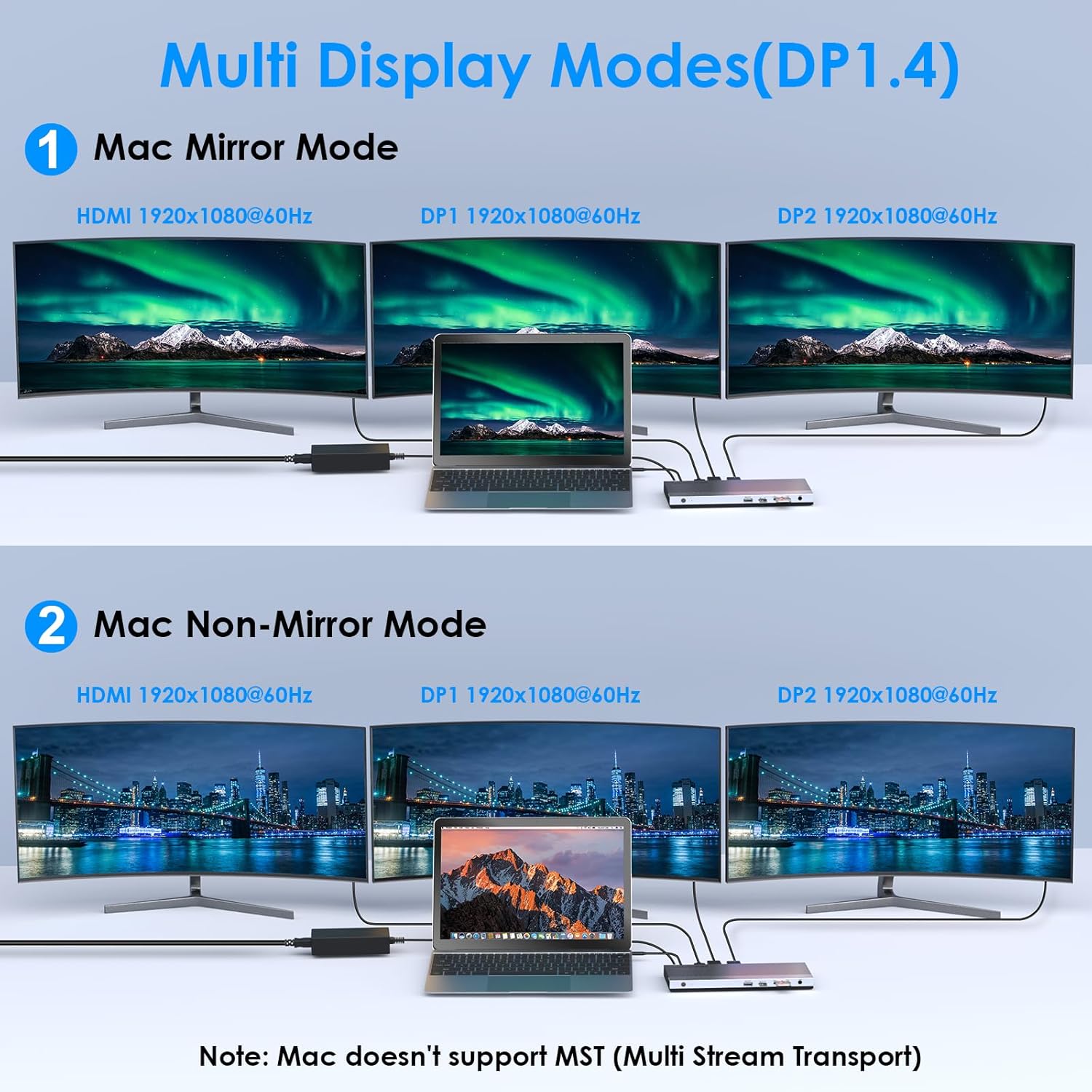
Image: Illustration of Mac multi-display modes, showing a laptop connected to three external monitors in both Mirror Mode (all monitors display the same content) and Non-Mirror Mode (all external monitors display the same content, but different from the laptop screen).
- Fa'ata Fa'ata: All external monitors will display the same content as your primary display.
- Non-Mirror Mode: The three external monitors (HDMI+DP+DP) will display the same content, which is different from the laptop's built-in screen.
Resolution Capabilities
- Single HDMI/DP display: Up to 4K@60Hz (with DP1.3/DP1.4 source).
- Dual displays simultaneously: Up to 2K@60Hz.
- Triple displays (HDMI + DP + DP) simultaneously: Up to 1920x1080@60Hz.
Power Delivery (PD) Charging
The upstream USB-C port provides up to 100W Power Delivery 3.0 to charge your connected laptop. Additionally, one USB 3.0 port supports BC 1.2 fast charging, delivering up to 7.5W for mobile devices.

Image: A laptop and a smartphone connected to the docking station, illustrating 100W Power Delivery to the laptop and BC 1.2 fast charging to the smartphone.
Fa'aliliuga Fa'amatalaga
The docking station features four USB 3.0 ports, offering data transfer speeds up to 5Gbps. The built-in SD and Micro SD card readers support speeds up to 104MBps and can operate simultaneously.

Image: A laptop connected to the docking station, with USB flash drives and an SD card inserted, highlighting 5Gbps USB 3.0 speeds and 104MB/s SD/TF card reader speeds.
Gigabit Ethernet
The RJ45 Ethernet port provides a stable and high-speed wired network connection up to 1000Mbps, ideal for reliable internet access.
5. Fegalegaleai
This docking station is compatible with most Type-C and Thunderbolt 3/4 devices running Windows, macOS, Chrome OS, Linux, and Android.

Image: Visual representation of the docking station's compatibility with various devices like smartphones, tablets, laptops, desktops, and cameras, as well as operating systems including Windows, Chrome OS, Mac OS, Linux, and Android.
Important Compatibility Notes
A'o le'i fa'atauasing or using, ensure your host system's USB-C interface supports:
- DisplayPort Alternate Mode (Alt Mode): Essential for video output.
- USB Power Delivery (PD) Protocol: Required for laptop charging via the docking station.
- Fa'aliliuga Fa'amatalaga: For USB peripheral functionality.
If your USB-C port only supports data transfer or charging without DisplayPort Alt Mode, video output will not function.

Image: A visual guide showing various types of USB-C ports (Thunderbolt 3, Data+DisplayPort+Power Delivery, Data Transfer only, Data+Power Delivery only, Data+DisplayPort only, Charging only) and indicating which are compatible with the docking station for full functionality.
6. Fa'amatalaga
| Fa'aaliga | Fa'amatalaga |
|---|---|
| Fa'ata'ita'iga | B0DXF92DL1 |
| Fa'ailoga | WAVLINK |
| Ofisa o mea faigaluega | Ethernet, HDMI, USB 3.0, DisplayPort, USB-C, SD/TF Card Reader, 3.5mm Audio Jack |
| Numera o Taulaga | 13 |
| Aofa'i Taulaga USB | 4 (USB 3.0) |
| Fua Fa'aliliuga Fa'amatalaga | 5 Gbps (USB 3.0), 104 MBps (SD/TF Card Reader) |
| Tiliva Malosi | Up to 100W (Host Charging), 7.5W (BC 1.2 USB 3.0 Port) |
| Ata Vitio | 1x HDMI (4K@60Hz), 2x DisplayPort (4K@60Hz) |
| Ethernet | Gigabit (10/100/1000 Mbps) |
| Faiga Fa'atonu Fa'atasi | Windows, macOS, Chrome OS, Linux, Android |
| Mea Fa'amau | palasitika |
Fua

Image: Technical drawing showing the dimensions of the WAVLINK 13-in-1 USB-C Triple Display Docking Station: 8.15 inches (207mm) length, 3.27 inches (83mm) width, and 0.71 inches (18mm) height.
7. Faʻafitauli
Afai e te feagai ma faʻafitauli i lau nofoaga e faʻapipiʻi ai uaealesi, tagaʻi i faʻafitauli masani nei ma fofo:
- Leai se Fa'aaliga Fa'aaliga:
- Ensure your laptop's USB-C port supports DisplayPort Alternate Mode.
- Verify all display cables are securely connected to both the docking station and monitors.
- Check monitor input settings to ensure the correct input source (HDMI/DisplayPort) is selected.
- Restart your laptop and the docking station.
- For triple display, ensure your graphics card supports at least 4 displays (including your laptop's screen).
- Laptop e le o totogia:
- Confirm the 130W power adapter is correctly connected to the docking station and a working power outlet.
- Ensure your laptop's USB-C port supports USB Power Delivery (PD) protocol.
- Verify the USB-C cable connecting the laptop to the docking station is capable of PD.
- Meafaigaluega USB e le o iloa:
- Ensure the docking station is powered on and connected to your laptop.
- Try connecting the USB device to a different USB 3.0 port on the docking station.
- Connect the USB device directly to your laptop to confirm it is functional.
- Leai se feso'ota'iga Ethernet:
- Check that the Ethernet cable is securely connected to both the docking station and your router/modem.
- Verify network settings on your laptop.
- Ia mautinoa o loʻo galue lelei lau router/modem.
- Feso'ota'i Feso'ota'i:
- Ensure all cables are firmly connected.
- Avoid placing the docking station near strong electromagnetic interference sources.
- Update your laptop's USB-C port drivers if available.
8. Tausiga
To ensure the longevity and optimal performance of your WAVLINK docking station, follow these maintenance guidelines:
- Fa'amamaina: Use a soft, dry cloth to clean the exterior of the docking station. Do not use liquid cleaners or aerosols.
- Teuina: Teu le nofoaga e fa'apipi'i ai uaea i se nofoaga malūlū ma mago, 'alo 'ese mai le susulu sa'o o le la ma le vevela tele.
- Taulimaina: Aloese mai le pa'u pe tu'u le masini i ni aafiaga malolosi.
- Savili: Ia mautinoa o lo'o lava le ea e alu ese ai mai le uafu (docking station) e puipuia ai le soona vevela, aemaise lava pe a fa'aaogaina mo se taimi umi i masini e tele ua feso'ota'i.
9. Fa'amaonia ma Lagolago
Fa'amatalaga Fa'amaonia
This WAVLINK product comes with an 18-month warranty from the date of purchase. An additional 6 months of warranty may be available for registered members. Please retain your proof of purchase for warranty claims.
Lagolago Tagata Fa'atau
For technical assistance or support, please contact WAVLINK customer service:
- Telefoni: +1 8889730883 (UTC -5) Monday - Friday, 9 AM - 6 PM
- imeli: Contact@wavlink.com