
Folasaga
This user manual provides comprehensive instructions for the setup, operation, and maintenance of your Prechen 12.3-inch Portable Touchscreen Monitor. Designed for versatility and portability, this monitor enhances your productivity and entertainment experience across various devices.
Vaega Autu
- FHD Portable Touchscreen: 12.3-inch IPS display with 1920x720 resolution for vibrant colors and clear images. Features responsive 10-point capacitive touch functionality.
- Ultimate Portability and Flexibility: Lightweight design with a foldable stand, ideal for use in the office, home, or while traveling.
- Filifiliga So'oga Tele: Supports HDMI and USB-C connections for compatibility with laptops, phones, and other devices.
- Built-in Speakers & CNC Materials: Equipped with dual speakers for clear audio. Constructed with precise CNC technology to ensure accurate dimensions and improved overall quality.
- Real-Time System Monitoring: Seamlessly integrates with AIDA64 (software not included) for monitoring CPU, GPU, and system health on Windows.

Figure 1: The Prechen 12.3-inch monitor highlighting its 10-point multi-touch capability and CNC metal shell design.
O mea o lo'o i totonu
Fa'amolemole ia mautinoa o lo'o iai uma mea i totonu o le afifi:
- Mataitu Pa'i feavea'i 12.3"
- Foldable Stand/Protective Cover
- USB-C to USB-C Cable (for power, video, and touch)
- HDMI to HDMI Cable (for video)
- USB-A to USB-C Cable (for power/touch when using HDMI)
- Fetuunaiga Malosi
- Tusi Lesona a le Tagata (lenei pepa)
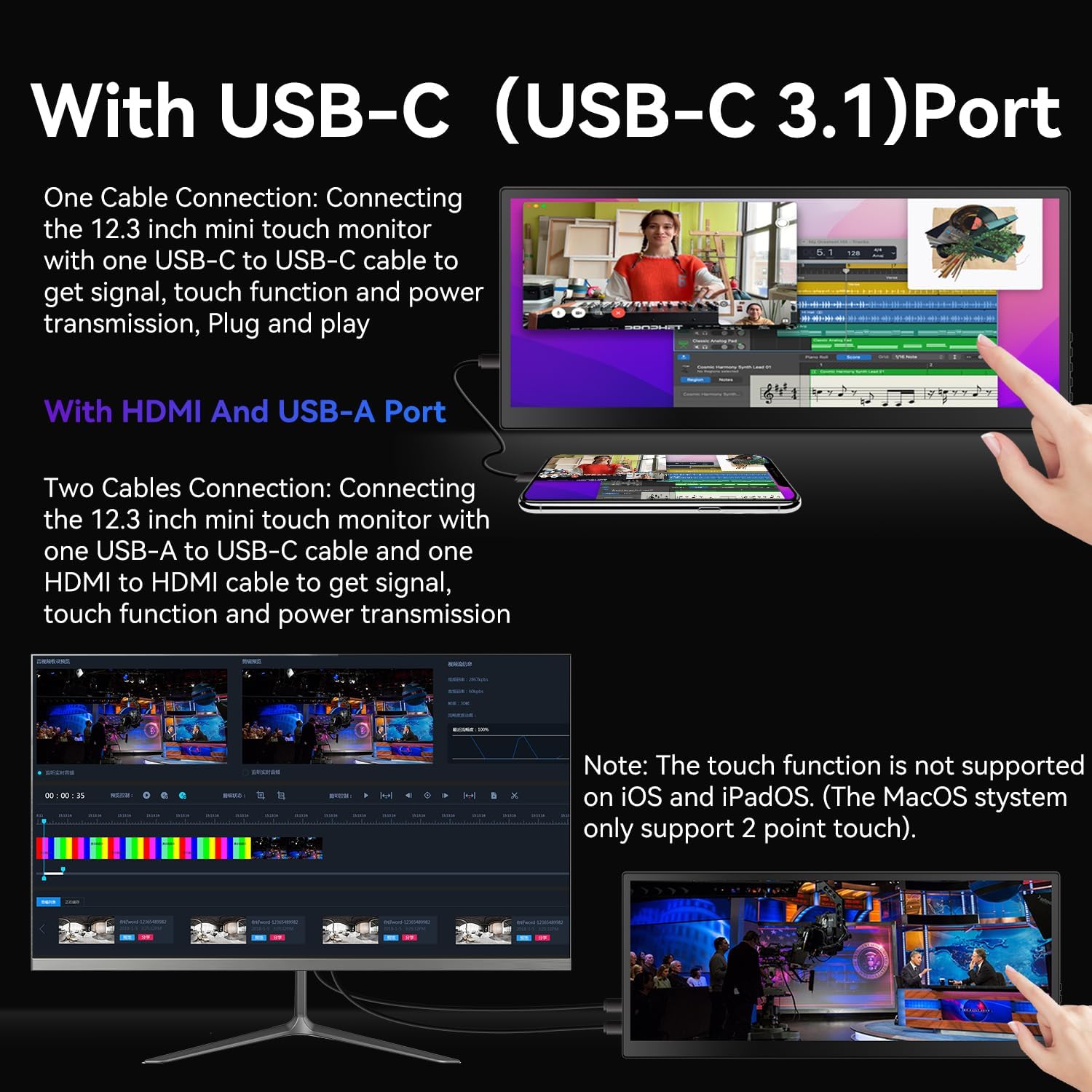
Figure 2: Contents of the package, including the monitor, cables, and power adapter.
Seti
The Prechen portable monitor offers flexible connectivity options:
1. Single Cable Connection (USB-C 3.1 DP ALT-MODE or Thunderbolt 3/4)
For devices with a full-featured USB-C port (supporting DisplayPort Alternate Mode or Thunderbolt), a single USB-C to USB-C cable can provide power, video, and touch functionality.
- Connect one end of the included USB-C to USB-C cable to the monitor's USB-C port.
- Connect the other end of the USB-C to USB-C cable to your device's compatible USB-C port.
- The monitor should automatically detect the signal and power on.

Figure 3: Illustration of connecting the monitor using a single USB-C cable for power, video, and touch.
2. Dual Cable Connection (HDMI + USB-A)
For devices without a full-featured USB-C port, you will need to use both an HDMI cable for video and a USB-A to USB-C cable for power and touch functionality.
- Connect one end of the included HDMI cable to the monitor's HDMI port and the other end to your device's HDMI port.
- Connect the USB-C end of the USB-A to USB-C cable to the monitor's USB-C port.
- Connect the USB-A end of the USB-A to USB-C cable to your device's USB-A port or a power adapter.
- Ensure both cables are securely connected for proper operation and touch functionality.

Figure 4: Setup using HDMI for video and USB-A to USB-C for power and touch.
Important Notes for Setup:
- Paoa sapalai: If your device cannot provide sufficient power via USB-C, please use the included power adapter to ensure stable operation.
- Gaioiga Pa'i:
- MacBook only supports 1-point touch. Ensure the mouse cursor is on the monitor for touch input.
- iPhone, iPad, and Game Devices (e.g., PS3/4/5, Switch, X-box, Steam-Deck, Fire TV stick/cube) AUA support the touch function due to system limitations.
- For Windows, you may need to go to "Tablet PC Settings" in the Control Panel to set up the touch function if it's the first touchscreen connected.
Faagaioiga o le Mataitu
Pulea Autu
The monitor features intuitive buttons for control:
- ON/OFF: Press and hold to power the monitor on or off.
- Luga / LOSI: Navigate menu options or adjust settings.
- Menu: Access the on-screen display (OSD) menu.
- Toe fo'i: Go back to the previous menu or exit the OSD.
- Siaki leo: Fa'afeso'ota'i fa'alogo fa'alogo po'o sipika.

Ata 5: Ua Ovaview of the monitor's control buttons and input/output ports.
Fa'aaliga Faiga
Once connected, you can configure your computer's display settings to utilize the portable monitor in various modes:
- Fa'atele le faiga: Extends your desktop across both screens, providing more workspace. This is ideal for multitasking.
- Faiga Fa'aluaina: Mirrors your primary display, showing the same content on both screens. Useful for presentations or sharing content.
- Na'o le Ata Lona Lua: Displays content only on the portable monitor, turning off your primary display.

Figure 6: The monitor set up in Extended Mode, providing additional screen real estate.

Figure 7: The monitor displaying content in Duplicated Mode, mirroring the main screen.
Pa'i Galuega
The 10-point capacitive touchscreen allows for intuitive interaction:
- Use gestures like tap, pinch-to-zoom, and swipe for navigation and control.
- Adjust text size or image zoom directly on the screen.
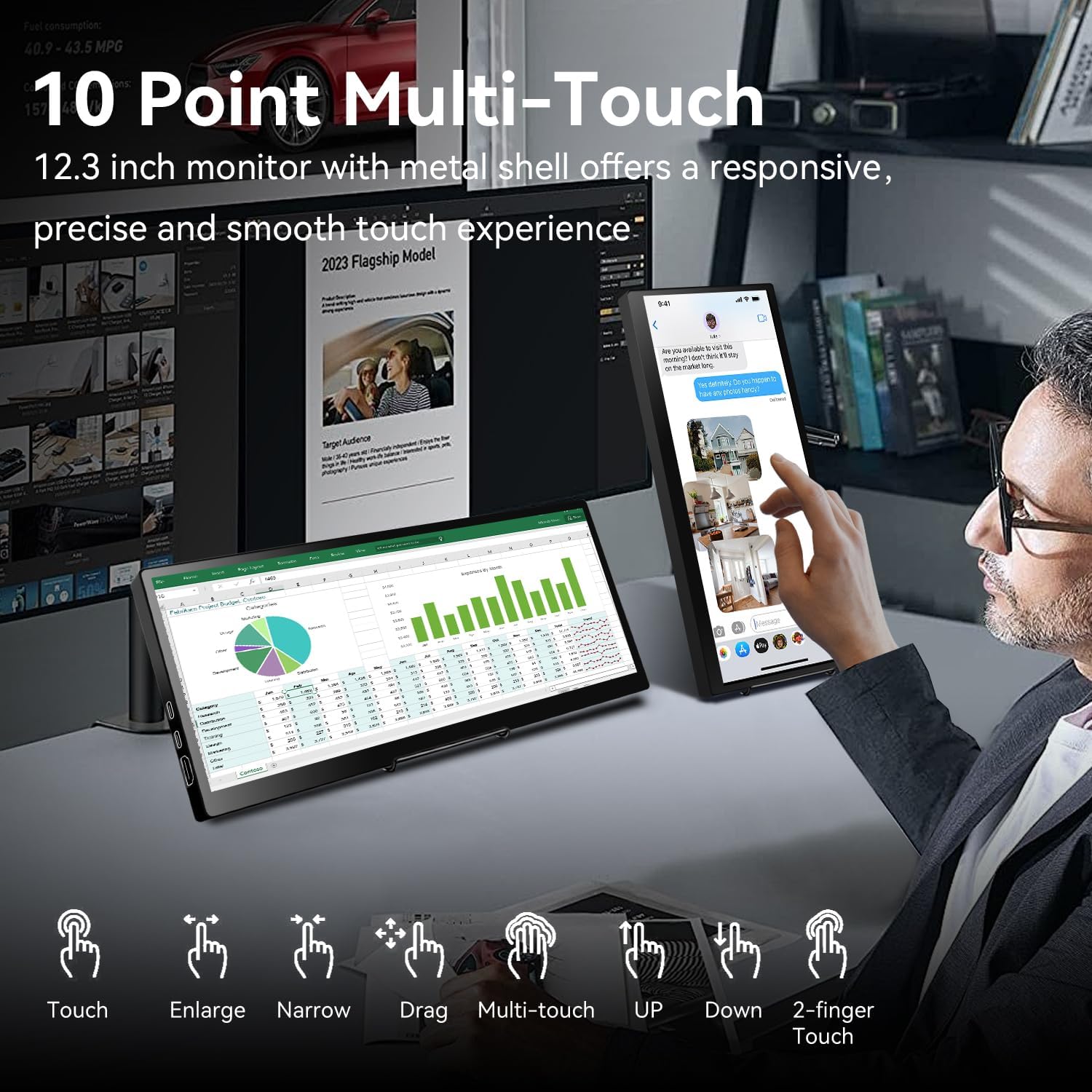
Figure 8: Various multi-touch gestures supported by the monitor, including touch, enlarge, narrow, drag, and 2-finger touch.
System Monitoring (AIDA64)
For Windows users, the monitor can be used for real-time system monitoring:
- Integrate with AIDA64 (software not included) to display CPU, GPU, and other system performance metrics.
- This provides a quick glance at your computer's health without interrupting your main workflow.
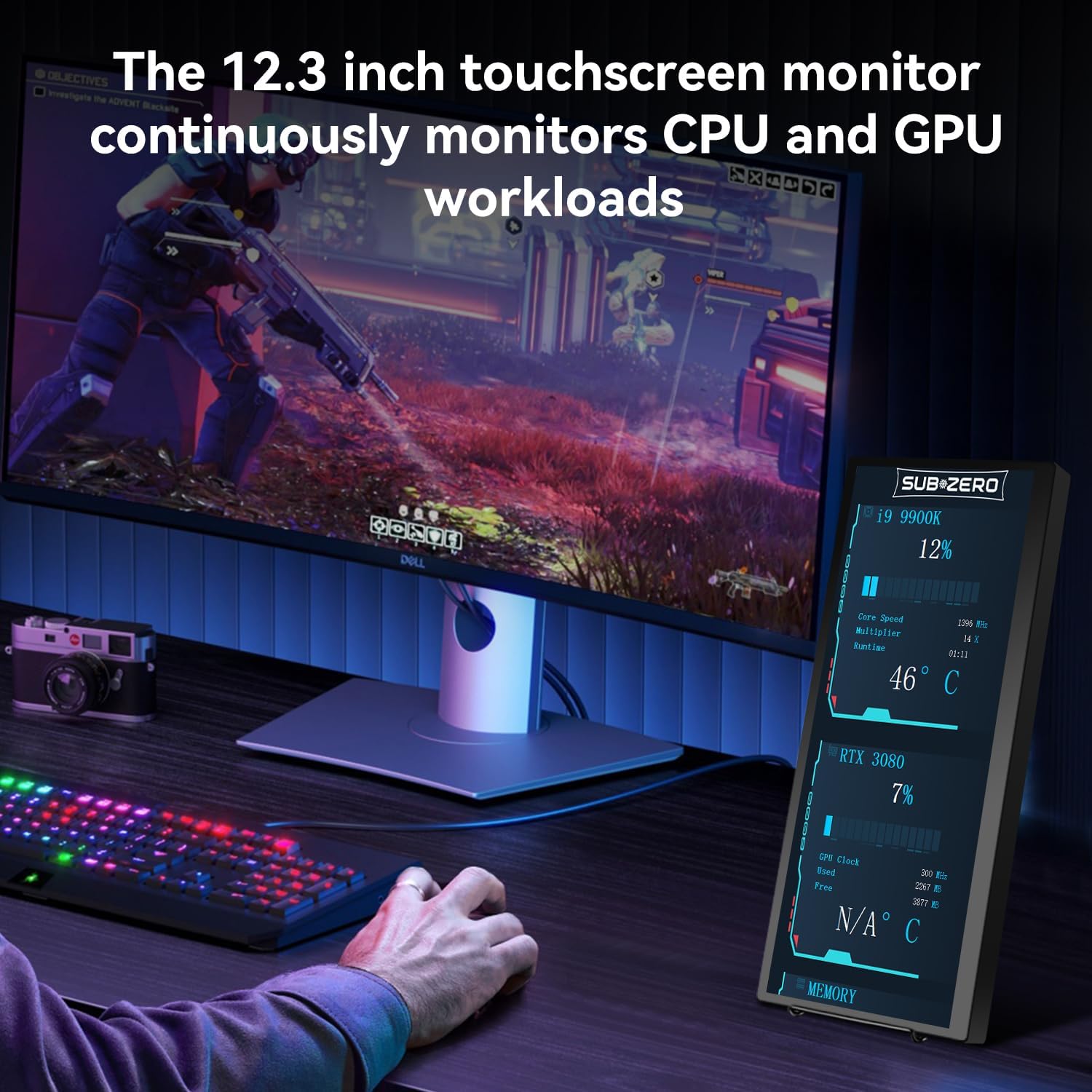
Figure 9: The monitor used to display real-time CPU and GPU workload information.
Tausiga
- Fa'amamaina: Faaaoga se ie vaivai e aunoa ma ni filo e faamama ai le lau. Mo ni ila faigata, olo teisiampi le ie i le vai po'o se fa'amama puipui. Aloese mai vailaau malolosi.
- Taulimaina: Always handle the monitor with care. Avoid dropping it or placing heavy objects on it.
- Teuina: When not in use, store the monitor in its protective cover to prevent scratches and damage.
- Tempera: Avoid exposing the monitor to extreme temperatures or direct sunlight for prolonged periods.
Fa'afitauli
If you encounter issues with your Prechen monitor, please refer to the following common solutions:
- Leai se Fa'aaliga/Malosi:
- Ensure all cables (USB-C, HDMI, power) are securely connected.
- If using a single USB-C cable, verify your device's USB-C port supports DisplayPort Alternate Mode and sufficient power delivery. Try connecting the external power adapter.
- Fa'ata'ita'i i uaea eseese pe a mafai.
- E le o galue le pa'i:
- Confirm that the USB-A to USB-C cable (for HDMI connections) or the full-featured USB-C cable is connected, as touch requires a USB data connection.
- For Windows, navigate to "Control Panel" > "Tablet PC Settings" and follow the setup prompts to calibrate the touchscreen.
- Remember that iPhone, iPad, and most game devices do not support touch functionality with this monitor. MacBook supports only 1-point touch.
- Display is Squished or Stretched:
- Adjust the aspect ratio settings on your connected device (laptop/PC display settings).
- The monitor's native resolution is 1920x720. Ensure your device's output resolution is compatible or set to extend mode for optimal display.
- No Sound from Monitor Speakers:
- Check your device's audio output settings to ensure sound is directed to the Prechen monitor.
- Adjust the volume on both your device and the monitor.
Fa'amatalaga
| Fa'aaliga | Fa'amatalaga |
|---|---|
| Fa'ailoga | Prechen |
| Numera Fa'ata'ita'i | HD-123 |
| Tele lau | 12.3 Inisi |
| I'ugafono | 1920x720 Pixels |
| Ituaiga Fa'atatau | 16:9 |
| Malamalama Ata | 450 Candela |
| Laufanua Mata | Iila |
| Fua o Mea | 0.59 x 11.8 x 5.1 inisi |
| Mea mamafa | 2.97 pauna |
| VESA Fegalegaleaiga | 75x75mm (as per images) |
Lagolago Tagata Fa'atau
For further assistance, technical support, or warranty inquiries, please contact Prechen customer service through the retailer's platform or visit the official Prechen webnofoaga.
Asiasi i le Prechen Store on Amazon mo nisi faamatalaga.