
1. Folasaga
This manual provides detailed instructions for the installation, operation, and maintenance of the Yitouniu EWeLink 2-Channel Smart WiFi Switch Relay. This device enables remote control of household appliances and electronic devices via a mobile application, RF remote control, and voice commands through smart assistants like Alexa and Google Home. It supports various operating modes and timing functions to enhance smart home automation.
2. Fa'amatalaga Saogalemu
- Ensure power is disconnected before installation or maintenance to prevent electric shock.
- Installation should be performed by qualified personnel or under strict adherence to electrical safety guidelines.
- Aua nei sili atu le maualuga o le taimi nei ma voltage ratings specified for the device.
- Taofi le masini mai le vai, susu, ma le vevela tele.
- Ia mautinoa ua saogalemu ma sa'o uma feso'ota'iga o uaea a'o le'i toe fa'afo'i le eletise.
3. Oloa Ua Ovaview
The Yitouniu EWeLink Smart WiFi Switch Relay is a compact, 2-channel device designed for integrating traditional appliances into a smart home system. It features WiFi and Bluetooth connectivity for app control and supports RF 433MHz for remote control.

Ata 3.1: Luma view of the Yitouniu EWeLink Smart WiFi Switch Relay. The device is white with branding and connection labels visible.

Ata 3.2: Latalata view of the Yitouniu EWeLink Smart WiFi Switch Relay, showing input terminals (N, L), output terminals (NO, COM, NC), and model information.

Image 3.3: The compact size of the Yitouniu EWeLink Smart WiFi Switch Relay, held in a hand for scale.
4. Fa'amatalaga
| Parameter | Taua |
|---|---|
| Sao Voltage | AC/DC 85-250V, Micro USB 5V input |
| Max Nei | 10A |
| Malosi tele | 2200W |
| Tulaga WiFi | WiFi 2.4GHz b/n/g + Bluetooth (IEEE 802.11b/g/n) |
| Galulue Vevela | -20°C i le 70°C |
| Mea | Faʻamutaina le afi ABS |
| Fua o Mea | 2.76 x 1.77 x 1.1 inisi |
| Mea mamafa | 1.76 aunese |
| Ituaiga Faafesootai | E masani ona tatala |
| Fa'ailoga Fa'ava-o-malo Puipuiga | IP65 |
| Tusipasi | FCC |
5. Seti ma Fa'apipi'i
5.1 Fa'atonuga uaea
The device supports both AC/DC 85-250V input and Micro USB 5V input. Ensure correct wiring based on your application. The relay has Normally Open (NO), Common (COM), and Normally Closed (NC) contacts for controlling external devices.
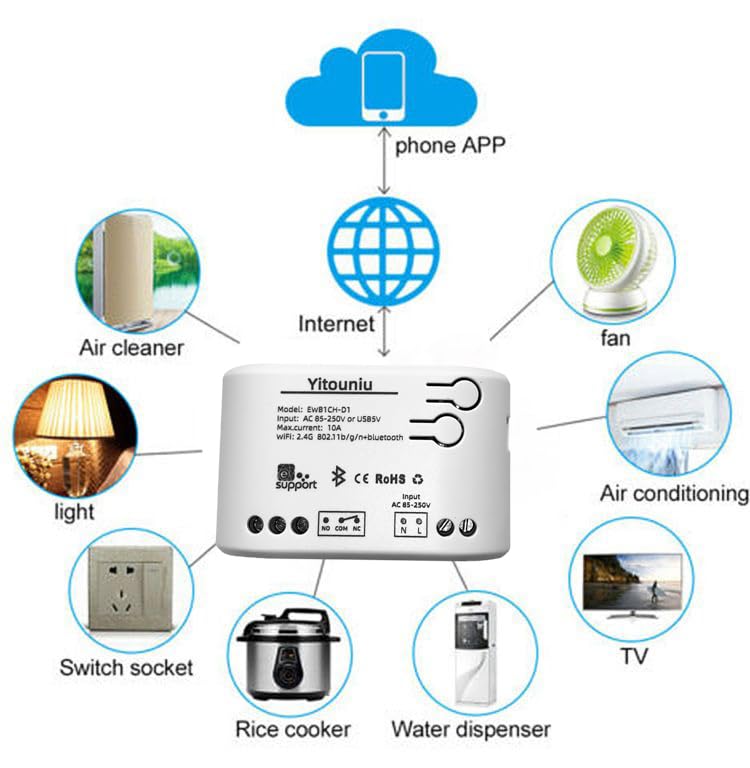
Image 5.1: Diagram illustrating the connectivity of the Yitouniu EWeLink Smart WiFi Switch Relay to various household appliances like lights, fans, and air conditioners, all controlled via a phone app and the internet.
5.2 App Download ma Fa'atasi
- La'u mai le eWeLink app mai le Apple App Store po'o le Google Play Store.
- Resitala se teugatupe ma saini i totonu.
- Power on the Smart WiFi Switch Relay.
- Open the eWeLink app, tap the '+' icon to add a device.
- Follow the on-screen instructions to connect the device to your 2.4GHz WiFi network.

Image 5.2: Screenshots of the eWeLink app interface, showing controls for a garage door (ON/OFF) and a scheduling function for setting specific times.
6. Faiga Fa'atino
The device supports three operating modes: self-locking, interlocking, and inching (micromotion). These modes can typically be configured within the eWeLink app or via physical buttons on the device, depending on the specific model variant.
- Self-locking Mode: Each channel operates independently. Pressing the button (or app control) turns the relay ON, pressing it again turns it OFF.
- Interlocking Mode: When one channel is turned ON, all other channels are automatically turned OFF. This is useful for applications where only one device should be active at a time.
- Inching (Micromotion) Mode: The relay turns ON for a set duration (e.g., 0.5 seconds to 1 hour) and then automatically turns OFF. This is suitable for momentary actions like garage door openers or pulse controls.
7. App Control and Voice Control
7.1 eWeLink App Features
The eWeLink app provides comprehensive control over your Smart WiFi Switch Relay:
- Mamao Ki/Pepe: Control connected devices from anywhere with an internet connection.
- Taimi Galuega: Set schedules, countdowns, or recurring timers for automatic on/off operations.
- Independent Control: Each of the two channels can be controlled independently.
- Fetufa'aiga masini: Share control of your devices with family members.
- Pulea Vaega: Organize multiple smart devices into groups for simultaneous control.

Image 7.1: A user remotely controlling home lighting via the eWeLink mobile application, demonstrating the convenience of app-based control.

Image 7.2: Illustration of the eWeLink app's group control and sharing functions, allowing multiple users to manage devices across different rooms.

Image 7.3: The timing function interface within the eWeLink app, enabling users to set specific on/off times for connected appliances.
7.2 Tuufaatasiga Pulea leo
The Yitouniu Smart WiFi Switch Relay is compatible with popular voice assistants, including Amazon Alexa and Google Home/Nest. To enable voice control:
- Ensure your Smart WiFi Switch Relay is successfully paired with the eWeLink app.
- Open the Alexa or Google Home app.
- Su'e ile vaega ole 'Tomai' po'o le 'Galue ma Google'.
- Saili mo and enable the 'eWeLink Smart Home' skill/service.
- Fa'afeso'ota'i lau teugatupe eWeLink pe a talosagaina.
- Discover devices. Your Smart WiFi Switch Relay should now be controllable via voice commands.
Example tulafono:
- "Alexa, ki le moli o le potu malolo."
- "Talofa Google, tape le ili."

Image 7.4: A user interacting with voice assistants like Amazon Alexa and Google Home to control smart devices, highlighting the voice control capability of the relay.
8. Tausiga
The Yitouniu Smart WiFi Switch Relay requires minimal maintenance. Follow these guidelines:
- Fa'amamaina: Wipe the device with a dry, soft cloth. Do not use liquid cleaners or solvents.
- Siaki So'oga: Periodically inspect wiring connections to ensure they remain secure.
- Faʻalauiloa Firmware: Keep the eWeLink app updated to receive the latest firmware for the device, which may include performance improvements and new features.
9. Faʻafitauli
- Device not connecting to WiFi:
- Ensure your WiFi network is 2.4GHz. The device does not support 5GHz networks.
- Check if the WiFi password entered in the app is correct.
- Move the device closer to your WiFi router.
- Restart the device and your router.
- Device offline in app:
- Verify your home internet connection is active.
- Check if the device has power.
- Toe amata le masini.
- E le o galue le leo:
- Confirm the eWeLink skill/service is enabled and linked in your Alexa or Google Home app.
- Ensure the device is named clearly in the eWeLink app and discovered by your voice assistant.
- Siaki lau feso'ota'iga initaneti.
- Device not responding to RF remote:
- Ensure the RF remote is paired with the switch. Refer to the RF pairing instructions (if applicable to your specific remote).
- Check the battery in the RF remote.
10. O a mea oi totonu o le Pusa
I le tatalaina o le afifiina o oloa, e tatau ona e mauaina mea nei:
- 1 x Yitouniu Wifi 2-Channel Relay Switch
- 1 x Fa'atonuga Tusi Taiala (lenei pepa)
11. Fa'amaonia ma Lagolago
This product comes with a standard manufacturer's warranty. For specific warranty terms, conditions, and duration, please refer to the documentation included with your purchase or contact Yitouniu customer support. For technical assistance or further inquiries, please visit the official Yitouniu web'upega tafaʻilagi pe faʻafesoʻotaʻi a latou auala tautua i tagata faʻatau.