
Folasaga
This manual provides detailed instructions for the installation, operation, and maintenance of your CAMECHO A3731 5-inch Portable Motorcycle GPS CarPlay/Android Auto Display. This device is designed to enhance your riding experience by integrating smartphone functionalities such as navigation, music, and hands-free communication directly onto your motorcycle's handlebar. It features wireless CarPlay and Android Auto, a 5-inch HD touchscreen, dual Bluetooth connectivity, and an IP67 waterproof rating for all-weather use.

Image: The CAMECHO 5-inch portable motorcycle display, highlighting its key features including CarPlay, Android Auto, Bluetooth, EQ, IP67 Waterproofing, Anti-Theft, Tire Pressure Detection, and TF/SD Card support.
Vaega Autu
- Ta'avale Uaealesi & Ta'avale Android: Seamlessly connect your smartphone for navigation, music, and calls without cables.
- Laupapa pa'i HD 5-inisi: A clear and responsive display for easy interaction while riding.
- Dual Bluetooth Functionality: Pair your phone to the display and the display to your Bluetooth helmet or headset simultaneously for integrated audio and communication.
- IP67 Suavai & Pefu: Designed to withstand various weather conditions, ensuring durability and reliability.
- Fuafuaga Anti-Gaoi: Enhance privacy and security with a power-on password feature.
- EQ fa'apipi'iina: Customize your audio experience with an integrated equalizer for enhanced sound quality.
- Uiga Faʻavaomalo: Compatible with all 12V motorcycles and easy to install with the included bracket kit.
- Tire Pressure Detection Support: (Requires additional accessories) Monitor tire pressure for enhanced safety.
- SD/TF Card Support: View images and play media directly from an inserted memory card.
Seti Taiala
1. Mea i totonu o le afifi
A'o le'i fa'apipi'iina, ia mautinoa ua iai vaega uma:
- CAMECHO 5-inch Display Unit
- Uaea Malosi
- Mounting Bracket Kit (for handlebar attachment)
- Tusi Taiala
- 150mm Rolling Strips (x8)

Image: A visual representation of the CAMECHO motorcycle display's packing list, including the main unit, power cable, mounting accessories, user manual, and rolling strips.
2. Mounting the Display
The display comes with a bracket kit designed for secure attachment to your motorcycle's handlebar. Ensure the mounting location provides clear visibility and does not obstruct your view po o pulega.
- Assemble the bracket components according to the diagrams provided in the physical user manual.
- Securely attach the assembled bracket to your motorcycle's handlebar.
- Mount the CAMECHO display unit onto the bracket, ensuring it is firmly locked in place.

Image: The CAMECHO motorcycle display securely mounted on a handlebar, showing its position relative to the rider's view.
3. So'oga Malosi
Connect the provided power cable to your motorcycle's 12V power source. Ensure a stable and secure connection to prevent power interruptions during operation.
4. Initial Power On and Language Settings
Once powered, the device will boot up. Follow the on-screen prompts to select your preferred language and complete any initial setup steps.
Fa'atonuga o Galuega
1. Wireless CarPlay / Android Auto Connection
To use wireless CarPlay or Android Auto, ensure your smartphone supports these features wirelessly.
- Fa'amalo le Bluetooth ma le Wi-Fi i lau telefoni.
- On the CAMECHO display, select the CarPlay or Android Auto icon.
- Saili mo the display's Bluetooth name on your smartphone and pair.
- Confirm the pairing on both devices. The display will then establish a Wi-Fi connection for CarPlay/Android Auto functionality.

Image: A split screen view demonstrating the user interfaces of wireless CarPlay and Android Auto on vehicle dashboard displays, showcasing navigation and application icons.
2. Bluetooth Pairing with Helmet/Headset
For audio output and hands-free calls, pair your Bluetooth helmet or headset directly to the CAMECHO display.
- Ensure your Bluetooth helmet/headset is in pairing mode.
- On the CAMECHO display, navigate to the Bluetooth settings.
- Saili mo available devices and select your helmet/headset.
- Confirm pairing. Once connected, audio from the display (navigation, music, calls) will be routed to your helmet/headset.

Image: A diagram illustrating the dual Bluetooth connectivity, showing how to pair a phone to the display and the display to a Bluetooth helmet or headset.
3. EQ Sound Settings
The built-in equalizer allows you to adjust audio frequencies for optimal sound quality.
- Access the EQ settings from the main menu.
- Choose from preset modes (e.g., Jazz, Classic) or customize your own settings.
- Adjust frequency bands to suit your preference.

Image: The EQ sound settings interface on the CAMECHO display, showing various frequency bands and preset options for audio customization.
4. Anti-Theft Password
Set a power-on password to protect your device and data.
- Go to System Settings > Security.
- Enable the power-on password feature.
- Set a memorable password. You will be prompted to enter this password each time the device powers on.

Image: The anti-theft password input screen on the CAMECHO display, showing a numerical keypad for entering a security code.
5. Fa'atautaia o le GPS
Utilize your smartphone's navigation apps through CarPlay or Android Auto for real-time directions.

Image: The CAMECHO display showing a GPS navigation map with route information and an IP67 waterproof icon, indicating its suitability for outdoor use.
6. SD/TF Card Usage
Insert an SD or TF card into the designated slot to view images or play videos directly on the display.
Tausiga
To ensure the longevity and optimal performance of your CAMECHO display, follow these maintenance guidelines:
- Fa'amamaina: Fa'aaogā se mea vaivai, oamp cloth to clean the screen and exterior. Avoid abrasive cleaners or solvents that could damage the display or casing.
- Teuina: A le fa'aaogaina mo se taimi umi, teu le masini i se nofoaga malulu, matutu mamao ese mai le susulu o le la ma le vevela tele.
- Suavai Tetee: While the device is IP67 waterproof, avoid submerging it in water or exposing it to high-pressure water jets. Ensure all ports are properly sealed.
- Su'ega uaea: Periodically check the power cable and connections for any signs of wear or damage. Replace if necessary.
Fa'afitauli
| Fa'afitauli | Mafuaaga e ono tupu | Fofo |
|---|---|---|
| E le ola le masini. | Leai se sapalai o le eletise; ua le toe lelei le feso'ota'iga; ua pa le fiusi. | Check power cable connection; ensure motorcycle's ignition is on; inspect fuse. |
| CarPlay/Android Auto fails to connect. | Bluetooth/Wi-Fi off on phone; incorrect pairing; phone not supported. | Ensure phone's Bluetooth/Wi-Fi is on; re-pair devices; verify phone supports wireless CarPlay/Android Auto. |
| No audio from helmet/headset. | Helmet/headset not paired; volume too low; incorrect audio output selected. | Re-pair helmet/headset; adjust volume on both devices; check display's audio settings. |
| Touchscreen unresponsive with gloves. | Standard capacitive touchscreens may not respond to non-conductive gloves. | Use touch-compatible gloves or operate with bare fingers. |
| Display freezes or crashes. | Software glitch; overheating. | Restart the device; ensure adequate ventilation. If persistent, contact support. |
Fa'amatalaga
| Fa'aaliga | Fa'amatalaga |
|---|---|
| Fa'ailoga | CAMECHO |
| Igoa Fa'ata'ita'iga | A3731 |
| Tele lau | 5 Inisi |
| Tekinolosi Feso'ota'i | USB, Bluetooth, Wi-Fi (for CarPlay/Android Auto) |
| Fa'apitoa Fa'apitoa | Wireless CarPlay, Wireless Android Auto, IP67 Waterproof |
| Taavale Auaunaga Ituaiga | uila afi |
| Ituaiga Faafanua | Streets (via connected smartphone) |
| Leo Faʻalauiloa Galuega | Stereo |
| Ituaiga Fa'amau | Handheld (with included handlebar mount) |
| Ituaiga Mata | Capacitive Touchscreen |
| Masini Fegalegaleai | Smartphones with Wireless CarPlay or Wireless Android Auto |
| Metotia Pulea | Pa'i |
| Satellite Navigation Supported | GPS |
Fa'amaonia ma Lagolago
CAMECHO is committed to providing high-quality products and excellent customer service.
- Fa'amaonia: This product comes with a 2-year quality warranty.
- Faiga Fa'avae: Enjoy a 30-day replacement period for eligible issues.
- Lagolago Fa'atekinisi: Lifetime technical support is provided for your product.
- Online Response: Expect an 18-hour online response time for inquiries.
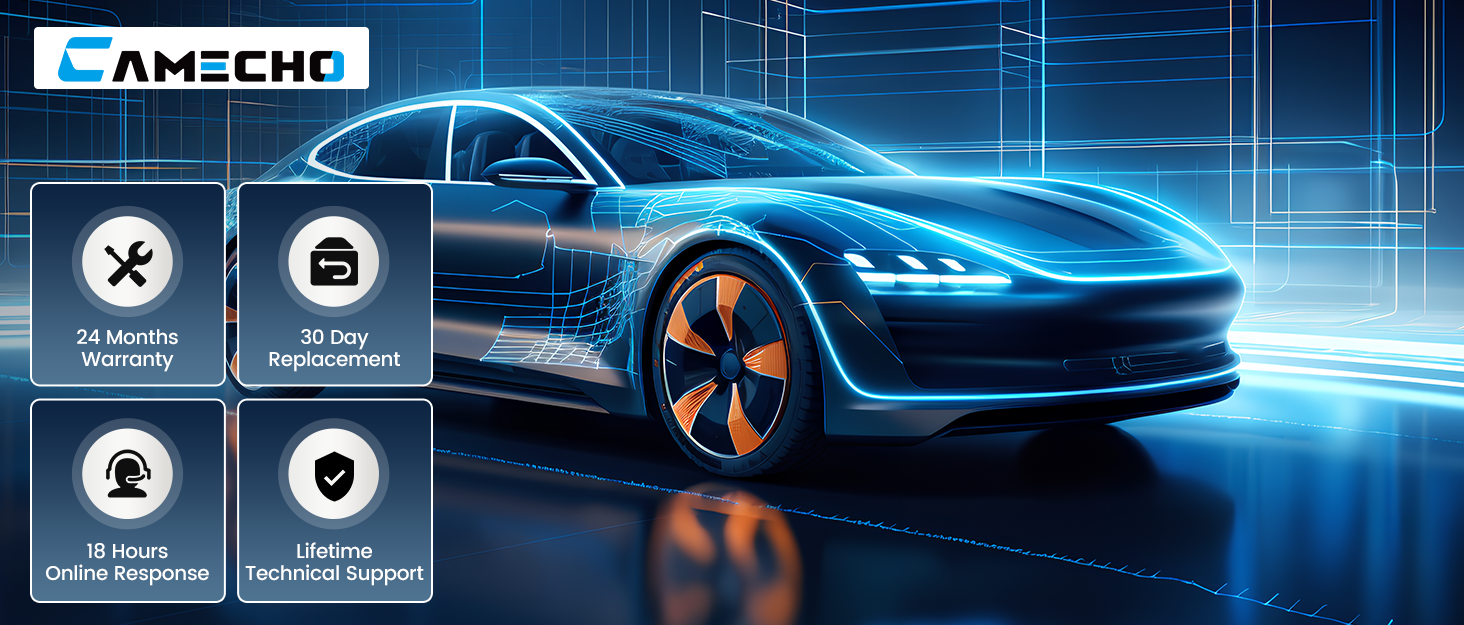
Ata: Ua umaview of CAMECHO's customer service commitments, including 24-month warranty, 30-day replacement, 18-hour online response, and lifetime technical support.
Faafesoota'i le Lagolago
If you have any questions, require technical assistance, or need to claim warranty service, please contact us:
- imeli: CAMECHOVIP@126.com
- Fa'afeso'ota'i le Fa'atau a Amazon: You can also contact the seller directly through your Amazon order details.

Image: A guide demonstrating the steps to contact a seller on an e-commerce platform, showing how to navigate to the seller contact option.