
Mediacom Azimut 4
Mediacom SmartPad 4 4G Azimut 4 Tablet User Manual
Model: Azimut 4
1. Folasaga
This manual provides essential information for the safe and efficient use of your Mediacom SmartPad 4 4G Azimut 4 tablet. Please read this manual thoroughly before operating the device and retain it for future reference.
2. Fa'amatalaga Saogalemu
- Saogalemu maa: Do not attempt to replace the internal battery. Do not expose the device to extreme temperatures or direct sunlight.
- Suavai Tetee: O lenei masini e le fa'afefe vai. Aloese mai le aafia i vai.
- Totogi: Fa'aaoga na'o le uta muamua ma le uaea o lo'o tu'uina atu ma le masini.
- Puipuiga Fa'alogo: Aloese mai le faaumiumi o le faalogo i le maualuga o le leo e taofia ai le faaleagaina o le faalogo.
- Lafoai: Dispose of the device and its battery according to local regulations. Do not dispose of with household waste.
3. Mea i totonu o le afifi
Ia mautinoa o lo'o iai mea uma i totonu o le afifi:
- Mediacom SmartPad 4 4G Azimut 4 Tablet
- USB-C Uaea Fa'atau
- Fetuunaiga Malosi
- Ta'iala Amata vave (pe a iai)
- SIM Ejector Tool (if included)
4. Fa'atulagaina o masini
Fa'amasani oe i vaega fa'aletino o lau laulau.
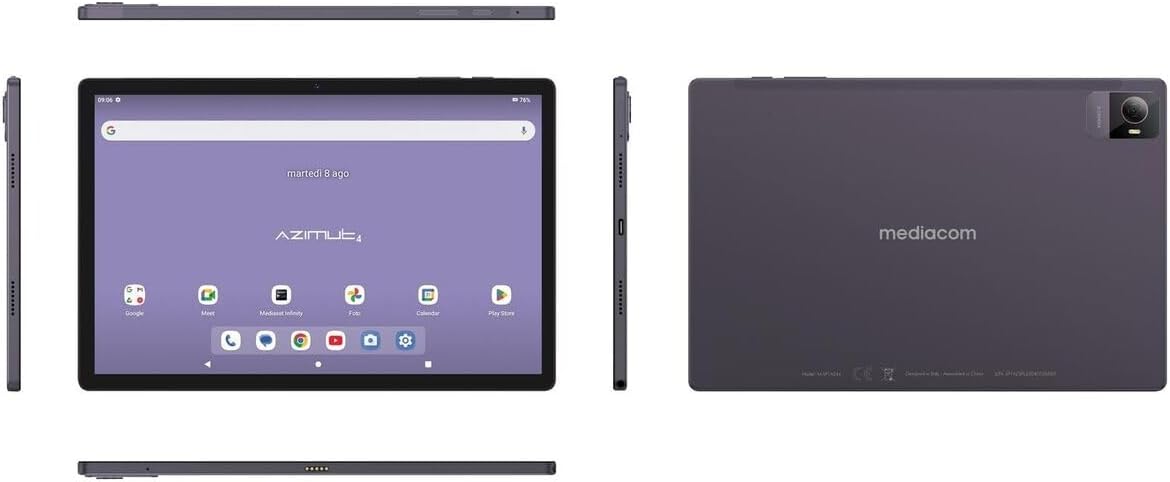
Ata 4.1: Fa'atele views of the Mediacom SmartPad 4 4G Azimut 4 tablet, illustrating the front display, rear camera, and various side ports and buttons. This includes the power button, volume rocker, USB-C port, headphone jack, and SIM/microSD card slot.
- Meapueata Luma: Located at the top center of the display when held in landscape orientation.
- Fa'aaliga: 10.51-inch IPS screen.
- Ki Malosi: Typically located on the side, used to turn the device on/off or wake/sleep the screen.
- Volume Buttons: O lo'o tu i tafatafa o le fa'amau mana, fa'aoga e fetu'una'i le leo leo.
- Port USB-C: Mo le totogiina ma le faʻaliliuina o faʻamatalaga.
- Ulu o le Headphone: Standard 3.5mm audio output.
- SIM/MicroSD Card Slot: Combined slot for Nano-SIM and microSD cards.
- Meapueata Tua: Located on the back of the tablet, typically with a flash.
- failauga: Four speakers for immersive audio.
5. Seti
5.1 Totogiina le Masini
Before first use, fully charge your tablet. Connect the USB-C cable to the tablet's USB-C port and the power adapter. Plug the adapter into a wall outlet. The battery indicator on the screen will show charging status.
5.2 Inserting SIM and MicroSD Cards
- Locate the SIM/microSD card slot on the side of the tablet.
- Fa'aoga le mea faigaluega ejector SIM e tatala ai le fata.
- Carefully place your Nano-SIM card and/or microSD card into the designated slots on the tray. Ensure correct orientation.
- Toe tulei lemu le fata i totonu o le avanoa seia oomi i totonu.
5.3 Uluai Malosi i luga ma Seti
- Press and hold the Power button until the Mediacom logo appears.
- Follow the on-screen prompts to select your language, connect to a Wi-Fi network, set up your Google account, and configure other initial settings.
6. Fa'atonuga o Galuega
6.1 Fa'asagaga Autu
The Mediacom SmartPad 4 4G Azimut 4 uses a multi-touch capacitive touchscreen. Common gestures include:
- Tap: E filifili ai se aitema pe tatala se app.
- Maua ma uu: Ina ia fa'aogaina menus fa'atatau po'o le fa'agaoioi o ata.
- Swipe: E faase'e ai i itulau po'o lisi.
- Faʻi: To zoom in or out on images and web itulau.
6.2 Feso'ota'i ile Wi-Fi
- Alu i le Fa'atonu > Fesootaiga & initaneti > Wi-Fi.
- Su'e le Wi-Fi On.
- Filifili lau fesoʻotaʻiga manaʻomia mai le lisi ma faʻaoga le upu faʻaulu pe a faʻamalosia.
6.3 Connecting to 4G Cellular Network
If a Nano-SIM card is inserted and activated, your tablet will automatically connect to the 4G network. Ensure mobile data is enabled in Fa'atonu > Fesootaiga & initaneti > Fe'avea'i feso'ota'iga.
6.4 Fa'aaogaina o Meapueata
Open the Camera app from your home screen or app drawer. You can switch between the 8 MP front camera and the 13 MP rear camera. Tap the shutter button to take photos or record videos.
6.5 Puleaina o le Teuina
Your tablet has 64 GB of internal storage. You can expand this by up to 128 GB using a microSD card. To view storage usage, go to Fa'atonu > Teuga.
6.6 Feso'ota'iga Bluetooth
E fa'afeso'ota'i masini Bluetooth:
- Alu i le Fa'atonu > Masini feso'ota'i > Bluetooth.
- Su'e le Bluetooth On.
- Filifili lau masini mai le lisi o masini avanoa ma mulimuli i faʻatonuga faʻapipiʻi.
7. Tausiga
7.1 Fa'amama le Masini
Fa'aaogā se ie mālū, e leai se liu e fa'amama ai le lau ma le tino o le laulau. Aloese mai le fa'aaogaina o vaila'au malolosi po'o mea fa'a'a'asa.
7.2 Tausiga maa
- Aloese mai le fa'a'a'a'a uma o le ma'a i taimi uma.
- Aua ne'i tu'ua le laulau o lo'o fa'aalu mo se vaitaimi umi pe'ā uma ona fa'atumuina.
- Store the tablet in a cool, dry place when not in use for long periods.
7.3 Fa'afouga polokalame
Siaki i lea taimi ma lea taimi mo faʻafouga o polokalama faakomepiuta e faʻamautinoa ai le faʻatinoga sili ona lelei ma le saogalemu. Alu i le Fa'atonu > Faiga > Fa'afouga faiga.
8. Faʻafitauli
- E le o ki le masini: Ia mautinoa ua fa'atumuina le maa. Fa'afeso'ota'i le charger ma toe taumafai.
- Ua le tali mai le mata: Taumafai e toe amata le masini e ala i le uuina o le faamau Malosi mo le tusa o le 10-15 sekone.
- Fa'afitauli feso'ota'iga Wi-Fi: Restart your tablet and your Wi-Fi router. Ensure you are within range and have entered the correct password.
- Apps pa'ū: Clear the cache of the problematic app (Settings > Apps > [App Name] > Storage & cache > Clear cache). If the issue persists, try reinstalling the app.
- Lemu le faatinoga: Close unused apps, clear cache, or consider performing a factory reset (backup your data first).
9. Fa'amatalaga
| Fa'aaliga | Fa'amatalaga |
|---|---|
| Igoa Fa'ata'ita'iga | Azimut 4 |
| Faiga Fa'atonu | Android 13 |
| Fa'aaliga | 10.51" IPS, 1920 x 1200 pixels, Multi-touch 5 points |
| Processor | Spreadtrum Tiger T606 (8-core, 1.6 GHz) |
| RAM | 4 GB |
| Teuina i totonu | 64 GB |
| Teuina Fa'alautele | microSD e oʻo atu i le 128 GB |
| Meapueata Tua | 13 Megapixels (with flash) |
| Meapueata Luma | 8 Megapixels |
| Tekinolosi Cellular | 4G (GSM, WCDMA, FDD-LTE) |
| Fa'aele'ele Fa'aili | W-CDMA 900/2100, GSM 850/900/1800/1900, LTE B1/B20/B3/B7 |
| Feso'ota'iga uaealesi | Wi-Fi (802.11n), Bluetooth 5.0 |
| Taulaga | 1 x Nano-SIM/microSD combo, 1 x Headphone (3.5mm), 1 x USB-C |
| Ma'a | 6000mAh Li-Po |
| Fa'apitoa Fa'apitoa | 4G Cellular Technology, Ergonomic and Contemporary Design |
10. Fa'amaonia ma Lagolago
For warranty information and technical support, please refer to the warranty card included in your product packaging or visit the official Mediacom webnofoaga. Taofi lau fa'amaoniga o le fa'atau mo tagi fa'amaonia.
11. Fa'atonu Fa'atonu
This device complies with relevant regulatory standards. For detailed compliance information, please refer to the product packaging or the official Mediacom webnofoaga.