
1. Folasaga
Welcome to the DITONG HY300 Plus HD Projector user manual. This guide will help you set up, operate, and maintain your new projector. The HY300 Plus is a portable projector equipped with Android 11 and dual-band WiFi 6, offering a seamless and high-quality viewing experience for movies, presentations, and more, both indoors and outdoors.
2. Oloa Ua Ovaview
2.1 Vaega
The DITONG HY300 Plus projector package typically includes the following items:
- DITONG HY300 Plus Projector
- Fetuunaiga Malosi
- Pulea Mamao

Image: The DITONG HY300 Plus projector in white, accompanied by its black remote control and a protective cover for the lens.
2.2 Vaega Autu
- Android 11 OS: Built-in smart operating system for direct access to streaming apps without external devices.
- Dual-band WiFi 6 (5G + 2.4G): Ensures faster and more reliable wireless connectivity for smooth streaming and screen mirroring.
- Fa'aeletonika Taulai: Easily adjust image clarity using the remote control.
- 4K Decoding & 720P Native Resolution: Supports 4K video input with a native resolution of 1280x720P for clear images.
- Fa'asa'oga ma'a 'au ta'avale: Automatically adjusts image distortion for a perfectly rectangular picture.
- 180° Flexible Projection Angle: Allows projection onto walls, ceilings, or floors.
- Fa'atino le pisapisao: Operates at less than 25dB for a quiet viewle poto masani.
- Malaga maualuga: 8000 Lux (250 ANSI lumens) for vivid and bright images.
- Multiple Aspect Ratios: Supports 16:9, 4:3, and 16:10.
- Feso'ota'iga Bluetooth: Mo le fa'afeso'ota'i masini fa'alogo fafo.

Ata: Ua umaview of the DITONG HY300 Plus features, including electronic focus, Bluetooth 5.0, 4K decoding, 720P native resolution, WiFi 5G/2.4G, and auto keystone correction.

Image: A demonstration of the electronic focus feature, showing a clear image projected onto a screen with the projector and remote control in the foreground.

Image: Illustrates the 180-degree flexible projection angle, showing the projector casting an image onto a wall and a ceiling in a bedroom setting.

Image: Depicts the dual-band WiFi 5G/2.4G capability, showing a fast connection for screen mirroring with a projected image of a car chase.

Image: Illustrates the low noise level of the projector, comparing its sound output to common ambient noises like whispering and a motorcycle passing.
3. Seti
3.1 Tatalaina ma Asiasiga
Carefully remove all components from the packaging. Inspect for any signs of damage. If any items are missing or damaged, contact customer support immediately.
3.2 So'oga Malosi
- Fa'afeso'ota'i le feso'ota'iga eletise i le fa'aoga eletise o le masini masini.
- Fa'afeso'ota'i le fa'aoga eletise i se so'o eletise talafeagai.
3.3 Malosiaga Muamua i luga
Oomi le ki o le eletise i luga o le masini komepiuta po o le masini mamao e ki ai le masini. O le a fa'aoso le masini, fa'aalia le fa'aoga Android 11.
3.4 Placement and Projection Distance
Fa'atulaga le masini komepiuta i luga o se mea mautu, mafolafola. Mo le lelei viewing, consider the projection distance:
- For a 130-inch display, an optimal projection distance is approximately 1.68 meters.
- The projector supports various screen sizes from 40 inches to 130 inches depending on distance.

Image: A diagram illustrating optimal projection distances for different screen sizes, showing that 1.68 meters is ideal for a 130-inch display.
3.5 Filifiliga Fa'apipi'i
The HY300 Plus is designed for versatile placement:
- Fa'aoga feaveai: Place it on a table or flat surface.
- Mauga fa'afale: The bottom of the projector features a 1/4-inch screw hole, compatible with standard ceiling mounts or camera tripods.
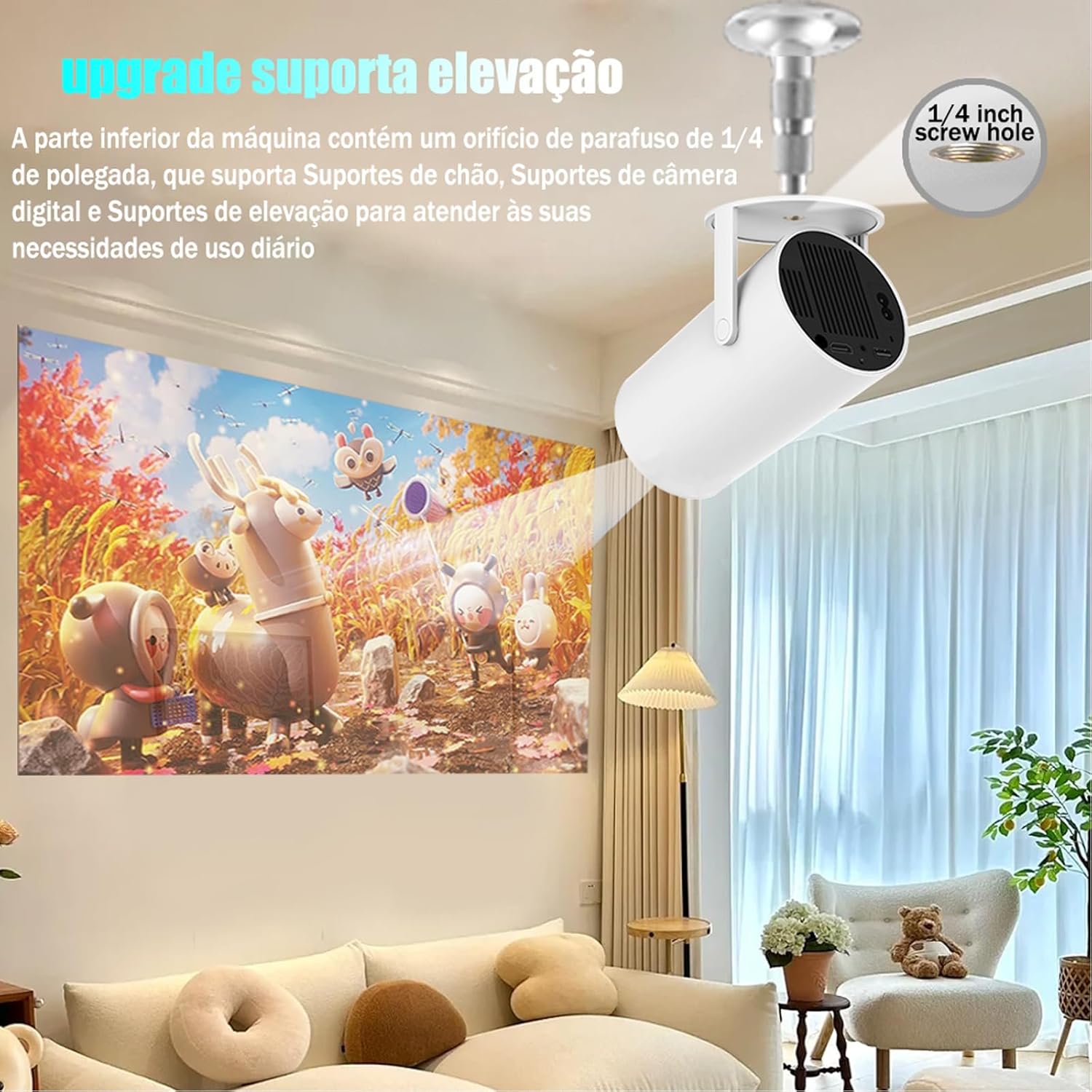
Image: The projector shown mounted to a ceiling, highlighting the 1/4-inch screw hole for various mounting solutions.
4. Fa'atonuga o Galuega
4.1 Galuega Pulea Mamao
Use the included remote control to navigate the projector's interface. Key functions include:
- Malosi / Pepe
- Navigation (Up, Down, Left, Right, OK)
- Back/Home buttons
- Pulea le Volume
- Fetuunaiga Taulai

Image: The DITONG HY300 Plus projector with its remote control, demonstrating the electronic focus feature.
4.2 Electronic Focus Adjustment
To adjust the image clarity:
- Point the remote control at the projector.
- Press the dedicated focus buttons (usually marked with a circle or 'F' icon) on the remote to sharpen the image.
4.3 Automatic Keystone Correction
The HY300 Plus features automatic keystone correction. When the projector is moved or angled, it will automatically adjust the image to maintain a rectangular shape. Manual adjustments are typically not required.
4.4 Feso'ota'i Meafaigaluega i fafo
- HDMI: Connect laptops, gaming consoles, or other HDMI-enabled devices using an HDMI cable.
- Screen Mirroring (WiFi): Connect your smartphone or tablet wirelessly via WiFi for screen mirroring. Ensure both devices are connected to the same WiFi network.
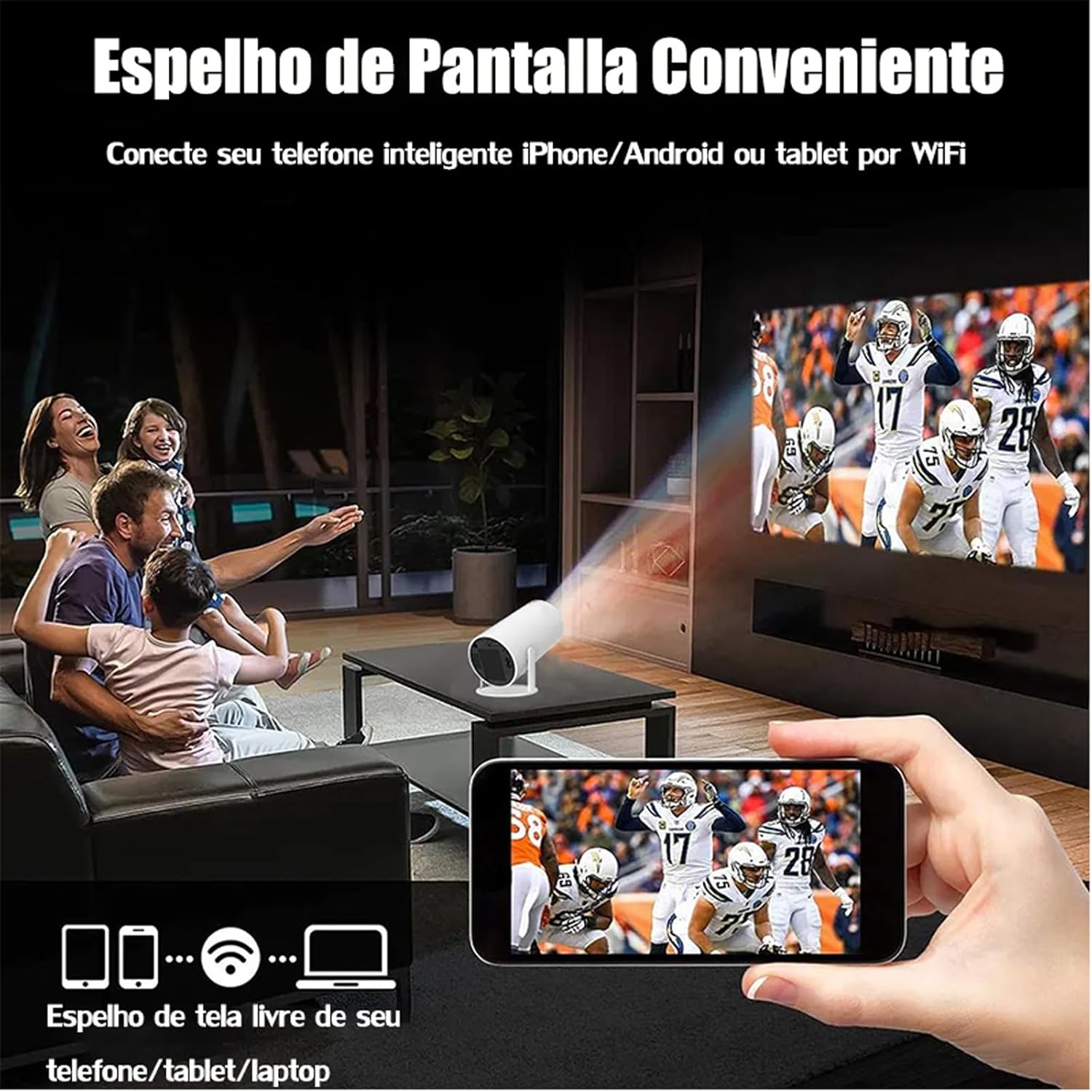
Image: A family watching a football game projected onto a screen, with a smartphone in the foreground demonstrating wireless screen mirroring.
4.5 Su'e le Android 11
The projector's smart interface allows you to download and use various applications. Use the remote control to navigate through menus, select apps, and adjust settings. Connect to your home WiFi network to access online content.
4.6 Fa'alogo leo
The projector has built-in speakers. For enhanced audio, you can connect external Bluetooth speakers or headphones via the Bluetooth interface.
5. Tausiga
O le tausiga lelei e mautinoa ai le umi o le ola ma le fa'atinoina lelei o lau masini ata.
- Fa'amama tioata: Gently wipe the projector lens with a soft, lint-free cloth or a lens cleaning brush. Avoid abrasive materials that could scratch the lens.
- Savili: Ensure the projector's ventilation ports are clear of dust and obstructions to prevent overheating. Do not block the air vents during operation.
- Teuina: When not in use, store the projector in a cool, dry place, away from direct sunlight and extreme temperatures. Use the protective cover if provided.
6. Faʻafitauli
If you encounter issues with your DITONG HY300 Plus projector, refer to the following common problems and solutions:
- Leai se Ata:
- Ensure the power adapter is securely connected and the projector is powered on.
- Check the input source. Make sure the correct HDMI or mirroring input is selected.
- Ata faanenefu:
- Use the remote control to adjust the electronic focus.
- Ia mautinoa e mafolafola le mea e fa'aali ai le ata ma ia mautu lelei le masini fa'aali ata.
- Leai se leo:
- Check the volume level on the projector and the connected device.
- If using external speakers, ensure they are properly connected via Bluetooth.
- Fa'afitauli Feso'ota'i WiFi:
- Ensure the projector is within range of your WiFi router.
- Toe amata le projector ma lau WiFi router.
- Ia fa'amautinoa ua sa'o le upu fa'alilolilo o le WiFi.
If the problem persists, please contact DITONG customer support for further assistance.
7. Fa'amatalaga
Below are the detailed specifications for the DITONG HY300 Plus HD Projector:
| Fa'aaliga | Fa'amatalaga |
|---|---|
| Fa'ailoga | DITONG |
| Fa'ata'ita'iga | HY300 PLUS |
| Faiga Fa'atonu | Android 11 |
| Feso'ota'iga uaealesi | Dual-band WiFi 6 (5G + 2.4G) |
| Bluetooth | Ioe |
| Fa'aaliga Tekonolosi | LCD |
| Malamalama | 8000 Lux (250 ANSI lumens) |
| I'ugafono a le Atunu'u | 1280 x 720P |
| I'uga Lagolago | E oʻo atu i le 4K |
| Ituaiga Fa'atatau | 16:9, 4:3, 16:10 |
| Fua Fa'afouina | 60 Hz |
| Taulai | Faaeletonika Taulai |
| Faasaʻoaʻo Maaʻauʻau | Otometi |
| Masini Fegalegaleai | Smartphones, devices with HDMI output |
| Ituaiga Feso'ota'i | Bluetooth, HDMI, Wifi |
| Fa'ailoga Fa'ailoga | feaveai |
| Ituaiga Fa'amau | Mauga Fa'alo |
| Oloa mamafa | 2.27 g |
| Voltage | 1.2E+2 Volts |
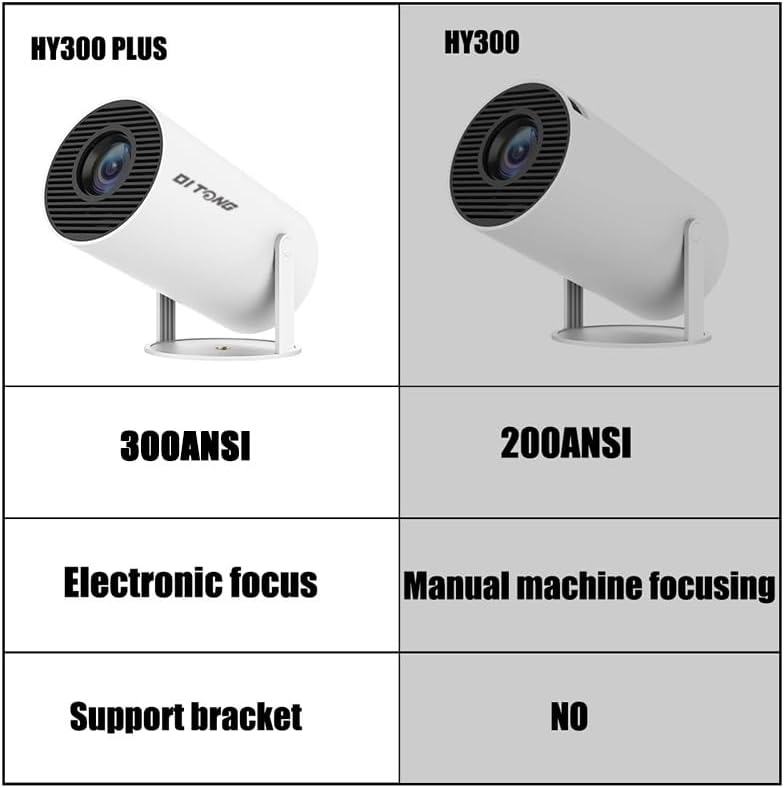
Image: A comparison table highlighting the differences between the HY300 Plus and the original HY300, showing the Plus model has 300 ANSI lumens, electronic focus, and a support bracket.
8. Fa'amaonia ma Lagolago
The DITONG HY300 Plus Projector comes with a manufacturer's warranty. Please refer to the product packaging or the official DITONG webnofoaga mo tuutuuga ma aiaiga ma'oti.
For technical support, troubleshooting assistance, or warranty claims, please contact DITONG customer service through the contact information provided with your purchase or on the official DITONG support channels.