
TIMNUT 36-pro
TIMNUT 4K 60 FPS Action Camera User Manual
Model: 36-pro
Brand: TIMNUT
Ua Umaview
The TIMNUT 36-pro Action Camera is designed for capturing high-quality video and photos in various environments, including underwater. It features 4K/60fps video recording, 24MP photo resolution, and a dual-screen design for versatile use. The camera comes with a waterproof case, a 64GB SD card, and multiple accessories to enhance your recording experience.
Pu'eina o Ata Maualuga

The camera supports native 4K video recording at 60 frames per second and captures still images at 24 megapixels, ensuring clear and detailed visuals for all your adventures.
Fuafuaga le Suavai

Equipped with a durable waterproof housing, the camera can be submerged up to 40 meters (131 feet), making it ideal for diving, snorkeling, and other water sports.
Fa'amautu Ata Fa'aeletonika (EIS)

The built-in Electronic Image Stabilization (EIS) technology helps to reduce blur and stabilize footage, providing smoother and more professional-looking videos even during dynamic activities.
Dual Touchscreens and SD Card

The camera features a 2-inch IPS touchscreen for easy navigation and playback, along with a front 1.4-inch screen for selfie composition. A 64GB MicroSD card is included for immediate use.
Fa'ateleina le ola o le ma'a
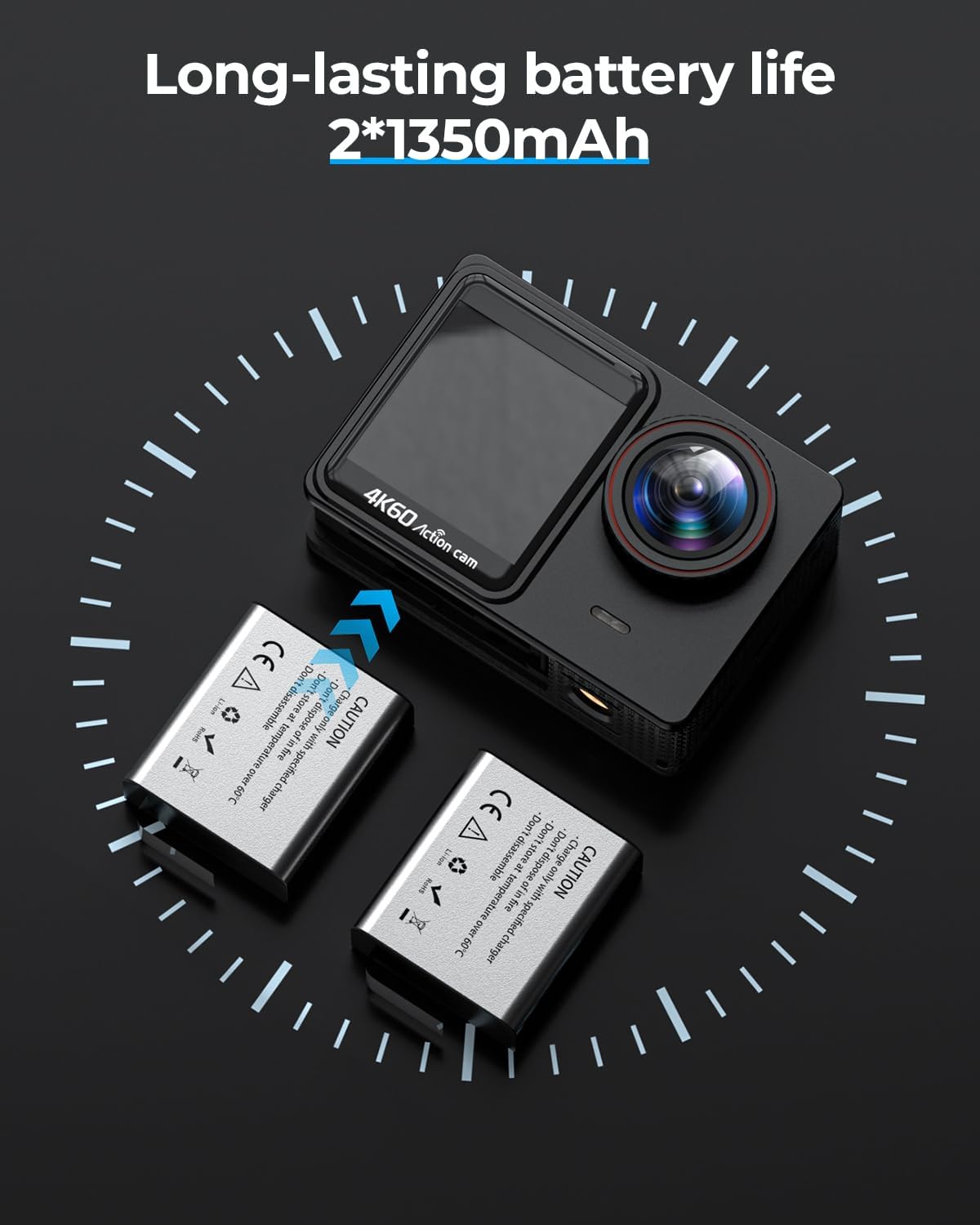
Two 1350mAh lithium-ion batteries are provided, offering extended recording time and ensuring you have enough power for prolonged use.
Seti Taiala
Totogiina o maa:
Insert the provided 1350mAh batteries into the dual battery charger. Connect the charger to a USB power source using the included USB cable. The indicator light will show charging status and turn off when fully charged. Ensure both batteries are fully charged before first use.
Fa'aofiina le MicroSD Card:
Locate the MicroSD card slot on the side of the camera. Gently insert the included 64GB MicroSD card with the gold contacts facing the front of the camera until it clicks into place. Ensure the card is properly seated to avoid data loss or recording issues. The camera supports up to 128GB MicroSD cards (U3 or higher recommended).
Attaching the Waterproof Case:
Open the latch on the waterproof case and carefully place the camera inside, ensuring it fits snugly. Close the latch securely to create a watertight seal. Before using underwater, always perform a dry test of the waterproof case without the camera inside to ensure no leaks are present.
Malosi/Pepe:
To power on, press and hold the Power/Mode button (usually on the front or top) for a few seconds until the screen illuminates. To power off, press and hold the same button until the screen turns off.
Fa'atonuga o Galuega
Pulea Autu:
- Faamau Mana / Faiga: Press to cycle through video, photo, playback, and settings modes. Long press to power on/off.
- Shutter/OK Button: Press to start/stop recording video or take a photo. In menu, acts as confirmation.
- Fa'amau i luga/I lalo: Navigate menu options or zoom in/out (if applicable).
- Pepa pa'i: Swipe and tap on the rear 2-inch IPS screen to access settings, change modes, and review footage.
Pu'eina Vitio:
- Ensure the camera is in Video Mode (indicated by a video camera icon on the screen).
- Press the Shutter/OK button to begin recording. A red dot or timer will appear on the screen.
- Press the Shutter/OK button again to stop recording.
- To change video resolution (e.g., 4K/60fps), access the settings menu via the touchscreen or mode button.
Pu'e Ata:
- Switch to Photo Mode using the Power/Mode button.
- Fa'avaa lau ata e fa'aaoga ai le lau.
- Oomi le faamau Shutter/OK e pu'e ai se ata.
- To change photo resolution (e.g., 24MP), access the settings menu.
Feso'ota'iga Wi-Fi:
- Enable Wi-Fi on the camera through the settings menu.
- Download the recommended camera app on your smartphone or tablet.
- Connect your device to the camera's Wi-Fi network (SSID and password displayed on camera screen).
- Use the app to control the camera, view ola footage, ma le fesiitaiga files.
Fa'aaogaina o le Pulea Mamao:
- Ensure the remote control is paired with the camera (refer to camera settings for pairing instructions).
- Press the video button on the remote to start/stop video recording.
- Press the photo button on the remote to take a picture.
- The remote allows for convenient control from a distance, especially when the camera is mounted on a helmet or inaccessible location.
Tausiga
Cleaning the Camera and Case:
After each use, especially in saltwater, rinse the waterproof case with fresh water and allow it to air dry. Use a soft, lint-free cloth to clean the camera lens and screens. Avoid using harsh chemicals or abrasive materials that could scratch surfaces.
Tausiga maa:
Store batteries in a cool, dry place when not in use. Do not expose batteries to extreme temperatures or direct sunlight. If storing for extended periods, charge batteries to about 50% capacity to prolong their lifespan.
SD Card Pulega:
Fa'asaoina pea lau fotage and photos to a computer or external storage. Format the MicroSD card periodically within the camera's settings to maintain optimal performance and prevent data corruption. Always power off the camera before inserting or removing the SD card.
Fa'afitauli
| Fa'afitauli | Mafuaaga e ono tupu | Fofo |
|---|---|---|
| E le ola le meapueata. | Ua uma le ma'a pe le'o fa'aofi sa'o. | Ensure batteries are fully charged and correctly inserted. Try a different charged battery. |
| Le mafai ona pu'e ata/pu'e ata. | SD card is full, corrupted, or not inserted. | Check SD card status. Format the SD card (backup data first). Replace with a new SD card if necessary. |
| Le lelei ata vitio/ata. | Lens is dirty, low light conditions, incorrect settings. | Clean the lens. Ensure adequate lighting. Adjust resolution settings to 4K/24MP. Enable EIS for smoother video. |
| Fa'afitauli feso'ota'iga Wi-Fi. | Incorrect password, camera Wi-Fi off, app issues. | Verify Wi-Fi password. Ensure camera Wi-Fi is enabled. Restart camera and smartphone. Reinstall the camera app. |
| Water leakage in waterproof case. | Case not properly sealed, O-ring damaged or dirty. | Ensure the latch is fully closed. Check the O-ring for dirt, hair, or damage; clean or replace if necessary. Always perform a dry test before submerging. |
For further assistance, please refer to the official TIMNUT support channels.
Fa'amatalaga
| Fa'aaliga | Fa'amatalaga |
|---|---|
| Fa'ailoga | TIMNUT |
| Fa'ata'ita'iga | 36-pro |
| I'uga Vitio | 4K (60 FPS) |
| I'uga o Ata | 24 Megapixels |
| Fa'asa'o mata | 8x Fa'atele |
| Faʻamatalaga Faʻamatalaga | 8x Fa'atele |
| Tele lau | 2 inches (rear IPS touchscreen), 1.4 inches (front screen) |
| Fa'amautu Ata | Fa'amautu Ata Fa'aeletonika (EIS) |
| Lele ose Suavai | Up to 40 meters (131 feet) with waterproof case |
| Feso'ota'i | Wi-Fi |
| Lagolago Teuina | Micro SD (e aofia ai le kata 64GB) |
| Ituaiga maa | Lithium-ion (2 x 1350 mAh included) |
| Vaaiga (Oloa) | 0.98 x 2.3 x 1.57 cm; 500 grams (approx.) |
| Fa'aaofia Vaega | 1x 64G SD card, 2x batteries, 1x charger, 1x waterproof housing, various mounts and chains, 1x remote control. |
Fa'amaonia ma Lagolago
This product is subject to the standard return and replacement policies of the retailer. While specific warranty details are not provided in this manual, consumers typically have a period for returns or replacements in case of manufacturing defects.
For technical support, troubleshooting beyond this manual, or inquiries regarding warranty claims, please contact the seller or manufacturer directly through their official support channels. Refer to your purchase documentation for contact information.
Note: No seller-created videos were found in the provided product data that meet the criteria for inclusion in this manual.