
MECOOL KM9 PRO
MECOOL KM9 Pro Classic Android TV Box User Manual
Model: KM9 PRO
1. Folasaga
Welcome to the user manual for your MECOOL KM9 Pro Classic Android TV Box. This guide provides essential information on setting up, operating, maintaining, and troubleshooting your device. Please read this manual thoroughly before using the product to ensure optimal performance and safety.
2. Mea i totonu o le afifi
Fa'amautinoa o mea uma o lo'o lisi atu i lalo o lo'o aofia i lau afifi. Afai o iai ni mea e misi pe fa'aleagaina, fa'amolemole fa'afeso'ota'i lau fa'atau oloa.
- 1 x MECOOL KM9 Pro Classic ATV TV Box
- 1 x Power Adapter (EU version, 110V-240V universal)
- 1 x Voice Remote Control (2 AAA batteries not included)
- 1 x HDMI Uaea
- 1 x Tusi Fa'aoga

Image: Contents of the MECOOL KM9 Pro Classic package, showing the TV box, voice remote, power adapter, HDMI cable, and user manual.
3. Oloa Ua Ovaview
3.1 Taulaga masini
Familiarize yourself with the various ports on your KM9 Pro Classic TV Box for proper connection.

Ata: Tua ma le itu view of the MECOOL KM9 Pro Classic TV Box, highlighting its ports including TF Card slot, USB 3.0, USB 2.0, DC 5V power input, HDTV (HDMI), LAN (RJ45), and AV output.
- TF Card Card: For inserting a MicroSD card to expand storage.
- USB 3.0 Taulaga: For high-speed data transfer with compatible USB devices.
- USB 2.0 Taulaga: For connecting USB peripherals like keyboards, mice, or flash drives.
- DC 5V Taulaga: Fa'aofiina o le eletise mo le masini.
- HDTV (HDMI) Port: Connects to your television for video and audio output.
- Uafu LAN (RJ45): Mo le feso'ota'iga feso'ota'iga Ethernet uaea.
- Uafu AV: For connecting to older televisions using an AV cable.
3.2 Vaega Autu
- Fa'atonuga: Certified Android 10.0 TV OS.
- Fa'agaioiga: Amlogic S905X2 64-bit Quad-core ARM Cortex-A53 CPU and Mali-G31 MP2 GPU for high performance.
- Manatua: 2GB RAM and 16GB ROM for smooth operation and ample teuina.
- Feso'ota'i: Built-in Dual-band 2.4G/5G WiFi (802.11ac) and Bluetooth 4.0+HS.
- Ata Vitio: Supports 4K Ultra HD (4K*2K@30fps, 4K*2K@60fps) with HDR 10, HDR+/HLG, and HDCP 2.2.
- Pulea leo: Integrated Google Assistant and voice-activated Bluetooth remote control.
- Chromecast ua fausia i totonu: Easily cast content from your mobile devices to your TV.
- OTA Fa'afouga: Supports Over-The-Air software updates for continuous improvement.

Ata: O se ata fa'aaliacasing the high-performance Amlogic S905X2 Quad-core CPU and Mali-G31 MP2 GPU, which power the device for smooth operation and gaming.

Image: A television screen demonstrating the visual difference between Standard Dynamic Range (SDR) and 4K HDR (High Dynamic Range) content, highlighting enhanced color and contrast.

Image: A graph illustrating the speed advantage of USB 3.0 over USB 2.0, showing USB 3.0 offers up to 10 times faster transfer rates. Below the graph are illustrations of a USB flash drive and an external HDD, indicating their compatibility.
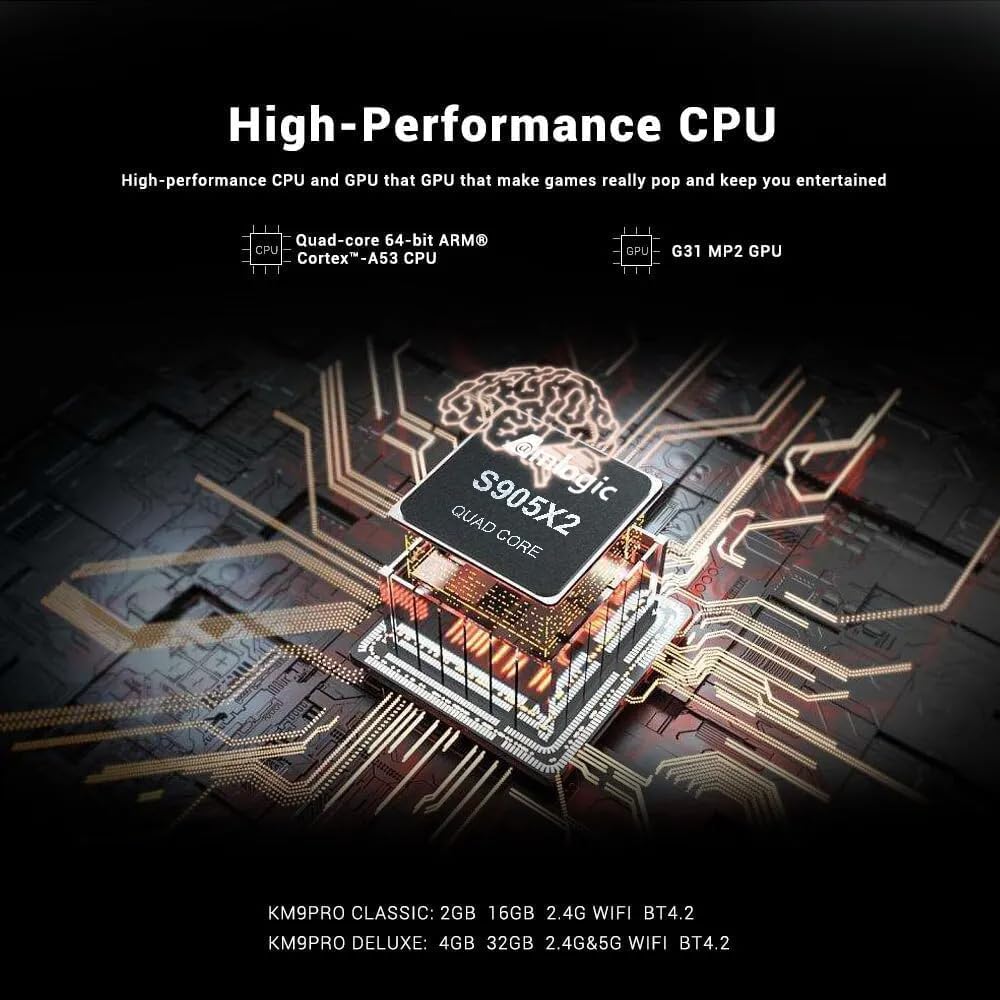
Image: A visual representation of Chromecast functionality, where a smartphone is wirelessly casting content to a television screen through the MECOOL TV box, displaying the Google Play Store interface.
4. Seti Taiala
Follow these steps to set up your MECOOL KM9 Pro Classic Android TV Box.
- Feso'ota'i ile TV: Connect one end of the HDMI cable to the HDTV port on the TV Box and the other end to an HDMI input port on your television. Note the HDMI input number (e.g., HDMI 1, HDMI 2).
- Fesoʻotaʻi le Mana: Plug the power adapter into the DC 5V port on the TV Box, then plug the adapter into a wall outlet. The device should power on automatically or show a power indicator light.
- Filifili mea e fai: Turn on your television and use its remote control to select the corresponding HDMI input source you connected in step 1.
- Seti Pulea Mamao: Insert 2 AAA batteries (not included) into the voice remote control. Follow the on-screen instructions to pair the Bluetooth remote with your TV Box. This usually involves holding down specific buttons on the remote near the device.
- Feso'ota'iga feso'ota'iga: Once the initial setup screen appears, follow the prompts to connect to your network. You can choose between Wi-Fi (select your network and enter the password) or Ethernet (connect an Ethernet cable from your router to the LAN port on the TV Box).
- Google Account Login: Sign in with your Google account to access the Google Play Store, Google Assistant, and other Google services.
- Fa'ato'a Fa'atonu: Follow any remaining on-screen instructions to complete the initial setup process.
5. Fa'atonuga o Galuega
5.1 Fa'asagaga Autu
Use the directional pad (up, down, left, right) and the 'OK' button on your remote control to navigate through the Android TV interface. The 'Back' button returns to the previous screen, and the 'Home' button takes you to the main home screen.
5.2 Using the Voice Remote
The MECOOL KM9 Pro Classic features a voice-activated Bluetooth remote. Press the dedicated Google Assistant button on your remote and speak clearly into the microphone to:
- Saili mo ata tifaga, polokalame televise, po'o polokalama fa'akomepiuta.
- Control smart home devices (e.g., "Turn off the lights").
- Ask questions or get information.
- Tatala talosaga.
5.3 Fa'apipi'i o Talosaga
Access the Google Play Store from the home screen to browse and install a wide variety of apps, games, and streaming services compatible with Android TV.
5.4 Chromecast Galuega
With Chromecast built-in, you can cast content (videos, photos, music) from compatible apps on your smartphone, tablet, or computer directly to your TV via the TV Box. Ensure your mobile device and the TV Box are connected to the same Wi-Fi network.
5.5 External Storage
Connect USB flash drives or external hard drives to the USB 2.0 or USB 3.0 ports, or insert a TF card into the TF card slot, to access media files or expand storage for apps and games.
6. Tausiga
- Fa'amamaina: Faaaoga se ie vaivai ma mago e faamama ai le masini. Aua le faaaogaina ni vai faamama po o ni mea e olo ai.
- Savili: Ensure the TV Box is placed in a well-ventilated area to prevent overheating. Do not cover ventilation openings.
- Fa'afouga polokalame: The device supports OTA (Over-The-Air) updates. Regularly check for and install available system updates to ensure optimal performance, security, and access to new features. You can usually find this option in the device settings under "About" or "System Update."
- Ta'amilosaga Malosi: If the device becomes unresponsive, disconnect the power adapter, wait 10 seconds, and then reconnect it to perform a power cycle.
7. Faʻafitauli
If you encounter issues with your MECOOL KM9 Pro Classic, refer to the following common problems and solutions:
| Fa'afitauli | Mafuaaga e ono tupu | Fofo |
|---|---|---|
| Leai se mana | E le'o feso'ota'i pe faaletonu. | Ensure the power adapter is securely connected to the device and a working power outlet. Try a different outlet. |
| No signal on TV | Incorrect HDMI input selected or loose HDMI cable. | Verify your TV is on the correct HDMI input. Check that the HDMI cable is securely connected to both the TV Box and the TV. Try a different HDMI cable or port. |
| E le o galue le pule mamao | Batteries are dead or remote is not paired. | Replace batteries. Re-pair the Bluetooth remote control by following the on-screen instructions during initial setup or in the device settings. |
| Fa'afitauli feso'ota'iga Wi-Fi | Upu faataga sese, vaivai le faailoilo, po'o le fa'afitauli i le router. | Double-check your Wi-Fi password. Move the TV Box closer to your router or try connecting via Ethernet. Restart your router. |
| E gesegese pe faaletonu polokalama | Too many apps running, low storage, or outdated software. | Close background apps. Clear cache for problematic apps (Settings > Apps). Check for and install system updates. Free up storage space. |
8. Fa'amatalaga
Detailed technical specifications for the MECOOL KM9 Pro Classic Android TV Box:
| Fa'aaliga | Fa'amatalaga |
|---|---|
| Fa'ailoga | MECOOL |
| Igoa Fa'ata'ita'iga | KM9 Pro |
| Numera Fa'ata'ita'i | KM9 PRO |
| Faiga Fa'atonu | Android 10.0 (Certified Android TV OS) |
| PPU | Amlogic S905X2 64-bit Quad-core ARM Cortex-A53 up to 2.0 GHz |
| GPU | Mali-G31 MP2 (Penta-core up to 750MHz + DVFS) |
| RAM | 2GB DDR3 |
| ROM | 16GB eMMC |
| Wi-Fi | Built-in 2.4G/5G Wi-Fi, supports IEEE 802.11 a/b/g/n/ac 2T2R |
| Bluetooth | Bluetooth 4.0+HS |
| LAN | 10/100M Ethernet |
| Ata Vitio | 4K*2K@30fps, 4K*2K@60fps, HDR 10, HDR+/HLG, HDCP 2.2 |
| Taulaga | 1x USB 3.0, 1x USB 2.0, 1x TF Card Slot, 1x HDMI, 1x DC 5V, 1x LAN (RJ45), 1x AV |
| Paoa sapalai | DC 5V/2A |
| Au'aunaga Initaneti Lagolago | YouTube, Amazon Prime Video, Disney+, HBO Max, Sling, Peacock, Stars, ESPN, Tubi, Google Play Store, etc. |
| Masini Fegalegaleai | Televise |
| Fa'apitoa Fa'apitoa | Chromecast Built-in, Voice Control, OTA Update Support |
9. Fa'amaonia ma Lagolago
9.1 Fa'amatalaga Fa'amaonia
The MECOOL KM9 Pro Classic Android TV Box comes with a tasi le tausaga fa'amaonia from the date of purchase. This warranty covers manufacturing defects under normal use. It does not cover damage caused by misuse, accidents, unauthorized modifications, or natural disasters.
9.2 Fesoasoani mo Tagata Fa'atau
For technical assistance, troubleshooting beyond this manual, or warranty claims, please contact your original retailer or the MECOOL customer support team. Please have your purchase receipt and product model number (KM9 PRO) ready when contacting support.
Ask a question about this manual
Ask about setup, troubleshooting, compatibility, parts, safety, or missing instructions. Manuals+ will review the question and use this page’s manual context to help answer it.