
Folasaga
Welcome to the user manual for your Keychron Q3 Max Wireless Custom Mechanical Keyboard. This guide provides comprehensive instructions for setting up, operating, maintaining, and troubleshooting your new keyboard. The Keychron Q3 Max combines advanced wireless connectivity with a robust full aluminum body and customizable features, designed for enhanced productivity and gaming.

Image: The Keychron Q3 Max keyboard, showcasing its TKL layout and keycap design, alongside a Gateron Jupiter Banana switch.
O a mea i totonu o le Pusa
Faamolemole ia mautinoa o mea uma nei o loʻo aofia i lau afifi:
- 1x Fully Assembled Keyboard (Keychron Q3 Max)
- 1x USB Type-C i Type-C Uaea
- 1x Ituaiga-A i le Ituaiga-C Fetuunai
- 1x Extension Adapter for 2.4 GHz Receiver
- 1x Ituaiga-A 2.4 GHz Receiver
- 1x Keycap & Suiga Puller
- 1x Screwdriver & Hex Key
- Additional Keycaps (for Windows layout)
- Internal components: IXPE Foam, PET Film, Latex Bottom Pad, Bottom Case Acoustic Foam, Bottom Case PET Film, Gaskets, Stabilizers, Switches.
Seti
So'oga Muamua
The Keychron Q3 Max supports three connectivity modes: 2.4 GHz Wireless, Bluetooth 5.1, and Wired (USB-C).

Image: A close-up of the side of the Keychron Q3 Max, highlighting the physical switches for operating system layout (Win/Mac) and connection mode (G/Cable/BT).
Wired Mode (USB-C)
- Connect the provided USB Type-C cable to the keyboard's Type-C port and the other end to your computer.
- Ensure the mode switch on the back of the keyboard is set to "Cable".
- O le a otometi lava ona iloa le piano (keyboard) e lau operating system.
2.4 GHz Auala uaealesi
- Plug the 2.4 GHz receiver into an available USB-A port on your computer. For optimal signal, use the included extension adapter.
- Set the mode switch on the back of the keyboard to "G" (2.4 GHz).
- The keyboard should automatically connect. This mode offers a rapid 1000 Hz polling rate for responsive use.

Image: The Keychron Q3 Max keyboard positioned between a desktop and a laptop, demonstrating its wireless connectivity options.
Faiga Bluetooth
- Set the mode switch on the back of the keyboard to "BT" (Bluetooth).
- I lau komepiuta po'o lau masini, fa'agaoioia le Bluetooth ma saili mo ni masini fou.
- Select "Keychron Q3 Max" from the list of available devices to pair.
- The keyboard can connect to up to 3 devices via Bluetooth 5.1. Switch between paired devices using Fn + 1, Fn + 2, or Fn + 3.
Operating System Layout Switch
The Keychron Q3 Max includes a physical switch to toggle between macOS and Windows/Linux layouts. This ensures proper key mapping for your operating system.
- Locate the "Win/Mac" switch on the back of the keyboard.
- Slide the switch to the appropriate position for your operating system.
- For Windows users, replacement keycaps for the Windows and Alt keys are provided in the box.
Fa'agaoioi le Keyboard
Key Remapping and Macros (QMK/VIA)
The Keychron Q3 Max is fully compatible with QMK/VIA firmware, allowing for extensive customization of key functions and macros.
- To remap keys or create macros, connect the keyboard via USB-C cable.
- Access the Keychron Launcher web app (recommended) or open-source QMK firmware tools.
- Drag and drop functions to remap any key across macOS, Windows, or Linux.

Image: The Keychron Launcher web application interface, demonstrating how users can remap keys and assign macro commands.
RGB Toe Moliina
The keyboard features south-facing RGB backlighting with multiple effects and brightness levels.
- Use the dedicated function keys (e.g., Fn + Lightbulb icon) to cycle through lighting effects.
- Adjust brightness using Fn + Up/Down arrow keys.
- Further customization of RGB effects is available through the QMK/VIA software.
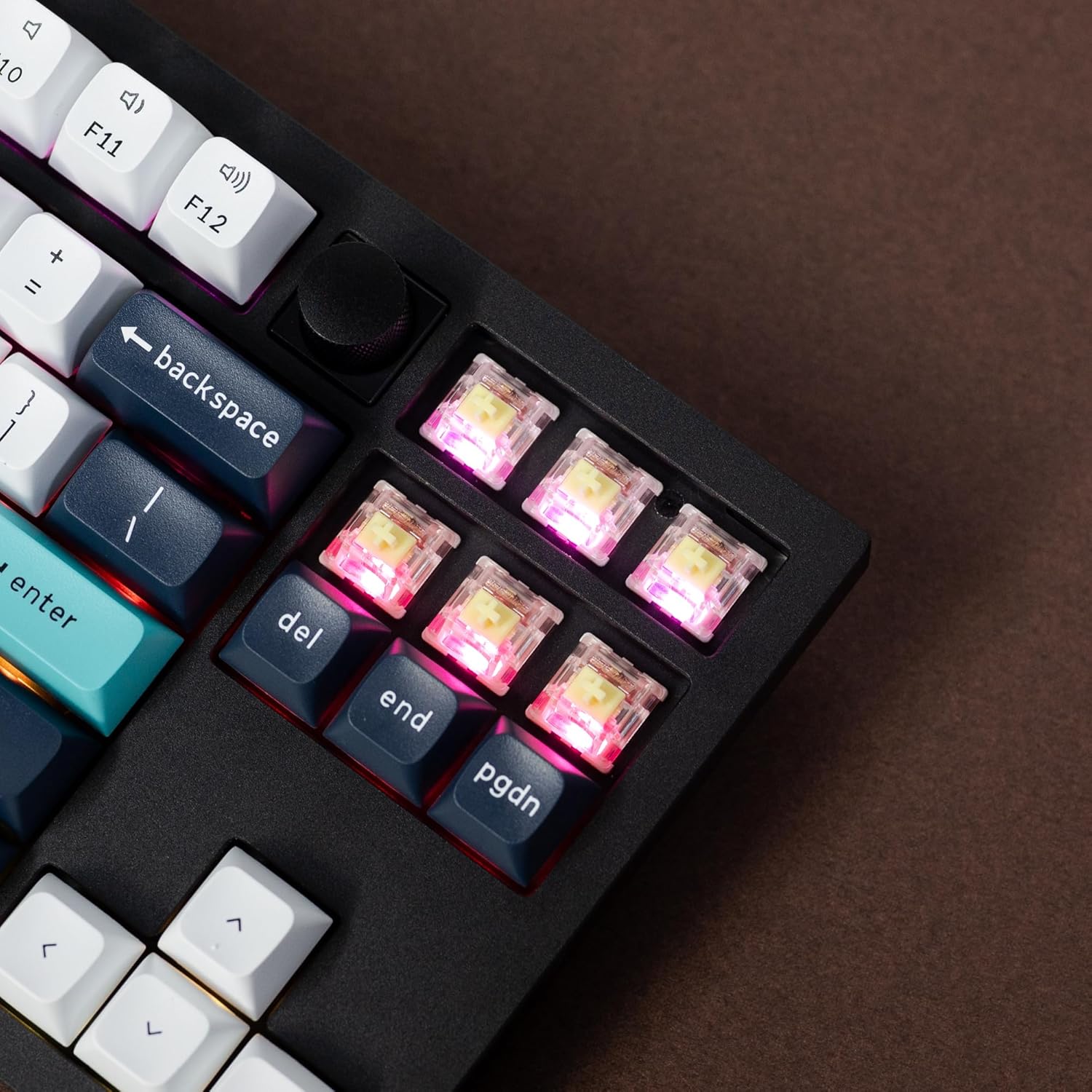
Ata: O se auiliiliga view of the keyboard's hot-swappable switches, illuminated by the RGB backlighting.
Programmable Knob
The rotary knob on the top right of the keyboard is programmable via QMK/VIA. By default, it controls volume and mute functions.

Image: A close-up shot of the textured, programmable rotary knob located on the top right of the keyboard.
Suiga vevela-swappable
The Keychron Q3 Max features hot-swappable sockets, allowing you to change switches without soldering. It supports almost all 3-pin and 5-pin MX mechanical switches.

Ata: O se auiliiliga view of the Gateron Jupiter Banana switches installed in the keyboard, with their operating force, pre-travel, and travel distance specifications.

Image: A single Gateron Jupiter Banana switch, highlighting its design.
- To remove a switch, use the provided switch puller. Gently grip the switch from the top and bottom and pull upwards.
- To install a new switch, align the pins with the holes on the PCB and press down firmly until it clicks into place. Ensure pins are straight before insertion to avoid bending.
Tausiga
Fa'amamaina
- Regularly clean keycaps with a soft, damp ie.
- For deeper cleaning, remove keycaps using the keycap puller and use compressed air to clear debris from beneath.
Switch and Keycap Replacement
The hot-swappable design allows for easy replacement of switches and keycaps. Refer to the "Hot-swappable Switches" section for detailed instructions on switch replacement.
- Use the keycap puller to remove keycaps by gently pulling upwards.
- Press new keycaps firmly onto the switch stem until secure.
Tausiga maa
The keyboard is equipped with a 4000 mAh rechargeable Li-polymer battery.
- Charge the keyboard using the provided USB-C cable connected to a computer or a standard USB power adapter.
- Aloese mai le sasaa atoa o le maa e faaumiumi ai lona ola.
- Teu le piano i se nofoaga malulu ma mago pe a le faʻaaogaina mo se taimi umi.

Image: An illustration indicating the 4000mAh battery capacity of the Keychron Q3 Max keyboard.
Fa'afitauli
| Fa'afitauli | Fofo |
|---|---|
| Keyboard not responding in wireless mode. | Ensure the mode switch is set correctly (G for 2.4 GHz, BT for Bluetooth). Check battery level. Re-pair Bluetooth or re-insert 2.4 GHz receiver. Try wired mode to confirm keyboard functionality. |
| Keys are not mapping correctly (e.g., Alt/Command). | Verify the Win/Mac switch on the back of the keyboard is set to your operating system. Use the Keychron Launcher web app to remap keys if custom layouts are desired. |
| RGB backlighting is not working or dim. | Check brightness settings (Fn + Up/Down arrow). Ensure the keyboard is charged. Some lighting effects may consume more power. |
| Typing latency in wireless mode. | For critical applications like gaming, use 2.4 GHz wireless mode (1000 Hz polling rate) or wired mode. Ensure no significant wireless interference. |
| Switch feels loose or not registering. | Carefully remove the keycap and then the switch. Check if the switch pins are bent. Straighten them if necessary and re-insert the switch firmly. |
Fa'amatalaga
| Fa'aaliga | Fa'amatalaga |
|---|---|
| Fa'ata'ita'iga | Keychron Q3 Max TKL Wireless |
| Fa'atulagaina | 80% TKL (E leai ni Tenkey) |
| Mea Tino | Full CNC Machined 6063 Aluminum |
| Feso'ota'i | 2.4 GHz Uaealesi, Bluetooth 5.1, USB-C uaea |
| Fua Faatatau o Palota | 1000 Hz (2.4 GHz & Wired), 90 Hz (Bluetooth) |
| Suiga | Hot-swappable Gateron Jupiter Banana (compatible with 3-pin & 5-pin MX mechanical switches) |
| Laupepa ki | KSA Double-shot PBT |
| Molī tua | South-facing RGB |
| Ma'a | 4000 mAh Rechargeable Li-polymer Battery |
| Ola ma'a | Up to 100 hours (lowest brightness) |
| MCU | ARM Cortex-M4 32-bit STM32F402 (256KB Flash) |
| Fua | 14.37 x 5.39 x 1.57 inches (365 x 137 x 40 mm) approx. |
| mamafa | 5.52 pounds (2.5 kg) approx. |
| OS talafeagai | macOS, Windows, Linux |
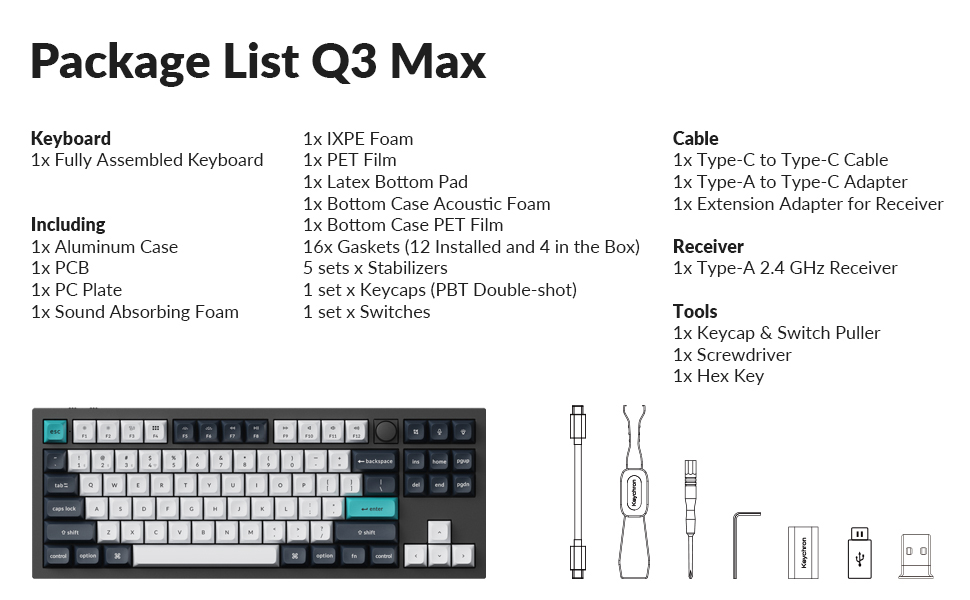
Image: A visual representation of the Keychron Q3 Max specifications, including dimensions, weight, and technical details.
Fa'amaonia ma Lagolago
For warranty information and technical support, please refer to the official Keychron website or contact Keychron customer service directly. Keep your purchase receipt as proof of purchase for warranty claims.
Official Keychron Webnofoaga: www.keychron.com