
1. Folasaga
The BuzzTV B5 is an advanced Android 11 TV Box designed to deliver a superior 4K UHD streaming experience. This device allows you to access a wide range of entertainment, including movies, TV shows, and applications, directly on your television. This manual provides essential information for the proper setup, operation, maintenance, and troubleshooting of your BuzzTV B5.
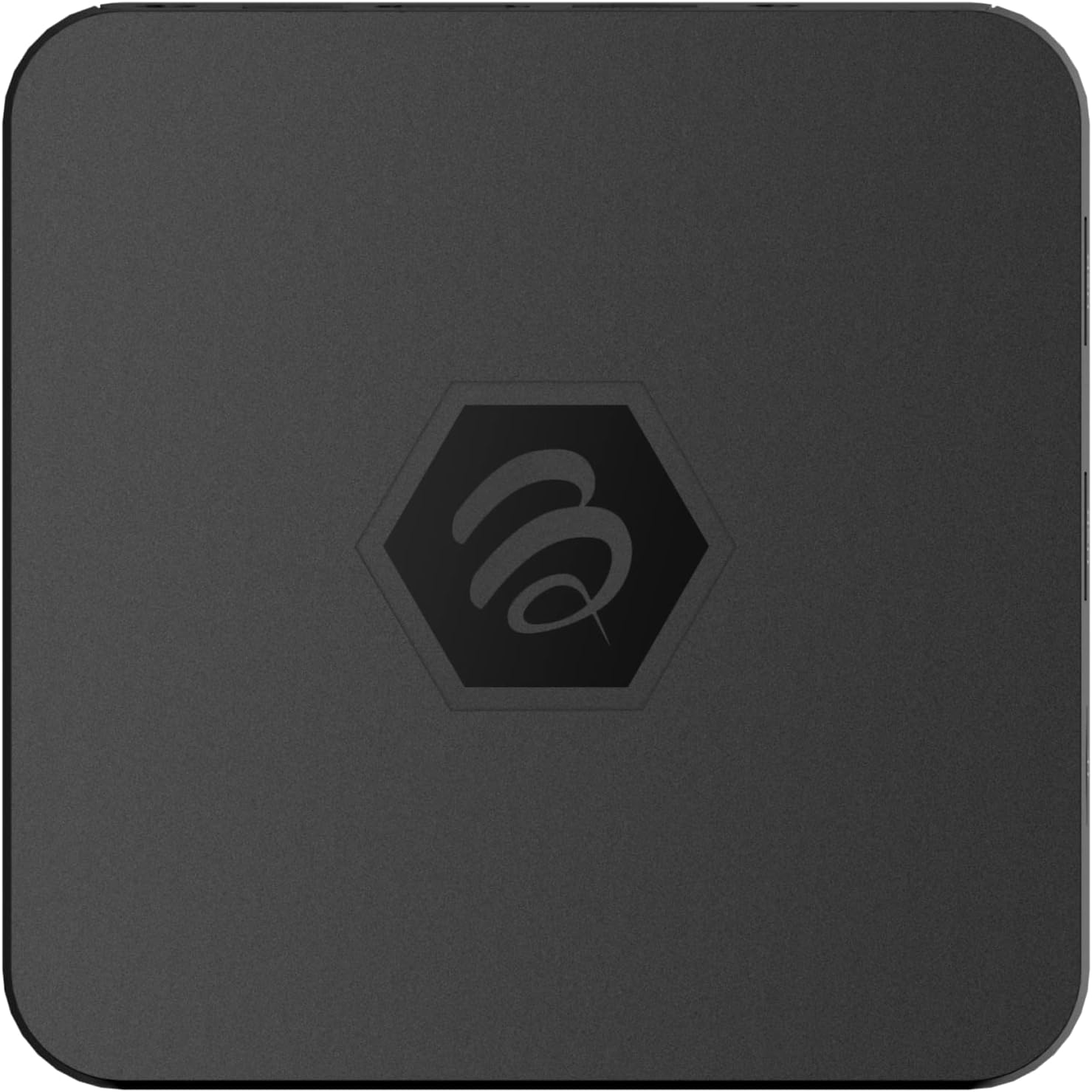
Ata 1.1: Luga view of the BuzzTV B5 Android 11 TV Box.
2. Mea i totonu o le afifi
Please verify that all items listed below are included in your BuzzTV B5 package:
- BuzzTV B5 Set Top Box
- IR-100 Remote Control
- Fetuunai Tulaga Malosiaga
- 2x AAA Batteries (for remote control)
- Uaea HDMI
- Tusi Lesona a le Tagata (lenei pepa)

Image 2.1: Contents included in the BuzzTV B5 retail package.
3. Seti Taiala
Follow these steps to set up your BuzzTV B5 TV Box:
- Feso'ota'i ile TV: Connect one end of the provided HDMI cable to the HDMI port on the BuzzTV B5 and the other end to an available HDMI input on your television.
- Fesoʻotaʻi le Mana: Plug the power supply adapter into the DC 5V port on the BuzzTV B5, then plug the adapter into a wall outlet. The device should power on automatically or can be powered on using the remote control.
- Fa'aofi maa i totonu o le mea e pulea ai: Open the battery compartment on the back of the IR-100 Remote Control and insert the two AAA batteries, ensuring correct polarity (+/-).
- Feso'ota'iga feso'ota'iga: Once the device boots up, follow the on-screen instructions to connect to your network. You can choose between Wi-Fi (wireless) or Ethernet (wired) connection. For a wired connection, connect an Ethernet cable from your router to the Ethernet port on the BuzzTV B5.
- Seti Muamua: Complete the initial Android setup process, which may include language selection, Google account login, and time zone settings.

Image 3.1: Rear ports of the BuzzTV B5 for connectivity.
4. Fa'atonuga o Galuega
The BuzzTV B5 operates on Android 11, providing a user-friendly interface for navigation and content access.
4.1 Galuega Pulea Mamao
The IR-100 Remote Control is your primary interface for the BuzzTV B5. Key functions include:
- Ki Malosi: Ki'i pe tape le masini.
- Fa'atautaiga Papa (Lulu/Ilalo/Agavale/Taumatau/Ua lelei): Fa'aaoga e fa'atautaia ai menus ma filifili aitema.
- Ki tua: Toe fo'i i le lau muamua po'o le lisi.
- Ki Fale: Returns to the main Android home screen.
- Volume Buttons: Fetuuna'i le leo leo.
- App/Menu Buttons: Accesses specific applications or context menus.

Image 4.1: Layout of the IR-100 Remote Control.
4.2 Avanoa i Talosaga
From the home screen, you can access pre-installed applications like Netflix and YouTube, or download new applications from the Google Play Store. Use the navigation pad on your remote to select and launch applications.
4.3 4K UHD Streaming
The BuzzTV B5 supports 4K UHD resolution. Ensure your television is 4K compatible and that you are using a high-speed HDMI cable for optimal picture quality. Streaming quality will also depend on your internet connection speed and the content source.
5. Tausiga
To ensure the longevity and optimal performance of your BuzzTV B5, consider the following maintenance tips:
- Fa'amamaina: Faaaoga se ie vaivai ma mago e faamama ai le pito i fafo o le masini. Aloese mai vailaau faamama po o mea e olo ai.
- Savili: Ia mautinoa ua tu'u le masini i se nofoaga e lelei le ea e puipuia ai le vevela tele. Aua le ufiufi avanoa e fa'aoso ai le ea.
- Fa'afouga polokalame: Periodically check for and install system updates to benefit from new features, performance improvements, and security patches. These can usually be found in the device's settings menu.
- Ta'amilosaga Malosi: If the device becomes unresponsive, disconnect the power adapter, wait 10 seconds, and then reconnect it to perform a power cycle.
6. Faʻafitauli
If you encounter issues with your BuzzTV B5, refer to the following common problems and solutions:
| Fa'afitauli | Mafuaaga e ono tupu | Fofo |
|---|---|---|
| Leai se Malosi | E le'i feso'ota'i le adapter eletise; e le'i galue le outlet. | Ia mautinoa ua feso'ota'i lelei le mea fa'apipi'i eletise i le masini ma se paipa eletise o lo'o galue. Taumafai i se isi paipa eletise. |
| Leai se Faailoilo i le TV | Incorrect HDMI input selected; faulty HDMI cable. | Select the correct HDMI input on your TV. Check HDMI cable connections or try a different HDMI cable. |
| Pulea Mamao Le Tali | Maa mate; mamao e le fetaui (pe a talafeagai); fa'alavelave. | Replace AAA batteries. Ensure no obstructions between remote and device. |
| Fa'afitauli Feso'ota'iga | Incorrect Wi-Fi password; router issues; weak signal. | Verify Wi-Fi password. Restart your router. Move the device closer to the router or use an Ethernet cable. |
| Applications Crashing/Freezing | Insufficient memory; outdated app; software glitch. | Close background apps. Update the app or the device's firmware. Clear app cache/data in settings. |
7. Fa'amatalaga
Detailed technical specifications for the BuzzTV B5 Android 11 TV Box:
- Fa'atonuga: Android OS 11
- PPU: Amlogic S905W2 Quad-Core A-35
- GPU: Mali-G31 MP2
- RAM: 2GB DDR
- Teuina: 16GB eMMC
- Wi-Fi: Dual Band AC
- LAN: 10/100 Mbps Ethernet
- Bluetooth: 4.2
- Taulaga USB: 2x USB 2.0
- MicroSD Slot: 1
- Malosiaga Fesootaiga: DC 5V
- HDMI Output: 1
- Fa'alogo leo mata'utia: 1
- I'uga o Galuega: 4K (32 FPS)
- itu: 9.06 x 5.63 x 2.32 inisi
- Mea mamafa: 1.01 pauna

Image 7.1: BuzzTV B5 with a summary of its technical specifications.
8. Fa'amatalaga Fa'amaonia
For detailed warranty information regarding your BuzzTV B5, please refer to the warranty card included in your product packaging or visit the official BuzzTV webnofoaga. O tuutuuga ma aiaiga fa'amaonia e ono fesuisuia'i ile itulagi ma le fa'atau.
9. Lagolago
If you require further assistance or have questions not covered in this manual, please contact BuzzTV customer support or visit their official website for FAQs, software downloads, and additional resources.
BuzzTV Official Webnofoaga: www.buzztv.com