
Fuegobird B0B3J2Z5GD
Fuegobird Galaxy Night Light Projector Instruction Manual
Model: B0B3J2Z5GD | Brand: Fuegobird
Folasaga
This manual provides detailed instructions for the setup, operation, maintenance, and troubleshooting of your Fuegobird Galaxy Night Light Projector. Please read this manual thoroughly before using the product to ensure proper function and longevity.

Image: The Fuegobird Galaxy Night Light Projector, a compact white device, projects a vibrant display of aurora and stars onto a surface, creating an immersive visual experience.
O mea o lo'o i totonu
Fa'amautinoa o lo'o iai mea uma i totonu o le afifi:
- Fuegobird Galaxy Night Light Projector Unit
- Pulea Mamao
- Uaea Eletise USB
- Tusi Lesona a le Tagata (lenei pepa)
Seti
1. So'oga Malosi
- Connect the provided USB power cable to the projector's power input port.
- Fa'apipi'i le isi pito o le uaea USB i totonu o se mea fa'apipi'i eletise USB e fetaui ma le masini (e le o aofia ai) po'o se uafu USB i se komepiuta.
- Ia mautinoa o loʻo lava le voltage e maua mai i le puna o le eletisetage (e.g., 5V/2A).
2. Fa'apipi'i Ma'a Pulea Mamao
The remote control requires batteries (not included). Open the battery compartment on the back of the remote and insert two AAA batteries, observing the correct polarity.
3. Tulaga Muamua
Place the projector on a stable, flat surface. For optimal projection coverage, consider utilizing the 45-degree angle design. This allows for projection across an entire room from a lower position.
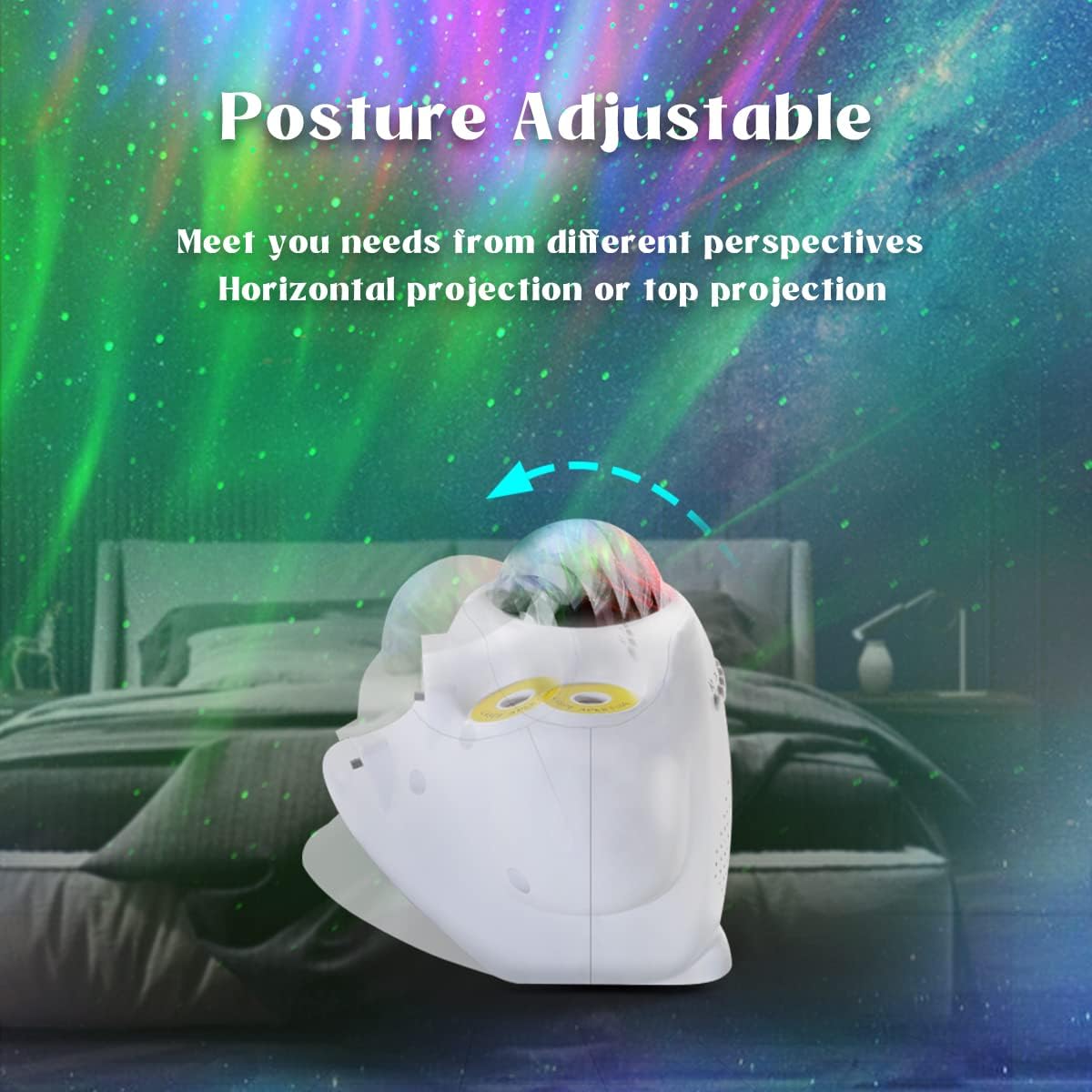
Image: The projector unit is shown with its base adjusted to a 45-degree angle, illustrating its posture-adjustable feature for varied projection angles.
4. Smartphone App Installation (Optional)
For enhanced control, download the dedicated smartphone application. Saili mo "Fuegobird" or scan the QR code (if provided on packaging) in your device's app store. Follow the in-app instructions for pairing.
Fa'atonuga o Galuega
1. Malosi / Malosi
Press the power button on the projector unit or the remote control to turn the device on or off.
2. Light Modes and Adjustments
The projector offers various lighting effects, including Northern Lights and starry sky projections. Use the "Light Mode" button on the remote or the app to cycle through different modes and color combinations.
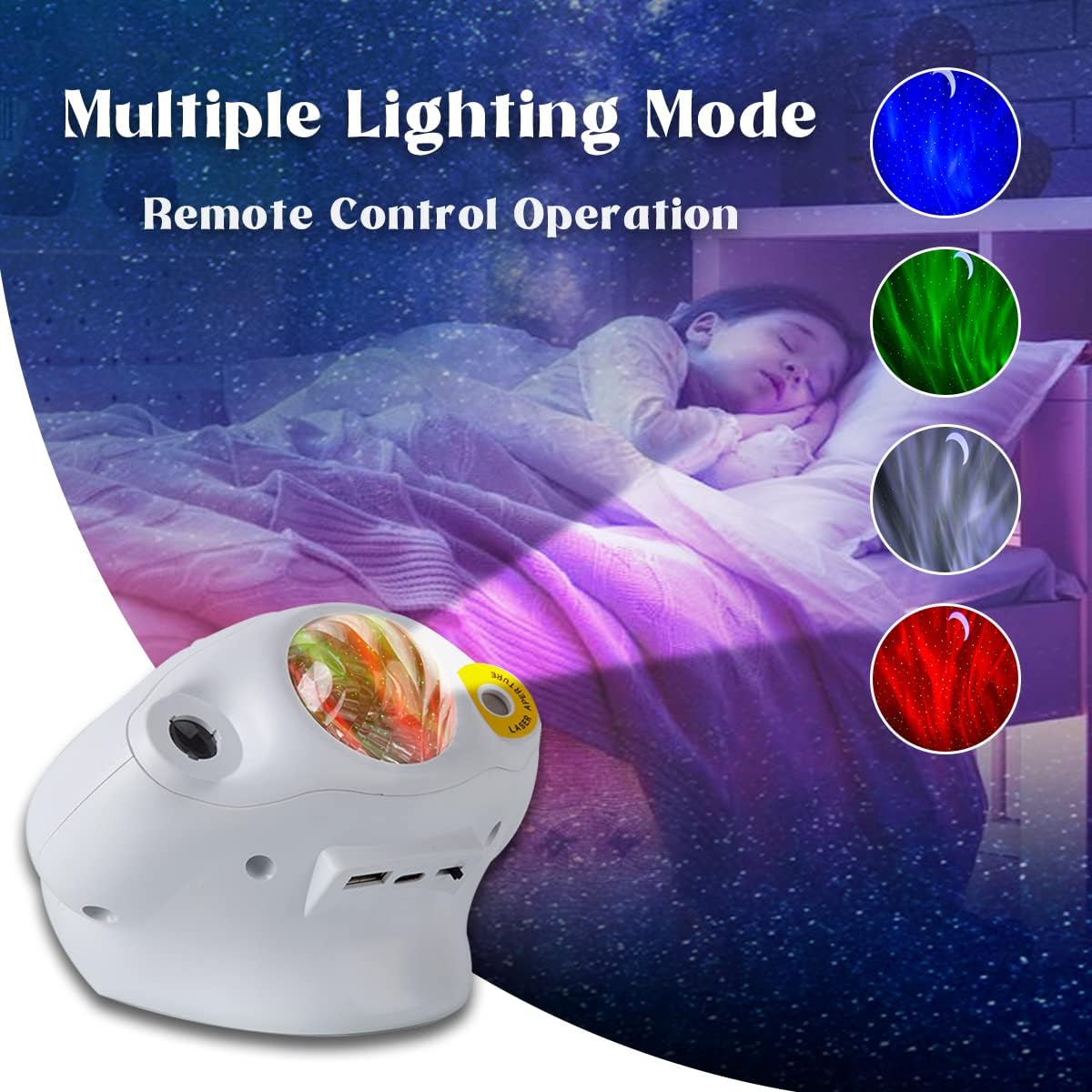
Image: The projector demonstrates its capability to display multiple lighting modes, including blue, green, white, and red aurora effects, controlled via remote.
- Fetuunaiga lanu: Use the color selection buttons on the remote or the color palette in the app to change the aurora colors.
- Pulea malamalama: Adjust the projection brightness using the dedicated buttons on the remote or the slider in the app.
- Saosaoa o Ta'amilosaga: Some modes allow adjustment of the rotation speed of the aurora effect.
3. Galuega Fa'atino a le Sipika Bluetooth
The projector features a built-in Bluetooth speaker.
- Activate Bluetooth on your smartphone or other audio device.
- Saili mo "Fuegobird" in the list of available devices and pair.
- Once connected, you can play audio through the projector's speaker.

Ata: Ua umaview of the projector's key features, including Bluetooth 5.0 music, remote control, simple operation, timing function, voice-activated mode, and HD projection.
4. White Noise and Nature Sounds
The device includes 16 soothing white noises and nature sounds. Use the dedicated buttons on the remote or the app to select and play these sounds.
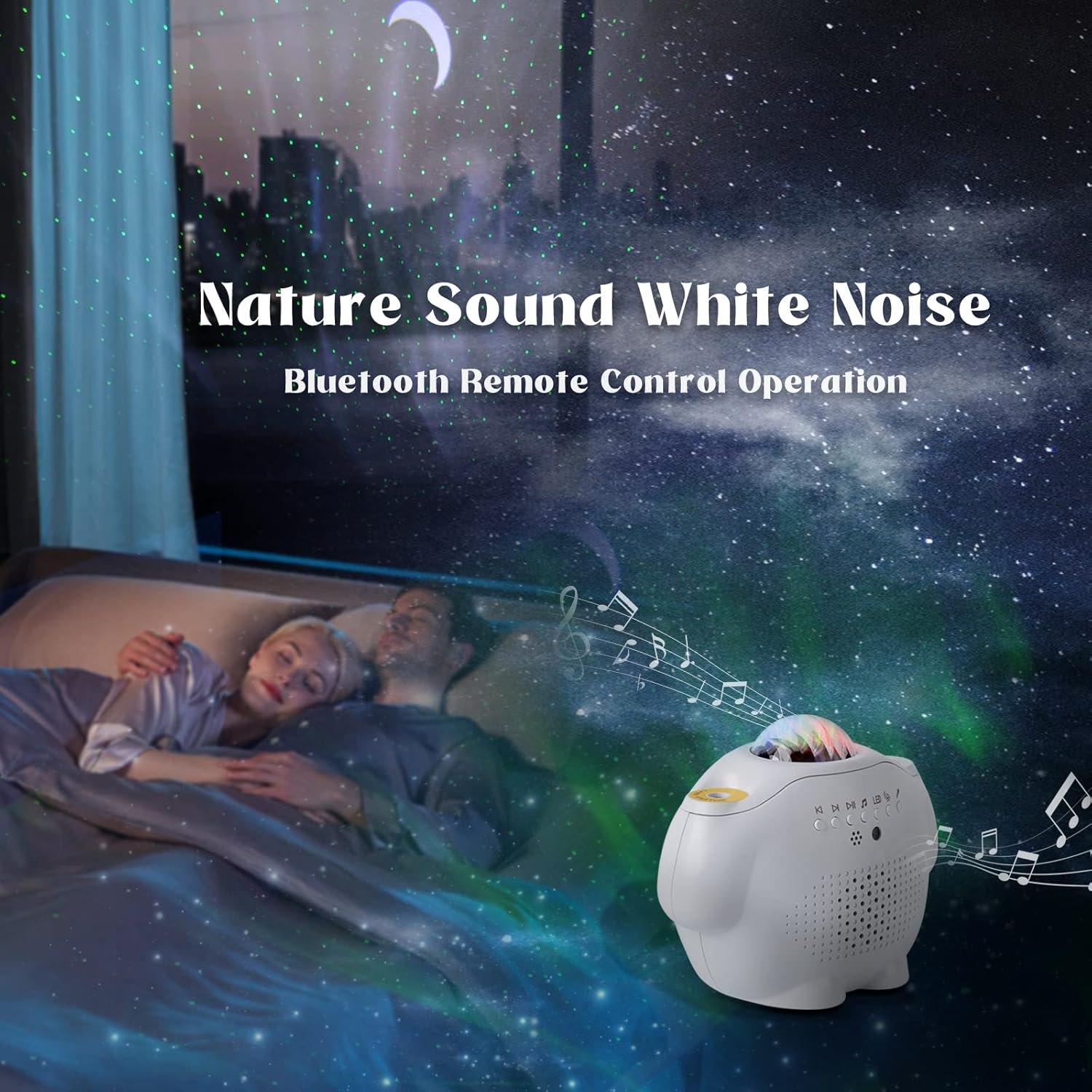
Image: The projector is shown in a bedroom setting, projecting stars and aurora while a couple sleeps, illustrating the white noise and Bluetooth remote control operation for a calming environment.
5. Faiga Pulea leo
In voice control mode, the projection lights will synchronize and change with the rhythm of music or sounds detected by the projector's microphone. Activate this mode via the remote or app.
6. Taimi Galuega
Set a timer for the projector to automatically turn off after a specified duration. Use the timer buttons on the remote control or the timer settings within the smartphone app.
7. Puleaina o le Polokalama Telefonipoto
The smartphone app provides comprehensive control over all projector functions, including light modes, colors, brightness, music playback, volume, and timer settings. Ensure the projector is paired with your device via Bluetooth for app control.

Image: The projector is depicted alongside a smartphone displaying its control interface, highlighting the smart control capabilities and its dual function as a lamp ma puna musika.
Tausiga
1. Fa'amamaina
To clean the projector, gently wipe the exterior with a soft, dry cloth. Do not use abrasive cleaners, solvents, or excessive moisture, as these can damage the device. Ensure the lens is free of dust for clear projection.
2. Teuina
When not in use for extended periods, store the projector in a cool, dry place, away from direct sunlight and extreme temperatures. It is recommended to keep it in its original packaging to protect it from dust and damage.
3. Pulea mamao Suiga maa
If the remote control becomes unresponsive, replace the AAA batteries. Dispose of used batteries responsibly according to local regulations.
Fa'afitauli
| Fa'afitauli | Mafuaaga e ono tupu | Fofo |
|---|---|---|
| Projector does not power on. | Leai se feso'ota'iga eletise po'o le uaea leaga. | Ensure the USB cable is securely connected and the power adapter is functioning. Try a different USB port or adapter. |
| Lights are not projecting. | Light mode is off or brightness is too low. | Press the light mode button on the remote/app. Increase brightness. Check for obstructions on the lens. |
| Ua faaletonu le fesootaiga Bluetooth. | E le o iai le masini i le pairing mode pe mamao tele foi. | Ensure Bluetooth is enabled on your device and the projector. Move closer to the projector. Restart both devices. |
| E le o tali mai le pule mamao. | Maa ua mate pe ua poloka. | Replace the remote control batteries. Ensure there is no obstruction between the remote and the projector's IR receiver. |
| E le aoga le pulea o leo. | Voice control mode not activated or microphone obstructed. | Activate voice control mode via remote or app. Ensure the projector's microphone is not covered. |
Fa'amatalaga
| Fa'aaliga | Fa'amatalaga |
|---|---|
| Fa'ailoga | Fuegobird |
| Numera Fa'ata'ita'i | B0B3J2Z5GD |
| Fua o Mea | 14.5 x 11.5 x 11 cm |
| mamafa | 472 g |
| Punavai Malosi | Battery Powered (USB cable for charging/power) |
| Ituaiga Puna Malamalama | LED |
| Fa'apitoa Fa'apitoa | Color Changing, Bluetooth Speaker, White Noise, Voice Control, Timer, Remote Control, App Control, 45-degree Angle Design |
| Ituaiga Potu | Maota, Nofoaga Ola |
| Feso'ota'i | Bluetooth |
Fa'amaonia ma Lagolago
Specific warranty information is typically provided with your purchase documentation or on the manufacturer's official website. For detailed warranty terms, technical support, or service inquiries, please refer to the Fuegobird official webnofoaga po'o fa'afeso'ota'i sa'o a latou 'au'aunaga fa'atau.
Fa'amolemole taofi lau fa'amaoniga o le fa'atau mo so'o se tagi fa'amaonia.