
Folasaga
This manual provides detailed instructions for the installation, operation, and maintenance of your SONOFF iFan04-L WiFi Ceiling Fan Light Controller. This device allows you to convert your traditional ceiling fan with lights into a smart device, controllable via a mobile application, a 433MHz RF remote, and voice commands through Amazon Alexa or Google Home.
Ua Umaview
The SONOFF iFan04-L is designed to integrate seamlessly with your existing ceiling fan and light fixture. It offers convenient control options and smart features to enhance your home environment.
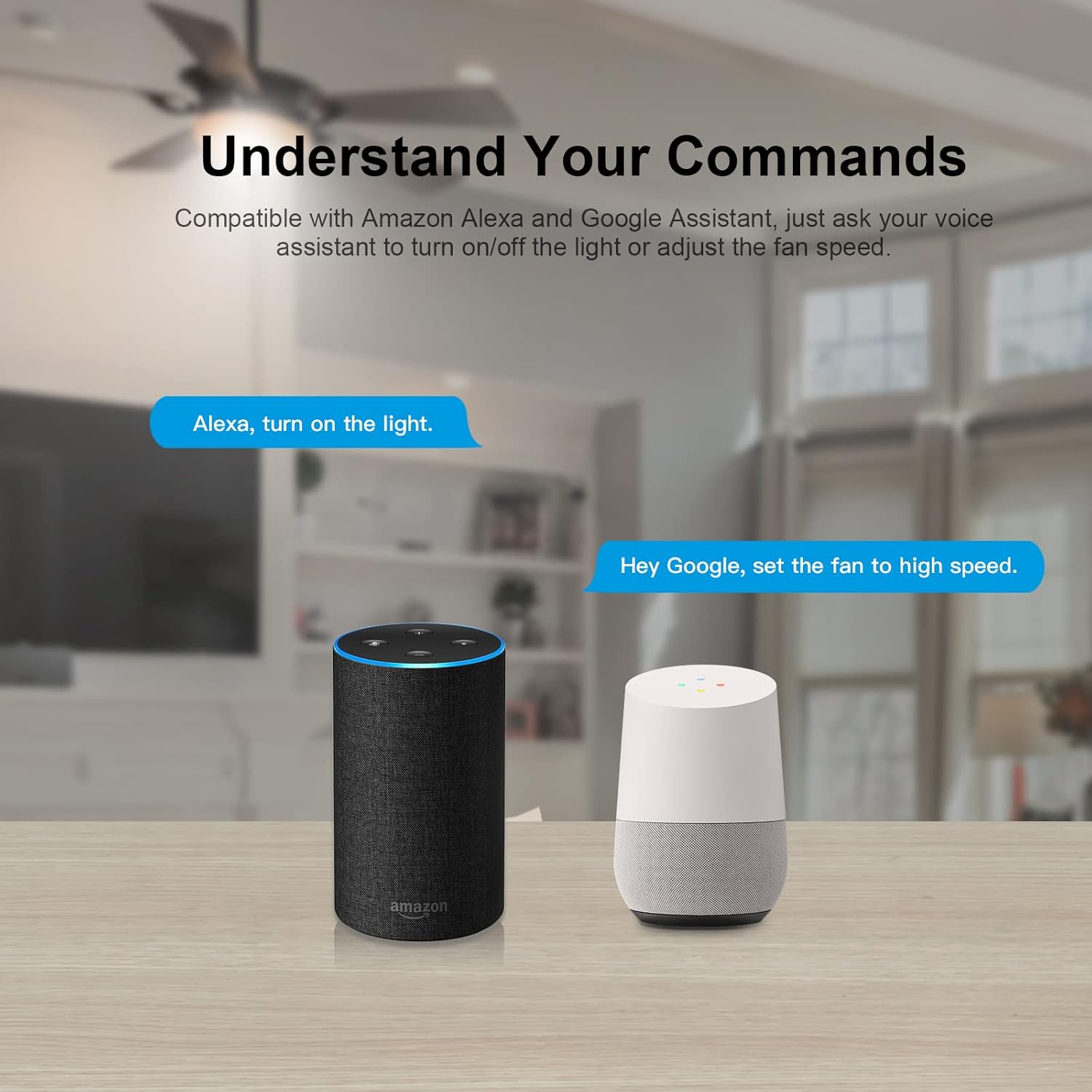
Image: The SONOFF iFan04-L controller unit and its accompanying 433MHz RF remote control.
Vaega Autu:
- Suiga tuusao: Easily replaces existing ceiling fan and light controllers.
- Metotia Pulea Tele: Control via eWeLink App, 433MHz RF remote (included), and voice commands.
- Fa'atonu Saosaoa Pepa: Select from low, medium, and high fan speeds.
- Fa'atonuga atamai: Set timers and schedules for automatic on/off operations.
- Tuufaatasiga Pulea leo: Faʻatasi ma Amazon Alexa ma Google Home mo le faʻaogaina e leai ni lima.
Fa'amatalaga
| Parameter | Taua |
|---|---|
| Fa'ata'ita'iga | iFan04-L |
| Fa'ailoga | Sonoff |
| Faagaioiga Voltage | 120 Volts |
| Fa'ailoga o lo'o iai nei | 2 Amps |
| Uatage | 720 watts |
| Feso'ota'iga Protocol | Wi-Fi (2.4G) |
| Metotia Pulea | Remote, App, Voice |
| Ituaiga Pule | Amazon Alexa, Android, Fesoasoani Google, iOS |
| Fua (L x W x H) | 2.05 x 4.92 x 5.24 inisi |
| Mea | Plastic, Stainless Steel (Contact Material) |
| Fa'ailoga Fa'ava-o-malo Puipuiga | IP00 |
| Tusipasi | CE, FCC, RoHS |
Fa'amatalaga Saogalemu
WARNING: Risk of Electric Shock. Installation should be performed by a qualified electrician or service personnel.
- Ia mautinoa ua tape le eletise i le circuit breaker a'o le'i fa'apipi'iina pe tausia.
- Do not exceed the maximum load ratings for the fan (2A) and light (2A).
- Use only indoors in dry locations.
- Mulimuli i tulafono fa'aeletise fa'apitonu'u uma ma fa'atonuga.
- Taofi le masini mamao mai le vai ma siosiomaga e maualuga le susū.
Seti ma Fa'apipi'i
1. Faatonuga Uea
Before proceeding, ensure the power supply to the ceiling fan circuit is turned off at the main circuit breaker. This device is designed to be installed within the canopy of your ceiling fan.
- motusia le Malosi: Turn off the power at the circuit breaker to avoid electrical shock.
- Remove Existing Controller: If an existing controller is present, carefully disconnect its wiring.
- Feso'ota'i Uaea:
- Connect the Live (L) wire from your household wiring to the 'L IN' terminal on the iFan04-L.
- Connect the Neutral (N) wire from your household wiring to the 'N IN' terminal on the iFan04-L.
- Connect the fan's Live (L) wire to the 'FAN OUT' terminal on the iFan04-L.
- Connect the light's Live (L) wire to the 'LIGHT OUT' terminal on the iFan04-L.
- Connect the fan's and light's Neutral (N) wires to the 'N OUT' terminal on the iFan04-L.
Note: Ensure all connections are secure and insulated with wire nuts or electrical tape.
- Mount Controller: Carefully place the iFan04-L controller inside the ceiling fan canopy, ensuring it does not interfere with fan operation.
- Faʻafoʻi Mana: Toe ki le paoa i le motumotu o le matagaluega.
2. eWeLink App Pairing
The eWeLink app allows you to control your fan and light from your smartphone.

Image: Screenshot of the eWeLink app displaying controls for fan speed and light.
- Download Polokalama Komepiuta: La'u mai le polokalama eWeLink mai le App Store (iOS) po'o le Google Play Store (Android).
- Resitala/Saini: Fausia se teugatupe pe ulufale i lau teugatupe eWeLink o loʻo iai nei.
- Ulufale Pairing Mode: Power on the iFan04-L. Press and hold the pairing button on the controller (or the Wi-Fi pairing button on the remote, if applicable) for 5 seconds until the Wi-Fi indicator flashes rapidly.
- Fa'aopoopo le masini: In the eWeLink app, tap the "+" icon to add a device. Select "Quick Pairing Mode" or follow the on-screen instructions for your specific device.
- Feso'ota'i ile Wi-Fi: Enter your 2.4GHz Wi-Fi network name and password. The device will connect to your network.
- Igoa Meafaigaluega: Once successfully added, name your device for easy identification.
3. 433MHz RF Remote Control Pairing
The included RM433 remote control provides an alternative way to control your fan and light.

Image: Diagram showing the functions of each button on the RM433 remote control, including light on/off, fan speed adjustments, and pairing options.
- Malosiaga: Ensure the iFan04-L controller has power.
- Ulufale Pairing Mode: Within 5 seconds of powering on the iFan04-L, press any button on the RM433 remote control. The fan or light will respond, indicating successful pairing.
- Clear RF Pairing (Optional): To clear existing RF pairings, long-press the "RF clearing" button on the remote for 5 seconds.
Fa'atonuga o Galuega
1. Using the eWeLink App
After successful pairing, open the eWeLink app and select your iFan04-L device. You will see controls for:
- Ki/Pepe moli: Toggle the light connected to the controller.
- Saosaoa ili: Select Low, Medium, or High fan speeds.
- Fa'atulagaina: Set single, repeating, or countdown timers for automated operation.

Image: A visual representation of a ceiling fan with indicators for low, medium, and high fan speeds, demonstrating the adjustable coolness levels.

Image: A smartphone screen showing the eWeLink app's scheduling feature, allowing users to set specific times for the ceiling fan and light to turn on or off.
2. Using the 433MHz RF Remote Control
The RM433 remote control provides direct physical control:
- Ki/Pepe moli: Press the light button to toggle the light.
- Fan On / Off: Press the fan button to toggle the fan.
- Saosaoa ili: Use the dedicated buttons for Low, Medium, and High fan speeds.
- Beep Ki/Pepe: Control the device's audible feedback.
3. Voice Control (Alexa & Google Home)
Integrate your iFan04-L with Amazon Alexa or Google Home for hands-free control.

Image: An Amazon Echo and a Google Home device shown with speech bubbles indicating voice commands like "Alexa, turn on the light" and "Hey Google, set the fan to high speed."
- Fa'afeso'ota'i le Akauni eWeLink: In your Alexa or Google Home app, enable the "eWeLink Smart Home" skill/service and link your eWeLink account.
- Su'e masini: Ask Alexa or Google Home to discover new devices.
- Poloaiga leo: Fa'aaoga poloaiga e pei o:
- "Alexa, turn on/off [Device Name] light."
- "Hey Google, set [Device Name] fan to high."
- "Alexa, turn off [Device Name] fan."
Tausiga
- Fa'amamaina: Solo le masini i se ie vaivai ma mago. Aua le fa'aaogaina ni vai fa'amama po'o ni aerosol.
- Faʻalauiloa Firmware: Siaki i lea taimi ma lea taimi le polokalama eWeLink mo faʻafouga o firmware o loʻo avanoa e faʻamautinoa ai le faʻatinoga sili ona lelei ma le saogalemu.
- Ma'a Mamao: Replace the battery in the RM433 remote control when its performance degrades.
Fa'afitauli
- Device not pairing with eWeLink app:
- Ensure your Wi-Fi network is 2.4GHz. The iFan04-L does not support 5GHz Wi-Fi.
- Check if the Wi-Fi indicator on the device is flashing rapidly, indicating pairing mode.
- Fa'amautinoa e sa'o lau fa'aupuga Wi-Fi.
- Fa'alatalata le masini i lau Wi-Fi router a'o e fa'apipi'i.
- Restart the device and try pairing again.
- E le o galue le pule mamao:
- Ensure the remote control is paired with the iFan04-L. Refer to the "433MHz RF Remote Control Pairing" section.
- Check the battery in the remote control and replace if necessary.
- Ia mautinoa e leai ni mea fa'alavelave i le va o le remote ma le controller.
- E le tali mai le pulea o le leo:
- Verify that your eWeLink account is correctly linked to Amazon Alexa or Google Home.
- Ensure the device name used in voice commands matches the name in the eWeLink app and Alexa/Google Home app.
- Siaki lau feso'ota'iga initaneti.
- Taumafai e toe su'e ni masini i lau Alexa po'o le Google Home app.
- Fan or light not responding after installation:
- Double-check all wiring connections as per the "Wiring Instructions" section. Ensure wires are securely connected and insulated.
- Confirm that power is restored at the circuit breaker.
- Ensure the fan and light are in good working order independently of the controller.
Fa'amatalaga Fa'amaonia
SONOFF products typically come with a limited warranty. Please refer to the warranty card included with your product or visit the official SONOFF website for the most current warranty terms and conditions. Keep your purchase receipt as proof of purchase for warranty claims.
Lagolago Tagata Fa'atau
For technical support, troubleshooting assistance, or further inquiries, please visit the official SONOFF support website or contact their customer service team. You can usually find contact information on the SONOFF website or within the eWeLink app.
Aloaia Webnofoaga: www.sonoff.com
eWeLink App: Check the "Help & Feedback" section within the app.