
Intel BX8071512100
Intel Core i3-12100 Alder Lake CPU Tusitaiala Fa'aaogā
Brand: Intel | Model: BX8071512100
1. Folasaga ma le Fa'asoloview
This manual provides essential information for the installation, operation, and maintenance of your Intel Core i3-12100 Alder Lake Desktop Processor. Please read this guide thoroughly before proceeding with installation to ensure proper functionality and longevity of your product.
Fa'amatalaga o oloa
The Intel Core i3-12100 is a high-quality desktop processor designed for various computing needs. It is part of the 12th Generation Alder Lake series, offering reliable performance for everyday tasks, gaming, and multimedia. For detailed care instructions, always refer to the manufacturer's product information sheet or packaging.
Vaega Autu
- Fa'atulagaga Autu: 4 Cores, 8 Threads
- Fa'asao Fa'avae: 3.3 GHz
- Fa'atelega Maualuga o le Turbo: E oʻo i le 4.3 GHz
- Cache: 12MB Smart Cache
- Ituaiga Socket: LGA 1700
- Malosi mo Fuafuaga vevela (TDP): 60W
- Tu'ufa'atasi Ata: Intel UHD Graphics 730 (where applicable, check specific model)

Ata 1.1: Luma view of the Intel Core i3-12100 processor packaging.
2. Seti Taiala
Proper installation is crucial for the performance and stability of your system. Please follow these steps carefully.
Ae e te le'i Amata
- Ensure your motherboard supports the LGA 1700 socket and is compatible with 12th Generation Intel processors.
- Fa'aputu mea e mana'omia: Phillips sikulati ulu, pa'u vevela (pe a le fa'apipi'i muamua i luga o le fa'amalo), ma le fusi tapulima e fa'agata.
- Galue i se siosiomaga mamā, malamalama lelei, ma e leai ni mea e fe'avea'i ai.
- Unplug your computer from the power outlet and discharge any residual power.
Laasaga Fa'apipi'i
- Saunia le Motherboard: Tatala le ki e taofi ai le soketi o le CPU i lau motherboard. Si'i i luga le load plate.
- Fa'apipi'i le Processor: Carefully align the triangular arrow on the corner of the processor with the corresponding arrow on the CPU socket. Gently place the processor into the socket. Do not force it.
- Puipui le Processor: Lower the load plate and then push down the retention lever until it clicks into place.
- Fa'aaogā le Fa'apipi'i vevela (pe a mana'omia): Afai e leai se thermal paste ua uma ona fa'apipi'i i lau CPU cooler, fa'apipi'i sina vaega itiiti e pei o le lapo'a o le pi i le ogatotonu o le integrated heat spreader (IHS) a le CPU.
- Fa'apipi'i le CPU Cooler: Align the cooler with the mounting holes around the CPU socket. Gently press down and secure the cooler according to its specific mounting mechanism (e.g., push pins, screws, or backplate).
- Fa'afeso'ota'i le ili mālūlū: Connect the CPU cooler's fan cable to the 'CPU_FAN' header on your motherboard.
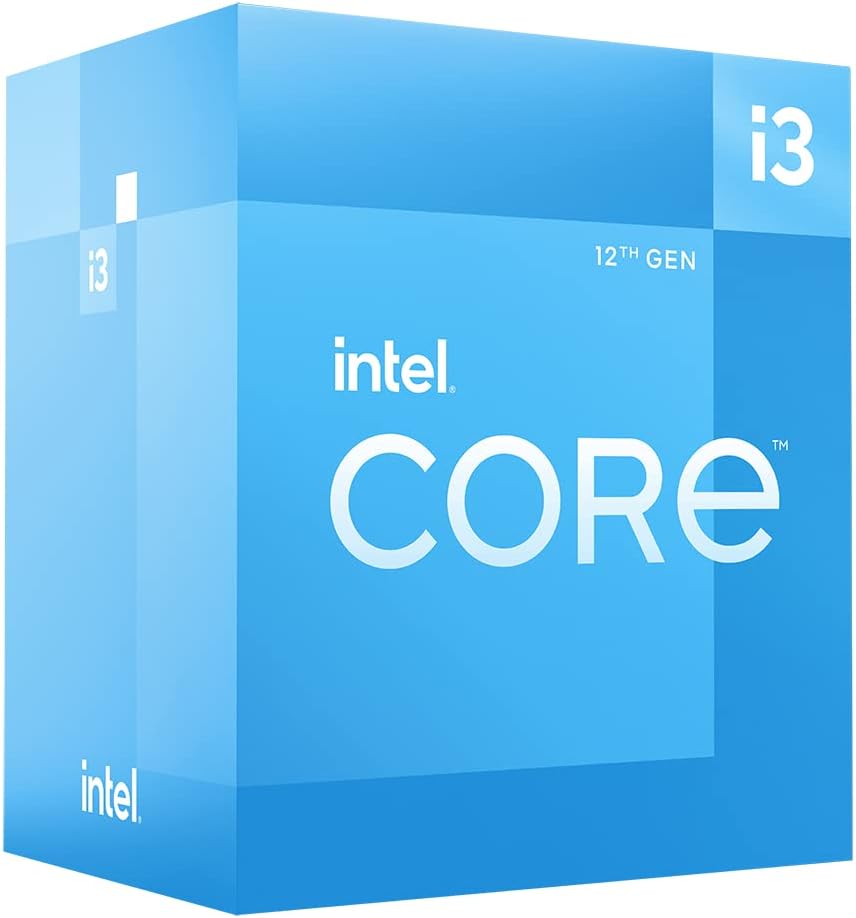
Ata 2.1: Fa'afagota view of the Intel Core i3-12100 processor packaging.

Ata 2.2: Itu view of the Intel Core i3-12100 processor packaging.
3. Fa'agaoioia lau Processor
Once installed, your Intel Core i3-12100 processor will operate automatically within your system. Here are some general considerations for optimal performance.
Pulea vevela
Maintaining proper cooling is essential for processor longevity and stable performance. Ensure your CPU cooler is functioning correctly and that your PC case has adequate airflow. High temperatures can lead to performance throttling or system instability.
Manatuga o Galuega
The Intel Core i3-12100 is designed to dynamically adjust its clock speed based on workload and thermal conditions. This technology, known as Intel Turbo Boost Technology, allows the processor to reach higher frequencies (up to 4.3 GHz) when needed, providing a responsive computing experience.

Figure 3.1: The processor box in a typical desktop computing environment.

Figure 3.2: Visual representation of the processor's performance capabilities in a gaming scenario.

Figure 3.3: Illustrative image demonstrating the processor's architecture and platform compatibility.

Figure 3.4: Marketing image highlighting the processor's role in enhancing gaming performance.
4. Tausiga
Minimal maintenance is required for your processor itself, but ensuring its operating environment is clean and cool will prolong its lifespan.
Ave'esea le Pefu
- Regularly clean dust from your CPU cooler's heatsink and fan using compressed air.
- Ensure your PC case filters are clean to prevent dust buildup inside the system.
Thermal Paste Reapplication
Over time, thermal paste can dry out and become less effective. If you notice consistently high temperatures, consider reapplying fresh thermal paste to the CPU's IHS. This typically involves removing the CPU cooler, cleaning off old paste, and applying new paste before reattaching the cooler.
5. Faʻafitauli
If you encounter issues with your system after installing the processor, refer to the common problems and solutions below.
| Fa'afitauli | Mafuaaga e ono tupu | Fofo |
|---|---|---|
| E le ta'a le faiga / Leai se fa'aaliga | CPU not seated correctly, CPU power cable disconnected, incompatible motherboard BIOS. | Re-seat the CPU, ensure all power cables are connected, update motherboard BIOS (if possible, using a compatible CPU). |
| System boots but shuts down quickly | Overheating due to improper cooler installation or insufficient thermal paste. | Check CPU cooler mounting pressure, reapply thermal paste, ensure CPU fan is connected and spinning. |
| Poor performance / Throttling | High temperatures, power limits, background processes. | Monitor CPU temperatures, ensure adequate cooling, check power settings in BIOS/OS, close unnecessary applications. |
| Le mautu o le polokalama / Fa'alavelave | Overheating, faulty RAM, unstable power supply, driver issues. | Verify CPU temperatures, test RAM, check power supply, update chipset and graphics drivers. |
6. Fa'amatalaga Fa'apitoa
Detailed specifications for the Intel Core i3-12100 processor.
| Fa'aaliga | Fa'amatalaga |
|---|---|
| Fa'ailoga | Intel |
| Fa'asologa | I3 1200 |
| Numera Fa'ata'ita'i Mea | BX8071512100 |
| Fa'ailoga Fa'atonu | Intel |
| Fa'ata'ita'iga PPU | Core i3 |
| Saosaoa PPU | 3.3 GHz |
| Numera o Processors | 4 |
| Socket CPU | LGA 1700 |
| Mea mamafa | 10.6 aunese |
| Fua o Mea | 1.18 x 0.79 x 0.04 inisi |
| Lanu | black / black |
| Ituaiga Manatu komepiuta | GDDR4 |
| Voltage | 1 Volts |
| Gagana | Igilisi |
| Aso Muamua Maua | Me 11, 2022 |
7. Fa'amaonia ma Lagolago
Intel provides a standard warranty for its processors. Please retain your proof of purchase for warranty claims.
Fa'amatalaga Fa'amaonia
The Intel Core i3-12100 processor is manufactured by Intel. For specific warranty terms and conditions, please refer to the official Intel warranty documentation included with your product or visit the official Intel support webnofoaga. E masani ona aofia ai fa'aletonu i meafaitino ma galuega i lalo ole fa'aoga masani.
Additional Protection Plans
Optional protection plans may be available for purchase from retailers. For example, a 4-Year Protection Plan or a Complete Protect plan may be offered. These plans are separate from the manufacturer's warranty and provide extended coverage or additional benefits.
Lagolago Fa'atekinisi
For technical assistance, troubleshooting beyond this manual, or warranty inquiries, please contact Intel's official customer support. You can typically find contact information on the Intel webnofoaga po'o totonu o lau afifiina o oloa.
Punaoa i luga ole laiga: Visit the official Intel website for drivers, software, and additional support documentation.
Ask a question about this manual
Ask about setup, troubleshooting, compatibility, parts, safety, or missing instructions. Manuals+ will review the question and use this page’s manual context to help answer it.