
Folasaga
This manual provides essential information for the proper setup, operation, and maintenance of your Philips 346B1C Curved Monitor. This 34-inch WQHD (3440 x 1440) display features a 100 Hz refresh rate, 5ms response time, and a curved VA panel for an immersive viewing experience. Key features include USB-C docking, MultiView functionality, FreeSync technology, LowBlue Mode, and FlickerFree technology for enhanced user comfort and productivity.

Ata: Luma view of the Philips 346B1C curved monitor, showcasing its ultrawide display and key features like WQHD, USB-C Docking, and MultiView.
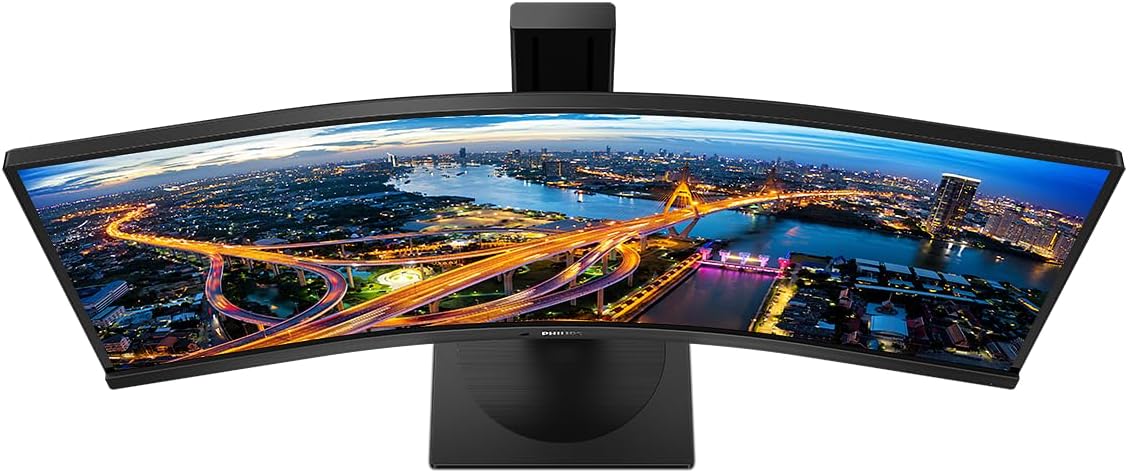
Ata: Luga-lalo view of the Philips 346B1C curved monitor, emphasizing the curvature of the screen.
O a mea i totonu o le Pusa
Fa'amautinoa o lo'o iai vaega uma a'o le'i fa'agasolo le seti.
- Philips 346B1C Curved Monitor
- Mata'itū Tu'u (Fa'avae ma Ua)
- Uaea Malosi
- Uaea HDMI
- Uaea DisplayPort
- USB-C ile USB-C Uaea
- USB-A to USB-B Cable (Upstream)
- Documentation (Quick Start Guide, User Manual CD)
Seti Faatonuga
1. Fa'apotopotoina o le Tu
- Fa'asaga i lalo le mata'itusi i luga o se mea vaivai ma mama e puipuia ai le maosi.
- Attach the stand neck to the monitor panel. Ensure it clicks securely into place or is fastened with screws if provided.
- Fa'apipi'i le fa'avae o le tulaga i le ua o le tulaga. Fa'amau le sikuliu lima po'o sikuliu mai le pito i lalo o le fa'avae.

Ata: Tua view of the Philips 346B1C monitor, showing the stand attachment point and VESA mounting holes.
2. Feso'ota'i i lau komepiuta
Fa'afeso'ota'i le monitor i lau komepiuta e ala i se tasi o auala nei:
- Feso'ota'iga HDMI: Fa'afeso'ota'i le tasi pito o le uaea HDMI i le port HDMI a le monitor ma le isi pito i le HDMI output a lau komepiuta.
- DisplayPort So'oga: Connect one end of the DisplayPort cable to the monitor's DisplayPort and the other end to your computer's DisplayPort output.
- USB-C So'oga: Connect one end of the USB-C cable to the monitor's USB-C port and the other end to your computer's USB-C port. This connection supports video, data, and power delivery (up to 90W) to your laptop.
For USB hub functionality, connect the USB-A to USB-B upstream cable from your computer to the monitor's USB-B upstream port.
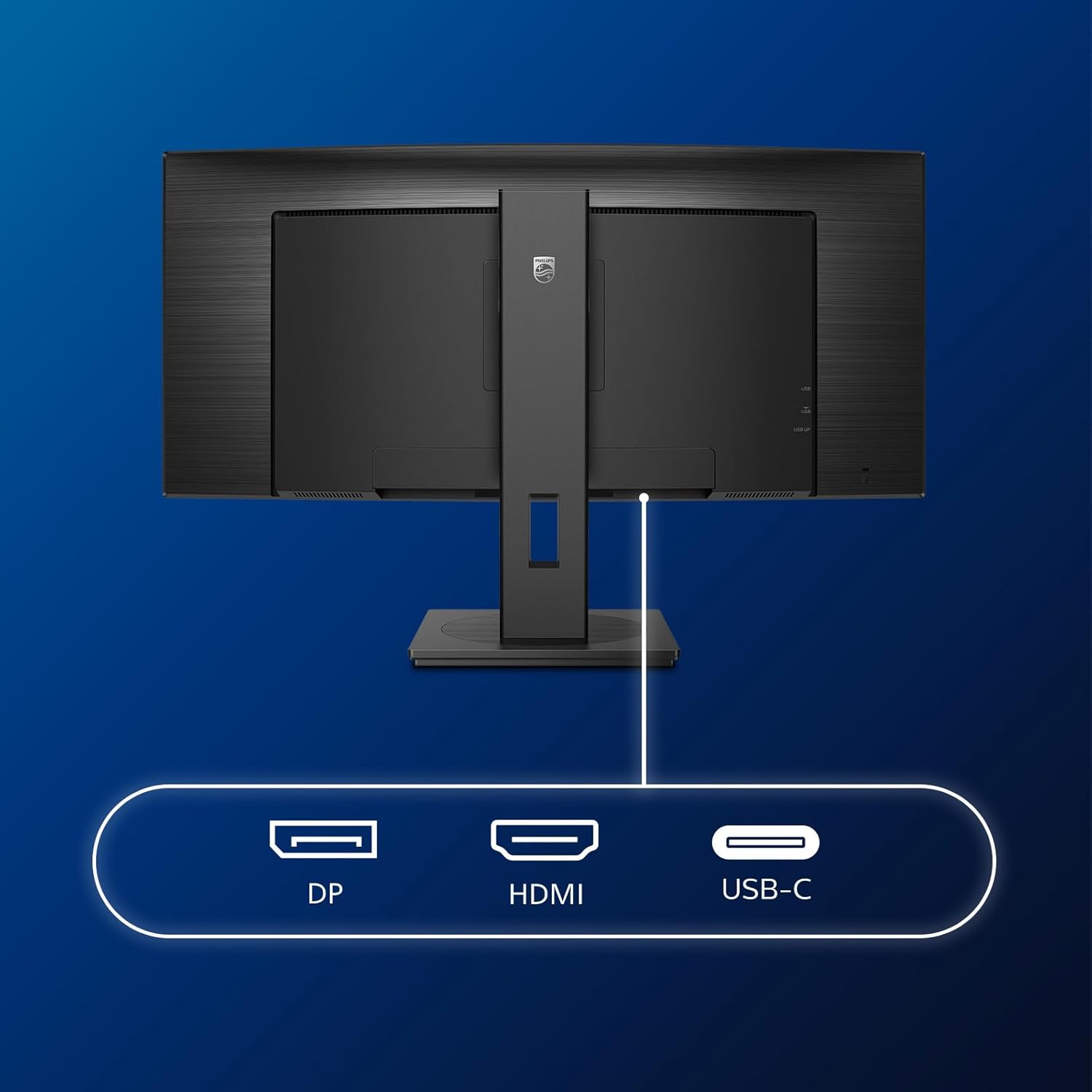
Ata: Auiliili view of the monitor's input ports, including DisplayPort (DP), HDMI, and USB-C, for connecting to various devices.
3. So'oga Malosi
Fa'afeso'ota'i le uaea eletise i le mea e tu'i ai le eletise o le mata'itū ona soso'o ai lea i se so'o eletise ua fa'avae.
4. Uluai Malosiaga Ki
Press the power button located on the monitor to turn it on. The monitor should automatically detect the input signal. If not, use the On-Screen Display (OSD) menu to select the correct input source.
Fa'atonuga o Galuega
Fa'aaliga i luga ole Lau (OSD) Menu
The OSD menu allows you to adjust various monitor settings. Use the joystick control located on the back or bottom of the monitor to navigate the menu.
- Malamalama/Fa'eseesega: Fetuuna'i le malamalama atoa ma le eseesega o le fa'aaliga.
- Fa'ailoga lanu: Fine-tune color temperature, gamma, and color space.
- Filifiliga mea e fai: Fesuia'i lima i le va o mea e ulufale ai HDMI, DisplayPort, ma USB-C.
- Leo: Adjust volume or mute the built-in speakers.
- Ata Ata: Select from preset picture modes (e.g., Standard, Gaming, Text).
TeleView Fa'atinoga
Le TeleView feature allows you to connect and view content from two different sources simultaneously on the screen. Access this feature through the OSD menu to select Picture-by-Picture (PbP) or Picture-in-Picture (PiP) modes and configure input sources.
Fa'amauina USB-C
When connected via USB-C, the monitor acts as a docking station, providing video, data transfer through its integrated USB hub, and power delivery to charge your connected laptop (up to 90W).
SmartErgoBase and Adjustability
The monitor's SmartErgoBase allows for ergonomic adjustments including height, swivel, and tilt to optimize your viewi le faamafanafanaga.

Image: Illustrations demonstrating the monitor's adjustable features, including height adjustment, tilt, and swivel capabilities for ergonomic positioning.
Mata Fa'amafanafana
- Faiga Manaua Maualalo: Reduces harmful shortwave blue light emissions to prevent eye strain. Activate this mode via the OSD menu.
- FlickerFree Technology: Regulates brightness and reduces flicker for more comfortable viewing. This feature is always active.
- PowerSensor & LightSensor: These sensors automatically adjust monitor brightness based on ambient light conditions and user presence, saving energy and reducing eye strain.
Tausiga
Faamamaina o le Mataitu
- Aveese i taimi uma le mata'itū a'o le'i fa'amamā.
- Fa'aaogā māmā se ie mālū e leai se liu oampfa'asusu ile vai po'o se fa'amama fa'amama lau e le fa'afefete.
- Do not use alcohol, solvents, or ammonia-based cleaners, as these can damage the screen surface.
- Wipe the screen gently to remove dust and smudges.
- Clean the monitor casing fa'atasi ai ma se ie vaivai ma mago.
Tausiga Lautele
- Aloese mai le tu'uina o mea mamafa i luga o le mata'itū po'o ona uaea.
- Aua le fa'aalia le mata'itu i le susulu o le la, vevela tele, po'o le malulu tele.
- Ia mautinoa le sa'o o le ea fa'ata'amilo i le mata'itū.
Fa'afitauli
Afai e te feagai ma fa'afitauli i lau mata'itū, va'ai i la'asaga masani e fo'ia ai fa'afitauli nei:
| Fa'afitauli | Mafuaaga e ono tupu | Fofo |
|---|---|---|
| Leai se ata i luga ole lau | motusia uaea eletise; motusia uaea vitiō; Le sa'o le mea e fa'aoga ai ua filifilia. | Ensure power cable is securely connected; Check video cable connections (HDMI, DP, USB-C); Select correct input source via OSD menu. |
| O ata e faanenefu pe fa'asese | Fa'ai'uga sese; Fa'afitauli aveta'avale ata. | Set display resolution to 3440 x 1440; Update graphics card drivers. |
| Leai se leo mai failauga | Volume muted or too low; Incorrect audio output selected on computer. | Adjust monitor volume via OSD; Check computer's audio output settings. |
| Ua le aoga ports USB | USB upstream cable not connected. | Ensure the USB-A to USB-B upstream cable is connected from the monitor to your computer. |
For further assistance, please refer to the support section or contact Philips customer service.
Fa'amatalaga
| Fa'aaliga | Fa'amatalaga |
|---|---|
| Fa'ailoga | Philips |
| Numera Fa'ata'ita'i | 346B1C |
| Tele lau | 34 Inisi (86 cm) |
| I'ugafono | 3440 x 1440 (WQHD) |
| Ituaiga Fa'atatau | 21:9 |
| Laufanua Mata | Curved VA Panel |
| Fua Fa'afouina | 100 Hz |
| Taimi Tali | 5 Milliseconds (GtG) |
| Fa'atusatusaga Fa'atusatusa | 3000:1 (Masa masani) |
| Malamalama | 300 cd/m² |
| Viewi le Angle | 178° (H) / 178° (V) |
| Feso'ota'i | 1x HDMI 2.0, 1x DisplayPort 1.2, 1x USB-C 3.2 Gen 1 (upstream, power up to 90W), 1x USB-B (upstream), 4x USB 3.2 (downstream), RJ45 (Ethernet) |
| Feso'ota'i Fa'atasi | FreeSync |
| Fofoga Fetalai | 2x 5W |
| Fa'aaogāga Malosiaga | 5 Watts (Eco mode) |
| mamafa | 7.8 Kilograms (with stand) |
Fa'amaonia ma Lagolago
Fa'amatalaga Fa'amaonia
This Philips monitor comes with a 2-tausaga le fa'amaoniaga a le gaosiga. The specific terms and conditions of the warranty can be found in the detailed documentation provided with your product or on the official Philips support website. Your statutory rights as a consumer are not affected by this warranty.
Lagolago Tagata Fa'atau
For technical assistance, product inquiries, or warranty claims, please visit the official Philips support website or contact their customer service department. You may need your monitor's model number (346B1C) and serial number (found on the back of the monitor) when contacting support.
Philips Lagolago Webnofoaga: www.philips.com/support