
Folasaga
This manual provides detailed instructions for the setup, operation, maintenance, and troubleshooting of your ARRIS SURFboard SBR-AC3200P AC3200 Wi-Fi Router. The SBR-AC3200P is designed to deliver high-speed Wi-Fi performance for various home networking needs, including gaming, streaming, and general internet use. It features tri-band concurrent operation and integrated RipCurrent G.hn Powerline technology for extended network coverage.
O mea o lo'o i totonu
- SURFboard WiFi Router SBR-AC3200P
- Uaea Ethernet
- Uaea Malosi AC
- Taiala vave amata
Seti
1. Sootaga Faaletino
Before powering on your router, ensure all necessary cables are connected securely. Refer to the diagram below for port identification.
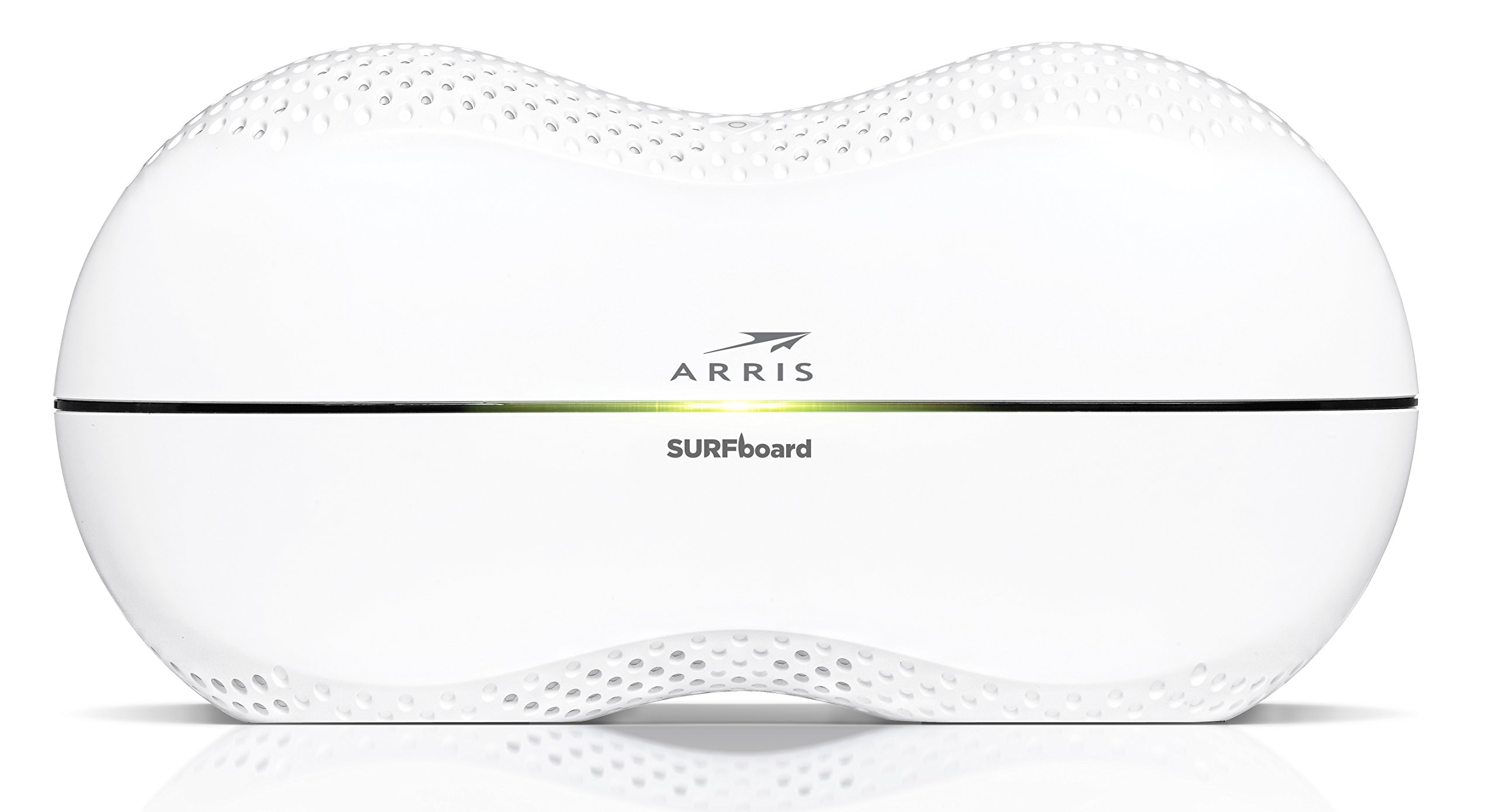
Ata: Tua view of the ARRIS SURFboard SBR-AC3200P AC3200 Wi-Fi Router. From left to right, the ports include the Power input, two USB ports (one USB 2.0, one USB 3.0), a blue WAN port for connecting to a modem, four yellow LAN ports (1-4) for wired devices, and a small recessed Reset button.
- Feso'ota'i ile Modem: Connect one end of the provided Ethernet cable to the WAN port (blue) on the back of the SBR-AC3200P router and the other end to your cable/DSL/fiber modem.
- Fesoʻotaʻi le Mana: Plug the AC power cord into the Power input on the router and then into an electrical outlet. The router will begin its startup sequence.
- Malosiaga: Wait for the router's indicator lights to stabilize. Refer to the Operating section for LED indicator meanings.
2. Fa'asologa Muamua
E mafai ona e fetuutuunai lau router e faʻaaoga ai le a web browser or the dedicated mobile application.
- Fa'aaogaina a Web Su'esu'e:
- Connect a computer to one of the router's LAN ports (yellow) using an Ethernet cable, or connect wirelessly to the default Wi-Fi network (SSID and password typically found on a label on the router).
- Tatala a web browser and enter the router's default IP address (e.g.,
192.168.0.1or192.168.1.1) into the address bar. Consult the Quick Start Guide for the exact IP address and default login credentials. - Follow the on-screen instructions to set up your internet connection and customize your Wi-Fi network name (SSID) and password.
- Fa'aaogā le Mobile App: Download the ARRIS SURFboard Manager app from your device's app store. Follow the in-app instructions to set up and manage your router.
Fa'agaioiga
Fa'ailoga LED
The front panel of the SBR-AC3200P features several LED indicators that provide status information:
- LED Malosiaga: Fa'ailoa mai le tulaga malosi o le masini.
- Initaneti LED: E faʻaalia ai le tulaga o le fesoʻotaʻiga initaneti.
- Wi-Fi LEDs (2.4 GHz and 5 GHz): Indicate the activity of the wireless networks.
- RipCurrent LED: Displays the status of the G.hn Powerline network.
Refer to the Quick Start Guide for specific color and blinking patterns and their meanings.
Feso'ota'i Meafaigaluega
- Meafaigaluega uaealesi: Saili mo your customized Wi-Fi network name (SSID) on your device and enter the password you created during setup.
- Masini uaea: Connect devices such as computers, gaming consoles, or smart TVs to the LAN ports (yellow) on the back of the router using Ethernet cables.
RipCurrent G.hn Technology
The SBR-AC3200P integrates RipCurrent G.hn Powerline technology, allowing you to expand your network coverage using your home's existing electrical wiring. This feature enables compatible SURFboard RipCurrent Wi-Fi Hotspots and network extenders (sold separately) to connect to your network through any electrical outlet, providing seamless Wi-Fi extension throughout your home.
Tausiga
- Faʻalauiloa Firmware: Periodically check the ARRIS support website for firmware updates. Keeping your router's firmware up-to-date ensures optimal performance, security, and access to new features. Firmware updates are typically performed through the router's web interface or the mobile app.
- Fa'amamaina: Keep the router in a clean, dust-free environment. Use a soft, dry cloth to clean the exterior. Do not use liquid cleaners or abrasive materials. Ensure ventilation openings are not blocked.
- Toe setiina le Router: If you experience persistent issues, you may need to reset the router. A soft reset (power cycle) can often resolve minor problems. For a factory reset, locate the recessed Reset button on the back of the router. Use a paperclip or similar pointed object to press and hold the button for approximately 10-15 seconds until the LEDs indicate a reset. Lapataiga: A factory reset will erase all custom settings, including your Wi-Fi name and password, reverting the router to its default factory settings.
Fa'afitauli
- Leai se So'oga Initaneti:
- Fa'amautinoa o lo'o galue sa'o lau modem ma o lo'o i ai se feso'ota'iga initaneti malosi.
- Check all Ethernet cable connections between the modem and the router's WAN port.
- Restart both your modem and router by unplugging them from power for 30 seconds and then plugging them back in, starting with the modem.
- Slow Wi-Fi Speeds or Dropped Connections:
- Ia mautinoa o loʻo tuʻu le router i se nofoaga tutotonu, mamao ese mai mea faʻalavelave ma mea faʻalavelave (e pei o microwave, telefoni e leai ni uaea).
- Siaki mo fa'afouga firmware.
- Consider using RipCurrent extenders to improve coverage in dead zones.
- Perform a factory reset if issues persist after other troubleshooting steps.
- Le mafai ona maua Fa'atonuga o le Router:
- Ia mautinoa o loʻo fesoʻotaʻi lau masini i le fesoʻotaʻiga a le router (uaea pe uaealesi).
- Verify the correct IP address for the router's web feso'ota'iga.
- Fa'amama le fa'aoga o lau su'esu'ega pe taumafai se isi su'esu'ega.
Fa'amatalaga
| Fa'aaliga | Fa'amatalaga |
|---|---|
| Fa'ailoga | ARRIS |
| Igoa Fa'ata'ita'iga | SBR-AC3200P |
| Faʻasalalauga Lelei | 802.11ac |
| Vasega Fa'aili Fa'atele | Tri-Band (N450 + AC1350 + AC1350) |
| Fua Fa'aliliuga Fa'amatalaga | E oo atu i le 3200 Megabits i le Sekone |
| Taulaga Ethernet | 4 Gigabit Ethernet Taulaga |
| Taulaga USB | 1x USB 2.0, 1x USB 3.0 |
| Fa'apitoa Fa'apitoa | RipCurrent G.hn Powerline Technology, Wi-Fi Beamforming |
| Maliega Puipuiga | WPA2, WPA3 |
| Metotia Pulea | App |
| Mea mamafa | 3.8 pauna |
Fa'amatalaga Fa'amaonia
The ARRIS SURFboard SBR-AC3200P AC3200 Wi-Fi Router comes with a 2-Tausaga Fa'atapula'a Fa'amaonia. For detailed terms and conditions, please refer to the warranty documentation included with your product or visit the official ARRIS support webnofoaga.
Lagolago
Mo nisi fesoasoani, lagolago fa'apitoa, pe mo le mauaina o isi punaoa, fa'amolemole asiasi i le lagolago aloaia a le ARRIS. website. You can find FAQs, updated documentation, and contact information for customer service.