
Folasaga
This manual provides essential information for the installation, operation, maintenance, and troubleshooting of your NVIDIA 699-51030-0501-101 graphics card. This component is designed for desktop computer systems to enhance graphics processing capabilities. Please read this manual thoroughly before proceeding with installation or use.
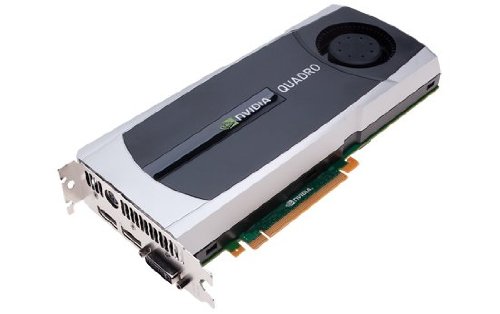
Image: NVIDIA 699-51030-0501-101 Graphics Card. This image displays the graphics card from an angled perspective, showing the cooling fan, heatsink, and the PCIe connector.
Taiala mo le Saogalemu
Mata'ituina ia puipuiga malu e puipuia ai le faaleagaina o le oloa po'o le manu'a ia te oe lava:
- Ia motusia le eletise mai lau komepiuta a'o le'i fa'apipi'iina pe aveese ni vaega.
- Fai se fusi tapulima e tetee atu i le pa'u po'o le pa'i soo i se mea u'amea fa'avae e alu ai le eletise.
- Uu le kata ata i ona pito e aloese ai mai le pa'i i vaega maaleale.
- Ia mautinoa e lelei le ea e alu aʻe ai le ea i totonu o le pusa o lau komepiuta e puipuia ai mai le soona vevela.
- Taofi le oloa mai le susu ma le vevela tele.
Seti
1. Siaki muai fa'apipi'i
- Verify your power supply unit (PSU) has sufficient wattage and appropriate connectors for the graphics card.
- Ensure your motherboard has an available PCI Express (PCIe) x16 slot.
- Confirm your computer case has adequate space for the graphics card dimensions.
- Ao mai mea faigaluega talafeagai: Sikulivili ulu Phillips, fusi tapulima e tete'e ai i le eletise (fautuaina).
2. Fa'apipi'i Meafaigaluega
- Pepe ma motu le feso'ota'iga: Shut down your computer completely and unplug the power cord from the wall outlet.
- Tulaga tatala: Aveese le itu pito o lau pusa komepiuta e maua ai le motherboard.
- Su'e le PCIe Slot: Identify an available PCI Express x16 slot on your motherboard. This is typically the longest slot.
- Aveese le ufiufi o le Slot: Remove the metal slot cover(s) from the back of your computer case corresponding to the PCIe slot you will use.
- Fa'aofi pepa fa'akomepiuta: Carefully align the graphics card with the PCIe slot. Press down firmly and evenly on both ends of the card until it is fully seated in the slot. You should hear a click from the retention clip.
- Kata malu: Secure the graphics card to the computer case using the screw(s) removed from the slot cover(s).
- Feso'ota'i Malosi (pe a talafeagai): If your graphics card requires additional power, connect the appropriate PCIe power cables from your PSU to the graphics card. This model (NVIDIA 699-51030-0501-101) may not require external power, but always check the card itself for connectors.
- Tapuni mataupu: Toe sui le paneli i autafa o le pusa o lau komepiuta.
- Reconnect Peripherals: Reconnect your monitor cable to one of the display outputs on the new graphics card. Reconnect all other peripherals and the power cord.
3. Fa'apipi'i Aveta'avale
- Malosiaga: Ki lau komepiuta.
- La'u mai Aveta'avale: Alu i le NVIDIA aloaia webnofoaga (www.nvidia.com/drivers) and download the latest drivers compatible with your NVIDIA 699-51030-0501-101 graphics card and operating system.
- Fa'apipi'i Aveta'avale: Run the downloaded driver installer and follow the on-screen instructions. It is recommended to perform a clean installation if prompted.
- Toe amata: Toe amata lau komepiuta pe a maeʻa le faʻapipiʻiina o avetaʻavale.
Fa'agaioiga
Once installed and drivers are updated, your NVIDIA 699-51030-0501-101 graphics card will automatically handle graphics processing for your system. You can verify its operation through your operating system's device manager or NVIDIA Control Panel.
- Paneli Pulea a le NVIDIA: Access the NVIDIA Control Panel (usually via right-click on desktop or through Windows Control Panel) to adjust display settings, 3D settings, and monitor various aspects of your graphics card.
- Fa'afouga ta'avale: Siaki soo le NVIDIA website for driver updates to ensure optimal performance and compatibility with new software and games.
Tausiga
O le tausiga lelei e fa'amautinoa ai le umi ma le fa'atinoina lelei o lau kata fa'atusa.
- Ave'esea le pefu: Periodically (e.g., every 6-12 months), power off and unplug your computer. Open the case and use compressed air to gently clear dust from the graphics card's heatsink and fan. Hold the fan blades to prevent over-spinning during cleaning.
- Tulaga Siosiomaga: Operate your computer in a clean, dry, and well-ventilated environment. Avoid extreme temperatures and humidity.
Fa'afitauli
Afai e te feagai ma faʻafitauli, faʻafesoʻotaʻi laʻasaga masani o loʻo mulimuli mai:
- Leai se Fa'aaliga Fa'aaliga:
- Ia mautinoa o lo'o feso'ota'i lelei le uaea mata'itū i le kata fa'ata ma le mata'itū.
- Ia mautinoa ua seti le monitor i le puna sao o le input.
- Check if the graphics card is fully seated in its PCIe slot.
- If applicable, ensure all PCIe power connectors are securely attached.
- Fa'ata'ita'i i se isi monitor po'o se uaea ese pe a mafai.
- Fa'afitauli Aveta'avale:
- Reinstall the latest drivers from the NVIDIA webnofoaga.
- Try rolling back to a previous driver version if issues started after an update.
- Use Display Driver Uninstaller (DDU) in Safe Mode to completely remove old drivers before installing new ones.
- Fa'afitauli o le Fa'atinoga (FPS Maualalo, Fa'aletonu):
- Ensure drivers are up to date.
- Check for overheating using monitoring software (e.g., MSI Afterburner, HWMonitor). Clean dust if necessary.
- Verify that your system meets the minimum requirements for the applications or games you are running.
- Siaki le vai o le sapalai o le eletise (PSU)tage; an insufficient PSU can cause performance issues.
- System Instability (Crashes, Blue Screens):
- Check for driver conflicts or corruption.
- Monitor temperatures to rule out overheating.
- Ensure the graphics card is properly seated and secured.
- Fa'agasolo meafaigaluega fa'apitoa e siaki ai fa'afitauli RAM.
Fa'amatalaga Fa'apitoa
Key specifications for the NVIDIA 699-51030-0501-101 graphics card:
| Numera Fa'ata'ita'i | NVIDIA 699-51030-0501-101 |
| Fa'ailoga | NVIDIA |
| Ata fa'akomepiuta | NVIDIA 699-51030 |
| Fa'atosina Fa'ata'ita'iga | NVIDIA |
| Masini Fegalegaleai | Desktop |
| ASIN | B01NBI92VC |
| Aso Muamua Maua | Tesema 8, 2016 |
Fa'amaonia ma Lagolago
This NVIDIA graphics card is covered by the manufacturer's standard warranty. For specific warranty terms, duration, and to register your product, please refer to the official NVIDIA website or contact NVIDIA customer support directly.
For technical assistance, driver downloads, and further support resources, visit the official NVIDIA support portal:
- Lagolago a le NVIDIA: www.nvidia.com/support