
1. Folasaga
The Bogen 1126-BG-UTI1 is a single-zone paging controller designed to integrate a paging system with a telephone system. It provides a reliable interface for making announcements over a public address system from a telephone. This manual provides detailed instructions for the proper installation, operation, and maintenance of your Bogen paging controller.
2. Fa'amatalaga Taua mo le Saogalemu
Fa'amolemole faitau ma ia malamalama i fa'atonuga uma mo le saogalemu a'o le'i fa'aogaina lenei masini. Taofi lenei tusi lesona mo le fa'aaogaina i le lumana'i.
- Punavai Malosi: Fa'afeso'ota'i le iunite i na'o le voltage.
- Susū: Aua ne'i tu'u le iunite i le timu po'o le susu.
- Savili: Ia mautinoa lelei le ea. Aua le poloka avanoa e savili ai.
- Au'aunaga: Fa'asino atu auaunaga uma i tagata faigaluega agavaa. Aua e te taumafai e tautua oe lava i lenei oloa.
- Fa'amamaina: Fa'amama na'o se ie mago.
3. Mea i totonu o le afifi
Fa'amautinoa o lo'o iai mea uma i totonu o le afifi:
- Bogen 1126-BG-UTI1 Single Zone Paging Controller Unit
- Fetuunaiga Malosi
- Tusi Lesona a le Tagata (lenei pepa)
- Meafaigaluega Fa'apipi'i (afai e talafeagai)
4. Oloa Ua Ovaview
The Bogen 1126-BG-UTI1 features various ports and indicators for seamless integration and operation. Familiarize yourself with the unit's components before installation.
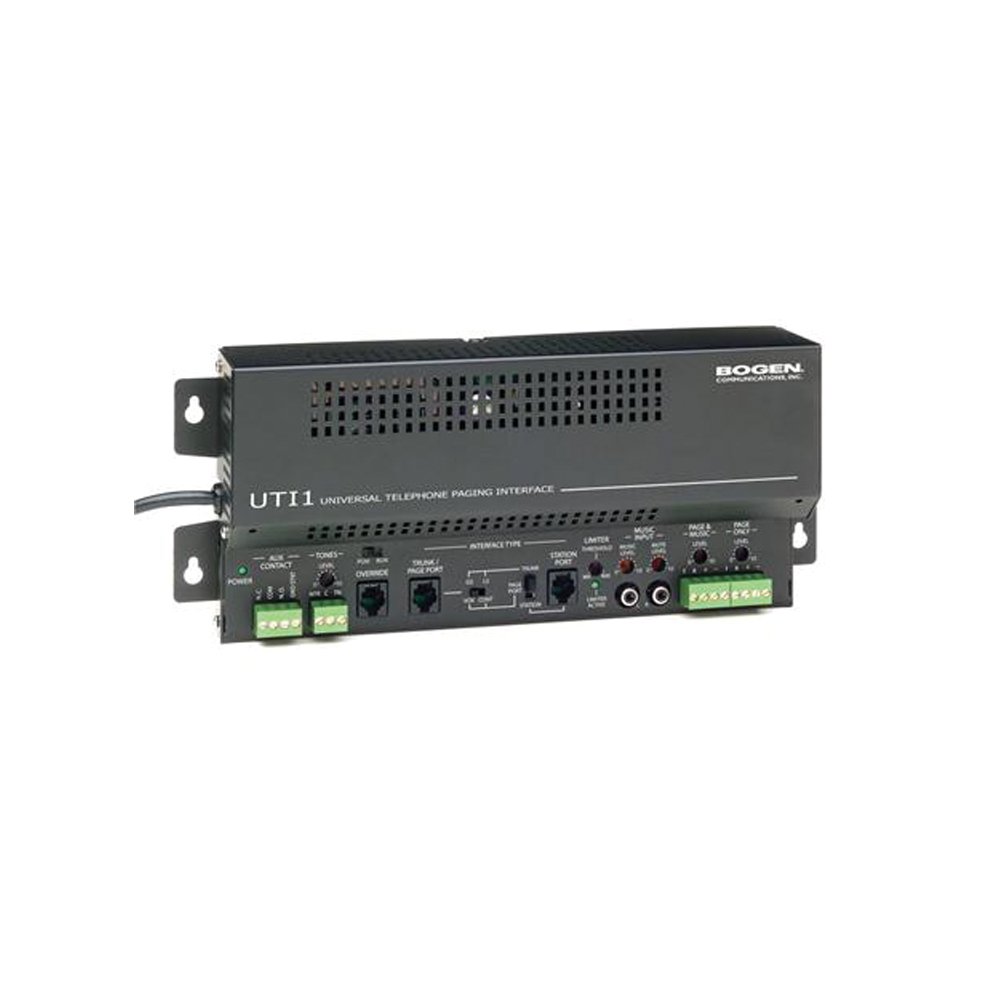
Ata 1: Luma view of the Bogen Single Zone Paging Controller. This image displays the main unit, highlighting its compact design and essential connection points for audio input and output, as well as power. The various ports and indicators are visible, crucial for understanding the device's functionality and connectivity.
4.1 Luma Vaega
- LED Malosiaga: Fa'ailoa tulaga mana.
- Pulea Tulaga Ulufale: Adjusts the audio input sensitivity.
- Puleaina Tulaga o Galuega: Fetuuna'i le leo e alu i fafo.
4.2 Laufanua Tua
- Telephone Line Input: RJ-11 jack for connecting to the telephone system.
- Fa'alogo leo: RCA or screw terminal connections for connecting to an ampola
- Malosiaga Ulufale: Jack for connecting the power adapter.
- MOH Output: Music On Hold output (if applicable).
5. Seti ma Fa'apipi'i
Follow these steps to properly install your paging controller:
- Fa'amauina: Choose a suitable location for the controller, away from excessive heat or moisture. Secure the unit using appropriate mounting hardware if desired.
- Connect to Telephone System: Connect an RJ-11 cable from your telephone system's paging port or a suitable analog extension to the "Telephone Line Input" on the controller. Consult your telephone system's manual for specific paging port details.
- Feso'ota'i i Ampola: Connect the "Audio Output" of the paging controller to an available input on your paging amplifier. Ensure correct polarity if using screw terminals.
- Fesoʻotaʻi le Mana: Plug the provided power adapter into the "Power Input" jack on the controller, then plug the adapter into a standard electrical outlet. The Power LED should illuminate.
- Initial Level Adjustment: Start with the Input Level and Output Level controls set to their minimum positions.
6. Fa'atonuga o Galuega
Once installed, the Bogen 1126-BG-UTI1 is ready for operation.
6.1 Making a Page
- From a telephone connected to the system, dial the designated paging access code or extension.
- Wait for the confirmation tone or voice prompt from the paging controller.
- Speak clearly into the telephone handset to make your announcement.
- Hang up the telephone when finished.
6.2 Adjusting Audio Levels
- Tulaga Ulufale: Slowly increase the "Input Level Control" until the paging audio is clear and distortion-free. If the audio is too loud or distorted, decrease this level.
- Galuega Faatino Level: Adjust the "Output Level Control" to achieve the desired volume through the paging speakers. This should be done in conjunction with the amppulea leo o le liifier.
7. Tausiga
The Bogen 1126-BG-UTI1 is designed for reliable operation with minimal maintenance.
- Fa'amamaina: Periodically wipe the unit with a soft, dry cloth. Do not use liquid cleaners or aerosols.
- Savili: Ensure that ventilation openings remain clear of dust and debris.
- So'oga: Occasionally check all cable connections to ensure they are secure.
8. Faʻafitauli
Afai e te feagai ma faʻafitauli, faʻafesoʻotaʻi le taʻiala lea e foʻia ai faʻafitauli:
| Fa'afitauli | Mafuaaga e ono tupu | Fofo |
|---|---|---|
| No power indicator light. | Power adapter not connected or faulty; no power at outlet. | Check power adapter connection. Verify outlet has power. Test with another adapter if available. |
| No paging audio. | Incorrect telephone system connection; amplifier off or muted; audio levels too low. | Verify telephone line and audio output connections. Ensure amplifier is on and not muted. Adjust Input and Output Level controls. |
| Paging audio is distorted. | Input or output levels set too high. | Reduce Input Level and/or Output Level controls. |
| Cannot access paging from telephone. | Incorrect paging access code; telephone system not configured correctly. | Confirm the correct paging access code with your telephone system administrator. Verify telephone system programming. |
If the problem persists after attempting these solutions, contact Bogen technical support.
9. Fa'amatalaga
| Fa'aaliga | Fa'amatalaga |
|---|---|
| Numera Fa'ata'ita'i | 1126-BG-UTI1 |
| Fa'ailoga | Bogen |
| Fuafuaga Mea | 15 x 9 x 7 inisi |
| Mea mamafa | 6.7 pauna |
| ASIN | B00P1AOL2C |
| Tufuga | Bogen |
| Paging Zones | Sone nofofua |
| Fegalegaleaiga | Telephone systems with analog paging port or extension |
10. Fa'amaonia ma Lagolago
Bogen products are designed for durability and performance. For specific warranty information, please refer to the warranty card included with your product or visit the official Bogen website. Technical support is available to assist with any questions or issues you may encounter.
- Lagolago i luga ole laiga: Asiasi www.bogen.com/support for FAQs, documentation, and contact information.
- Fa'amatalaga Fa'afeso'ota'i: Refer to the Bogen website for current telephone numbers and email addresses for technical assistance.