
Ua Umaview
The Western Digital My Book Essential external hard drive provides 1 terabyte (1TB) of storage capacity. Designed for data backup and archiving, this device features a high-speed USB 2.0 interface for broad compatibility and efficient data transfer. Its design allows it to power on and off in conjunction with your computer, contributing to energy efficiency.
Vaega Autu:
- Fa'apipi'i Faigofie: Plug-and-play functionality for immediate use.
- Fuafuaga Ma'oti: Occupies minimal desk space, similar to a paperback book.
- Malosiaga lelei: Automatically enters standby mode after 10 minutes of inactivity to conserve power.
- Fa'aoga USB 2.0: Offers convenient and compatible connectivity with various computers.
- PC and Mac Compatible: Supports Windows 2000/XP/Vista and Mac OS X 10.4.8 or later.
O a mea i totonu o le Pusa
Fa'amaonia o mea uma nei o lo'o aofia i lau afifi oloa:
- Western Digital My Book Essential WDBAAF0010HBK Hard Drive
- Uaea USB
- AC Fetuunaiga
- Fa'atonu Fa'atonu Fa'atonu
Seti Faatonuga
- Fa'afeso'ota'i le AC Adapter: Plug the AC adapter into the power port on the back of the My Book Essential drive. Connect the other end of the AC adapter to a power outlet.
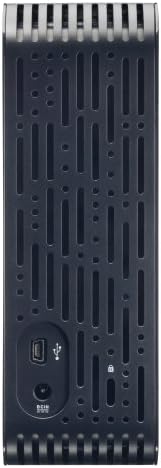
- Fa'afeso'ota'i le uaea USB: Connect one end of the supplied USB cable to the USB 2.0 port on the back of the My Book Essential drive. Connect the other end of the USB cable to an available USB port on your computer.
- Malosiaga: The drive is designed to power on automatically with your computer. Ensure your computer is powered on. The drive's indicator light will illuminate.
- Aloaia Muamua: Your operating system (Windows or Mac OS) should automatically detect and install the necessary drivers for the drive. This process may take a few moments.
- Avanoa ile Drive: Once installed, the drive will appear as a new storage device in 'My Computer' (Windows) or 'Finder' (Mac OS). You can now begin transferring files.
Note: For detailed operating system-specific instructions or if the drive is not recognized, refer to the included Quick Install Guide or the Western Digital support webnofoaga.
Fa'atonuga o Galuega
The Western Digital My Book Essential drive functions as an external storage device for your computer. It is ideal for backing up important files, storing large media libraries, and freeing up space on your computer's internal hard drive.
Fa'aliliuga Fa'amatalaga:
- Fa'aliliuina files, simply drag and drop them to and from the My Book Essential drive icon in your computer's file tagata su'esu'e.
- For optimal performance, ensure the USB cable is securely connected to a USB 2.0 port on your computer.
Pulea Malosiaga:
- The drive is designed to turn on and off with your computer. When your computer is shut down or put to sleep, the drive will also enter a low-power state.
- After 10 minutes of inactivity, the drive will automatically enter standby mode to save energy. It will resume normal operation when accessed.
Aveese saogalemu:
Always use the "Safely Remove Hardware" option (Windows) or drag the drive icon to the Trash/Eject (Mac OS) before disconnecting the USB cable to prevent data corruption.
Tausiga
Proper maintenance ensures the longevity and reliable performance of your external hard drive.
- Tausiga Faaletino: Ia teu le taavale i se nofoaga mautu ma lelei le ea. Aloese mai le fa'aalia i le vevela tele, susulu sa'o o le la, po'o le susu. Aua le poloka avanoa e fa'aoso ai le ea.
- Fa'amamaina: Faaaoga se ie vaivai ma mago e faamama ai le pito i fafo o le taavale. Aua le faaaogaina ni vai faamama po o ni aerosols.
- Fa'amaumauga Fa'amaumauga: Regularly back up critical data stored on the external drive to another location (e.g., cloud storage, another hard drive) to prevent data loss in case of unforeseen issues.
- Faʻalauiloa Firmware: Periodically check the Western Digital support webnofoaga mo so'o se fa'afouga firmware avanoa mo lau fa'ata'ita'iga.
Fa'afitauli
If you encounter issues with your My Book Essential drive, try the following steps:
- E le'i iloa le ta'avale:
- Ia mautinoa ua fa'afeso'ota'i lelei le AC adapter i le drive ma le outlet power o lo'o galue.
- Verify the USB cable is firmly connected to both the drive and your computer's USB port. Try a different USB port or cable if available.
- Toe amata lau komepiuta.
- Check your computer's Disk Management (Windows) or Disk Utility (Mac OS) to see if the drive is recognized but unformatted or unallocated.
- Fesiitaiga Fa'amatalaga e Lemu:
- Ensure you are using a USB 2.0 port. While compatible with USB 1.1, performance will be significantly slower.
- Aloese mai le ta'avaleina o le tele o talosaga faigata i taimi tetele file fesiitaiga.
- Check for background processes that might be using system resources or disk I/O.
- Drive Light Not On:
- Confirm the AC adapter is connected and the power outlet is active.
- If connected to a computer, ensure the computer is powered on and not in sleep mode.
For further assistance, consult the Quick Install Guide or visit the Western Digital support webnofoaga.
Fa'amatalaga
| Fa'aaliga | Fa'amatalaga |
|---|---|
| Igoa Fa'ata'ita'iga | My Book Essential Edition 2.0 |
| Numera Fa'ata'ita'i | WDH1U10000N |
| Avanoa Teuina Faatekinolosi | 1024 GB (1 TB) |
| Feso'ota'iga Tisiki Malosi | USB 2.0 |
| Tekinolosi Feso'ota'i | USB |
| Fa'afuafua Fa'apena Tisiki Malosi | 3.5 Inisi |
| Fa'amatalaga Hard Disk | Desktop |
| Masini Fegalegaleai | Desktop |
| Ituaiga Fa'apipi'i | Sulu i totonu |
| Lanu | Lanu uliuli |
| Saosaoa Fa'asolo le Tiki Mālō | 7200 RPM |
| Faitau Saosaoa | 60 Megabytes i le Lua |
| Saosaoa Ala o Faasalalauga | 30 MB/s |
| Mea Fa'amau | Hard Plastic or Metal |
| Mea mamafa | 3.3 pauna |
| System Manaoga | Available USB port, Windows 2000/XP/Vista, Mac OS X 10.4.8 or later |
Fa'amaonia ma Lagolago
The Western Digital My Book Essential drive comes with a 1-tausaga tapulaa faatapulaaina. For warranty claims, technical support, or to access additional resources such as drivers and software, please visit the official Western Digital support webnofoaga.
Lagolago i luga ole laiga: lagolago.wdc.com
Ata o oloa




Vitio oloa
WD Hard Drives: Essential vs. Home Edition Comparison
This video provides a comparison between the Western Digital My Book Essential and Home Edition hard drives, highlighting their physical differences and connectivity options. It helps users understand the specific features of the Essential model in context.